모듈형 사고의 마스터링: 모든 복잡한 프로젝트에 'Zone'이 필요한 이유
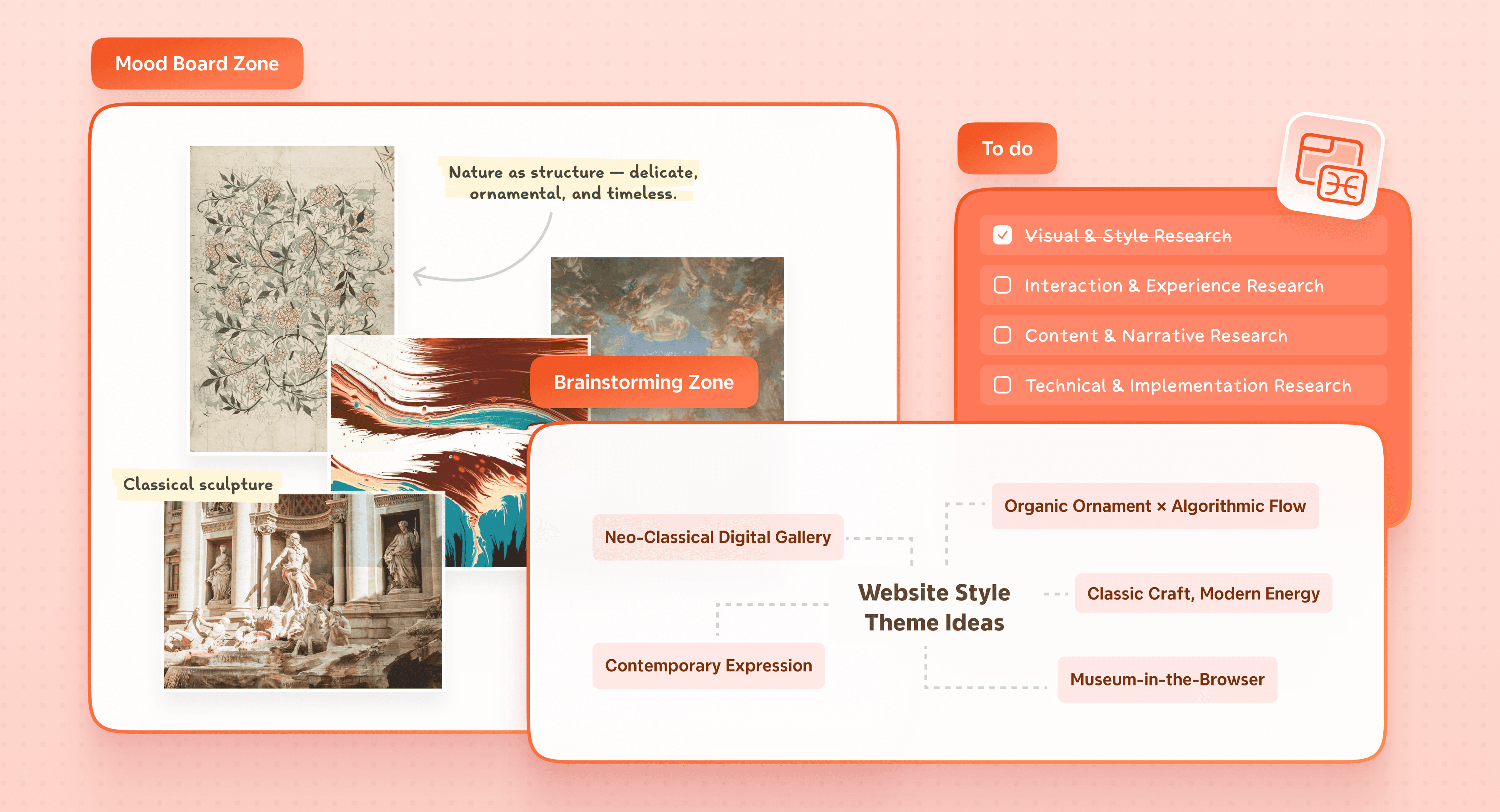
마인드맵이 너무 커져서 그 혼란에 압도 당한 적이 있습니까? 무한한 캔버스는 처음에는 해방감을 주지만, 아이디어가 넘쳐날수록 탐색의 악몽이 될 수 있습니다. 프로젝트가 확장될 때, 단일하고 방대한 맵에서 초점과 명확성을 유지하는 것은 끊임없는 싸움이 됩니다.
Xmind Zone은 이러한 복잡성에 대한 강력한 솔루션을 제공합니다. Zone은 콘텐츠를 별도의 모듈 단위로 그룹화하고 관리할 수 있도록 하는 맵의 독립된 영역입니다. 이 방법을 통해 관련 주제와 작업을 초점 있는 섹션으로 정리할 수 있으며, 나머지 맵에 영향을 주지 않고 편집, 내보내기 또는 인쇄할 수 있습니다. 이 기능이 어떻게 워크플로우를 혁신하고 가장 복잡한 아이디어에 깨끗하고 기능적인 구조를 제공할 수 있는지 알아보십시오.
마인드맵에서의 모듈식 사고 이해하기
모듈식 사고는 복잡성을 마스터하는 뇌의 자연스러운 방식입니다. 모든 것을 한꺼번에 처리하는 대신, 뇌는 정보를 모듈이라 불리는 더 작고 독립적인 클러스터로 분해합니다. 이러한 모듈은 서로 협력하여 더 큰 그림을 구축하는 동시에 변화에 유연하게 적응할 수 있게 합니다. 이는 각개의 작업에 집중하면서도 전체 프로젝트의 모습을 잃지 않는 이유입니다.
마인드맵 도구는 이 생물학적 원리를 화면에 가져옵니다. 중심 개념에서 브랜칭하여 시각적 구조를 생성함으로써 뇌의 연관적 사고방식을 모방합니다. 이 모듈식 레이아웃은 단순히 노트를 정리하는 것 이상의 기능을 하며, 복잡한 관계를 단순화하고 정보를 더 쉽게 검색할 수 있도록 합니다. 맵이 모듈식일 때, 각 섹션은 특정 목적을 제공하여 명확한 전체 프레임워크를 유지하면서 전문 세부사항을 관리할 수 있게 합니다.
무한 캔버스의 도전 과제

무제한 시각적 공간의 함정
디지털 마인드맵 도구는 무제한 캔버스 공간을 기능으로 광고하지만, 이 자유에는 숨겨진 비용이 따릅니다. 제한되지 않은 캔버스는 혼란을 초래합니다. 사용자는 큰 프리폼 보드를 정리하고 안내하는 것이 어려울 수 있다는 것을 알게 되었습니다. 많은 팀이 구조가 거의 없는 메모와 다이어그램으로 가득 찬 어지러운 캔버스를 가지게 되었습니다. 계획된 브레인스토밍 세션으로 시작된 것이 방대한 디지털 영역에 관련된 개념이 흩어지는 압도적인 혼란으로 번지게 됩니다.
공간 내비게이션의 어려움
큰 맵은 어지럽고 탐색하기 어려워지며, 노드가 확장될 때 가독성과 사용성이 떨어집니다. 사용자가 많은 가지를 가진 대규모 맵을 만들 때, 마인드맵 도구는 확장성 문제에 직면합니다. 나무 모양의 개요의 즐거운 성격이 프로젝트가 원래 계획 단계보다 확장되면 사라집니다. 한 해의 로드맵을 관리하려는 사용자는 메모와 선으로 엉켜있는 웹을 관리하는 상황에 직면하게 됩니다. 보드는 자연스러운 경계가 없으면 다루기 어려워지고, 팀은 어디에 무엇이 놓였는지 이해하거나 찾는 것이 어려운 상황에 처하게 됩니다.
팀 협업에서의 공간적 혼란
팀 협업은 무한 캔버스에 추가적인 복잡성을 도입합니다. 모든 회의는 나중에 이해하기 어려운 포스트잇으로 가득한 큰 창의적 보드를 남깁니다. 무한 캔버스의 자유는 브레인스토밍 세션이 끝날 때 무한한 혼동으로 이어지기 일쑤입니다. 다른 시간대에 일하는 분산된 팀은 방대한 디지털 작업 공간 내에서 특정 정보를 찾으려 할 때 특히 어려운 문제에 직면합니다. 화이트보드의 강점은 구조를 강제하지 않고 기능적 핀 내비게이션 시스템을 유지하는 데에 규율이 필요할 때 약점으로 바뀌게 됩니다.
큰 캔버스에서의 단일 계층 구조 실패
전통적인 계층적 마인드 맵은 연결이 비계층적이거나 순환적이거나 다차원적일 때도 아이디어를 부모-자식 관계로 강제합니다. 각 주제는 하나의 부모만 가질 수 있어 컴퓨터의 디렉토리 트리 구조와 같은 한계를 만듭니다. 큰 캔버스에서의 단일 계층 접근은 떨어진 분기 사이의 교차 연결을 시각적으로 나타내기 어렵게 합니다. 나무 구조는 단순한 계층적 배열에는 적합하지만, 때때로 필요한 교차 연결은 적절한 조직이 없으면 혼란스럽게 나타납니다.
Xmind의 Zone이 마인드 맵 조직을 어떻게 변형시키는가
Xmind에서 Zone이란 무엇인가?
Xmind Zone은 마인드맵에서 독립된 영역을 정의하여 콘텐츠를 단일 단위로 그룹화하고 관리할 수 있도록 설계된 특화 기능입니다. 기존의 주제를 단순히 감싸는 전통적인 경계와 달리, Zone은 무한 캔버스에서 전용 "컨테이너" 역할을 합니다. 관련 주제, 작업, 및 맥락을 함께 조직화하는 초점 있는 영역을 생성할 수 있어 훨씬 더 깔끔한 레이아웃을 만들어 줍니다.
Zone의 진정한 힘은 그 독립성에 있습니다. Zone 내의 콘텐츠 그룹을 이동, 복사, 재사용, 정제하여 맵의 다른 부분에 영향을 미치지 않고 처리할 수 있습니다. 이 모듈식은 가장 복잡한 구조도 다루기 쉽게 만듭니다. 게다가 Zone은 시각적 레이아웃 및 내보내기 경계로도 작용하여 Zone 내에서 보이는 것이 바로 문제 내보내거나 인쇄할 때의 작업입니다. 사실상 더 큰 프로젝트 맵 내에 "마이크로 캔버스"를 제공합니다.
Zone 관리로 워크플로우 마스터하기
작업 공간 생성 및 사용자 정의
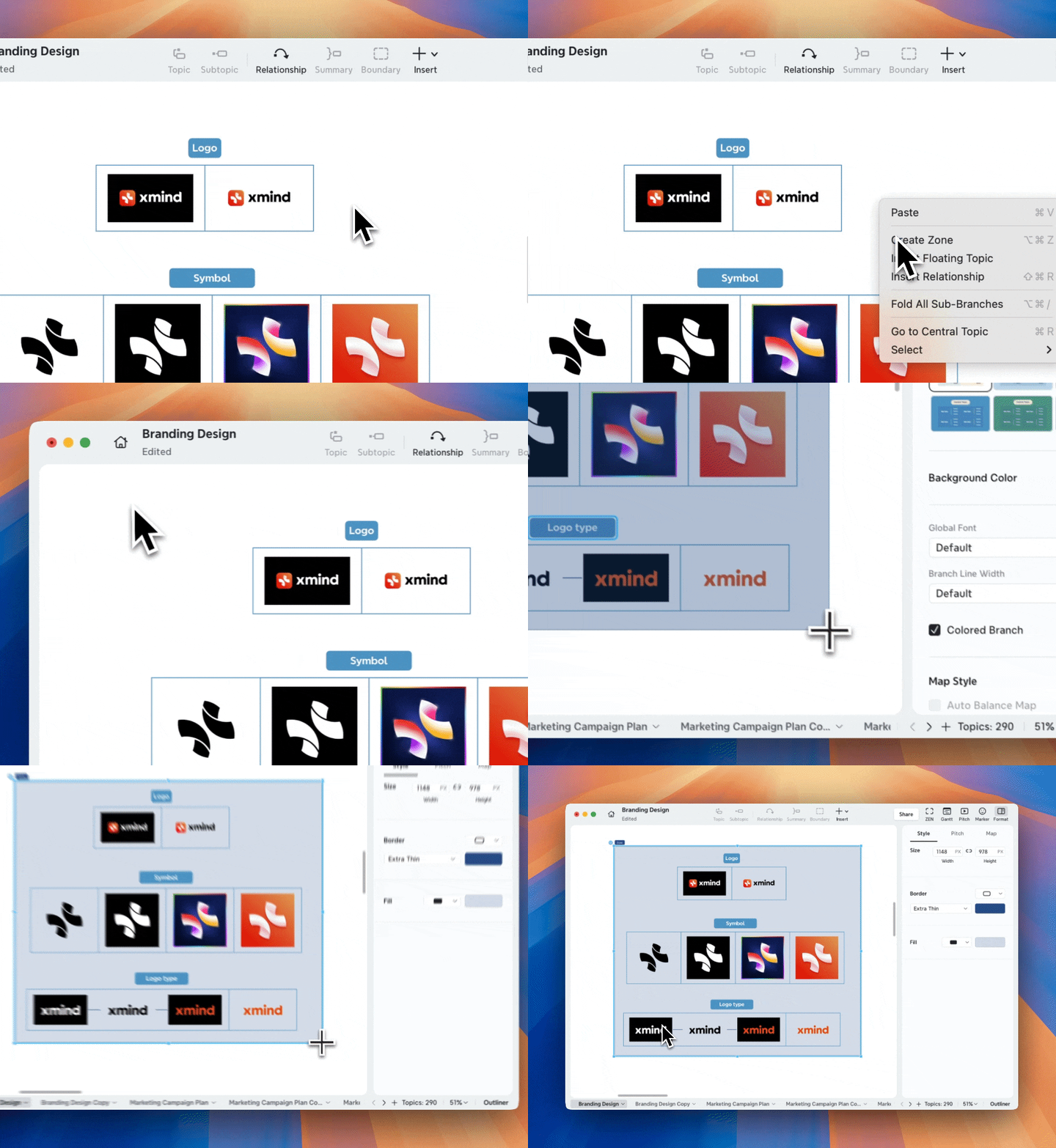
Zone 시작은 간단하며 어떤 워크플로우에도 자연스럽게 적응할 수 있습니다. 캔버스의 어느 곳에서나 마우스 오른쪽 버튼을 클릭하고 Create Zone을 선택하거나 도구 모음에서 Insert 버튼을 사용할 수 있습니다. 맵에 떠 있는 토픽이 이미 있는 경우, 선택하고 마우스 오른쪽 버튼을 클릭하여 Create Zone을 선택하면 즉시 감쌉니다. 고급 사용자를 위해 macOS에서는 Cmd + Option + Z, Windows에서는 Ctrl + Alt + Z 키보드 단축키로 프로세스를 더욱 빠르게 할 수 있습니다.
Once created, every Zone is fully customizable to suit your project's visual language. Each Zone features a title in the top-left corner that you can double-click to rename or remove if you prefer a cleaner look. You have total control over the aesthetics, including the ability to adjust the border color, thickness, and background fill color to highlight different project phases or team responsibilities.
Managing multiple Zones on a large canvas
Managing a complex map becomes effortless when you use Zones to organize your space. When you drag a Zone to a new position, every topic and image inside moves with it, keeping your internal layout perfectly preserved. If you need more room, simply click the Zone to reveal resize handles that allow you to adjust the width and height. For those who need perfection, you can even input precise pixel dimensions through the edit panel.
On an infinite canvas, Zones can overlap, and you can control their visual hierarchy using commands like Bring to Front or Send to Back. This layering allows you to stack related information effectively. To save time, you can also copy and paste an entire Zone—including all its styles and content—to replicate a successful workflow elsewhere on your map.
Focusing and sharing with precision
To keep your workspace from becoming cluttered, you can use the Collapse icon next to the Zone title. This hides the details of a specific section while leaving only the title visible, allowing you to stay focused on your current task. When you are ready to share your work, the Export Zone and Print Zone features ensure that you only send the relevant information. Xmind will generate a file containing only the content within that specific Zone, using the Zone’s title as the filename for a professional and targeted output.
For a deep dive into every button and setting, you can visit the Xmind User Guide to explore advanced technical details.
Implementing Zones for maximum productivity
Structuring projects with a step-by-step Zone workflow
To see how Xmind Zone changes your daily work, let's look at a common high-pressure scenario: Planning a Large-Scale Corporate Event. Instead of a single, massive map that feels impossible to manage, you can use Zones to create a modular project board.
Step 1: Identify your project pillars.
Start by creating floating topics for each major department, such as Venue, Guest Management, Marketing, and Catering. These will serve as the anchors for your independent workspaces.
Step 2: Create your independent Zones.
Select one or more floating topics that belong together. Right-click and choose Create Zone, or use the shortcut Cmd + Option + Z (macOS) or Ctrl + Alt + Z (Windows). You will see a rectangular boundary appear around your selection.
Step 3: Label and organize.
Double-click the title in the top-left corner of the Zone to give it a clear name, like "Marketing Promotion." You can now drag this Zone anywhere on the infinite canvas, and all topics inside will move as a single unit.
Step 4: Customize for visual clarity.
Select the Zone and use the format panel to change the background fill color or border thickness. For example, set the "Venue" Zone to blue and "Catering" to orange to distinguish team responsibilities at a glance.
Step 5: Build and refine.
Add sub-topics and details inside each Zone. If you need more space, click the Zone and drag the white handles to resize its width or height. You can even overlap Zones and use the Bring to Front or Send to Back commands to organize your layout layers.
Step 6: Manage focus.
When a department’s planning is on hold, click the Collapse icon next to its Zone title. This hides the detailed branches and leaves only the title visible, instantly decluttering your view.
Step 7: Targeted sharing.
When the Catering team needs their specific brief, right-click their Zone and select Export Zone or Print Zone. Xmind will generate a file containing only that section, automatically naming the file after the Zone title.
Expanding your modular mind map strategy
Beyond project management, the modular nature of Zones allows for localized processing of specialized information while maintaining a global view of the entire map.
Productivity Time-Boxing: Create dedicated Zones for different energy levels, such as a Focus Zone for deep work and a Chore Zone for administrative tasks like email.
Team Workload Tracking: In a shared map, assign a Zone to each team member to schedule meetings, divide assignments, and track dependencies at a glance.
Educational Subject Breakdown: Simplify complex subjects by organizing different chapters or themes into separate Zones, which helps students focus on one module at a time.
Idea Parking Lots: Use a Zone in a corner of your canvas to capture brainstorming outcomes and random thoughts that do not yet fit into your main project structure.
Ready to transform your workflow? If you are tired of fighting with a cluttered canvas, it is time to experience the power of modular organization firsthand. Try Xmind today and start using Zones to bring professional structure to your most ambitious ideas. Your most organized project is just one Zone away.
Conclusion
Complex mind maps just need structure, and Zones deliver exactly that. This feature revolutionizes chaotic infinite canvases into modular workspaces where each Zone operates independently while contributing to your broader vision. You gain control over sprawling projects through focused containers that simplify collaboration, navigation and export. Your mind mapping workflow becomes expandable without sacrificing clarity. Ready to become skilled at modular thinking? Start building structured mind maps with Xmind and experience how Zones bring order to complexity.
FAQs
Q1. How does a Zone differ from a traditional boundary in Xmind?
While a traditional boundary simply wraps around existing sub-topics within a tree structure, an Xmind Zone acts as an independent "container" on the infinite canvas. This means a Zone can hold floating topics, images, and notes that aren't necessarily connected to the main central idea. It provides a dedicated workspace that you can move, resize, or style without affecting the layout of the rest of your map.
Q2. Can I manage and navigate multiple Zones effectively on a large map?
Yes, Xmind Zone is built specifically to handle complex, sprawling maps. You can use the Collapse feature to hide the details of a Zone, leaving only its title visible to instantly declutter your view. Furthermore, because each Zone moves as a single unit, you can easily reposition entire project modules or use the Bring to Front/Send to Back commands to organize overlapping areas on your canvas.
Q3. Is it possible to share only a specific part of my map using Zones?
Absolutely. One of the most practical benefits of a Zone is its role as an export boundary. By right-clicking a specific Zone and selecting Export Zone, you can generate a standalone PDF or image file containing only the content within that area. This allows you to provide focused updates to stakeholders or team members without overwhelming them with the entire infinite canvas.