Dominando o pensamento modular: Por que todo projeto complexo precisa de uma Zona
Alguma vez se sentiu sobrecarregado pelo caos desordenado de um mapa mental que cresceu demasiado? Enquanto uma tela infinita parece inicialmente libertadora, rapidamente pode tornar-se num pesadelo de navegação à medida que as ideias transbordam. Quando os seus projetos escalam, manter o foco e a clareza num único e enorme mapa torna-se uma luta constante.
Xmind Zone fornece uma solução poderosa para esta complexidade. Uma Zone é uma área independente no seu mapa que lhe permite agrupar e gerir conteúdo como uma unidade separada e modular. Esta abordagem permite-lhe organizar tópicos e tarefas relacionados em secções focadas que pode editar, exportar ou imprimir sem afetar o resto do seu Mapa. Descubra como esta funcionalidade pode revolucionar o seu fluxo de trabalho e trazer uma estrutura limpa e funcional para as suas ideias mais complexas.
Compreendendo o pensamento modular em mapas mentais
O pensamento modular é a forma como o seu cérebro naturalmente domina a complexidade. Em vez de processar tudo de uma vez, o seu cérebro divide a informação em pequenos e independentes clusters chamados módulos. Estes módulos trabalham juntos para construir uma imagem maior enquanto permanecem suficientemente flexíveis para se adaptarem às mudanças. Esta arquitetura é a razão pela qual pode focar-se numa única tarefa sem perder a visão do projeto geral.
As ferramentas de mapeamento mental levam este princípio biológico para o seu ecrã. Ao ramificar a partir de um conceito central, cria uma estrutura visual que imita o pensamento associativo do seu cérebro. Este layout modular não só organiza notas; simplifica relações complexas e torna a informação muito mais fácil de recuperar. Quando o seu Mapa é modular, cada secção serve um propósito específico, permitindo-lhe gerir detalhes especializados enquanto mantém uma visão clara e global de toda a sua estrutura.
O desafio da tela infinita
A armadilha do espaço visual ilimitado
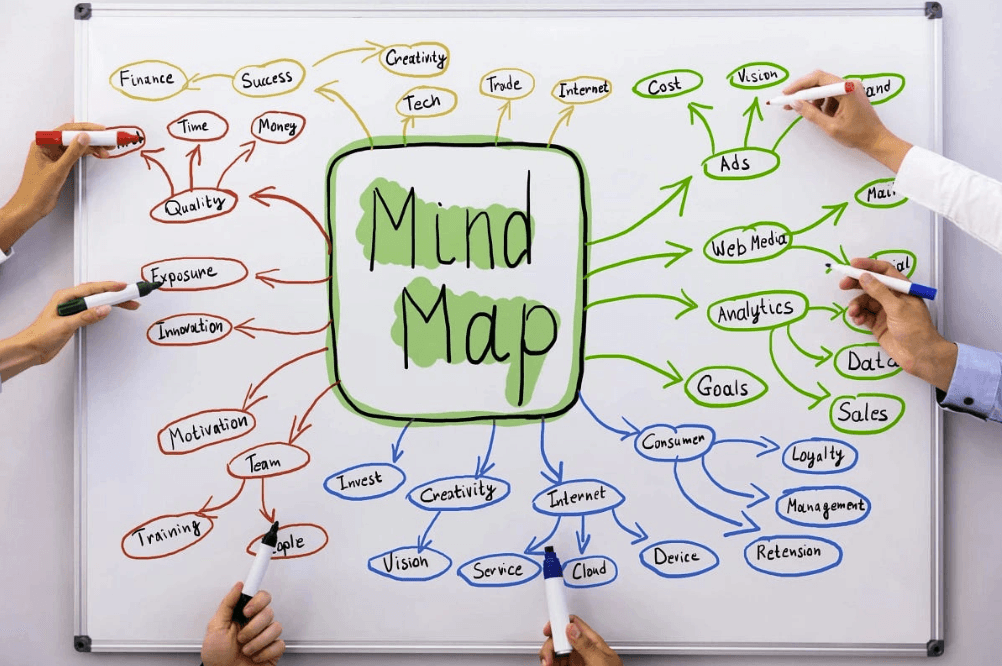
As ferramentas digitais de mapeamento mental promovem o espaço de tela ilimitado como uma funcionalidade, mas essa liberdade acarreta custos ocultos. Telas sem limites levam ao caos sem limites. Os utilizadores descobriram que grandes quadros de forma livre podem ser desafiadores para organizar e conduzir. Muitas equipas acabaram com telas desordenadas repletas de notas adesivas e diagramas com pouca estrutura. O que começa como uma sessão de brainstorming organizada transforma-se num alastramento esmagador onde conceitos relacionados espalham-se por vastos territórios digitais.
Perdido na luta de navegação espacial
Mapas grandes tornam-se desordenados e difíceis de percorrer à medida que a legibilidade e a usabilidade diminuem quando os nós se expandem. As ferramentas de mapeamento mental enfrentam problemas de escalabilidade quando os utilizadores criam mapas extensos com muitas ramificações. A natureza agradável da visão geral em forma de árvore perde-se uma vez que os projetos se expandem além das fases de planeamento original. Os utilizadores que tentam manter um único quadro como um roteiro anual acham-se a gerir uma teia emaranhada de notas e linhas que se torna "apenas uma confusão total". Os quadros tornam-se incontroláveis sem limites naturais, e as equipas têm dificuldades em encontrar ou fazer sentido do que foi colocado onde em quadros gigantes.
Confusão espacial na colaboração em equipa
A colaboração em equipa introduz complexidade adicional em telas infinitas. Cada reunião termina com um grande quadro criativo cheio de post-its que, mais tarde, se torna difícil de compreender. A liberdade da tela infinita muitas vezes traduz-se em confusão infinita uma vez que a sessão de brainstorming conclui. As equipas distribuídas que trabalham em diferentes fusos horários enfrentam desafios específicos ao tentar localizar informações específicas dentro de espaços de trabalho digitais extensos. A força do quadro branco torna-se uma fraqueza quando não impõe estrutura e requer disciplina para manter um sistema de navegação funcional por pinos.
Por que uma única hierarquia falha numa grande tela
Mapas mentais hierárquicos tradicionais forçam ideias em relações de pai e filho mesmo quando as conexões são não hierárquicas, cíclicas ou multidimensionais. Cada tópico pode ter apenas um pai, criando limitações como a estrutura de árvore de diretórios de um computador. Esta abordagem de hierarquia única torna-se problemática em grandes telas onde as conexões cruzadas entre ramos distantes são difíceis de representar visualmente. Enquanto a estrutura de árvore permite um arranjo hierárquico simples, conexões cruzadas que muitas vezes são necessárias aparecem caóticas sem organização adequada.
Como o Zone da Xmind transforma a organização de mapas mentais
O que é um Zone no Xmind?
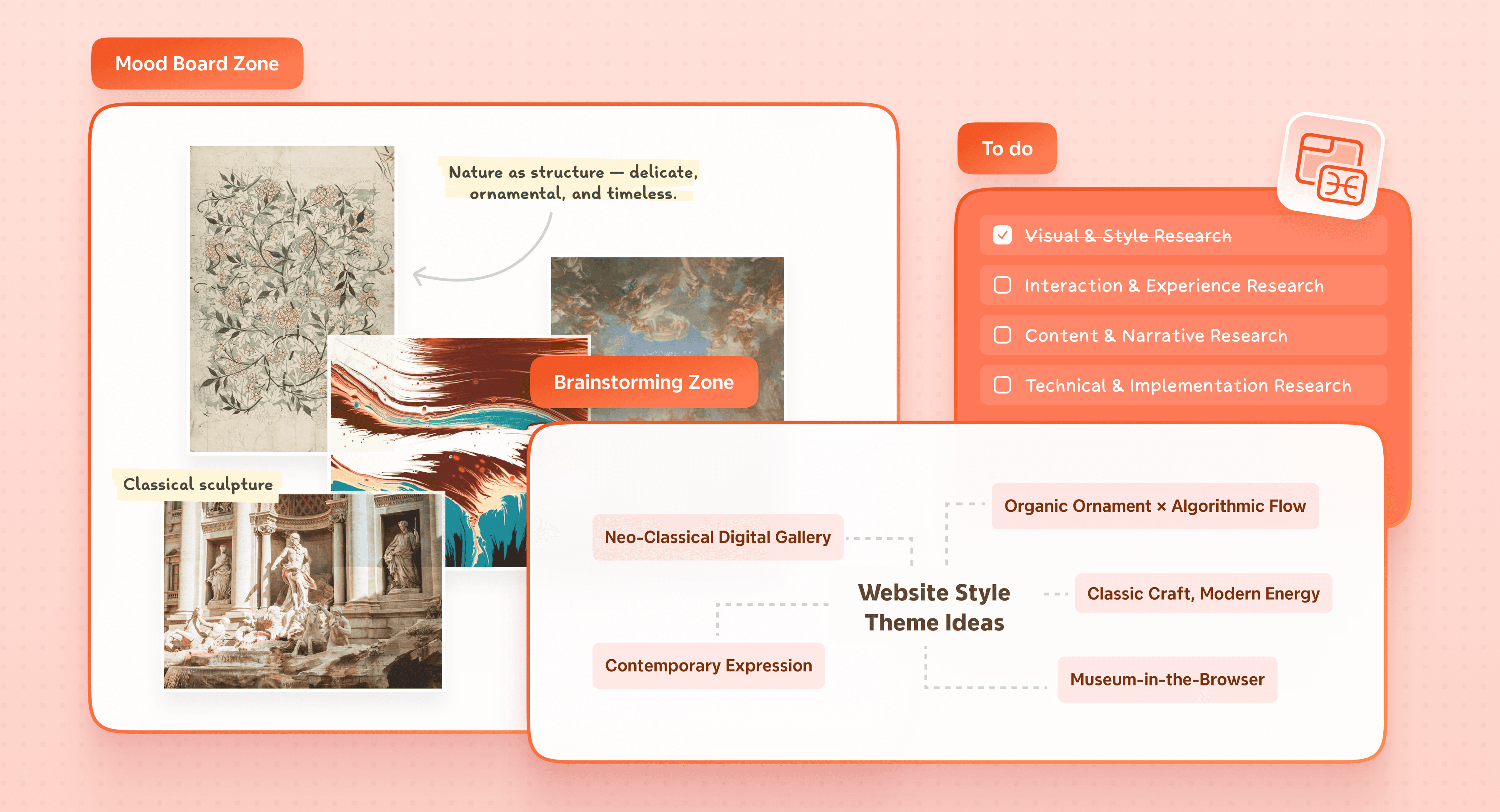
Xmind Zone é uma funcionalidade especializada projetada para definir áreas independentes no seu mapa mental onde pode agrupar e gerir conteúdo como uma única unidade. Ao contrário de limites tradicionais que simplesmente envolvem tópicos existentes, um Zone atua como um "contentor" dedicado na tela infinita. Permite-lhe criar áreas focadas que organizam juntos tópicos, tarefas e contexto relacionados, resultando num layout muito mais limpo.
O verdadeiro poder de um Zone reside na sua independência. Pode mover, copiar, reutilizar ou refinar um grupo de conteúdo dentro de um Zone sem afetar qualquer outra parte do seu Mapa. Esta modularidade faz com que mesmo as estruturas mais complexas sejam mais fáceis de gerir. Além disso, os Zones duplicam como layout visual e limites de exportação, significando que o que vê dentro do Zone é exatamente o que obtém quando imprime ou exporta o seu trabalho. Dá-lhe efetivamente "micro-telas" dentro do seu mapa de projeto maior.
Dominando o seu fluxo de trabalho com gestão de Zone
Criando e personalizando o seu espaço de trabalho
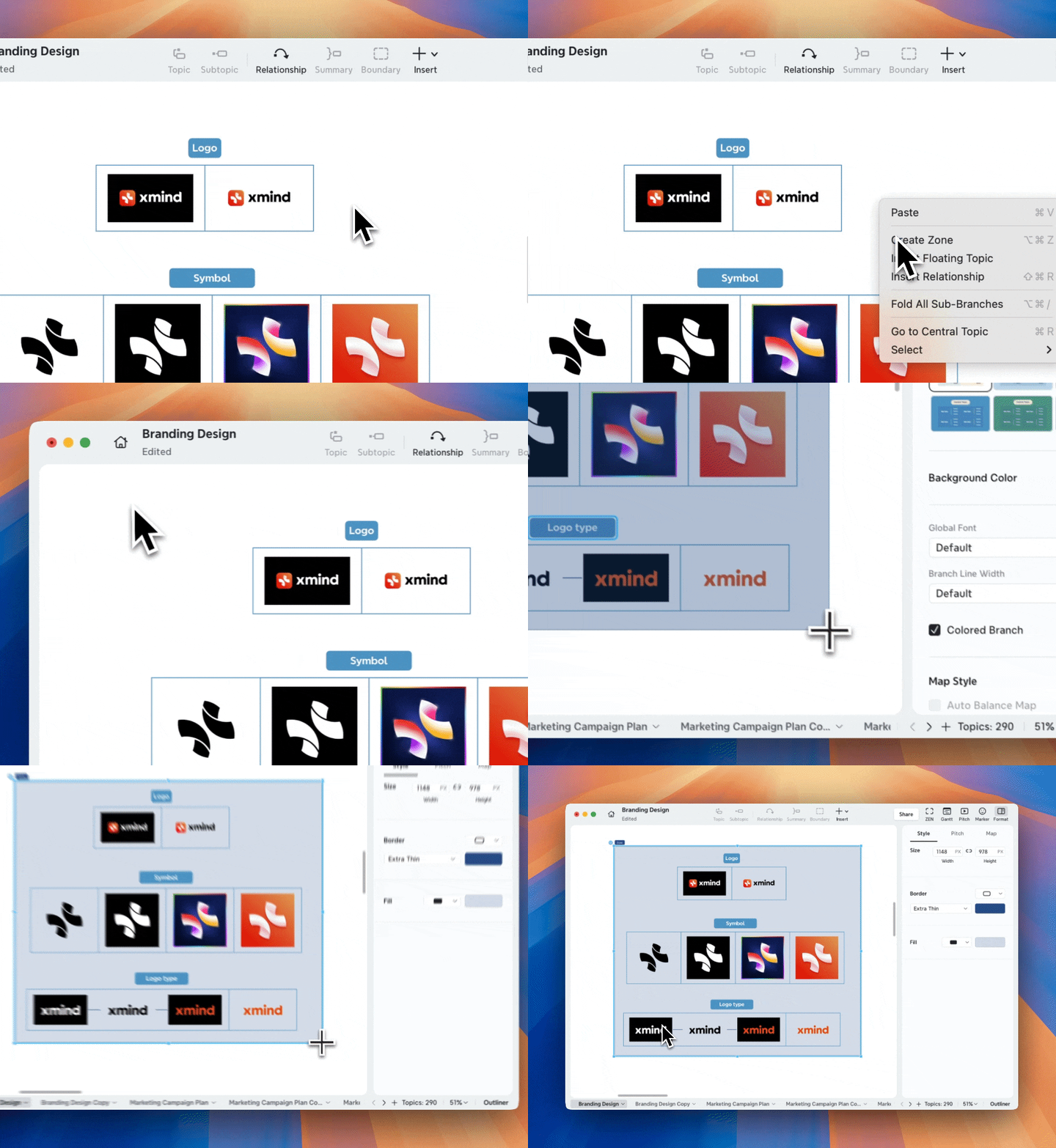
Iniciar um Zone é simples e encaixa-se naturalmente em qualquer fluxo de trabalho. Pode clicar com o botão direito em qualquer lugar da tela e escolher Criar Zone, ou usar o botão Inserir na barra de ferramentas. Se já tiver tópicos flutuantes no seu mapa, pode selecioná-los, clicar com o botão direito e escolher Criar Zone para envolvê-los instantaneamente. Para utilizadores avançados, os atalhos de teclado Cmd + Option + Z (macOS) ou Ctrl + Alt + Z (Windows) tornam o processo ainda mais rápido.
Uma vez criado, cada Zone é totalmente personalizável para se adequar à linguagem visual do seu projeto. Cada Zone apresenta um título no canto superior esquerdo que pode clicar duas vezes para renomear ou remover se preferir um aspeto mais limpo. Tem controle total sobre a estética, incluindo a capacidade de ajustar a cor da borda, espessura e cor de preenchimento de fundo para destacar diferentes fases do projeto ou responsabilidades da equipa.
Gerindo múltiplos Zones numa grande tela
Gerir um Mapa complexo torna-se fácil quando usa Zones para organizar o seu espaço. Quando arrasta uma Zone para uma nova posição, cada tópico e imagem no interior move-se com ele, mantendo o seu layout interno perfeitamente preservado. Se precisar de mais espaço, basta clicar no Zone para revelar alças de redimensionamento que permitem ajustar a largura e altura. Para aqueles que necessitam de perfeição, pode até inserir precisamente dimensões em pixels através do painel de edição.
Numa tela infinita, os Zones podem sobrepor-se e pode controlar a sua hierarquia visual usando comandos como Trazer para a Frente ou Enviar para Trás. Esta sobreposição permite que empilhe informações relacionadas de forma eficaz. Para poupar tempo, também pode copiar e colar um Zone inteiro — incluindo todos os seus estilos e conteúdo — para replicar um fluxo de trabalho bem-sucedido noutro lugar no seu Mapa.
Focando e partilhando com precisão
Para impedir que o seu espaço de trabalho se torne desordenado, pode usar o ícone Recolher ao lado do título do Zone. Isso esconde os detalhes de uma secção específica, deixando visível apenas o título, permitindo que mantenha o foco na sua tarefa atual. Quando estiver preparado para partilhar o seu trabalho, as funcionalidades Exportar Zone e Imprimir Zone garantem que apenas envia a informação relevante. O Xmind gerará um arquivo contendo apenas o conteúdo dentro dessa Zone específica, usando o título do Zone como o nome do arquivo para um resultado profissional e direcionado.
Para um mergulho profundo em cada botão e configuração, pode visitar o Guia do Usuário do Xmind para explorar detalhes técnicos avançados.
Implementando Zones para máxima produtividade
Estruturando projetos com um fluxo de trabalho Zone passo a passo
Para ver como o Xmind Zone muda o seu trabalho diário, vejamos um cenário comum de alta pressão: Planeamento de um Evento Corporativo em Grande Escala. Em vez de um único, massivo mapa que parece impossível de gerenciar, pode usar Zones para criar um quadro de projeto modular.
Passo 1: Identificar os pilares do seu projeto.
Comece por criar tópicos flutuantes para cada departamento principal, como Local, Gestão de Convidados, Marketing e Catering. Estes servirão como âncoras para os seus espaços de trabalho independentes.
Passo 2: Crie os seus Zones independentes.
Selecione um ou mais tópicos flutuantes que pertencem juntos. Clique com o botão direito e escolha Criar Zone, ou use o atalho Cmd + Option + Z (macOS) ou Ctrl + Alt + Z (Windows). Verá uma boundary retangular aparecer ao redor da sua seleção.
Passo 3: Rotule e organize.
Clique duas vezes no título no canto superior esquerdo do Zone para lhe dar um nome claro, como "Promoção de Marketing". Agora pode arrastar este Zone para qualquer lugar na tela infinita, e todos os tópicos no interior mover-se-ão como uma única unidade.
Passo 4: Personalize para clareza visual.
Selecione o Zone e use o painel de formatação para mudar a cor de preenchimento de fundo ou a espessura da borda. Por exemplo, defina o Zone "Local" para azul e "Catering" para laranja para distinguir as responsabilidades da equipa de relance.
Passo 5: Construa e refine.
Adicione subtópicos e detalhes dentro de cada Zone. Se precisar de mais espaço, clique no Zone e arraste as alças brancas para redimensionar a sua largura ou altura. Pode até sobrepor Zones e usar os comandos Trazer para a Frente ou Enviar para Trás para organizar as camadas do layout.
Passo 6: Gerir o foco.
Quando o planeamento de um departamento está em espera, clique no ícone Recolher ao lado do título do seu Zone. Isso esconde os ramos detalhados e deixa apenas o título visível, desobstruindo instantaneamente a sua visão.
Passo 7: Partilha direcionada.
Quando a equipa de Catering precisa do seu briefing específico, clique com o botão direito no seu Zone e selecione Exportar Zone ou Imprimir Zone. O Xmind gerará um arquivo contendo apenas essa secção, nomeando automaticamente o arquivo com base no título do Zone.
Expandindo a sua estratégia modular de mapas mentais
Para além da gestão de projetos, a natureza modular dos Zones permite o processamento localizado de informações especializadas enquanto mantém uma visão global do Mapa inteiro.
Bloqueio de Tempo de Produtividade: Crie Zones dedicados para diferentes níveis de energia, como um Zone de Foco para trabalho profundo e um Zone de Tarefas para tarefas administrativas como email.
Rastreio de Carga de Trabalho da Equipa: Num Mapa compartilhado, atribua um Zone a cada membro da equipa para agendar reuniões, dividir tarefas e rastrear dependências num relance.
Divisão de Assunto Educacional: Simplifique assuntos complexos organizando diferentes capítulos ou temas em Zones separados, o que ajuda os estudantes a focar-se em um módulo de cada vez.
Estacionamento de Ideias: Use um Zone num canto da sua tela para capturar resultados de brainstorming e pensamentos aleatórios que ainda não cabem na estrutura principal do seu projeto.
Pronto para transformar o seu fluxo de trabalho? Se está cansado de lutar com uma tela desordenada, é hora de experimentar o poder da organização modular em primeira mão. Experimente o Xmind hoje e comece a usar Zones para trazer uma estrutura profissional para as suas ideias mais ambiciosas. O seu projeto mais organizado está a apenas um Zone de distância.
Conclusão
Mapas mentais complexos só precisam de estrutura, e os Zones oferecem exatamente isso. Esta funcionalidade revoluciona telas infinitas caóticas em áreas de trabalho modulares, onde cada Zone opera de forma independente enquanto contribui para a sua visão mais ampla. Ganha controle sobre projetos extensivos através de contentores focados que simplificam a colaboração, navegação e exportação. O seu fluxo de trabalho em mapas mentais torna-se expansível sem sacrificar a clareza. Pronto para se tornar habilidoso no pensamento modular? Comece a construir mapas mentais estruturados com o Xmind e experimente como os Zones trazem ordem à complexidade.
FAQs
Q1. Como um Zone difere de um limite tradicional no Xmind?
Enquanto um limite tradicional simplesmente envolve sub-tópicos existentes dentro de uma estrutura de árvore, um Zone do Xmind atua como um "contentor" independente na tela infinita. Isso significa que um Zone pode conter tópicos flutuantes, imagens e notas que não estão necessariamente conectados à ideia central principal. Proporciona um espaço de trabalho dedicado que pode mover, redimensionar ou estilizar sem afetar o layout do restante do seu Mapa.
Q2. Posso gerir e navegar eficazmente por múltiplos Zones num mapa grande?
Sim, o Xmind Zone foi construído especificamente para lidar com mapas complexos e extensos. Pode usar a funcionalidade Recolher para ocultar os detalhes de um Zone, deixando apenas o seu título visível para desobstruir instantaneamente a sua visão. Além disso, porque cada Zone se move como uma única unidade, pode facilmente reposicionar módulos inteiros de projeto ou usar os comandos Trazer para a Frente/Enviar para Trás para organizar áreas sobrepostas na sua tela.
Q3. É possível partilhar apenas uma parte específica do meu mapa usando Zones?
Absolutamente. Um dos benefícios mais práticos de um Zone é o seu papel como um limite de exportação. Ao clicar com o botão direito num Zone específico e selecionar Exportar Zone, pode gerar um arquivo PDF ou imagem standalone contendo apenas o conteúdo dentro dessa área. Isso permite-lhe fornecer atualizações focadas para partes interessadas ou membros da equipa sem os sobrecarregar com a tela infinita inteira.