Xmind ZEN mode Tutorial — Focus Immersively
Zen mode in Xmind
Zen mode hides distractions so you can focus on one idea at a time. Use it for focused brainstorming, timed sessions, or deep work in your mind map.
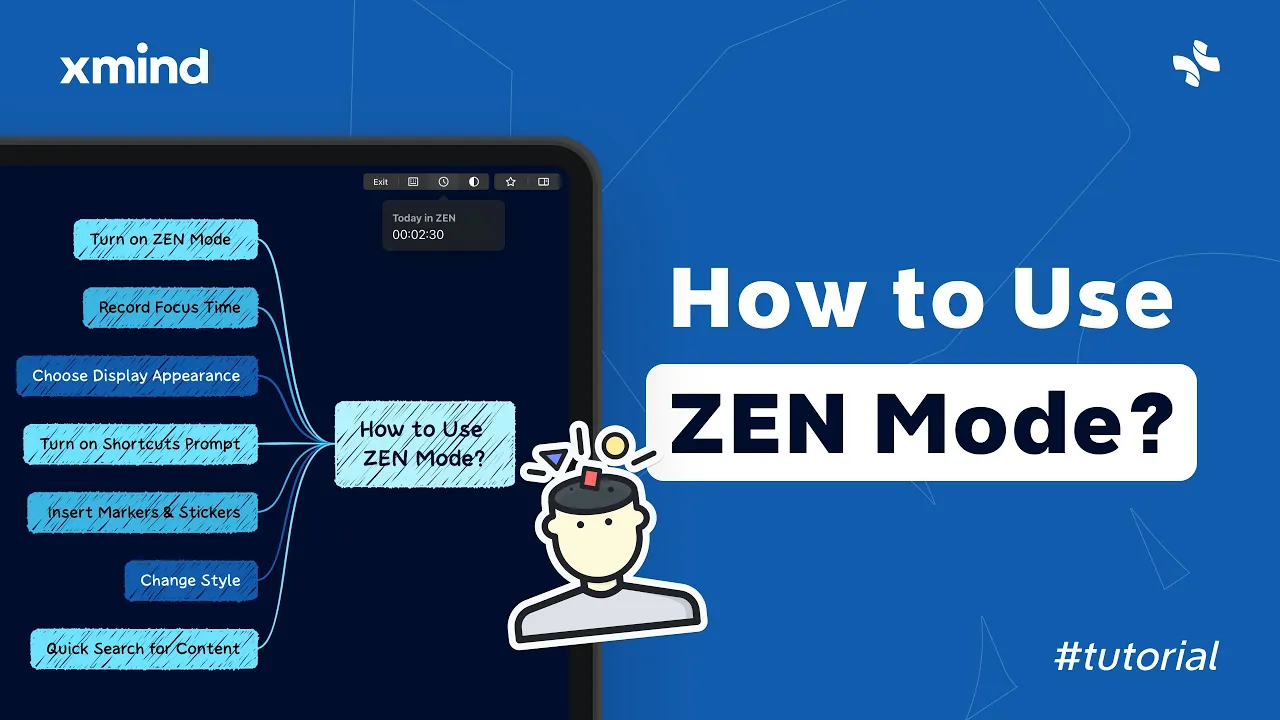
To use Zen mode, click the Zen mode icon on the toolbar to enter a centered view. You can set a focus timer, switch color themes, and pull up shortcut prompts while you work.
Turn on Zen mode from the toolbar and use the timer to set a work interval for focused brainstorming.
Choose a display appearance like light, dark, or ultrawhite for better immersion and change styles in the style panel.
Use shortcut prompts, insert markers or stickers, and use quick search to navigate content without leaving Zen mode.
Zen mode in Xmind is best for short, immersive sessions when you need to clarify ideas or sketch a map quickly. Combine timer and shortcuts to maintain momentum and finish focused work.