Cách chuyển hình ảnh thành Sơ đồ tư duy ngay lập tức với tính năng mới của Xmind

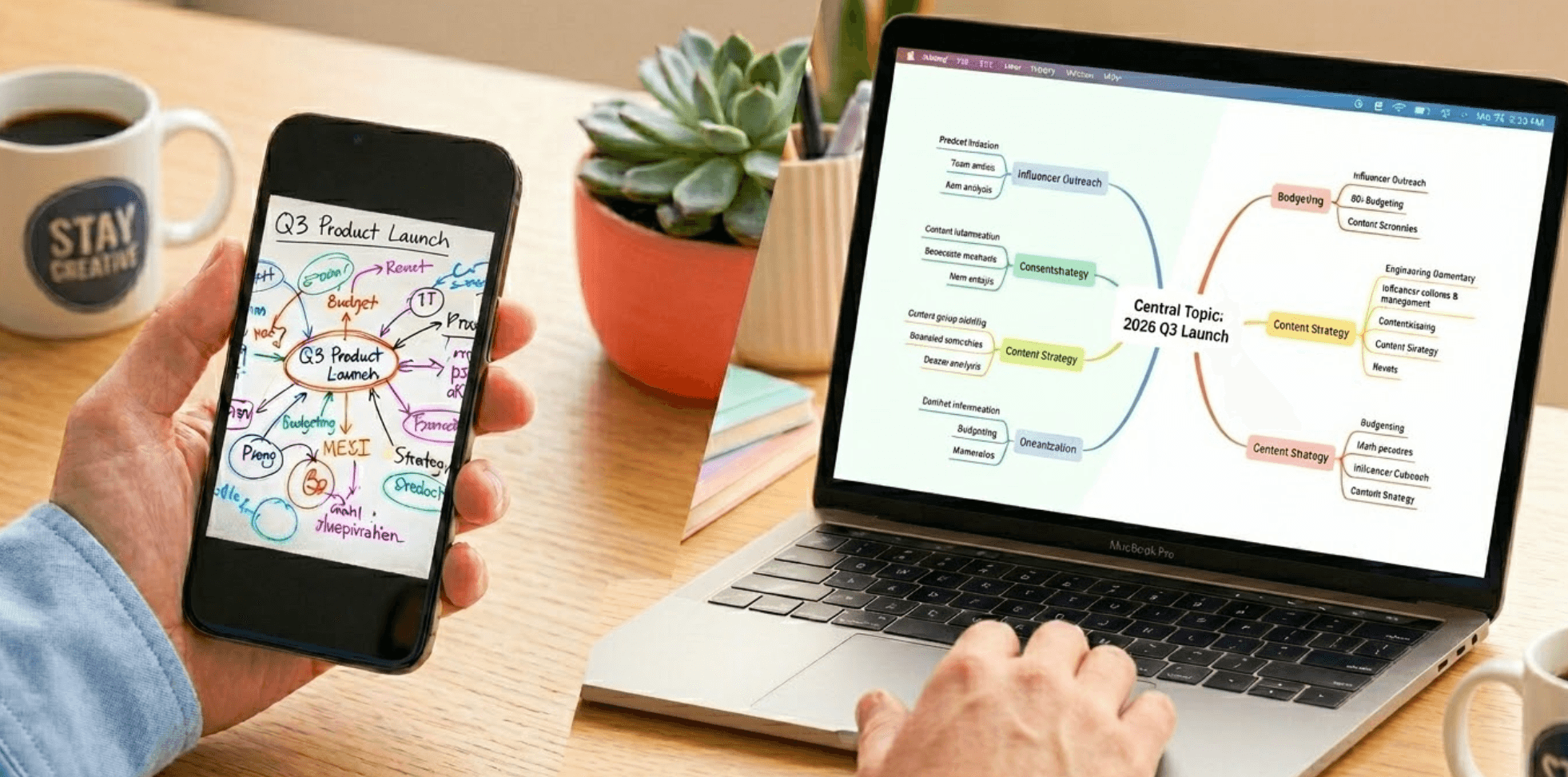
Ai cũng từng gặp tình huống này: nhìn vào ảnh chụp bảng trắng lộn xộn, ảnh chụp màn hình một sơ đồ phức tạp, hoặc một trang ghi chú viết tay và ước gì có cách sắp xếp nhanh hơn thay vì gõ lại thủ công. Những hình ảnh tĩnh đó chứa nhiều ý tưởng xuất sắc, nhưng thường bị “khóa” trong định dạng mà bạn không thể chỉnh sửa hay mở rộng.
Đó là lúc trình tạo Image to Sơ đồ tư duy của Xmind tạo khác biệt. Bằng cách tận dụng AI để nối liền khoảng cách giữa nội dung trực quan và tư duy có cấu trúc, giờ đây bạn có thể chuyển đổi tệp JPG, JPEG hoặc PNG (tối đa 10 MB) thành sơ đồ tư duy có thể chỉnh sửa hoàn toàn ngay lập tức.
Hãy ngừng chép lại và bắt đầu sáng tạo. Cùng tìm hiểu cách tính năng này biến thư viện ảnh của bạn thành cỗ máy năng suất.
Vì sao thông tin trực quan của bạn hiện đang là điểm nghẽn năng suất
Thông tin trực quan có ở khắp nơi, nhưng thường bị “mắc kẹt”. Ảnh chụp phiên làm việc trên bảng trắng, ghi chú cuộc họp viết tay và ảnh chụp màn hình các sơ đồ phức tạp dồn lại trong thư viện, nhưng không thể hành động ngay. Việc trích xuất nội dung đó thủ công không chỉ làm hao thời gian—mà còn làm cạn năng lượng sáng tạo của bạn.
“Thuế chép lại” đối với sự sáng tạo của bạn
Mỗi phút bạn dành để gõ lại văn bản từ ảnh chụp màn hình là một phút bạn không thực sự suy nghĩ về dự án. Với người làm kinh doanh, việc biến một slide trong báo cáo tuân thủ thành khung làm việc khả thi theo cách thủ công là việc nặng nhọc dẫn đến “ma sát quy trình”. “Thuế chép lại” này là lý do chính khiến những ý tưởng tuyệt vời từ cuộc họp hay bài giảng thường nằm mãi trong thư viện ảnh và không bao giờ đi vào kế hoạch cuối cùng.
Quá tải nhận thức: Cuộc vật lộn với dữ liệu tĩnh
Nghiên cứu cho thấy dù việc ghi chú đơn giản khá phổ biến, nó thường không nắm bắt được các mối quan hệ giữa các ý tưởng. Khi bạn nhìn vào một sơ đồ kỹ thuật dày đặc hoặc một infographic dài dòng, não bộ sẽ khó “chia cụm” thông tin. Không có thứ bậc trực quan, tập dữ liệu phức tạp chỉ còn là mảng điểm ảnh mờ thay vì lộ trình rõ ràng. Điều này khiến việc nhớ lại khó hơn đáng kể khi bạn cần xem lại dự án sau nhiều tuần.
Biến hình ảnh “chết” thành công cụ học tập sống động
Với sinh viên và nhà nghiên cứu, thách thức còn lớn hơn. Chuyển slide bài giảng hoặc sơ đồ trong sách thành tài liệu học có cấu trúc là điều thiết yếu cho trí nhớ dài hạn (mà phương pháp sơ đồ tư duy có thể cải thiện tới 15%). Tuy nhiên, khoảng cách giữa “nhìn thấy” một sơ đồ và “sắp xếp” logic của nó là nơi đa số mọi người mất tập trung. Trình tạo image-to-mind-map xử lý phần nặng này, nhận diện văn bản và quan hệ trực quan để bạn đi thẳng vào giai đoạn tổng hợp.
Cách công cụ Image to Sơ đồ tư duy của Xmind hoạt động
Hãy xem tính năng này như một cây cầu giữa camera và não bộ của bạn. Công cụ Image to Sơ đồ tư duy của Xmind dùng AI tiên tiến để “đọc” thứ bậc trực quan trong tệp—dù là ảnh chụp bảng trắng hay ảnh chụp màn hình sơ đồ số—và chuyển ngay dữ liệu đó thành sơ đồ tư duy có cấu trúc, có thể chỉnh sửa.
Chuyển đổi một chạm cho mọi định dạng trực quan
Đã qua rồi thời phải chuyển qua lại giữa ảnh và bàn phím. Dù bạn tải lên tệp JPG, PNG, hoặc HEIC (tối đa 10 MB), AI vẫn nhận diện mối quan hệ giữa văn bản và bố cục. Hệ thống hoạt động tốt nhất với chữ rõ, độ phân giải cao, nhưng ngay cả bản phác thảo phức tạp cũng được chuyển thành bản nháp khả dụng chỉ với một cú nhấp. Mục tiêu là đi từ “hình ảnh tĩnh” đến “dự án đang chạy” trong vài giây.
Bảo mật, linh hoạt và sẵn sàng tinh chỉnh
Quyền riêng tư dữ liệu của bạn là ưu tiên—hình ảnh được xử lý an toàn và không lưu trên máy chủ của chúng tôi sau khi phiên làm việc kết thúc. Khi AI hoàn thành phần nặng, sơ đồ hoàn toàn do bạn làm chủ. Bạn có thể chỉnh node thủ công, sắp xếp lại nhánh hoặc cập nhật văn bản đến mức hoàn hảo. Vì vậy đây là công cụ lý tưởng để số hóa ghi chú họp nhạy cảm hoặc bản vẽ bảng trắng độc quyền sang định dạng sẵn sàng cho bài thuyết trình lớn tiếp theo.
Từng bước: Từ “danh sách viết tay” đến “bảng điều khiển tuần trực quan”
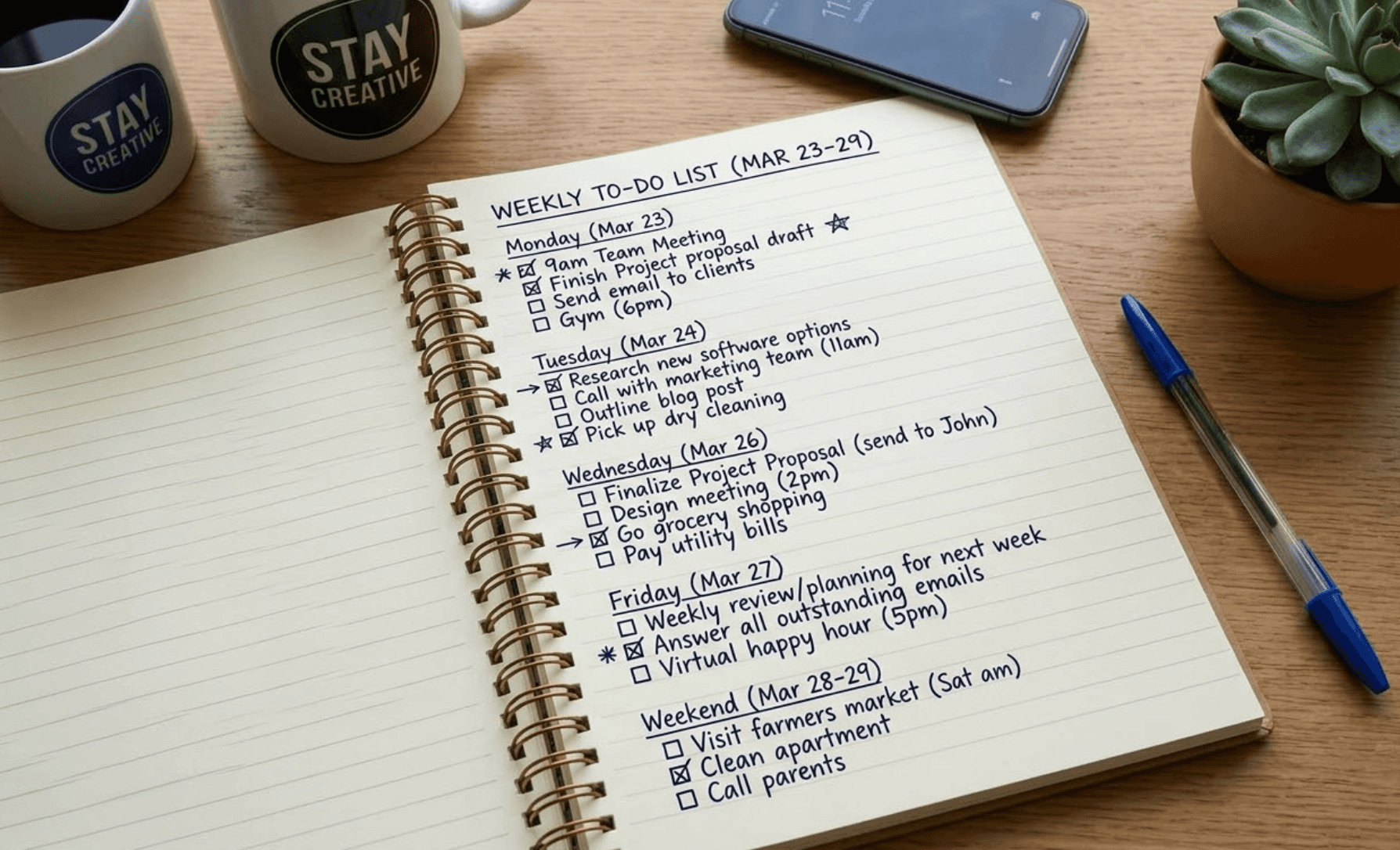
Hãy tưởng tượng là tối Chủ nhật. Bạn vừa hoàn thành việc ghi nhanh toàn bộ công việc rải rác cho tuần tới (bắt đầu từ March 23rd) trong cuốn sổ lò xo yêu thích (như hình trên). Thay vì nhìn chằm chằm vào danh sách checkbox chật chội đó suốt tuần, dưới đây là cách bạn dùng Xmind để biến "Weekly To-Do List" thành bảng điều khiển trực quan có cấu trúc:
Bước 1: Chụp và tải lên kế hoạch “thô” của bạn
Truy cập Create with AI trong Xmind. Tải ảnh sổ tay của bạn lên—đảm bảo là JPG, PNG, hoặc HEIC và dưới 10 MB.
Mẹo chuyên gia: Với trang sổ này, hãy chụp chính diện trang bên phải với ánh sáng tốt. Độ tương phản cao giữa mực bút lông xanh đậm và giấy kẻ dòng màu kem giúp AI “đọc” các cụm tác vụ theo ngày cực kỳ dễ dàng.
Bước 2: Để AI “đọc” các khối thời gian của bạn
Nhấn nút Generate. Đây là lúc công cụ AI của Xmind phân tích bố cục trực quan trong ghi chú của bạn.
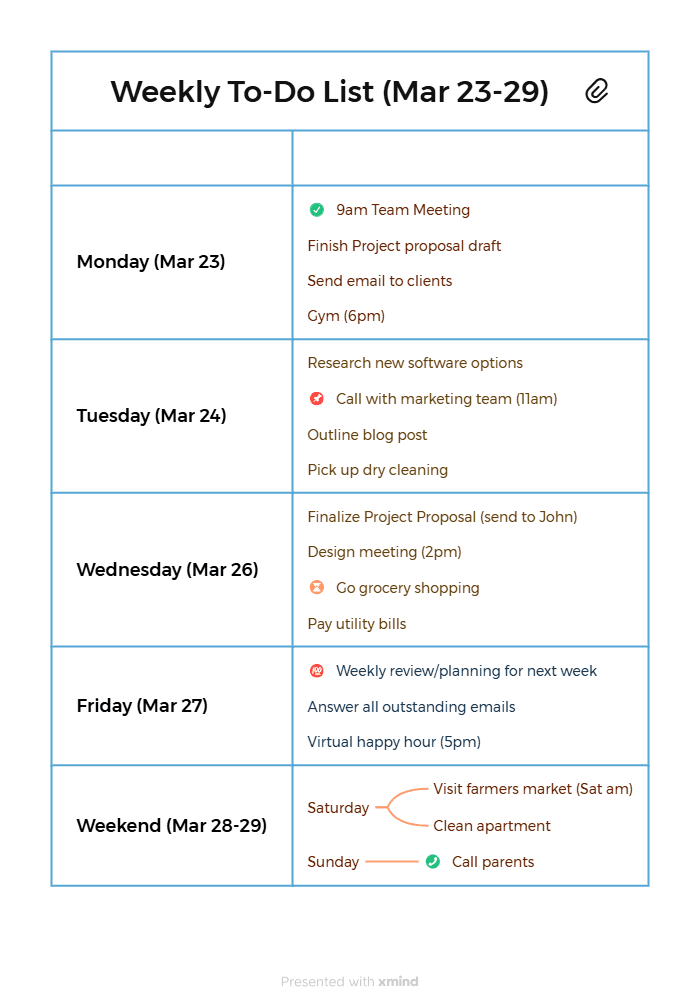
Logic AI: Chỉ trong vài giây, hệ thống xác định dòng chữ lớn nhất ở đầu là Central Topic (ví dụ: "WEEKLY TO-DO LIST (MAR 23-29)") và nhận diện các tiêu đề viết tay từ "Monday (Mar 23)" đến "Weekend (Mar 28-29)" là Main Branches. Hệ thống trích xuất số hóa các nhiệm vụ đã/ chưa tích, biến chữ viết tay của bạn thành các node rõ ràng, có thể hành động.

Bước 3: Tinh chỉnh phần tổng hợp giữa người và AI
Khi sơ đồ ban đầu xuất hiện, hãy thêm “dấu ấn con người” của bạn. AI đã nhận diện thứ bậc; bạn chỉ cần hoàn thiện để tối đa khả năng thực thi.
Tinh chỉnh luồng: AI có thể nhóm "Weekend (Mar 28-29)" thành một nhánh. Bạn có thể nhấp đúp vào node đó để tạo hai Sub-topics cho Saturday và Sunday, tách chuyến đi chợ nông sản khỏi việc gọi cho bố mẹ.
Ưu tiên bằng marker: Vì sổ tay của bạn đã dùng mũi tên để đánh dấu ưu tiên, bạn có thể thêm Priority Markers của Xmind (1, 2, 3) vào các node để khớp, hoặc đổi màu node để tạo tác động trực quan tức thì.
Bước 4: Đồng bộ kế hoạch lên mọi thiết bị
Đừng để đà làm việc dừng lại trên trang sổ. Nhấn Export để lưu kế hoạch trực quan mới dưới dạng PNG làm hình nền điện thoại, hoặc giữ ở định dạng tệp Xmind gốc.
Thao tác cộng thêm: Vì lịch trình của bạn giờ là tệp Xmind số, bạn có thể mang theo giữa tuần. Khi mở trên điện thoại hoặc laptop, hãy dùng tính năng Xmind Checkboxes gốc để đánh dấu nhiệm vụ đã hoàn thành (khớp với các ô tích trong sổ ban đầu), biến một bức ảnh sổ tay đơn giản thành công cụ theo dõi tiến độ động theo thời gian thực.
Kết luận
Giờ đây bạn đã có lối tắt tối ưu để thu hẹp khoảng cách giữa cảm hứng tĩnh và sơ đồ tư duy động, có thể chỉnh sửa. Bằng cách nén hàng giờ chép tay tẻ nhạt thành quy trình ba bước mượt mà, Xmind giữ nguyên tính toàn vẹn cấu trúc ý tưởng của bạn đồng thời giải phóng thời gian cho tư duy cấp cao thực sự.
Đừng để những phiên làm việc bảng trắng hay kế hoạch viết tay xuất sắc của bạn chìm dần trong thư viện ảnh. Hãy khai thác sức mạnh của tính năng Image to Sơ đồ tư duy của Xmind ngay hôm nay và chuyển dữ liệu trực quan thô thành tri thức có tổ chức, có thể hành động ngay lập tức. Phiên bản tương lai năng suất hơn của bạn sẽ biết ơn điều đó.
Sẵn sàng khai mở những ý tưởng hình ảnh của bạn?
Sử dụng trình tạo Image to Sơ đồ tư duy của Xmind để ngay lập tức chuyển ảnh và ảnh chụp màn hình thành các kế hoạch có cấu trúc, có thể chỉnh sửa.