Create Topic Links in Xmind — Quick Tutorial
Topic Links in Xmind
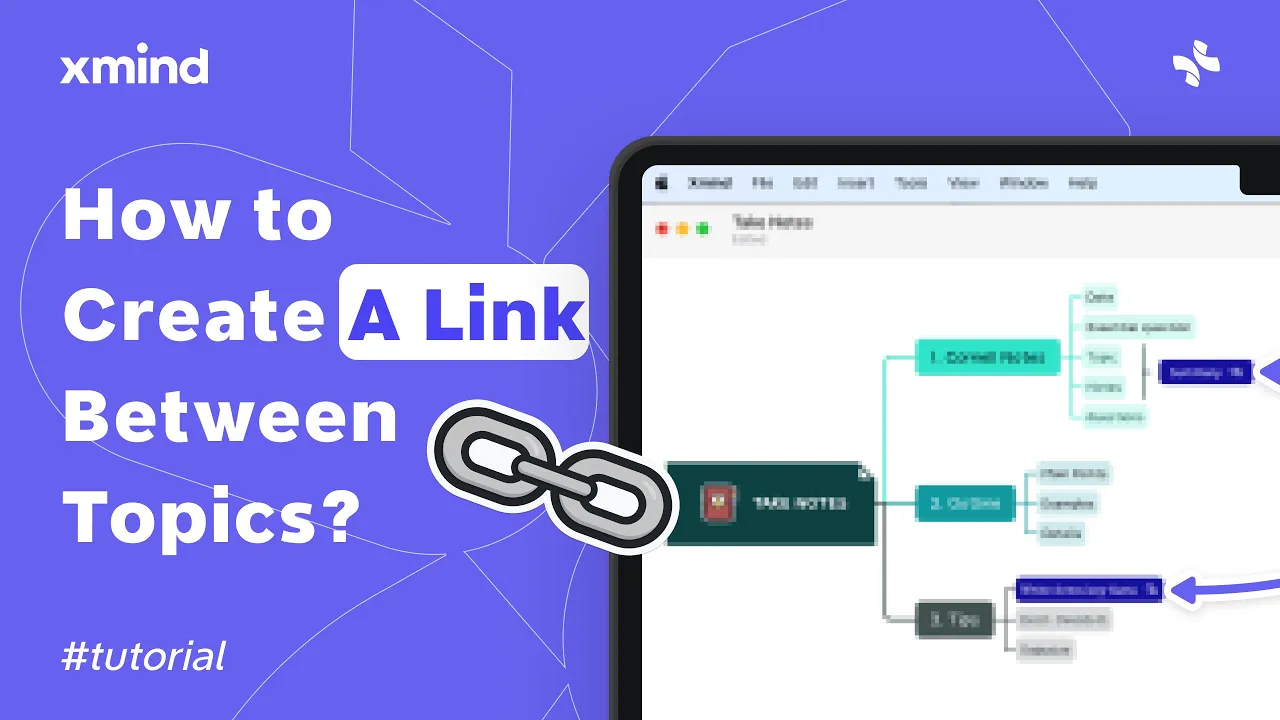
Topic Links in Xmind let you create a connection between topics or between a topic and the canvas. Use links to show relationships, reference related ideas, or jump quickly across the map.
To use Topic Links, select a source topic, choose the link tool from the toolbar or context menu, then click the target topic or empty canvas area to create the link. You can create links between topics on the same map or link a topic to a blank area to attach a note or resource.
Create a link: select a topic, right-click and choose Add Link or use the Link icon, then click the target topic.
Link to canvas: choose the canvas option to anchor a link to an empty area for notes or resources.
Use cases: show cross-references, group related ideas without changing structure, or create quick navigation within large maps.
Topic Links keep your map clear while showing relationships and make navigation faster. Use them when ideas relate across branches or when you want lightweight references without duplicating content.