













Xmind MCPサーバー
Xmind MCPサーバーを使用すると、AIツールをXmindに接続でき、AIアプリ内で簡単な言葉でXmindマインドマップを作成できます。

Xmind MCPとは何ですか?
Xmind MCPサーバーを使用すると、AIアプリをXmindに接続でき、AIアシスタントがXmindマインドマップを作成、読み取り、編集できるようになります。
Xmind MCPサーバーをClaude、Claude Code、Codex、ChatGPTなどのMCP互換クライアントに接続すると、自然言語を使って会話、メモ、リサーチ、プロジェクトのアイデアを構造化された編集可能なXmindマインドマップに変換できます。また、アシスタントに既存のマップを読み取らせ、その構造を要約したり、チャットを通じて改善を支援してもらうこともできます。
アイデア、ディスカッション、計画がすでに行われているAIアプリに視覚的思考を取り入れたいときに、Xmind MCPを使用します。
なぜXmindをAIアプリに接続するのですか?
-
会話が行われる場所で作業する — Claude、ChatGPT、CodexなどのAIアプリからXmindを使用し、ツールを切り替えたりコンテンツをコピーしたりする必要はありません。
-
アイデアを視覚的な構造に変える — 散らばったメモ、プロンプト、ミーティングでのディスカッション、リサーチを、複雑な情報をわかりやすくする明確で編集可能なマインドマップに変換します。
-
既存のマインドマップをコンテキストとして使用する — アシスタントに既存のXmindマインドマップを読み取らせ、要約、計画、執筆、リサーチ、またはフォローアップ作業に活用させます。
-
会話を通じてマップを改善する — 変更したい内容を説明するだけで、トピックの追加、表現の修正、ブランチの拡張、アイデアの再構成ができます。
-
アイデアを編集可能なアセットとして保存する — AI支援による作業をXmindマインドマップとして保存し、後で再訪、改善、共有、発展させることができます。
Xmind MCPサーバーで何ができますか?
-
会話からマインドマップを作成する — ブレインストーミングセッション、リサーチノート、ミーティングでのディスカッション、プロジェクトのアイデアを構造化されたXmindマインドマップに変換します。
-
最近のマインドマップを一覧表示する — アシスタントにワークスペース内で最近開いたXmindマインドマップを検索させ、作業を続けたいものを開いてもらいます。
-
Read existing mind maps — アシスタントにマインドマップを読み取らせ、その内容を構造化された要約またはMarkdownアウトラインとして返します。
-
Get insights from a map — 既存のマインドマップに基づいて、要点の抽出、構造の要約、アクションアイテムの特定、次のステップの提案を行います。
-
Edit mind maps through chat — マップのレイアウトとビジュアルスタイルを保ったまま、新しいトピックの追加、既存コンテンツの更新、ブランチの拡張、アイデアの再構成ができます。
-
Continue previous work — 最近のXmindマップから始めて、計画、執筆、調査、意思決定の基盤として活用します。
-
Save ideas as reusable assets — 出力を編集可能なXmindマインドマップとして保存し、後で開いたり、磨き上げたり、共有したり、さらに構築したりできます。
Xmind MCPサーバーを追加するには?
接続と認証
On Claude
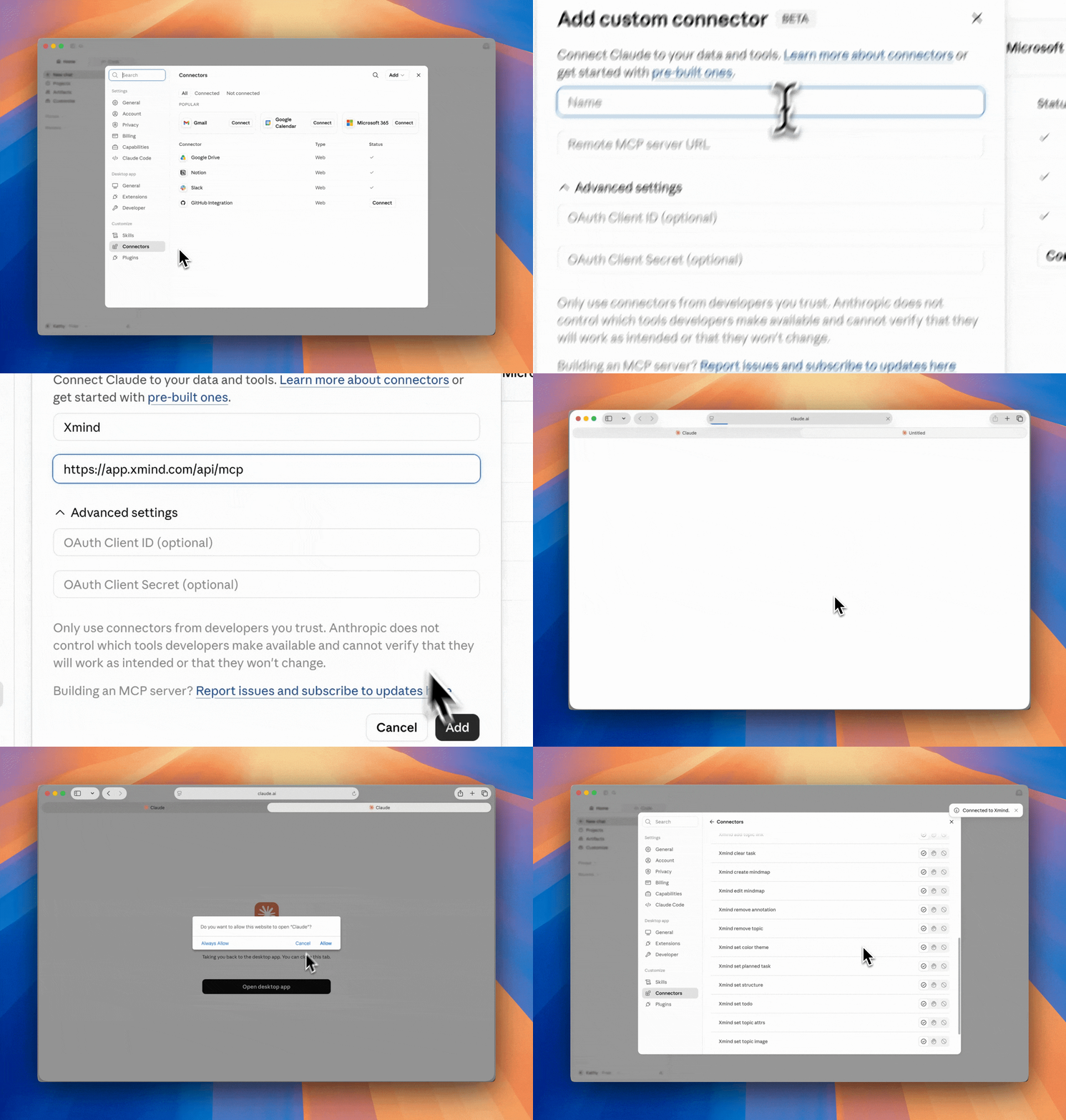
1️⃣ Claude Desktopを開き、Customize > Connectors に移動します。
2️⃣ Add > Add custom connector を選択し、名前を設定してサーバーURLを入力し、Add をクリックします。
https://app.xmind.com/api/mcp3️⃣ Connect をクリックし、開いたブラウザウィンドウでXmindアカウントで認証します。
4️⃣ Claudeに戻り、Xmind MCPサーバーが利用可能であることを確認します。
Claude Codeでの操作
1️⃣ ターミナルで次のコマンドを実行します:
claude mcp add xmind --transport https://app.xmind.com/api/mcp2️⃣ Claude Codeを起動し、/mcp と入力して、xmind を選択し認証します。

3️⃣ 開いたブラウザウィンドウでXmindアカウントで認証します。

Codex Desktopでの操作
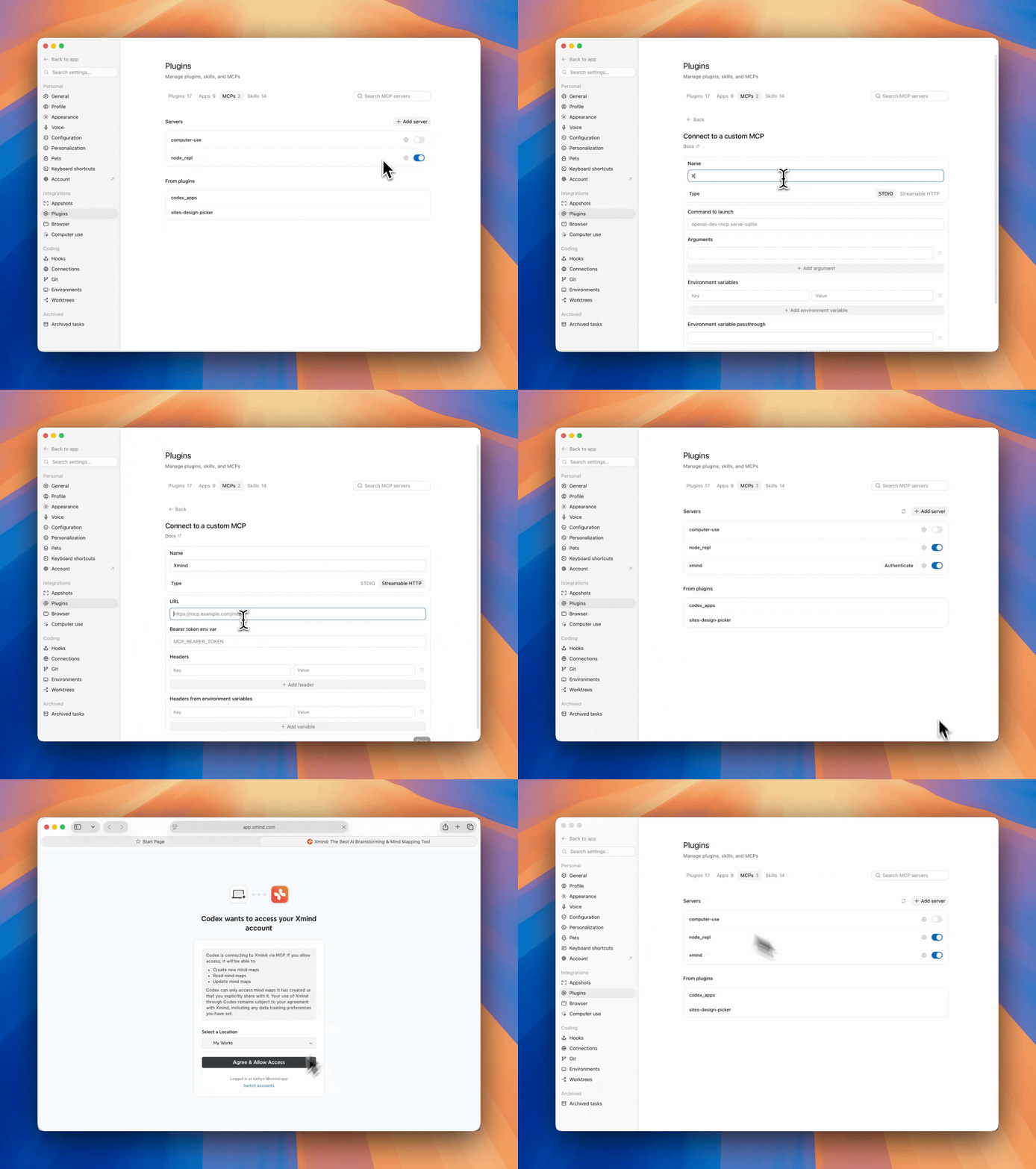
1️⃣ Codex を開き、設定 > プラグイン > MCP に移動します。
2️⃣ サーバーを追加 をクリックし、サーバーに 名前 を付け、Streamable HTTP を選択してサーバー URL を入力し、保存 をクリックします。
https://app.xmind.com/api/mcp3️⃣ 認証 をクリックし、プロンプトが表示されたら Xmind アカウントで認証を完了します。
その他の MCP 対応クライアント
MCP に対応したクライアントは、Streamable HTTP トランスポートを使用して Xmind に接続できます。
1️⃣ クライアントの MCP 設定を開きます。
2️⃣ Xmind MCP サーバー URL を追加します:
https://app.xmind.com/api/mcp3️⃣ 開いたブラウザウィンドウで OAuth 認証フローを完了します。
4️⃣ サーバーを有効にして、クライアントで利用可能かどうかを確認します。
Xmind MCP の設定
On Claude
1️⃣ 設定 > コネクタ > Xmind に移動します。
2️⃣ 機能の権限を調整し、常に許可 / 承認が必要 / ブロック を切り替えることができます。
-
読み取り専用ツール
-
Xmind マインドマップ一覧: 現在のチームワークスペースで最近開いたマインドマップを一覧表示します。
-
Xmind マインドマップ読み取り: 選択したマインドマップの全内容を表示します。
-
Xmind トピック取得: 特定のトピックの内容と詳細を取得します。
-
Xmind シート一覧: 選択したマインドマップ内のすべてのシートを表示します。
-
-
書き込みツール
-
Xmind マインドマップ作成: 指示に基づいて新しいマインドマップを作成します。
-
Xmind マインドマップの編集: 既存のマインドマップをリクエストに基づいて編集します。
-
Xmind 境界の追加: 選択したトピックを境界線で視覚的にグループ化します。
-
Xmind 関連線の追加: トピックを関連線で結び、関連性、依存関係、またはフローを示します。
-
Xmind シートの追加: 既存のマインドマップに新しいシートを追加します。
-
Xmind サマリーの追加: 選択したトピックにサマリーを追加し、共通の意味や結論を表現します。
-
Xmind トピックリンクの追加: 同じマインドマップ内の別のトピックにトピックをリンクします。
-
Xmind タスクのクリア: 選択したトピックからタスク関連の情報を削除します。
-
Xmind 注釈の削除: 境界、サマリー、関連線などの注釈を削除します。
-
Xmind トピックの削除: 選択したトピックをマインドマップから削除します。
-
Xmind カラーテーマの設定: マインドマップのカラーテーマを適用または変更します。
-
Xmind タスクの計画設定: 選択したトピックに開始日、期限、期間などのタスク詳細を設定します。
-
Xmind 構造の設定: 選択したトピックの構造を、マインドマップ、ロジックチャート、ツリーチャート、タイムラインなどに変更します。
-
Xmind Todoの設定: 選択したトピックのTodoステータスを追加または更新します。
-
Xmind トピック属性の設定: タイトル、ノート、ラベル、マーカー、ハイパーリンク、その他のメタデータを含むトピック属性を更新します。
-
Xmind トピック画像の設定: トピックに添付された画像を追加、置換、または更新します。
-
Xmind トピックスタイルの設定: 選択したトピックの視覚スタイルを、図形、ブランチスタイル、線スタイル、フォント、色などを含めて調整します。
-
Xmind 関連線の更新: 接続されたトピック、ラベル、または視覚スタイルを含む既存の関連線を更新します。
-

ClaudeでXmind MCPを使用する
Xmind MCPでマインドマップを作成する
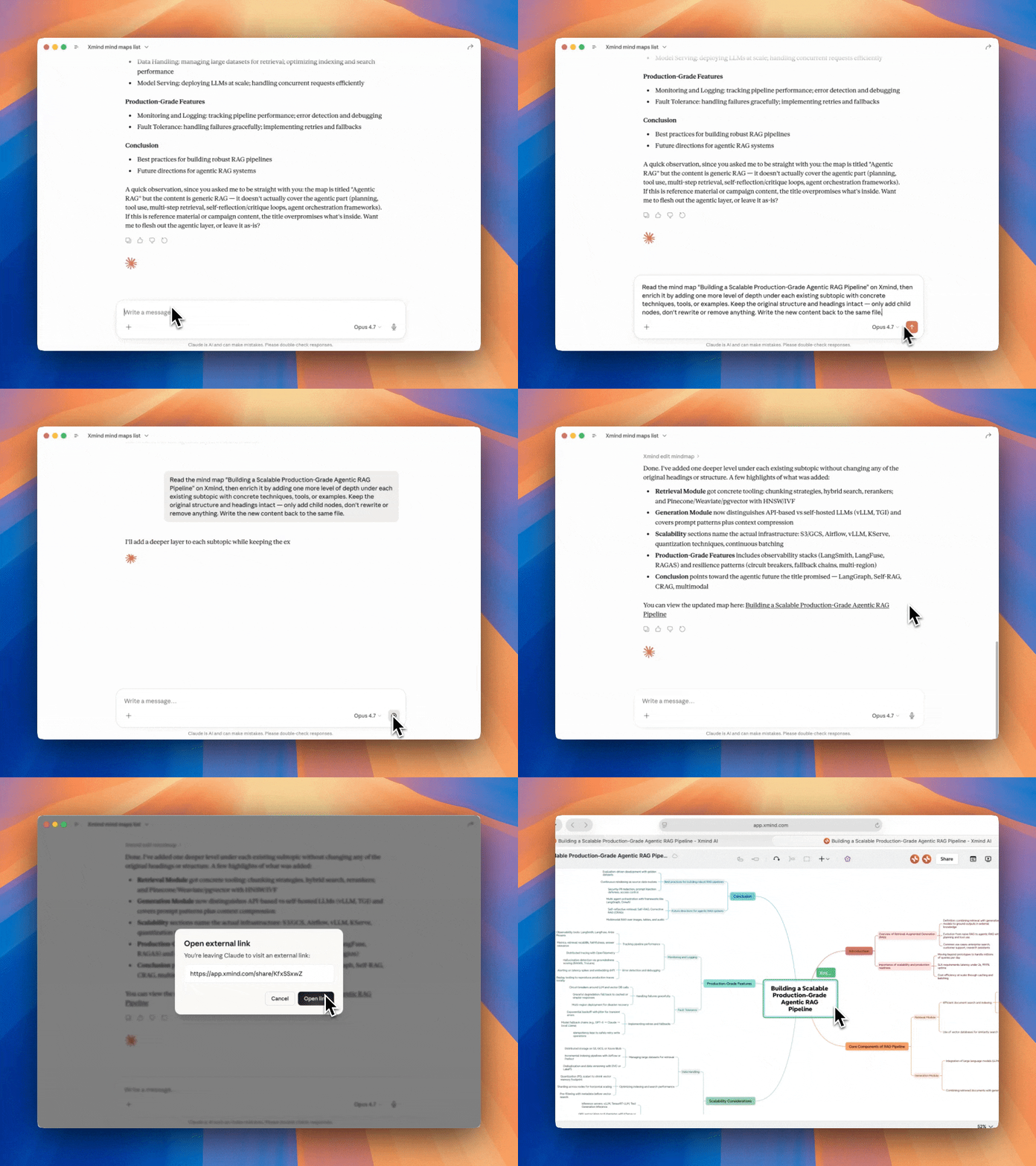
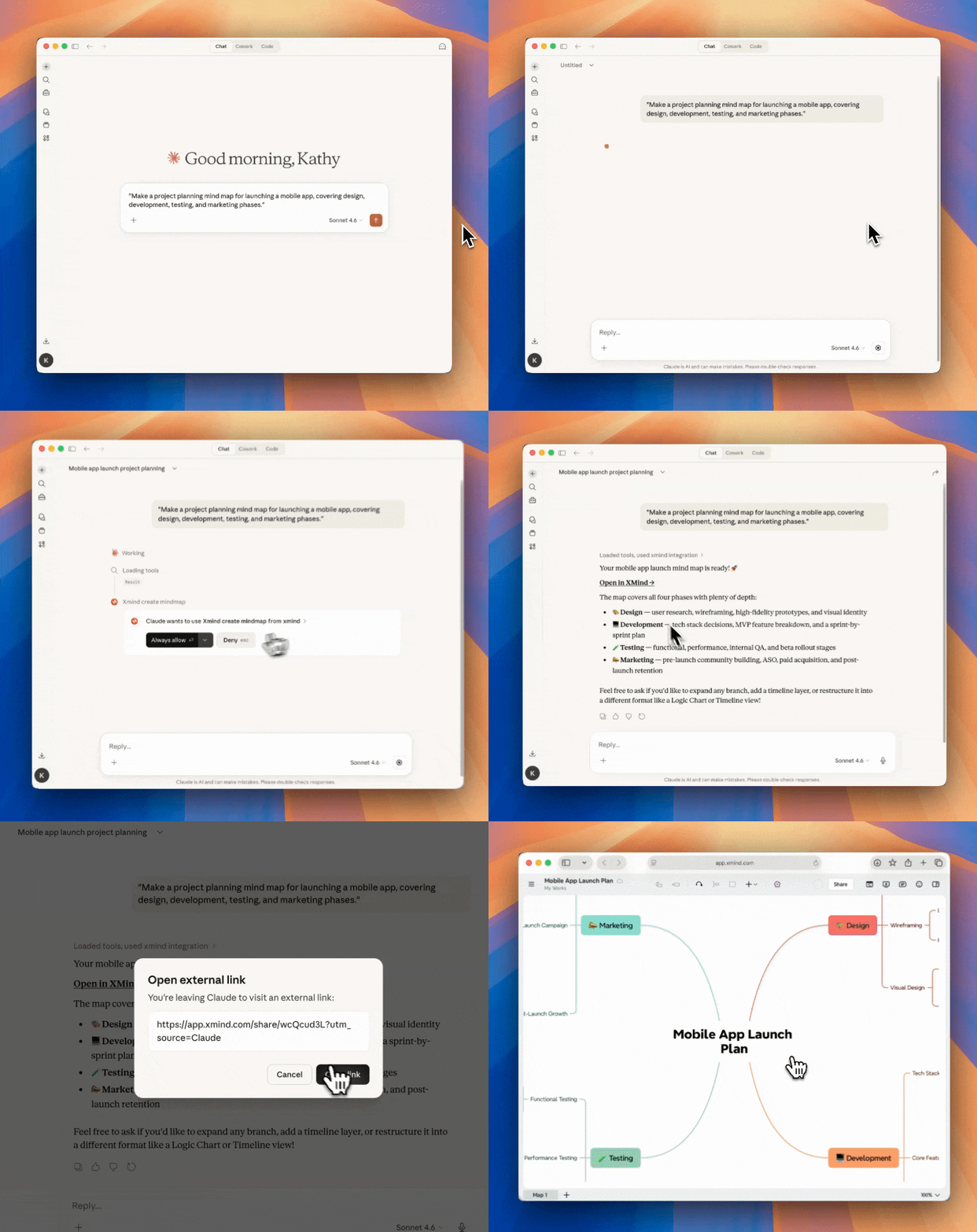
1️⃣ 自然言語でアイデアを説明し、AIアシスタントに依頼して、Xmindアカウントに保存された構造化されたマインドマップを生成してもらいましょう。
2️⃣ 初めて使用する場合は、権限のプロンプトが表示されることがあります。「常に許可」をクリックして続行してください。
3️⃣ 「Xmindで開く」をクリックして、マインドマップを確認・編集してください。
Xmind MCPでマインドマップを一覧表示する
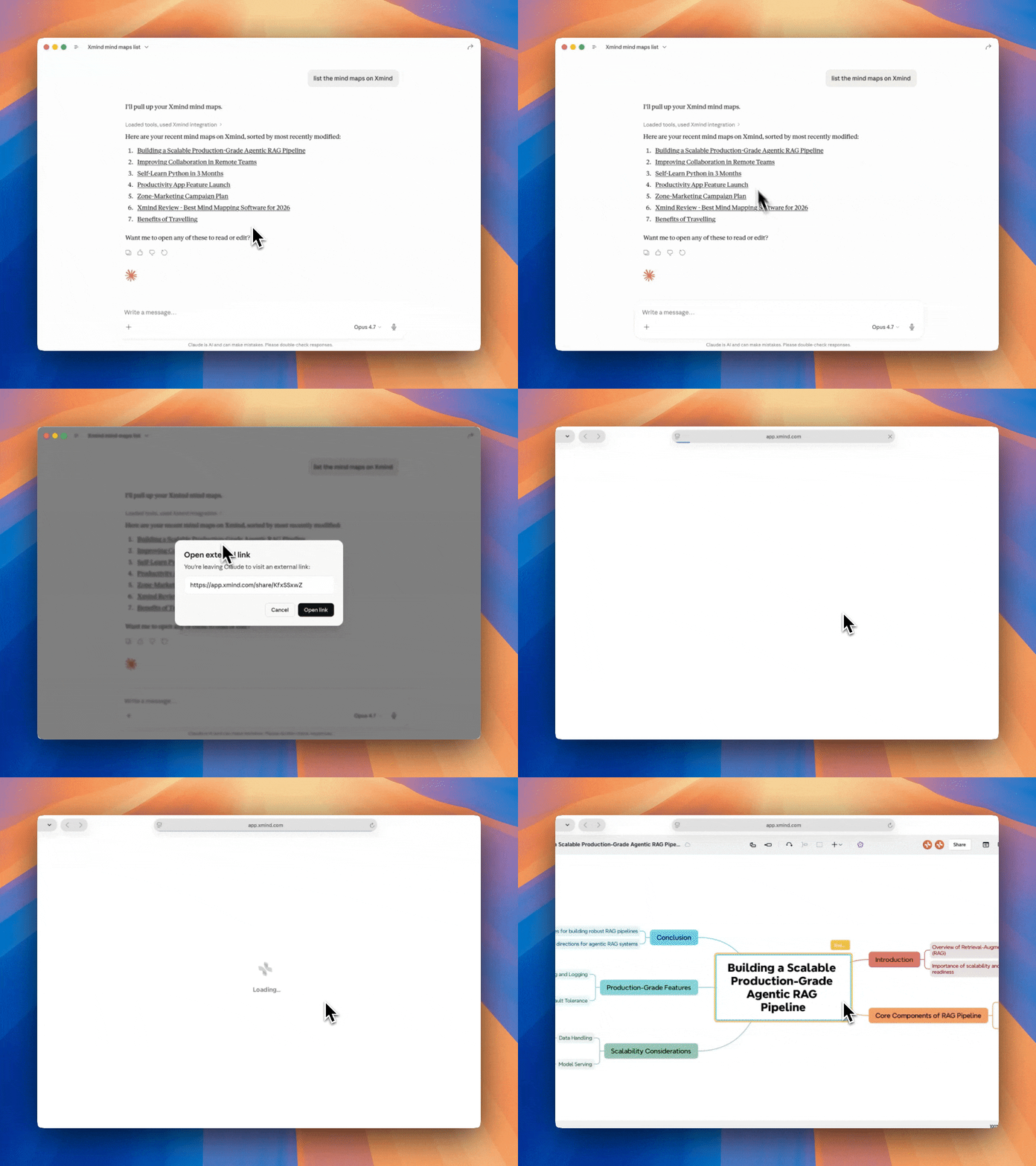
Xmind上のマインドマップを一覧表示するリクエストを説明してください。すると、最近開いたすべてのマインドマップが表示されます。タイトルをクリックすると、Xmindでマインドマップを開くためのリンクが表示されます。
Xmind MCPでマインドマップを読む
Xmind内のマインドマップを読み取るリクエストを説明してください。AIアシスタントが既存のマインドマップを読み取り、その内容をMarkdownとして返します。

Xmind MCPでマインドマップを編集する
1️⃣ 編集したいマインドマップをAIアシスタントに読み取らせてください。
2️⃣ マインドマップに加えたい変更を説明してください。トピックの再構成、新しいシートの追加、関連するアイデアの境界線によるグループ化、サマリーの作成、トピック間の関連線での接続、ToDoや予定日などのタスク情報の更新を依頼できます。また、マップ構造の調整、カラーテーマの適用、トピックスタイルの更新、画像の追加、必要に応じたトピックや注釈の削除も可能です。
これにより、自然言語でマインドマップを修正しやすくなります。各要素を手動で調整する代わりに、変更したい内容を説明するだけで、Xmind MCPが選択したマインドマップに変更を適用するのに役立ちます。