How to manage Xmind Pro multi-user subscription?
The Xmind multi-user subscription allows organizations to centrally manage licenses for their team. Only the administrator has permission to invite or remove users and adjust the number of seats.
1. Manage the Multi-User Subscription
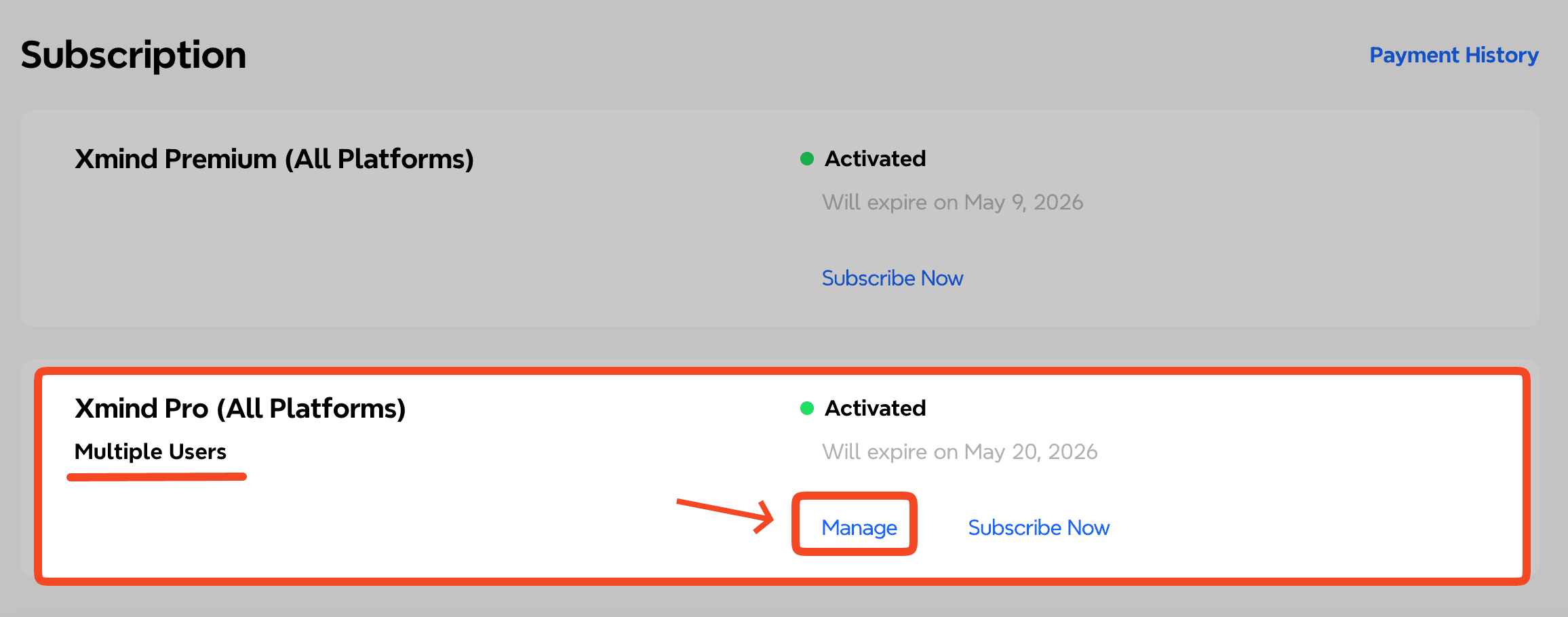
Sign in to the administrator account.
Click Manage to access the multi-user subscription settings.
Note: Only administrators can invite or remove team members.
2. Invite users
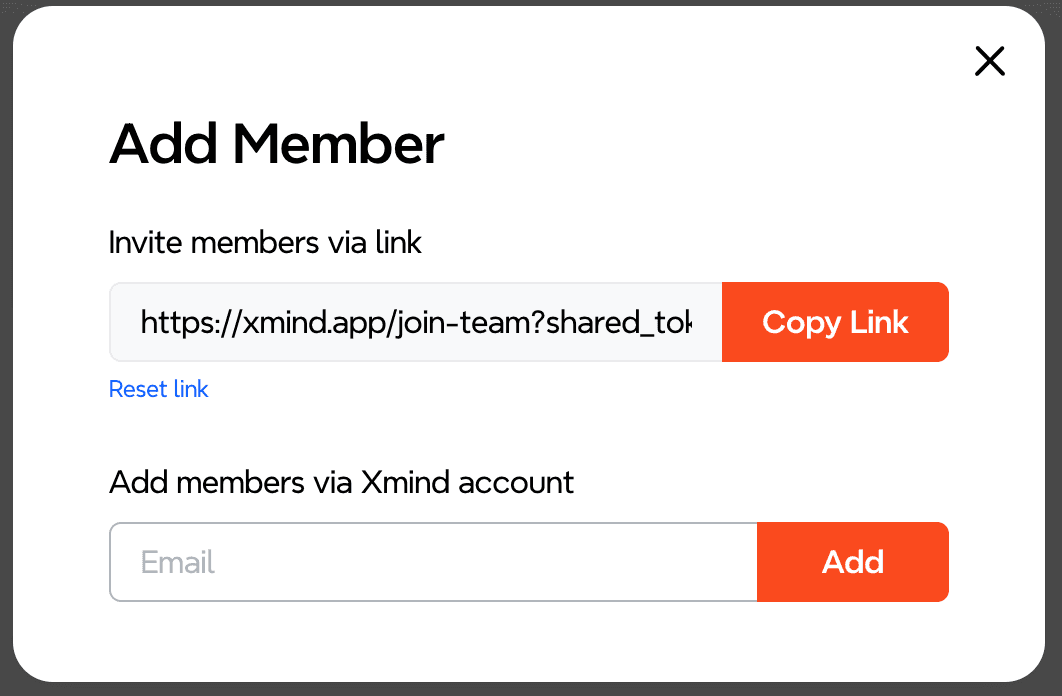
Click the 「+」 icon to invite new members. You can invite users in two ways:

2.1 Invite via Link
You can share the invitation link with users who need to join the team.
Note: To reset the invitation link, click Reset Link. A new link will be generated and the previous one will become invalid.
2.2 Add Users via Xmind Account
If the user already has an existing Xmind account:
Enter the email address of the Xmind account you want to add.
Click Add.
The user will be added to the multi-user subscription automatically.
3. Join the Team (For Invited Users)
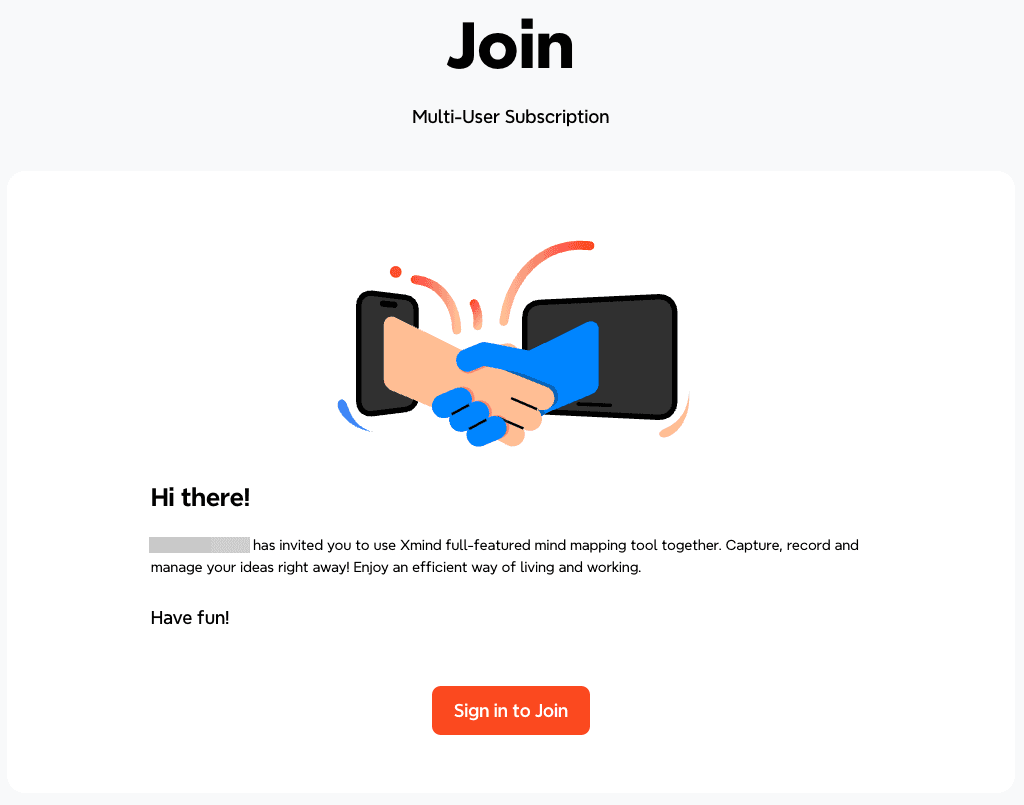
Open the invitation link in your browser.
Click Sign in to Join.
If you already have an Xmind account, sign in with your existing account.
If you do not have an account, click Create an Account, complete registration, then return to the invitation link.
Click Join to join the subscription team.
4. Remove Users
To remove a user from the subscription:
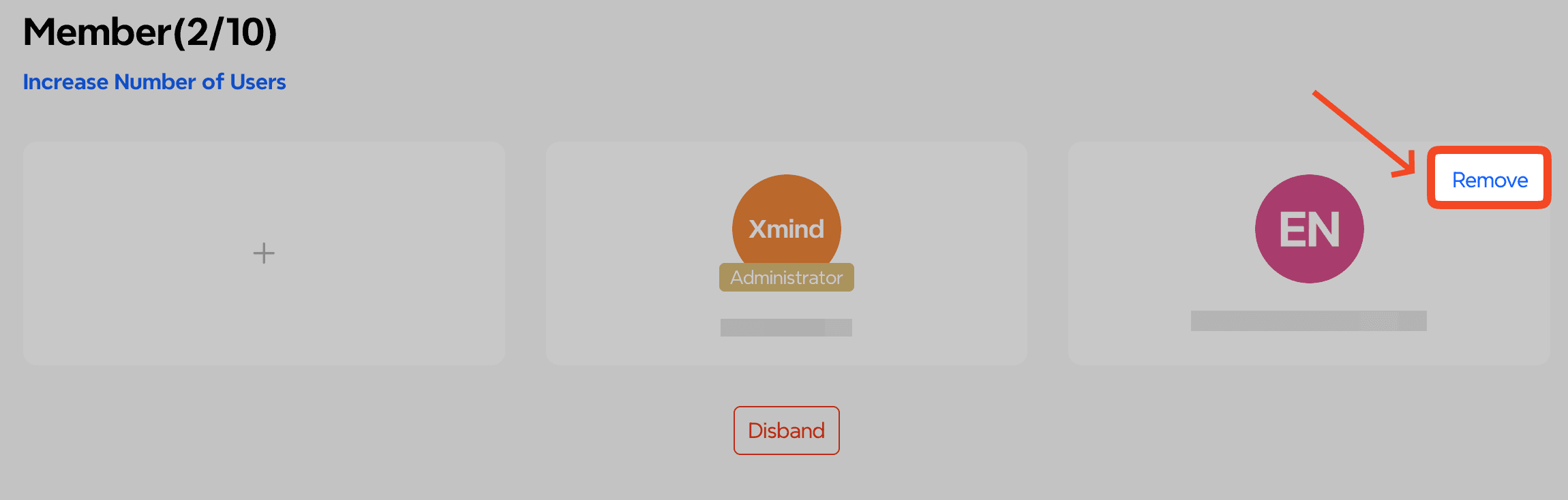
Click Remove in the upper-right corner of the user’s account.
The user will lose access to the Xmind Pro license immediately.
Note: If the admin account does not require a license, it can also be removed from the subscription team but will still retain the ability to manage licenses and team settings.
5. Increase the Number of Seats
To add more licenses to your multi-user subscription:
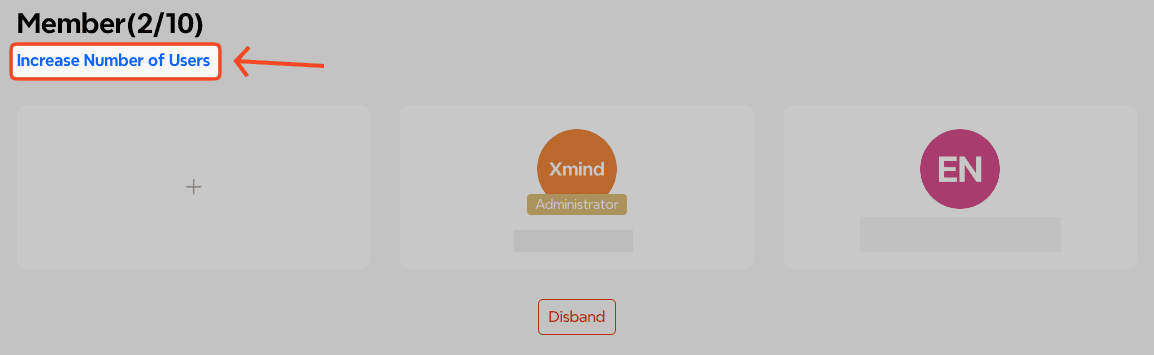
Click Increase Number of Users.
The cost will be calculated based on the remaining days in your current subscription term.
6. Renew Subscription
To renew your multi-user subscription:
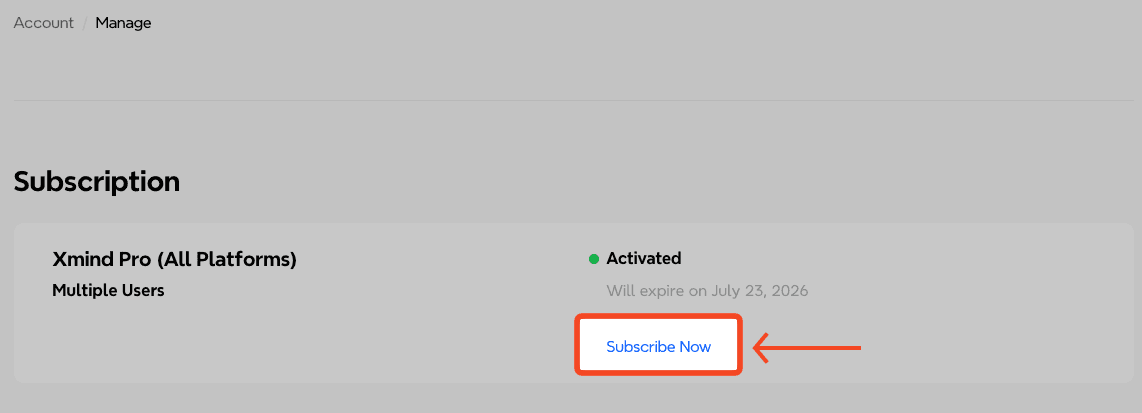
Go to the Manage page.
Click Subscribe Now to renew your subscription.
Note: If you want to increase the team size, renew your subscription first, then follow step 5. Increase the Number of Seats to add more licenses. If you want to reduce the team size, please contact the Xmind Sales Team for assistance.