How to download my invoice?
The steps to download your invoice depend on your subscription type and where it was purchased.
For Xmind Pro
Sign in to your Xmind account.
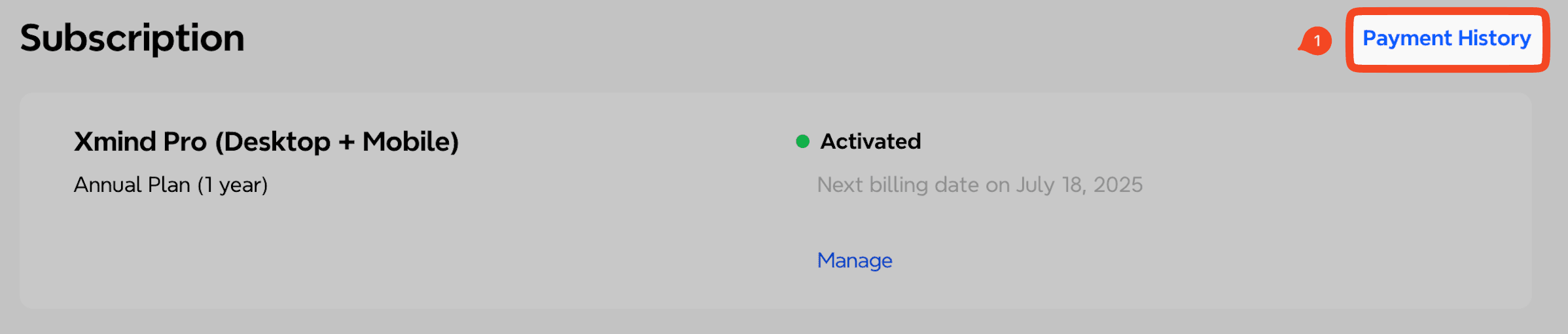
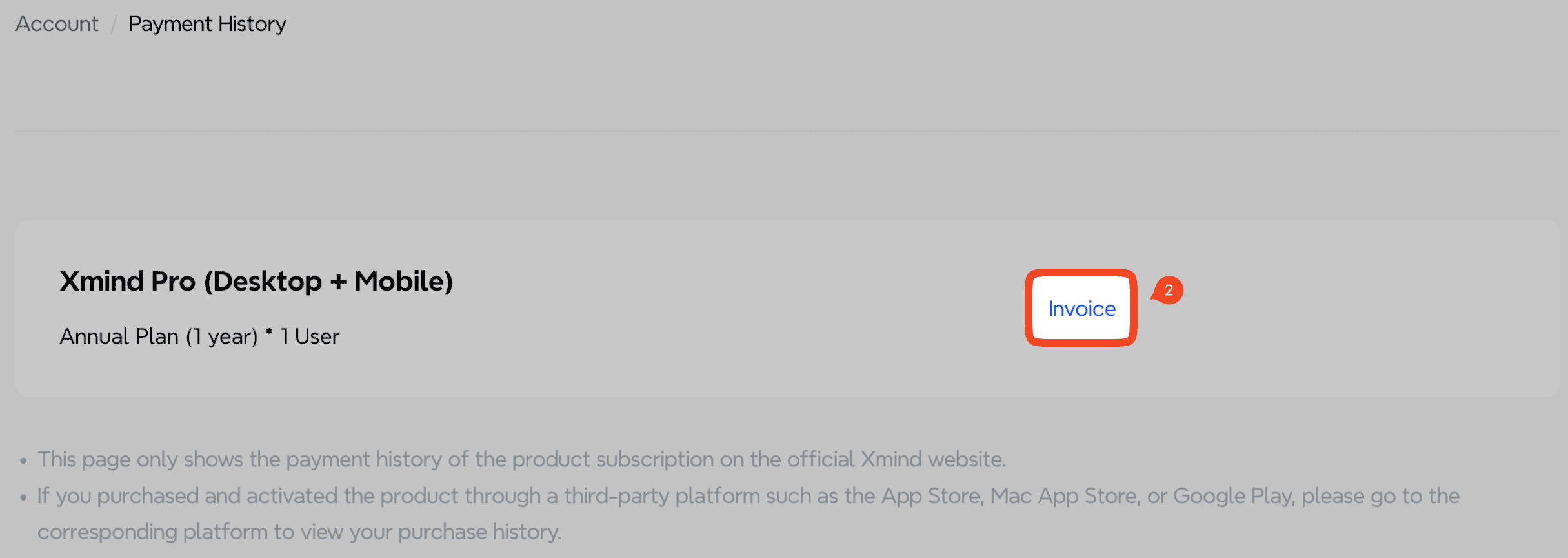
Navigate to Payment History.
Locate the order you want to view and click the Invoice link to download your receipt.
To update your credit card or billing address, go to the Subscription section, click Manage, and then select Update under the Information section.
For Xmind Premium
Sign in to your account at app.xmind.com.
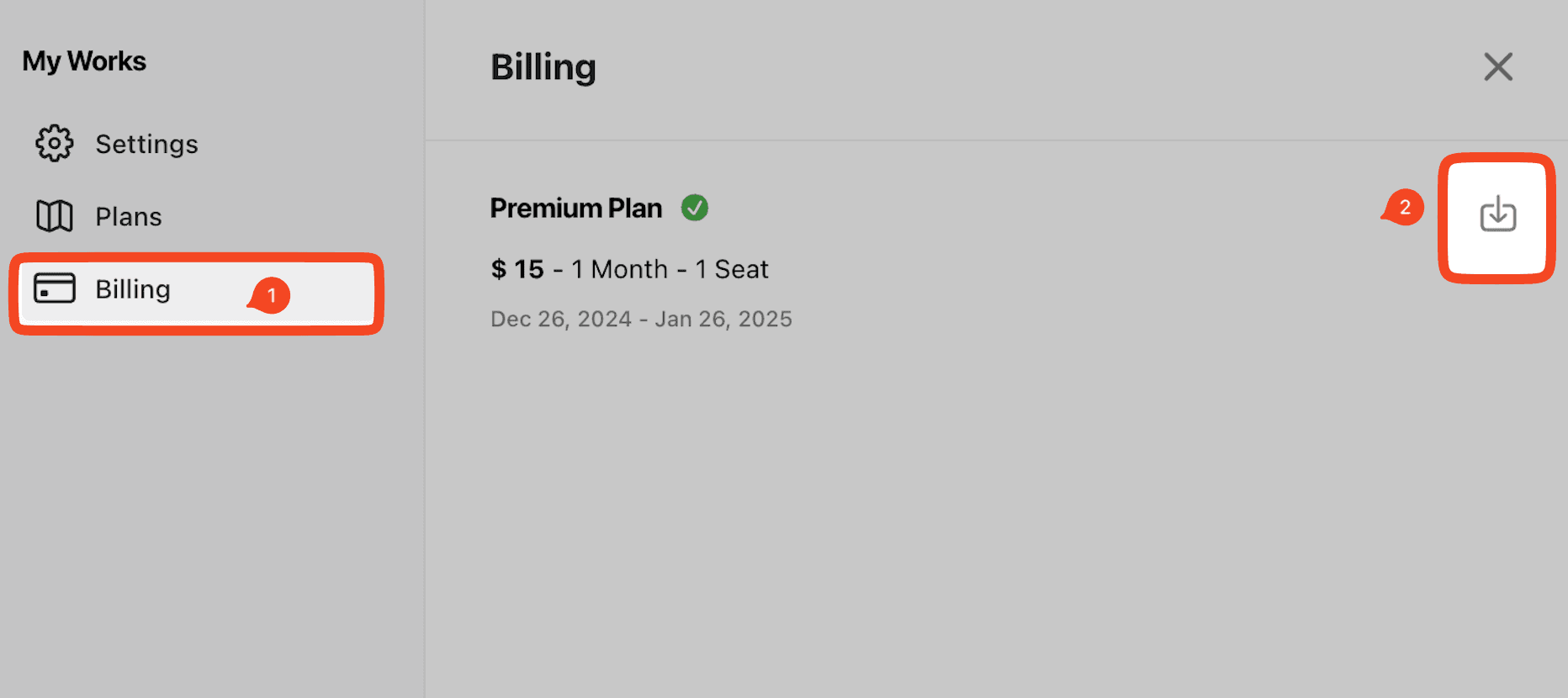
Go to My Works → Settings → Billing.
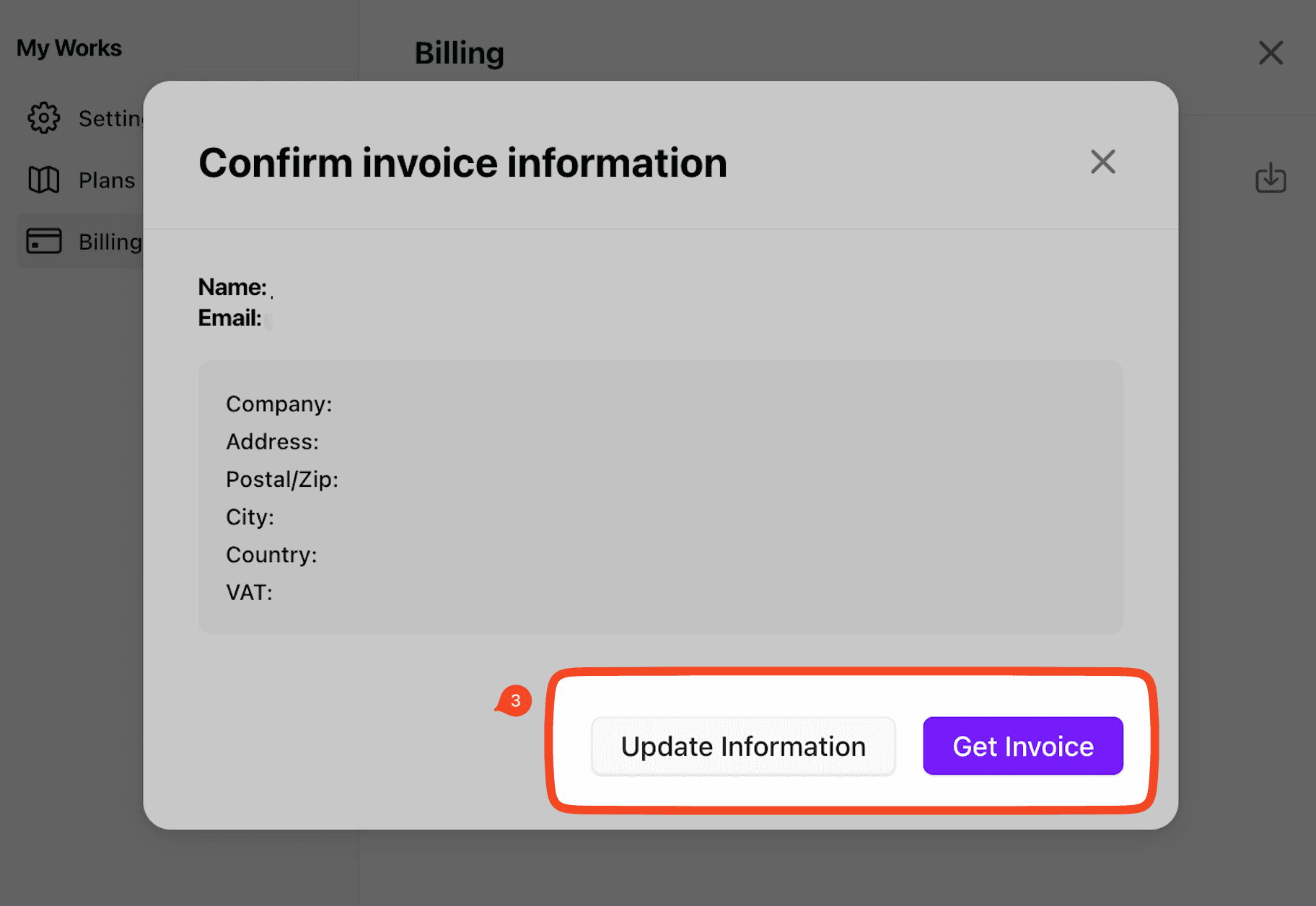
Find the order you need, and click the download icon to retrieve the invoice or update your billing information.
Note
Subscriptions purchased through other app stores (such as the Apple App Store or Google Play Store) require you to contact the respective platform directly to obtain your invoice.
For order placed from Apple App Store, please refer this article.
For orders placed from Google Play, please refer to this article.

