Useful Tips for Getting Started with Xmind for Android
This article introduces several useful tips to help you better understand and use Xmind for Android, including file management, editing operations, and feature availability.
1. Import Files
You can import mind maps into Xmind for Android using the following methods:
Open .xmind files directly via Open with Xmind from other applications or your File Manager.
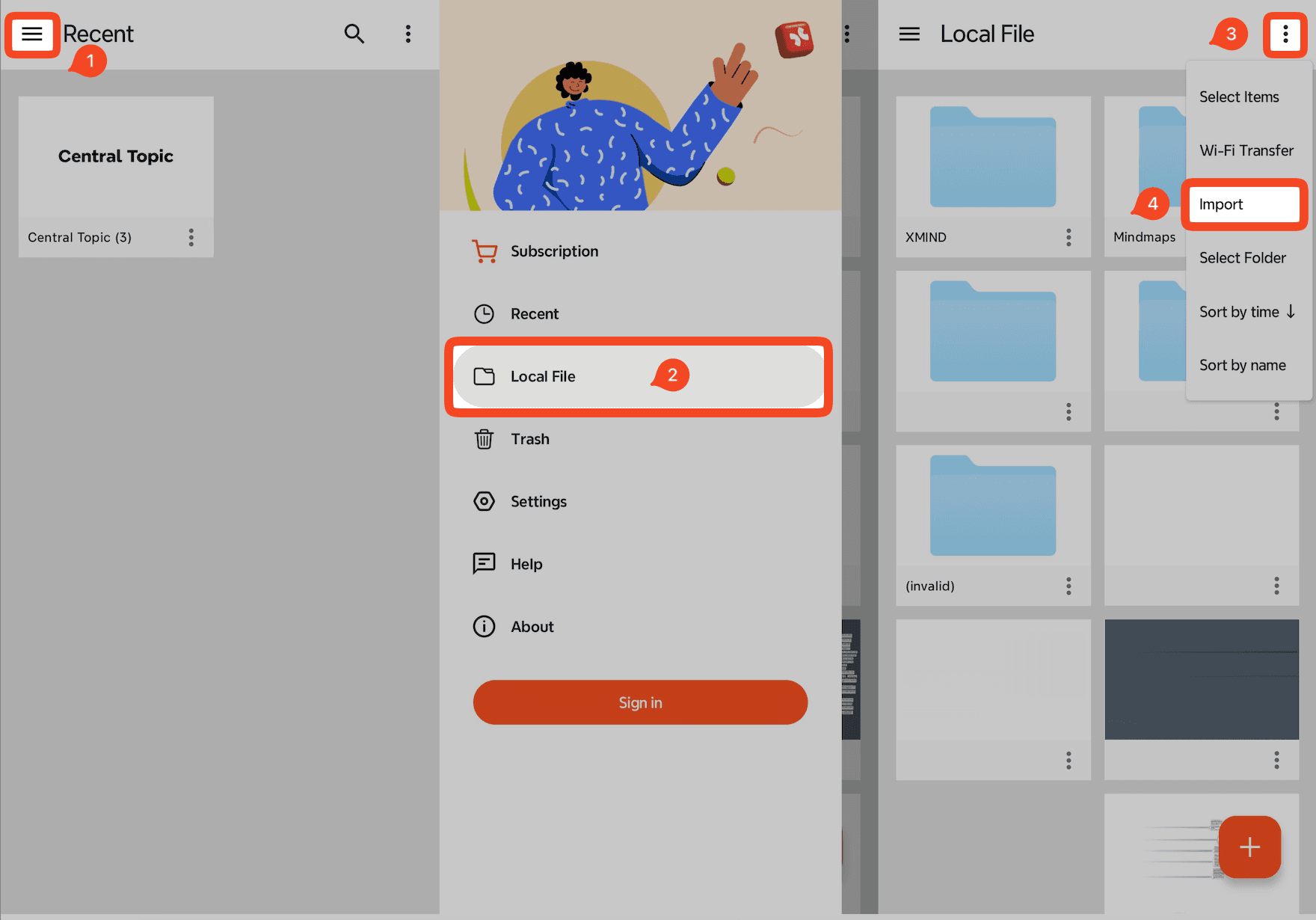
In the app, go to 「≡」 → Local File → 「⋮」 → Import to import .xmind or .md files.
2. Rename Files
Note: The Recents page only displays recently opened mind maps and does not represent the actual file storage location. To manage your files, please locate where they are saved.
To rename a file:
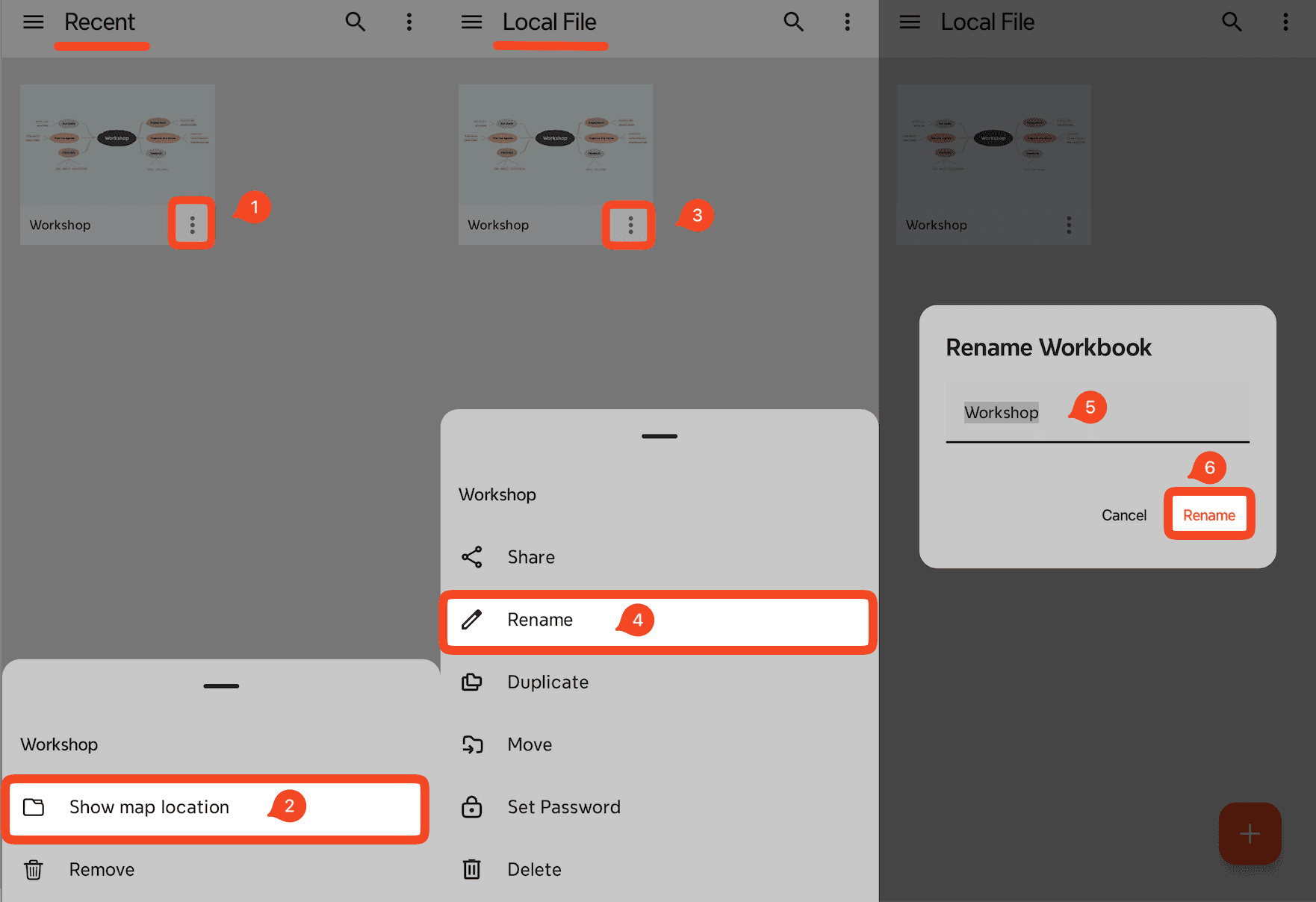
Tap 「⋮」 next to the file → Show map location.
Navigate to the file’s actual storage folder.
Tap 「⋮」 next to the file → Rename.
Enter the new file name and tap Rename to confirm.
3. Rename, Delete, or Duplicate Sheets
Open a mind map.
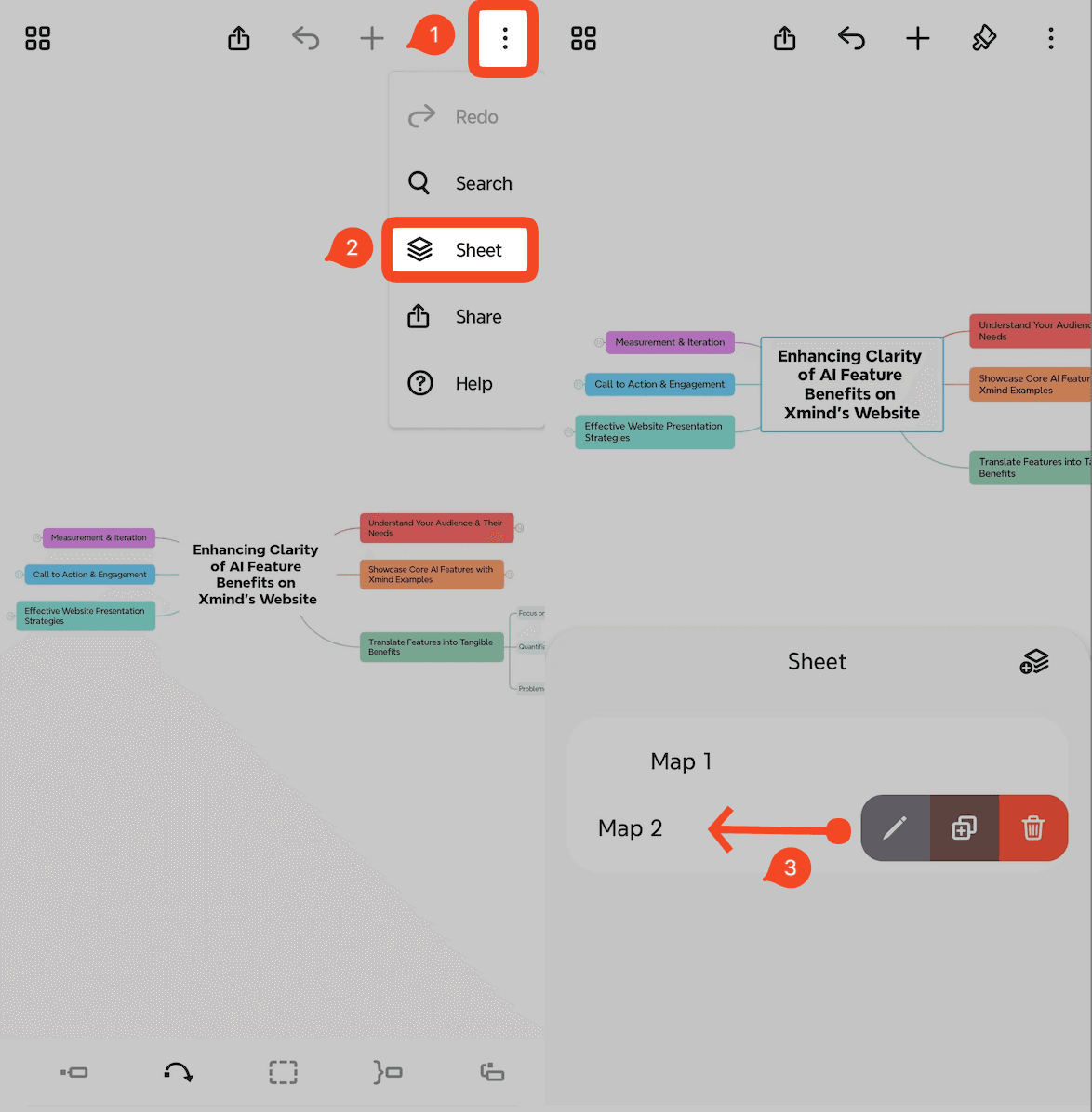
Tap 「⋮」 → Sheet to open the sheet panel.
In the sheet list, swipe left on any sheet.
Choose one of the following actions:
Rename: Tap the pen icon
Duplicate: Tap the duplicate icon
Delete: Tap the trash icon
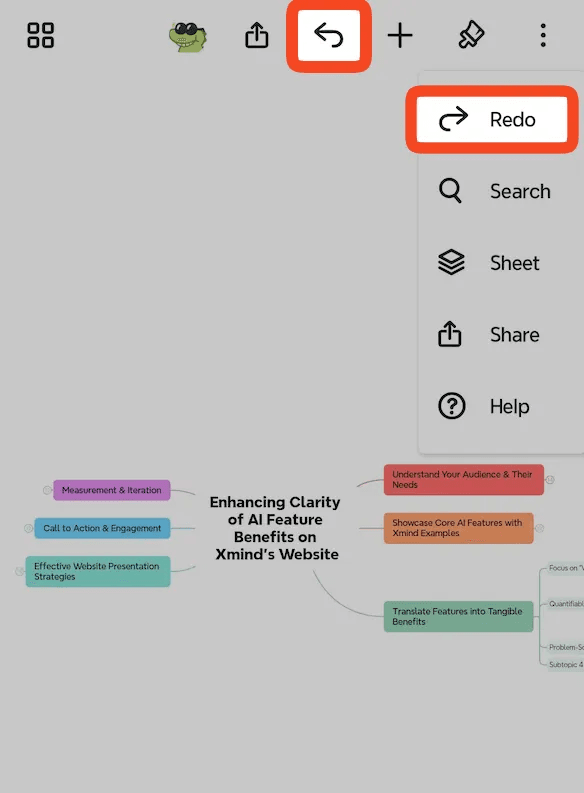
4. Redo and Undo
Undo and redo help you quickly correct editing mistakes.
Undo: Tap the arrow icon on the toolbar.
Redo: Tap 「⋮」 → Redo.
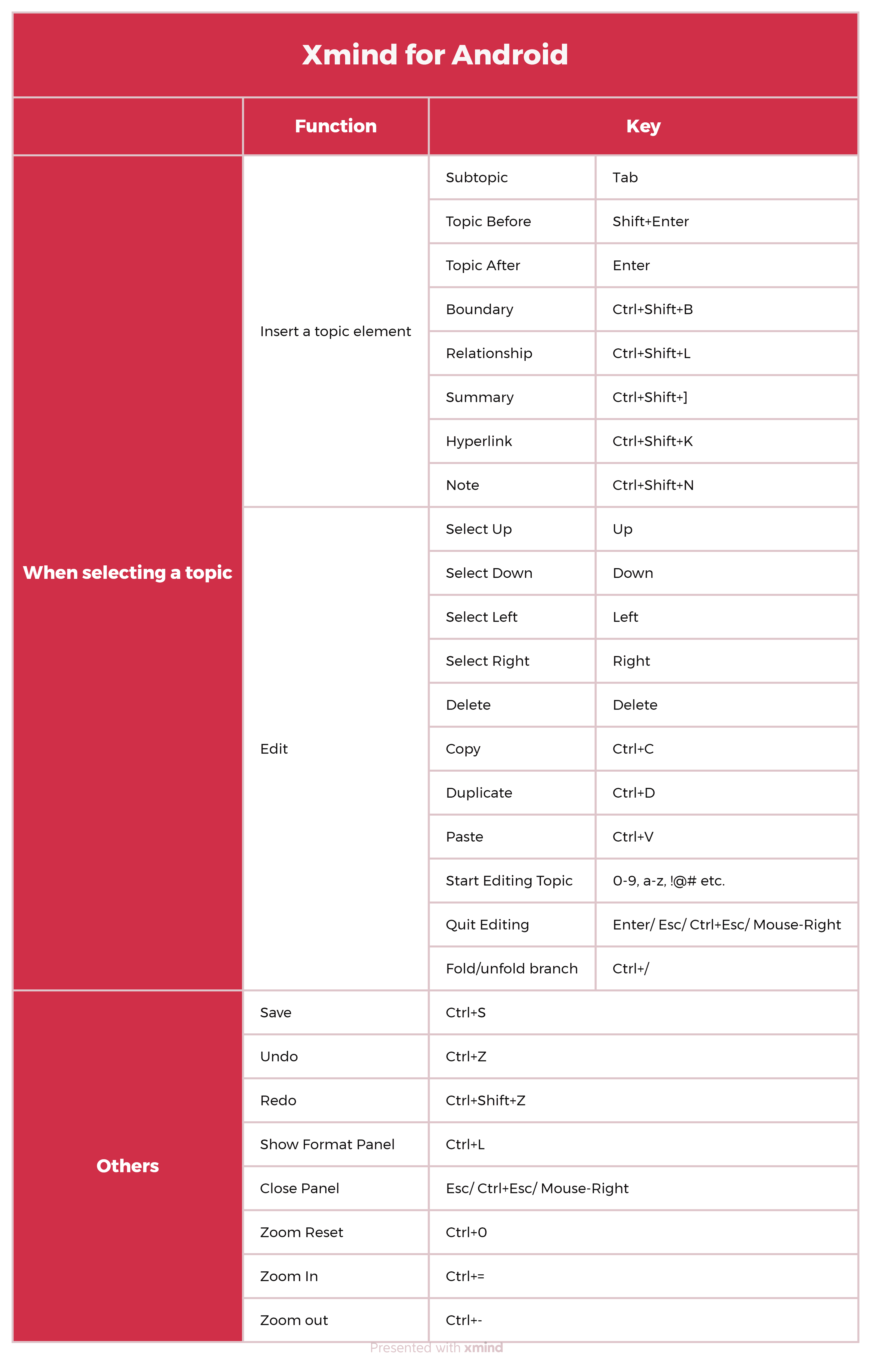
5. Shortcut
Here are the shortcuts available in Xmind for Android. These shortcuts can be used when your device is connected to a Bluetooth keyboard.