Useful Tips for Getting Started with Xmind for iOS
Create a Folder on Local Storage
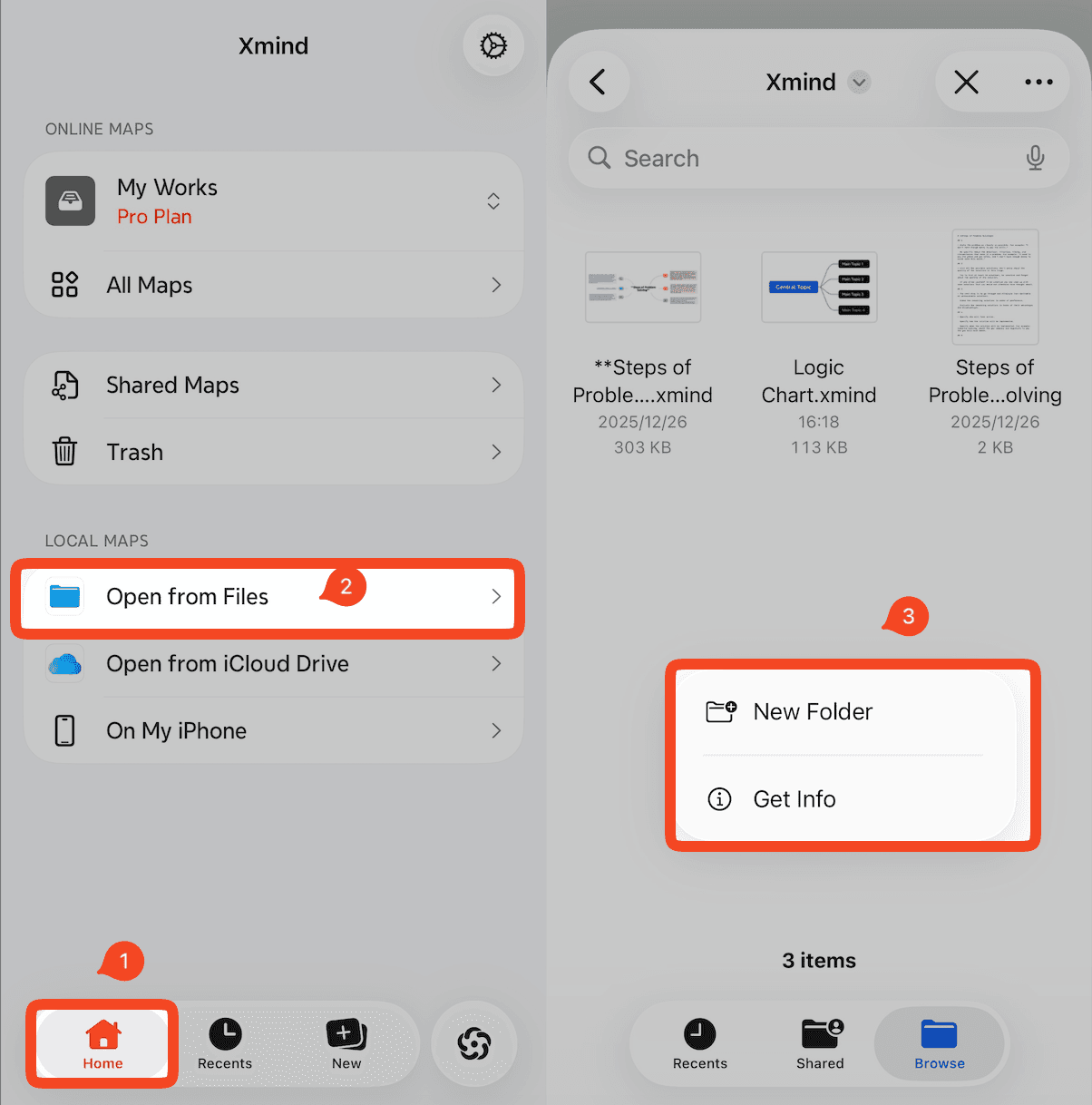
To create a folder in the local storage area:
Launch Xmind for iOS.
Navigate to Home → Open from Files.
Long-press on any blank area within the Xmind folder and click New Folder to create a new folder.
Recover Deleted Local Files
If your locally saved mind map was deleted by accident, you can recover it using one of the following methods:
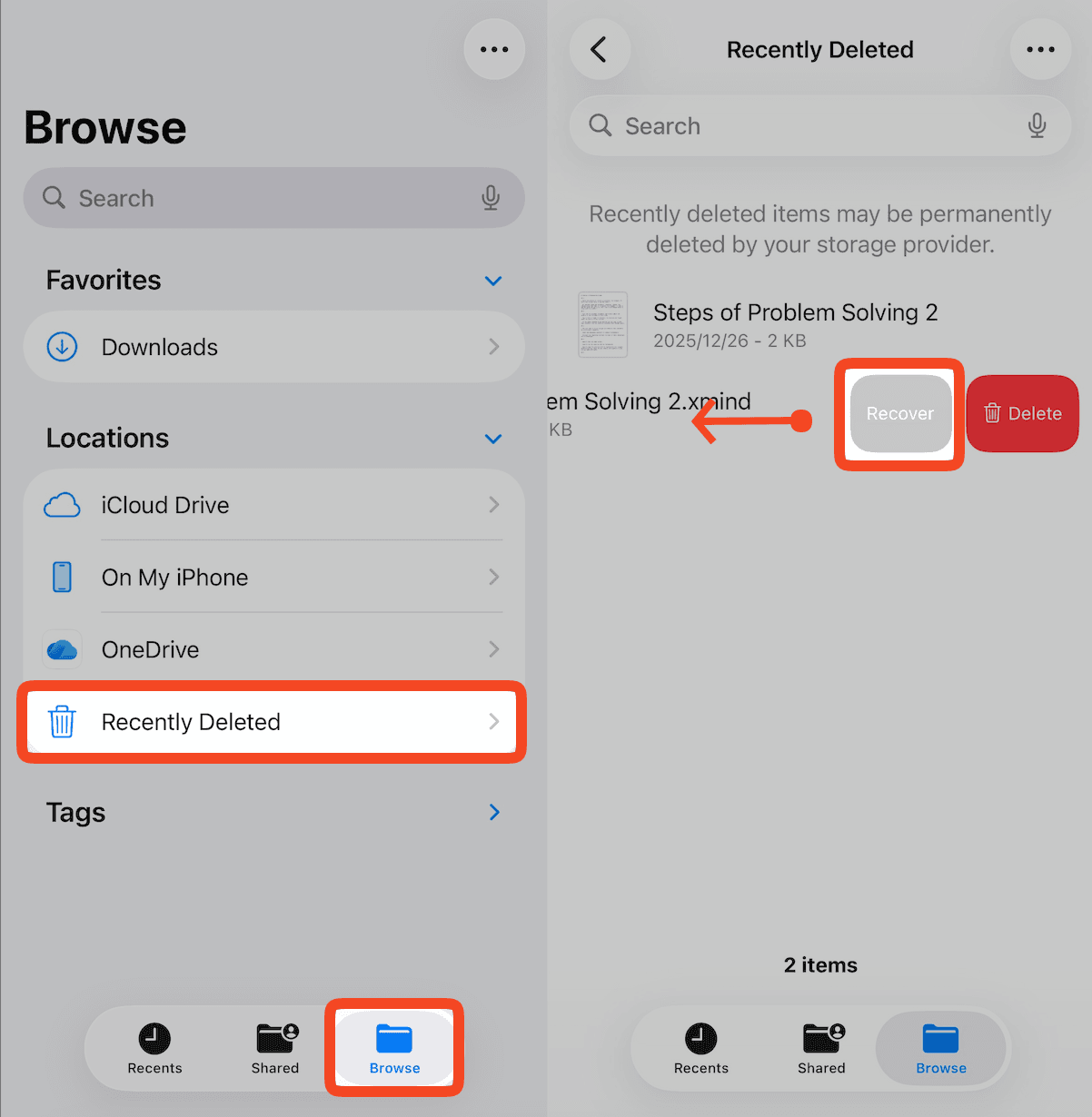
Recover from “Recently Deleted”
Open the「File」app on your iPhone/iPad.
Go to Browse → Locations → Recently Deleted.
Long-press the file you want to restore → Recover.
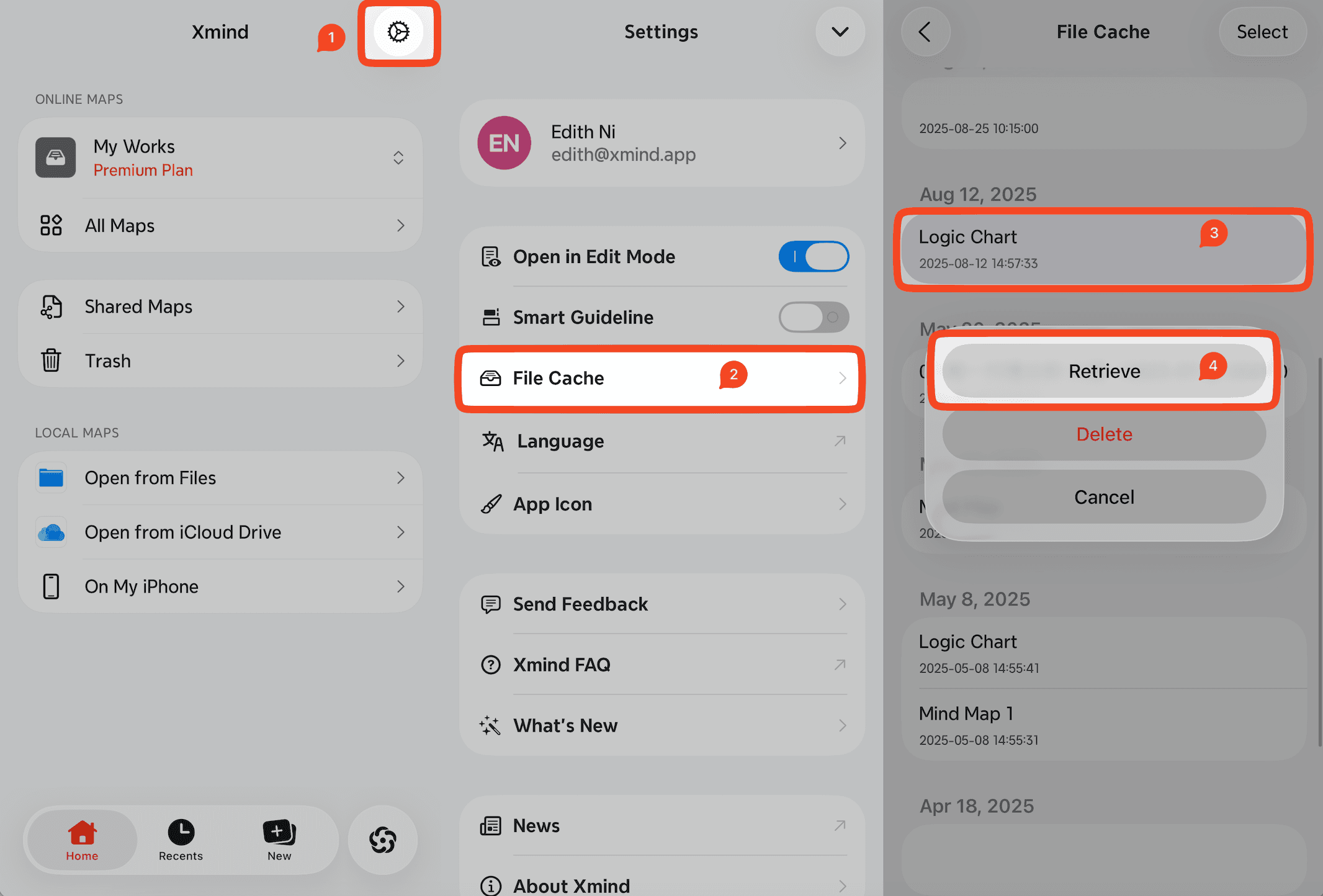
Recover from File Cache
Launch Xmind for iOS.
Go to Settings → File Cache.
Tap the file you want to restore → Retrieve.
Note
Removing a file from Recents only removes it from the recent files list and does not delete the file, so recovery is not required. You can still find the file in its original saved location.
Keyboard Shortcuts
Xmind for iOS supports various shortcuts when your device is connected to a Bluetooth keyboard.
You can long-press the「⌘」key to view the full list of available shortcuts.

