I can’t activate my subscription—how to fix it?
If you are unable to activate paid features after purchasing a subscription, please follow the steps below to troubleshoot.
1. Check Your Subscription Status
Log in to your account on the Xmind website.
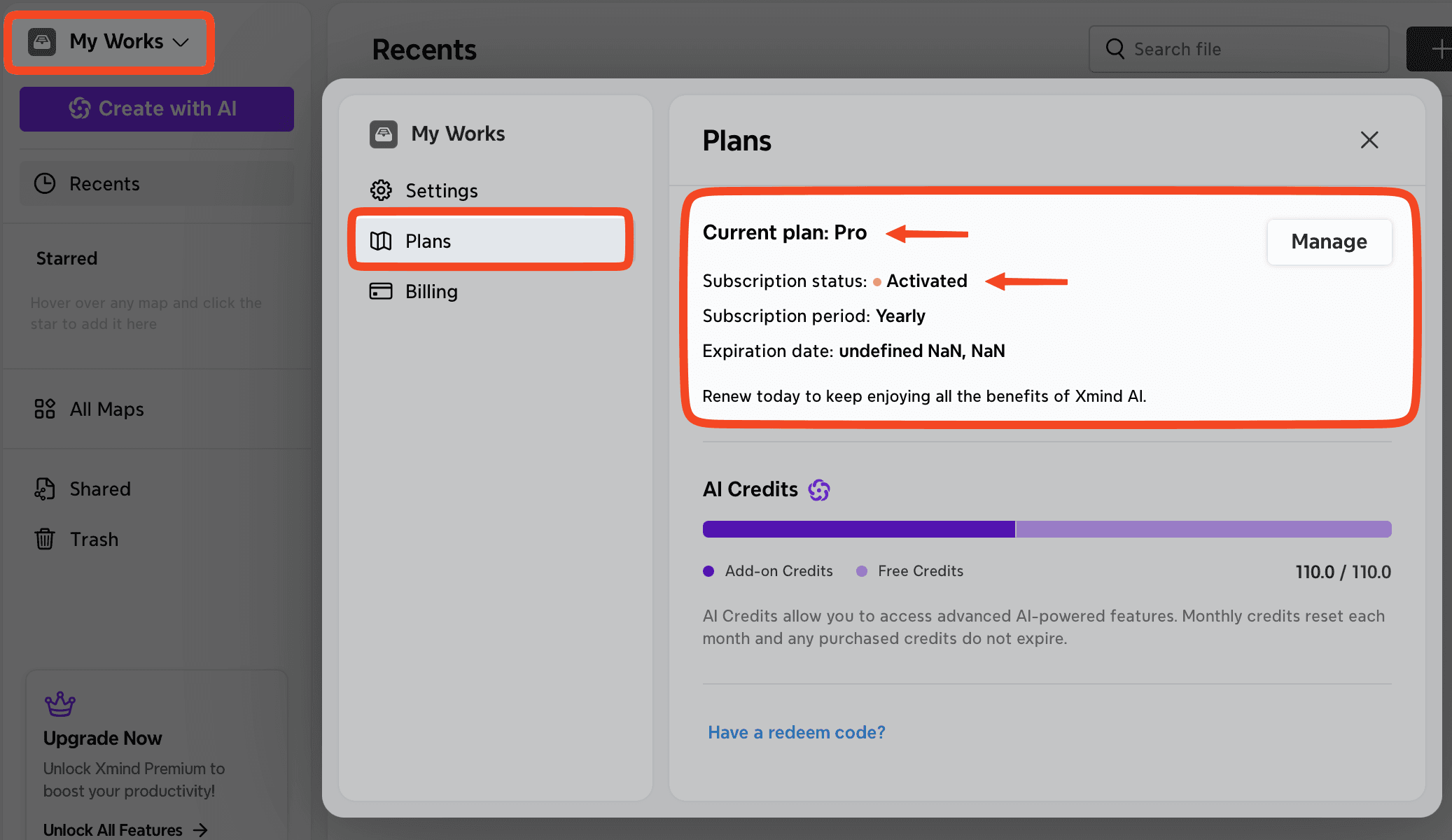
Go to My Works → Settings → Plans.
Confirm whether your plan is shown as active.
If you have an active Pro or Premium plan but features remain locked, please sign out and sign back in to your account in the Xmind application.
Important Notes
With an Xmind Pro subscription, if you upload files to My Works or Team Space, some features will remain locked unless you upgrade to Xmind Premium or Xmind Business.
If your subscription is Xmind Business, please go to your Team Space to create and edit mind maps.
2. If You Purchased Through the Apple App Store
If the subscription does not activate on your account, please restore the purchase on the device where the order was placed.
On macOS
Install Xmind from the App Store.
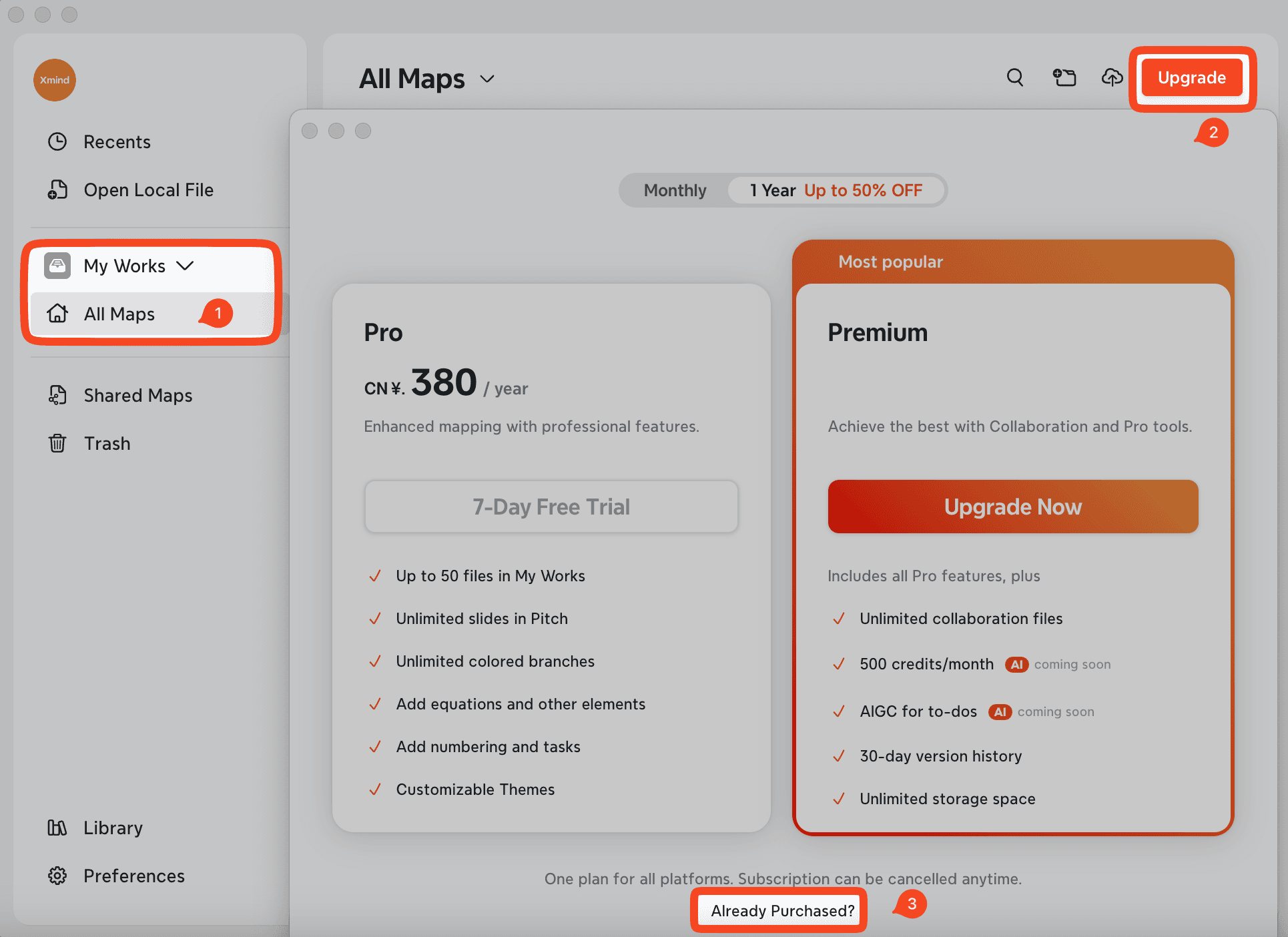
Go to My Works → All Maps, then click Upgrade.
When the pricing page appears, click Already Purchased? to restore your subscription.
On iOS / iPadOS
Launch Xmind for iOS.
Sign out of your Xmind account.
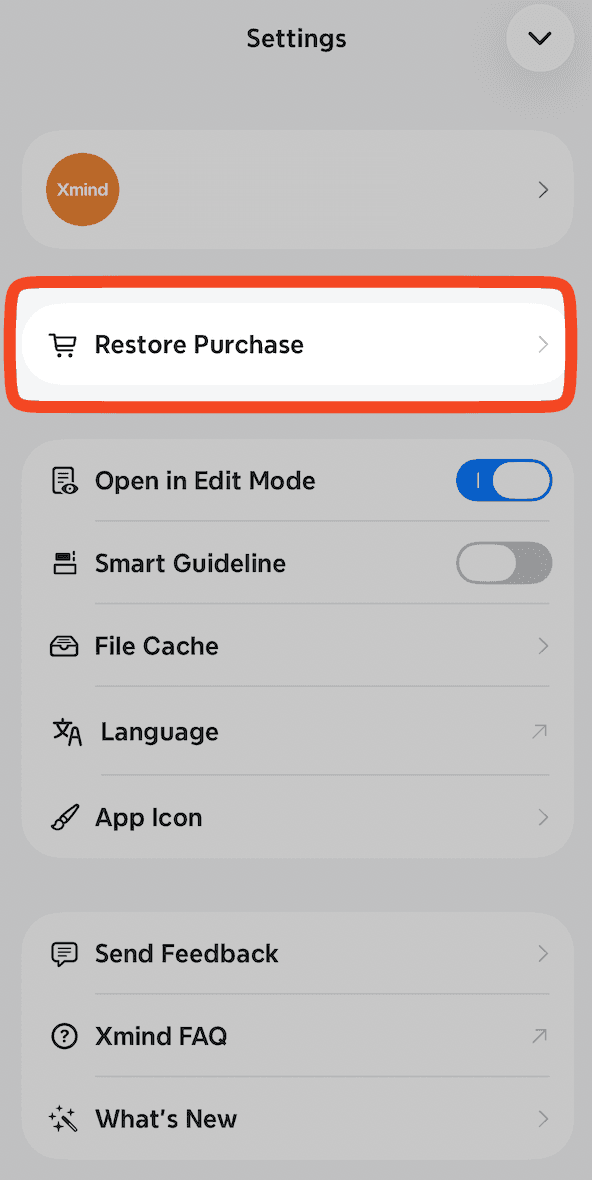
Go to Settings.
Tap Restore Purchase, then sign in again to reactivate your subscription.
3. If You Purchased Through Google Play
To restore your Google Play subscription:
Ensure you are using the same device where the subscription was originally purchased.
Confirm that the Xmind app was downloaded from Google Play.
Make sure you are signed in with the same Google account used for the purchase.
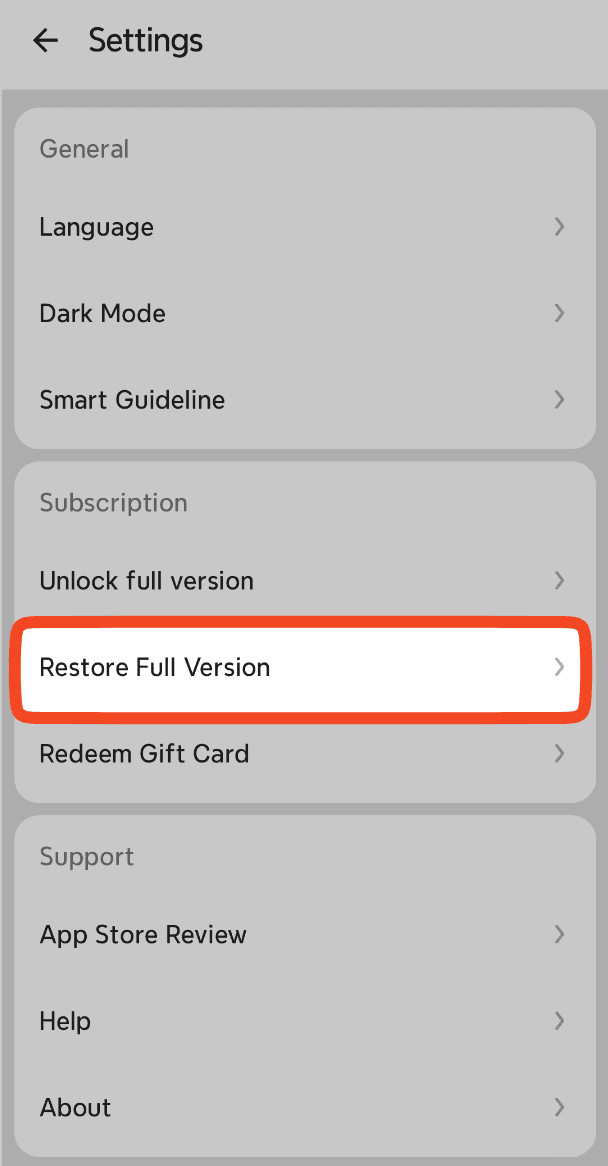
Open the Xmind app → Settings → Restore Full Version, and tap to restore.
If restoration still fails, please contact us with a screenshot of the error message and your account, and we will assist you further.

