From input to insight: Xmind AI now works across your entire mind mapping workflow

Hannah

Most AI tools make you leave your work to use them. You copy text into a chat window, get a response, paste it back, and repeat. Xmind AI takes a different approach: it now lives directly inside your mind map as a built-in AI assistant, so you can generate, refine, research, and plan without ever switching tabs. Whether you're starting with a blank canvas or a half-finished map, Xmind AI is ready to move your thinking forward—right where the work happens. Try updated Xmind AI now.
What Xmind AI can do for you—at every stage of your workflow
Xmind has always offered AI-powered features, but they used to live in separate places. The updated Xmind AI brings everything into a single conversational panel beside your map—and covers the full arc of a mind mapping session, from first input to final deliverable.
Generate a structured map from any input
Research rarely arrives organized. You have articles, videos, PDFs, rough notes—all saying useful things, none of them connected. Turning that pile into a coherent map manually takes time most people don't have.
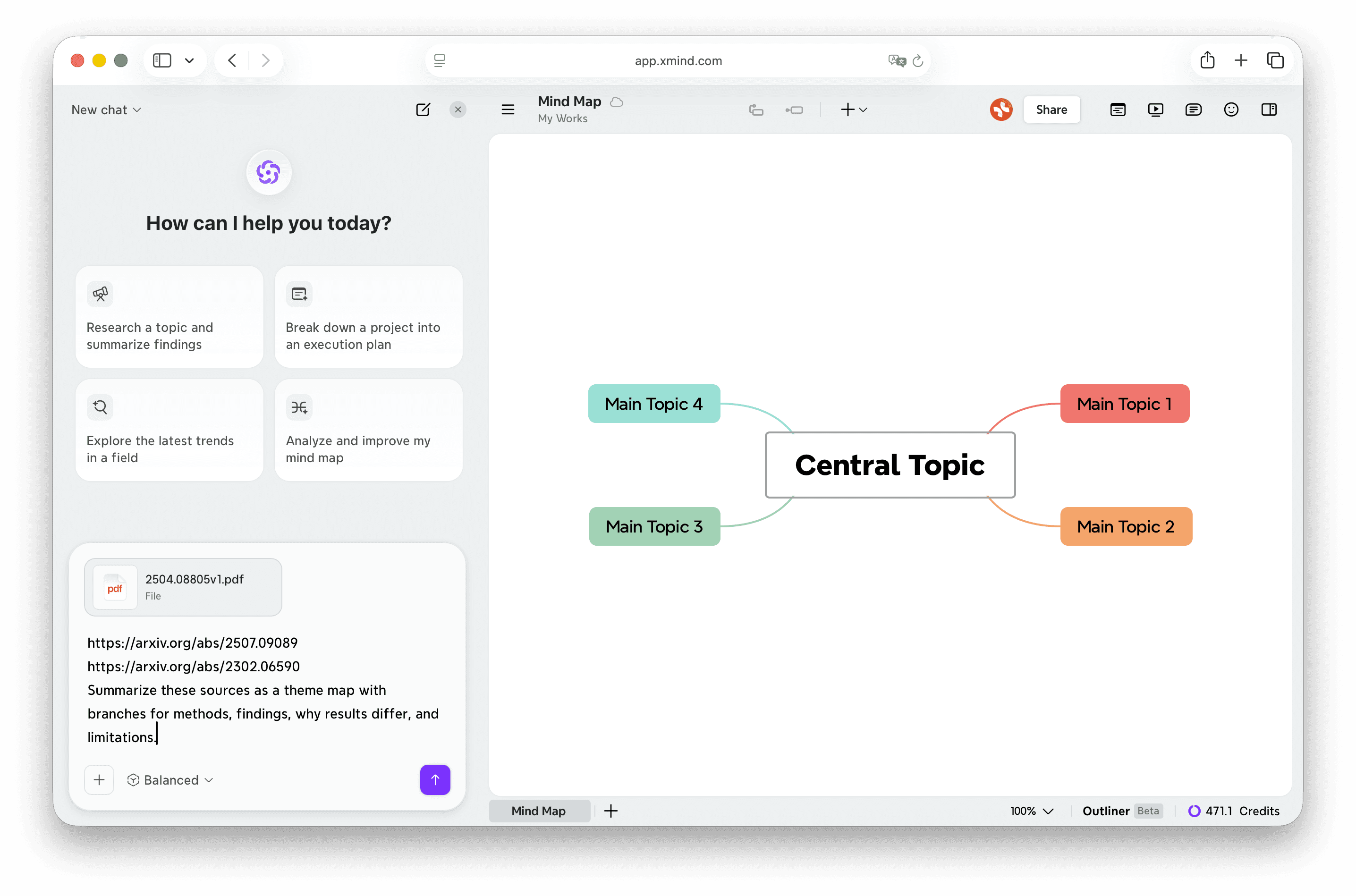
Xmind AI acts as an AI mind map generator from text, files, and links simultaneously. Paste in URLs, upload a PDF, add a short prompt—it reads everything together and generates a structured map from the combined input. The synthesis happens in one step, not one source at a time.
Refine, reorganize, and polish existing maps
A map that's "good enough to keep working" is often the hardest to improve—you can see it needs something, but you're not sure what. Xmind AI can review your structure and identify what's missing, reorganize branches that have grown messy, merge repeated ideas, or rewrite topic titles that have gotten too long. For maps heading toward a presentation, it can apply a cleaner theme or translate the entire content into another language, all in a single prompt.
Turn your map into an actionable project plan
The gap between a finished mind map and an actual project plan is where things stall. Xmind AI bridges it by converting your map into a task breakdown with phases, priorities, and timelines—turning structured thinking directly into actionable steps without rebuilding everything from scratch.
Export to Notion when your map is ready
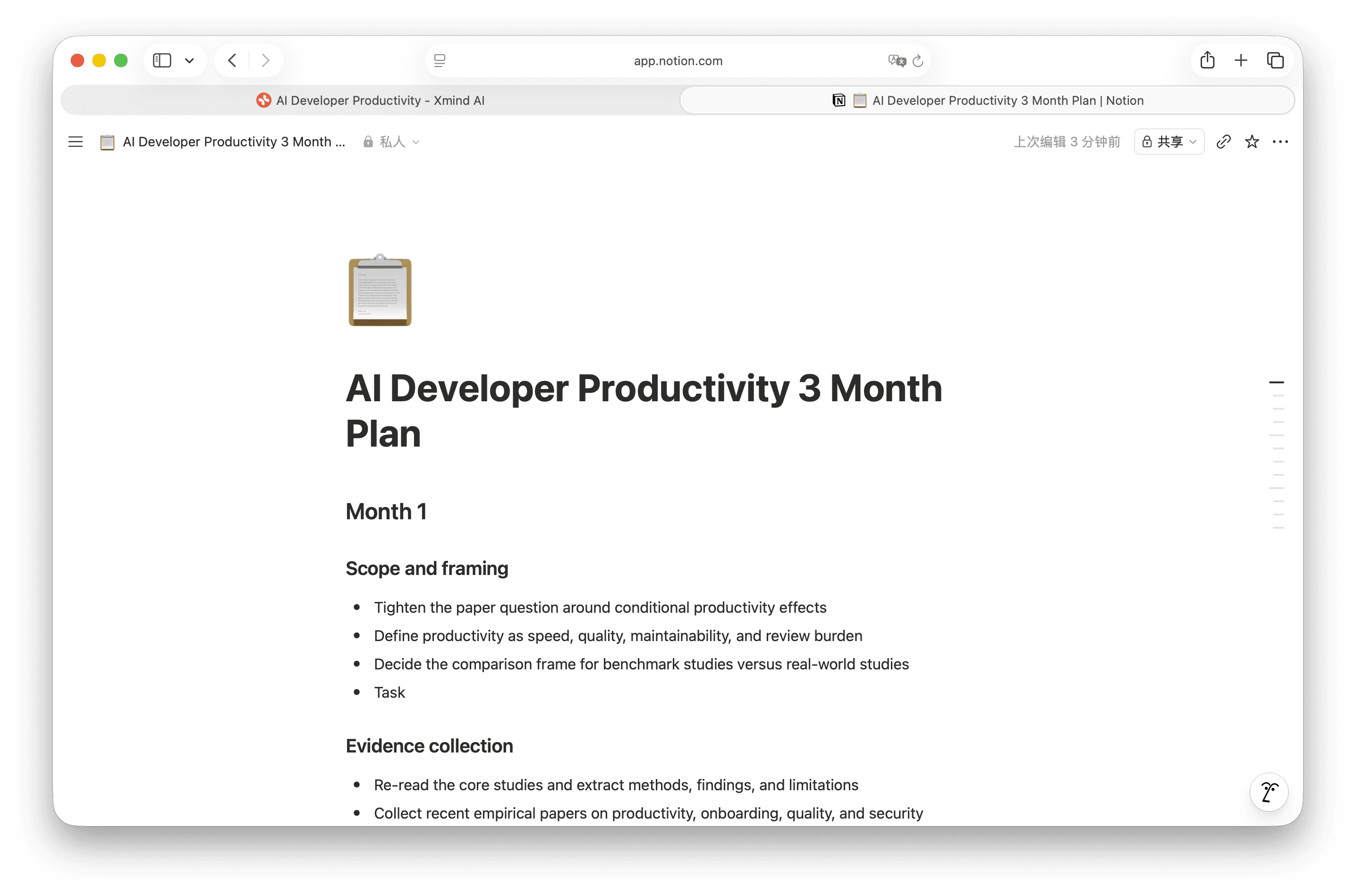
Mind maps are great for thinking; documents are what teams actually share. Once your map is ready, Xmind AI can export it to Notion as a structured document with headings and sections intact, so your work moves into collaboration without losing its organization.
Read more in User Guide → Discover more detailed information about Xmind AI
How to use Xmind AI to go from research to ready-to-present in one session
You're starting a research paper on how AI affects workplace productivity. You have a few papers to read, a PDF report downloaded, and a general direction—but no structure yet. Here's how Xmind AI takes you from a pile of sources to an organized literature map and a concrete research plan, without leaving Xmind.
Step 1: Open Xmind AI
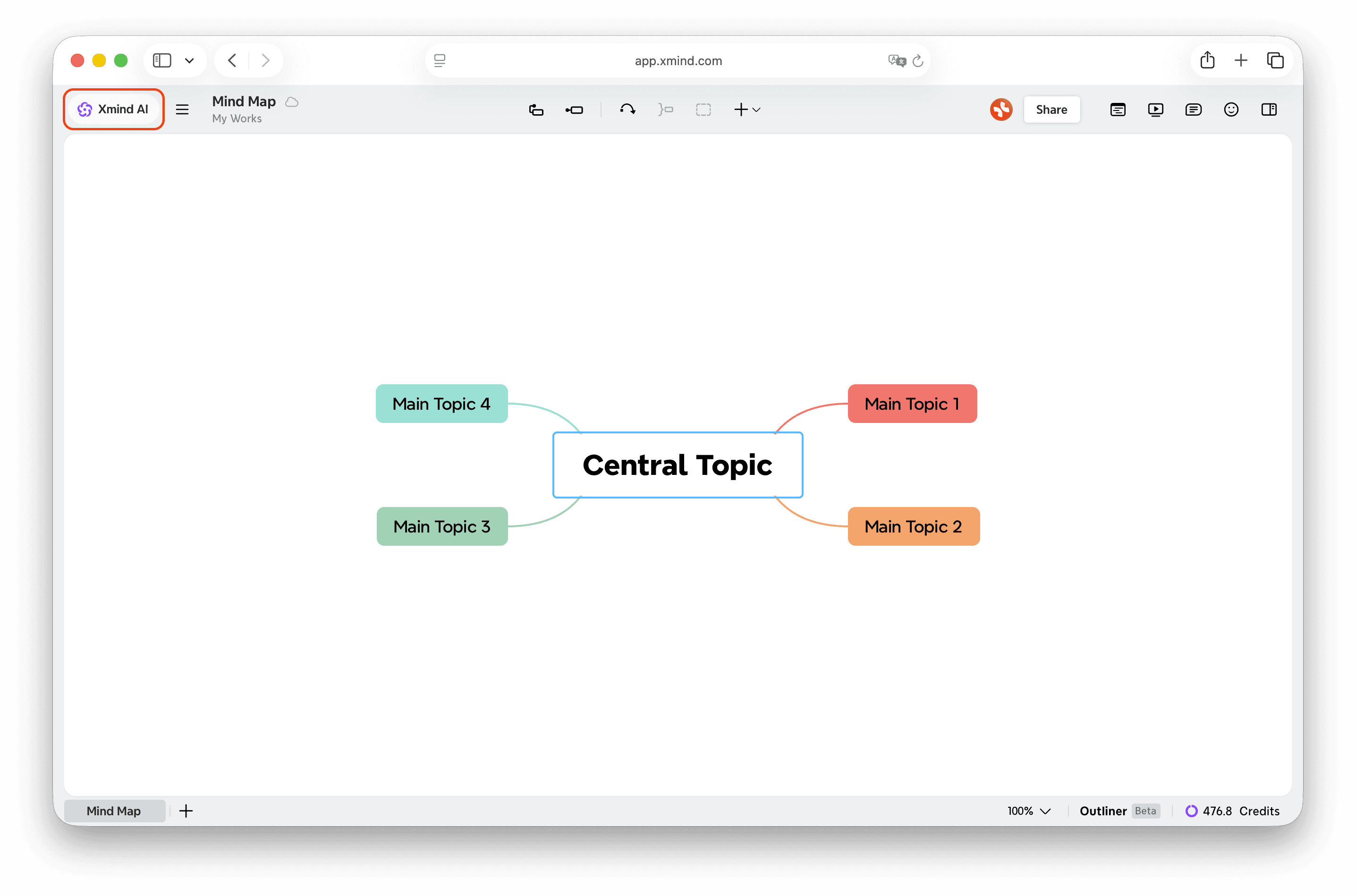
Click the Xmind AI button in the upper left corner next to your map title. The panel slides in beside your map. Switch to Balanced mode—it's well suited for synthesizing and structuring research content.
Step 2: Feed it your sources all at once
Paste 2–3 paper URLs into the chat and upload your PDF report. Add a short prompt: "Summarize these sources as a theme map with branches for methods, findings, why results differ, and limitations." Hit send. Xmind AI reads everything together and builds the map directly on your canvas—each branch capturing a different analytical dimension across all your sources.
Step 3: Fill in the gaps with a web search
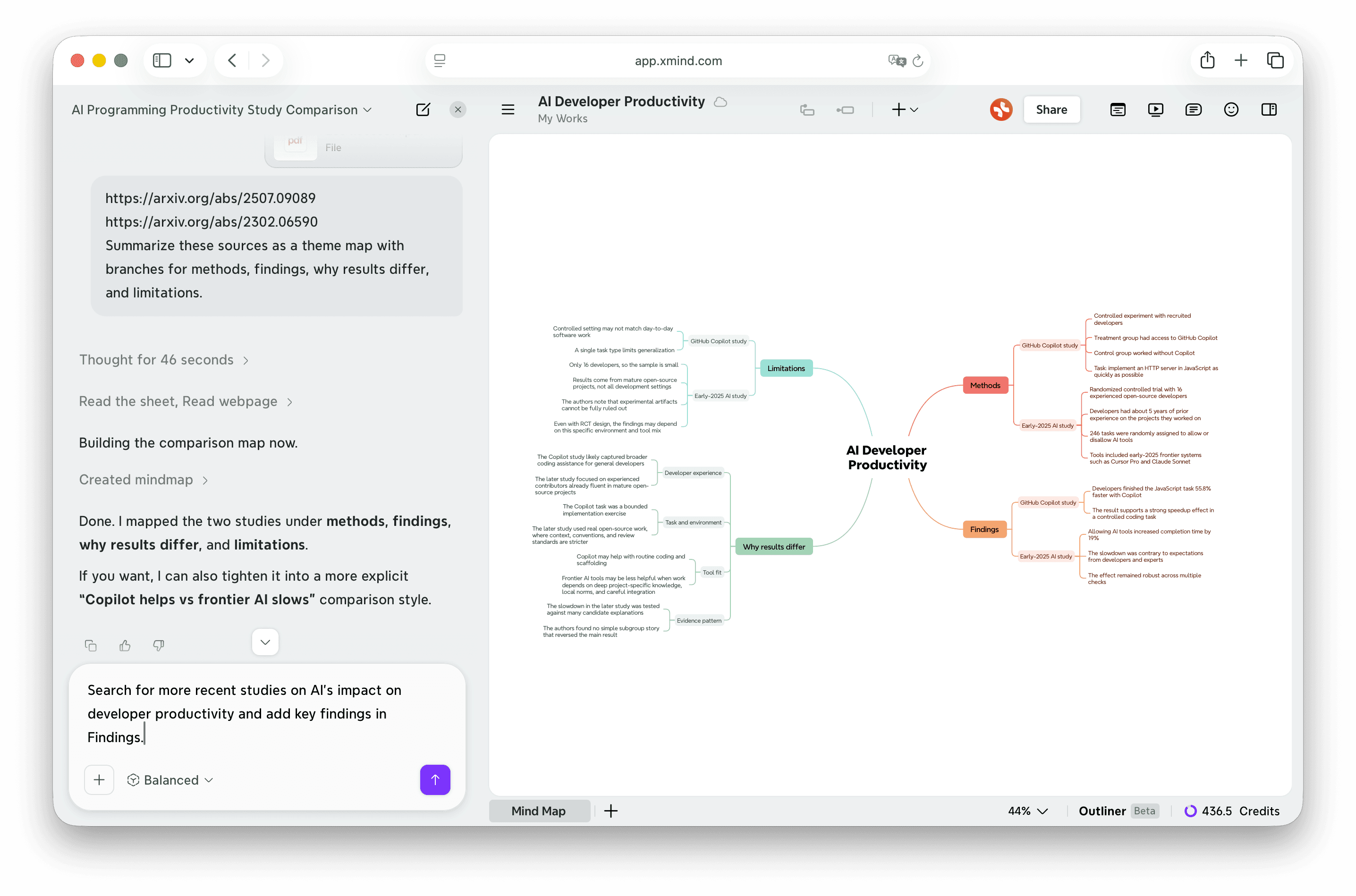
The Findings branch covers two studies—but it feels incomplete, especially with one showing a surprising 19% slowdown. Select the Findings branch and ask Xmind AI: "Search for more recent studies on AI's impact on developer productivity and add key findings in Findings." Xmind AI pulls in current research and expands the branch in place, giving you a broader evidence base without rebuilding the map.
Step 4: Turn the map into a research plan
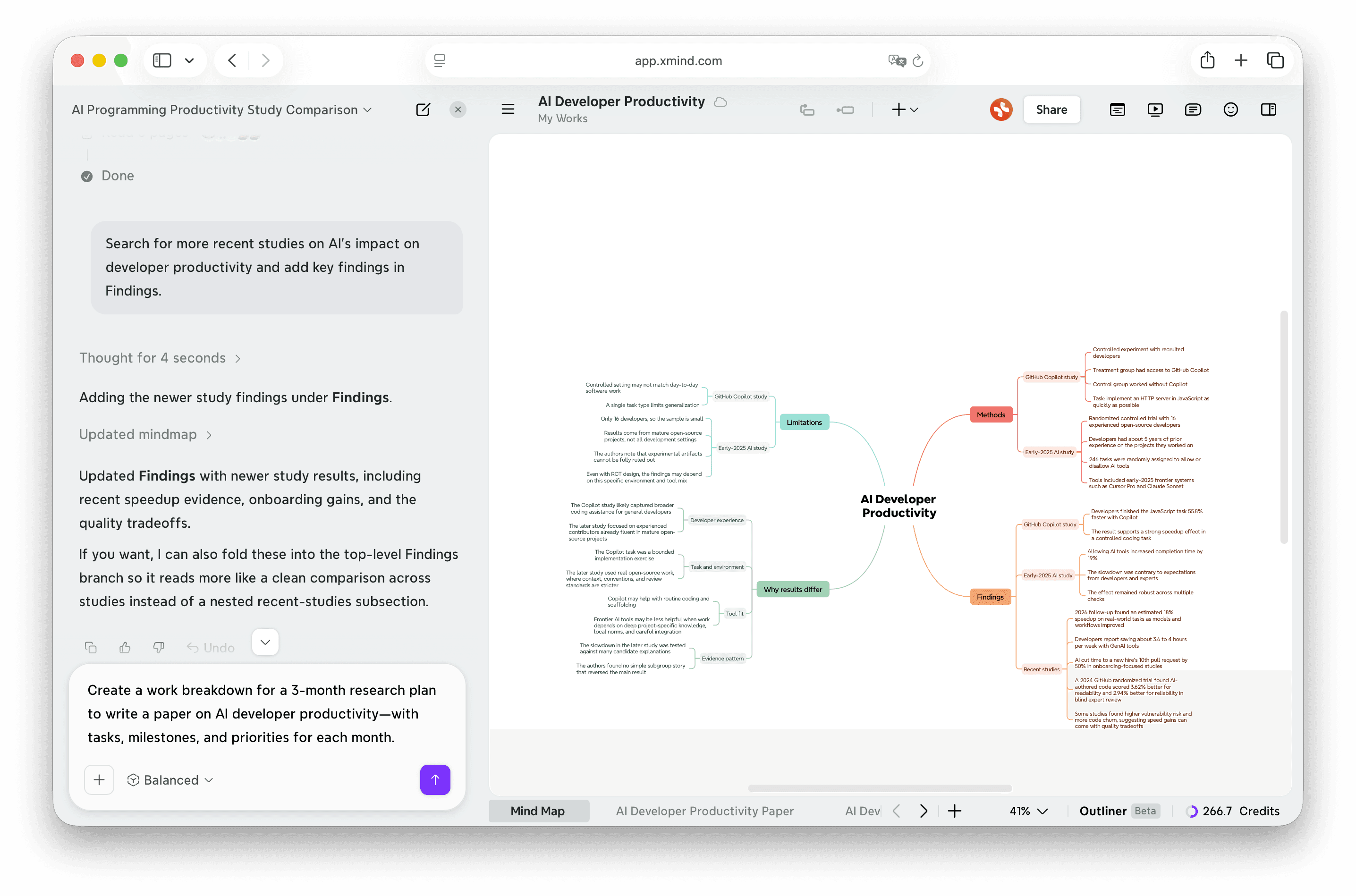
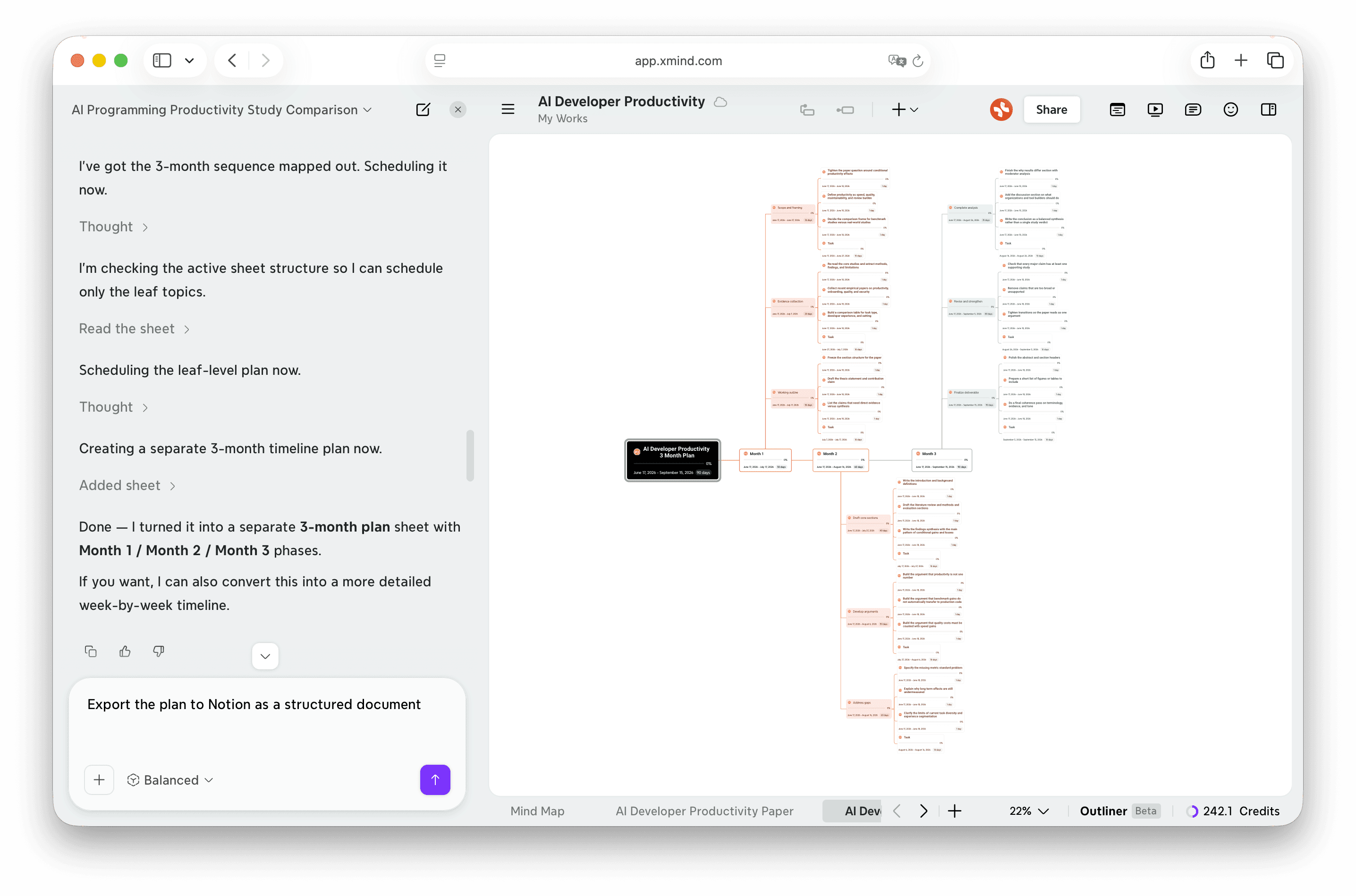
The literature review is done—now you need to act on it. Select the central topic and type: "Create a work breakdown for a 3-month research plan to write a paper on AI developer productivity—with tasks, milestones, and priorities for each month." Xmind AI generates a phased plan with tasks and priorities, directly tied to what the map already contains. Your literature review becomes your roadmap.
Step 5: Export to Notion and start writing
Select the full map and ask Xmind AI to export it to Notion as a structured document. Headings, sections, and hierarchy transfer cleanly—so you can move straight from mapping to writing without rebuilding your structure from scratch.
Conclusion
The updated Xmind AI removes the friction between thinking and doing. It's not just a mind map generator AI for brainstorming—it's an assistant that works across every phase of your mind mapping session, from the first input to the final export. If you've been using Xmind's AI features piecemeal, this is the version that connects them all. Open your next map in Xmind and see how far a single conversation can take you.
Your AI thinking partner, built into every map.
Xmind AI generates, refines, researches, and plans—all inside your mind map, from start to finish.