Xmind for iPhone Duo: a new design with more room to think

Hannah

Xmind for iPhone Duo brings your outline and mind map into view together, with multi-window support for comparing different documents. The update gives you more ways to examine an idea: follow its sequence, see its structure, and keep related material nearby as you work.
We’ve also refined the toolbar layout and the Format Panel’s Liquid Glass design. Together, these changes make space for the content you’re working through, whether you’re reviewing a project, preparing a presentation, or studying a complex topic.
To explore the new experience, open Xmind on iPhone Duo with a map you’re already working on.
Mind Map and Outliner, together in tabletop mode
In tabletop mode on iPhone Duo, Xmind displays Mind Map and Outliner together. They offer two perspectives on the same content: an outline makes the order and hierarchy easy to follow, while a mind map shows how topics are grouped around the main idea.
The value becomes clearer when a document needs more than a quick read. You might know what each point says but still be unsure whether the argument holds together. Keeping both views visible lets you examine those questions without repeatedly switching between them.
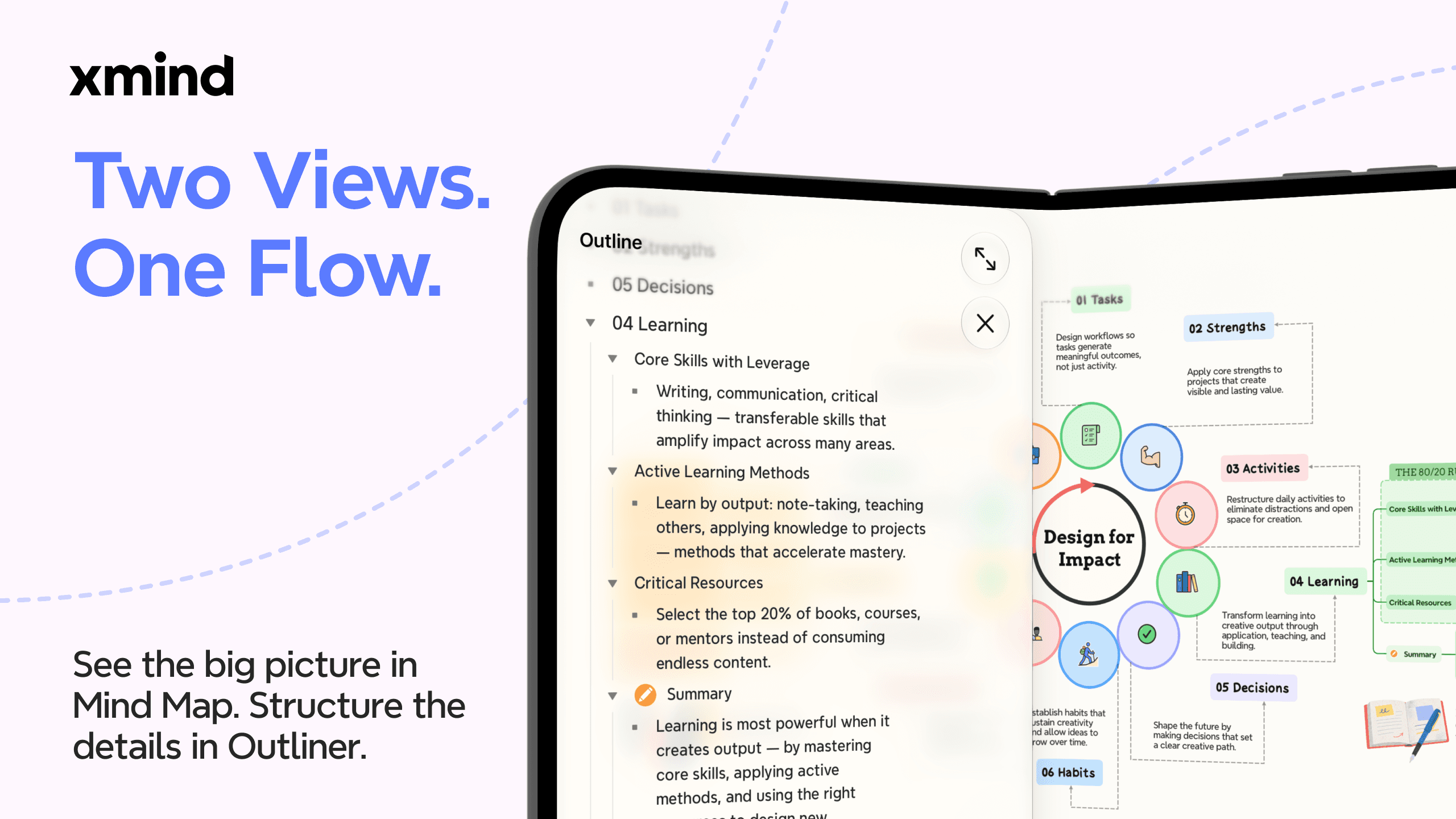
Review a presentation in Outliner
Imagine preparing a short presentation for a product launch. Your map contains the audience, the problem you’re addressing, the proposed solution, and the rollout plan.
Read the outline as if you were explaining the proposal to someone hearing it for the first time. Does the audience’s problem appear before the solution? Have you introduced the reason for a decision before describing its consequences? Does the final section make the next step clear?
That review can reveal a specific change. A detail about launch timing, for example, may appear before you’ve explained who the release is for. Moving it later could make the sequence easier to follow.
Meanwhile, the mind map keeps the surrounding structure visible. You can consider whether that detail belongs under the rollout plan or supports a different part of the proposal. The two views help you ask different questions about the same material.
Check the structure in Mind Map
Now consider a study map with definitions, examples, and questions from several lectures. Reading the outline helps you work through the material in order. Looking at the map lets you check how those pieces have been grouped.
Suppose an example appears under one concept, but your notes discuss it under another. You can identify the mismatch and decide whether to move the example, clarify its wording, or revisit the source material. Xmind gives you the two perspectives. The judgment remains yours.
A useful review is to choose one branch, read its outline, and then look at its place in the map. Ask whether the heading accurately describes the material beneath it. That is a concrete way to use the wider view without turning every review into a full reorganization.
Use multiple windows to compare different maps
Sometimes the context you need belongs in another document. Multi-window support on iPhone Duo lets you keep different Xmind documents in view at the same time.
This serves a different purpose from the dual-view experience. Mind Map and Outliner help you examine one document in two ways. Multiple windows help you compare separate documents while keeping their content distinct.
For example, imagine planning a new workshop with a map of feedback from the previous session. The feedback mentions that participants wanted more time for discussion and a clearer introduction to the exercises. Your new plan contains the agenda, activities, and preparation tasks.
With those maps alongside each other, you can check the plan against the feedback:
Does the agenda leave time for discussion, or is every section already filled?
Does the opening explain what participants will do during the exercises?
Have you included the preparation needed to support those changes?
The reference map remains a record of what happened. The new map contains your decisions about what to do next. You don’t need to merge them just to compare them.
The same approach works when developing a presentation from a research map or comparing plans for two related projects. Start with a specific question you want the reference document to answer. Keeping it visible then has a clear purpose, rather than simply adding another window to the screen.
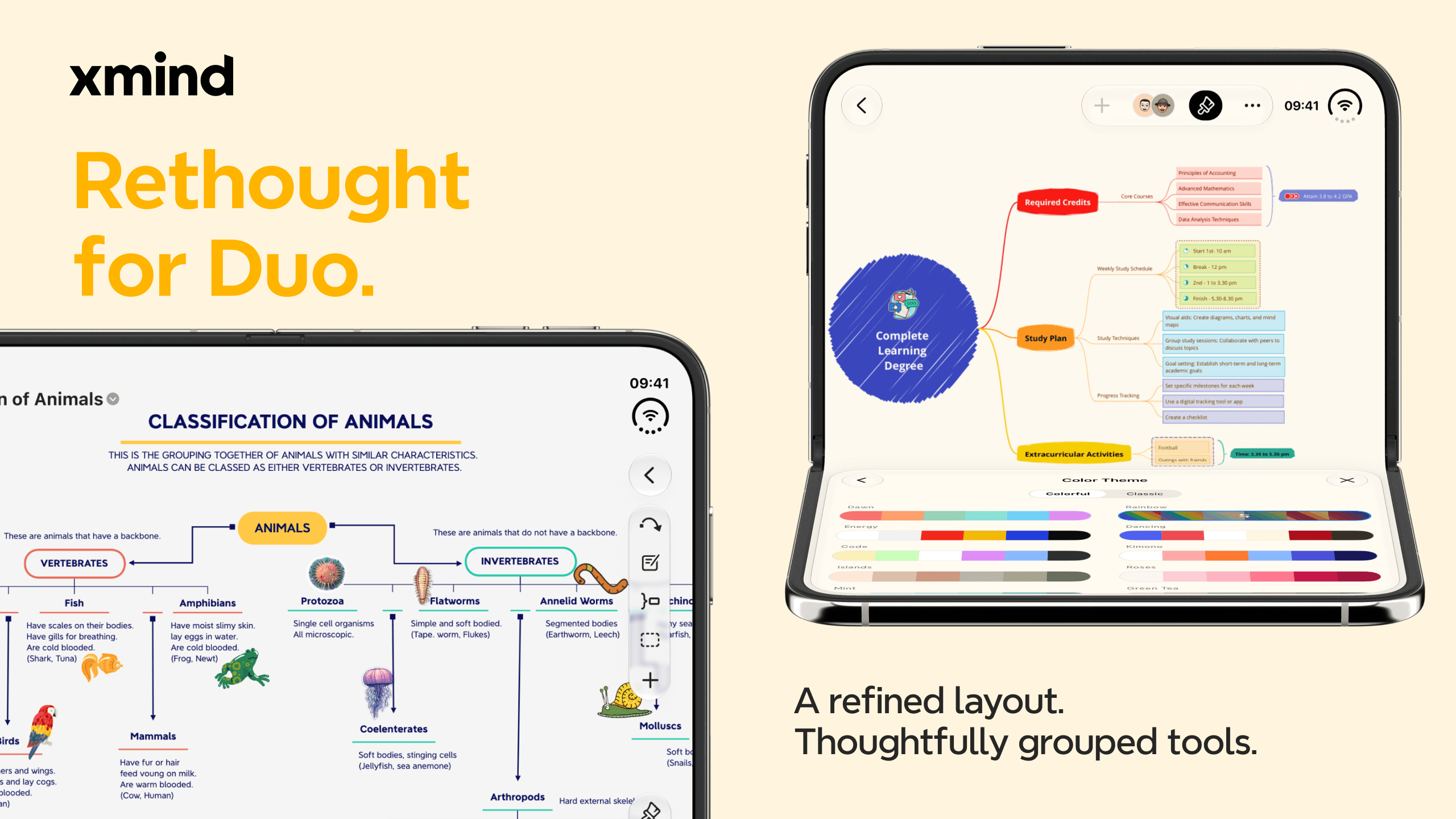
A toolbar arranged for iPhone Duo
We’ve adjusted the layout and grouping of toolbar controls for iPhone Duo, bringing related tools together.
When reviewing that workshop plan, your attention might move from a missing point to a heading that needs changing. Each adjustment involves a brief shift away from reading and into editing. Related controls are grouped to make the action you need easier to find, so you can make the change and return to the question you were considering.
The focus is on the layout of the tools already around your work: making them easier to locate on iPhone Duo as you develop and revise your map.
Liquid Glass refinements in the Format Panel
The Format Panel receives another round of Liquid Glass refinements, bringing its appearance closer to the surrounding system while keeping the map at the center of the experience.
Formatting is part of communicating a thought. Once you have settled the structure of a presentation or study map, the next question is what a reader should notice first. A visual adjustment should help express that decision, rather than compete with the content.
The refined panel follows the system’s visual language, keeping that styling work within a familiar interface. The map remains the focus while you adjust its appearance.
Explore your next idea with Xmind for iPhone Duo
A presentation needs both a clear sequence and a coherent structure. A new plan often needs an earlier document beside it. Xmind for iPhone Duo gives those tasks more room, with views and controls suited to the way you’re working.
Update Xmind, then return to an existing map. Review one section in Mind Map and Outliner, or bring a related document alongside it. Start with a question about your own work, and use the new space to explore the answer.
Keep your next idea in view
Open a plan, compare related maps, and explore two perspectives on your work with Xmind on iPhone Duo.