How to export NotebookLM mind maps and edit them online (step-by-step)

Jerry
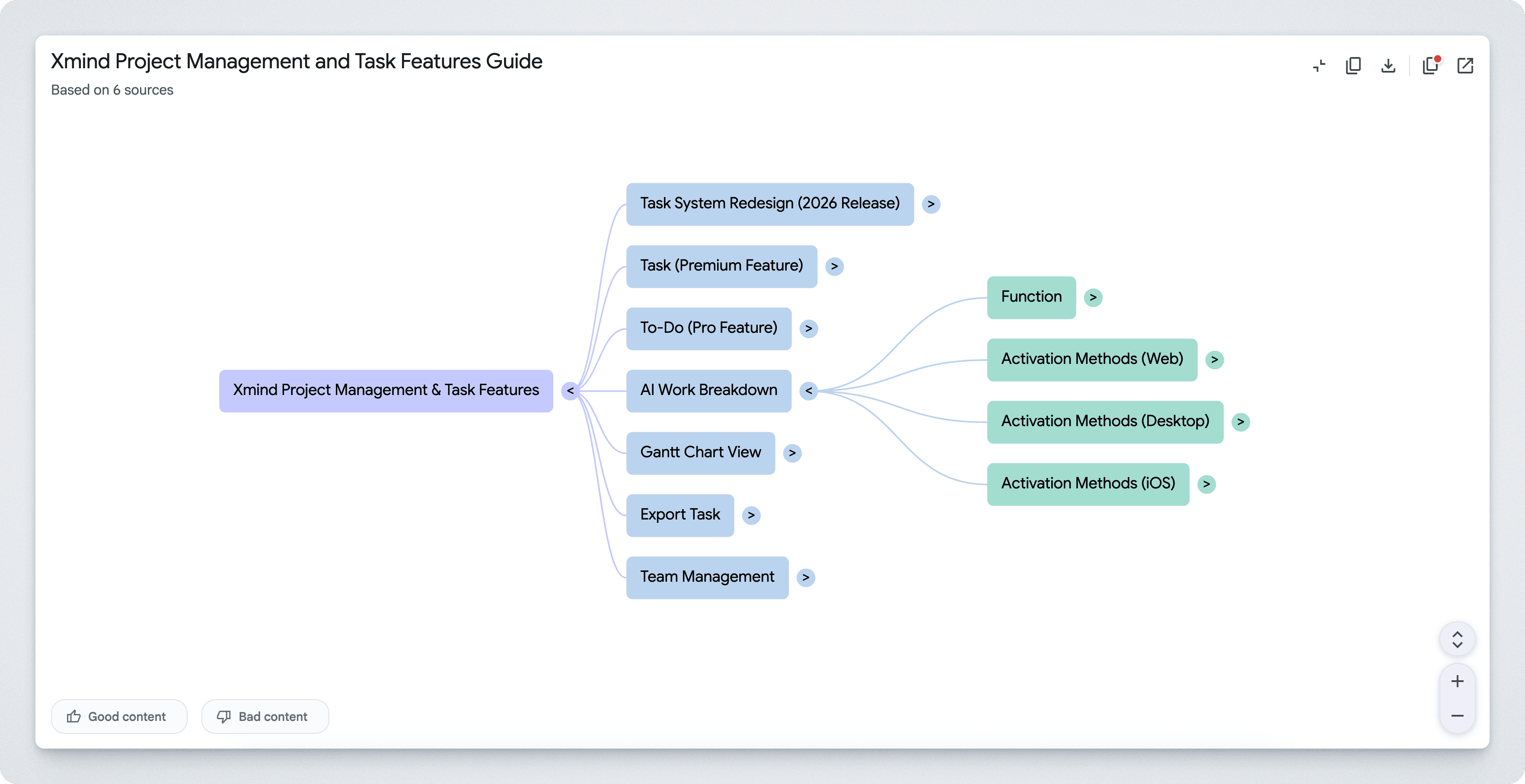
NotebookLM can generate a mind map preview from your uploaded documents and notes—but there’s one catch: the mind map preview isn’t designed for editing. If you want to reorganize nodes, rename branches, merge topics, or turn it into something you can actually refine and reuse, you’ll need an export-and-edit workflow.
This guide shows you the simplest way to export a NotebookLM mind map into Markdown and convert it into an editable mind map online.
What is a NotebookLM mind map and why export it?
A NotebookLM mind map preview is great for quickly visualizing structure—especially when you’re exploring a long doc or a messy set of notes. But most people want to do more than view:
Refine the hierarchy (promote/demote ideas)
Rename branches into clearer labels
Group and de-duplicate repeated topics
Turn insights into actionable structure (plans, outlines, study maps)
Export/share a clean map with your team
Exporting the mind map into Markdown is a practical bridge: Markdown is easy to copy, store, and convert into an editable map.
Can you export NotebookLM mind maps natively?
In practice, users often hit two friction points:
1️⃣ The mind map is a preview, not an editor.
2️⃣ Getting the full structured content out is not one click.
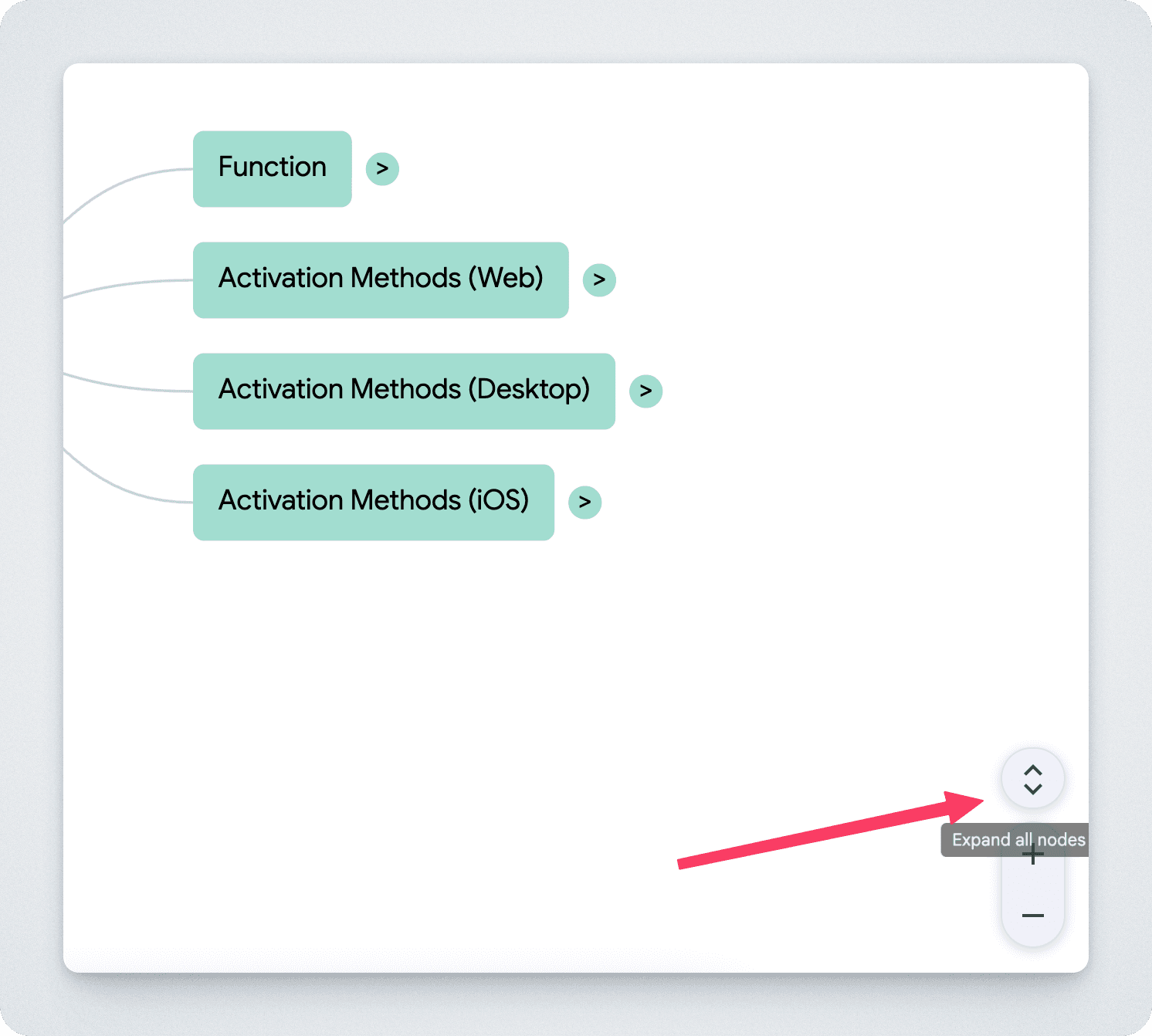
That’s why the best export workflow focuses on two things:
Capture the full expanded content
Open it somewhere that’s immediately editable
The easiest way: export NotebookLM mind maps in one click
The fastest workflow combines two actions inside NotebookLM:
Copy All: Automatically expands the mind map content and copies the full Markdown in one click (no manual expanding step).
Edit Online: Jumps straight to an online Markdown → Mind Map editor page with the content pre-filled, so you can start editing immediately.
This is the workflow most beginners want:
no fiddly steps, no guesswork, no “did I copy everything?” anxiety 😅.
Step-by-step: export & edit with the Chrome extension
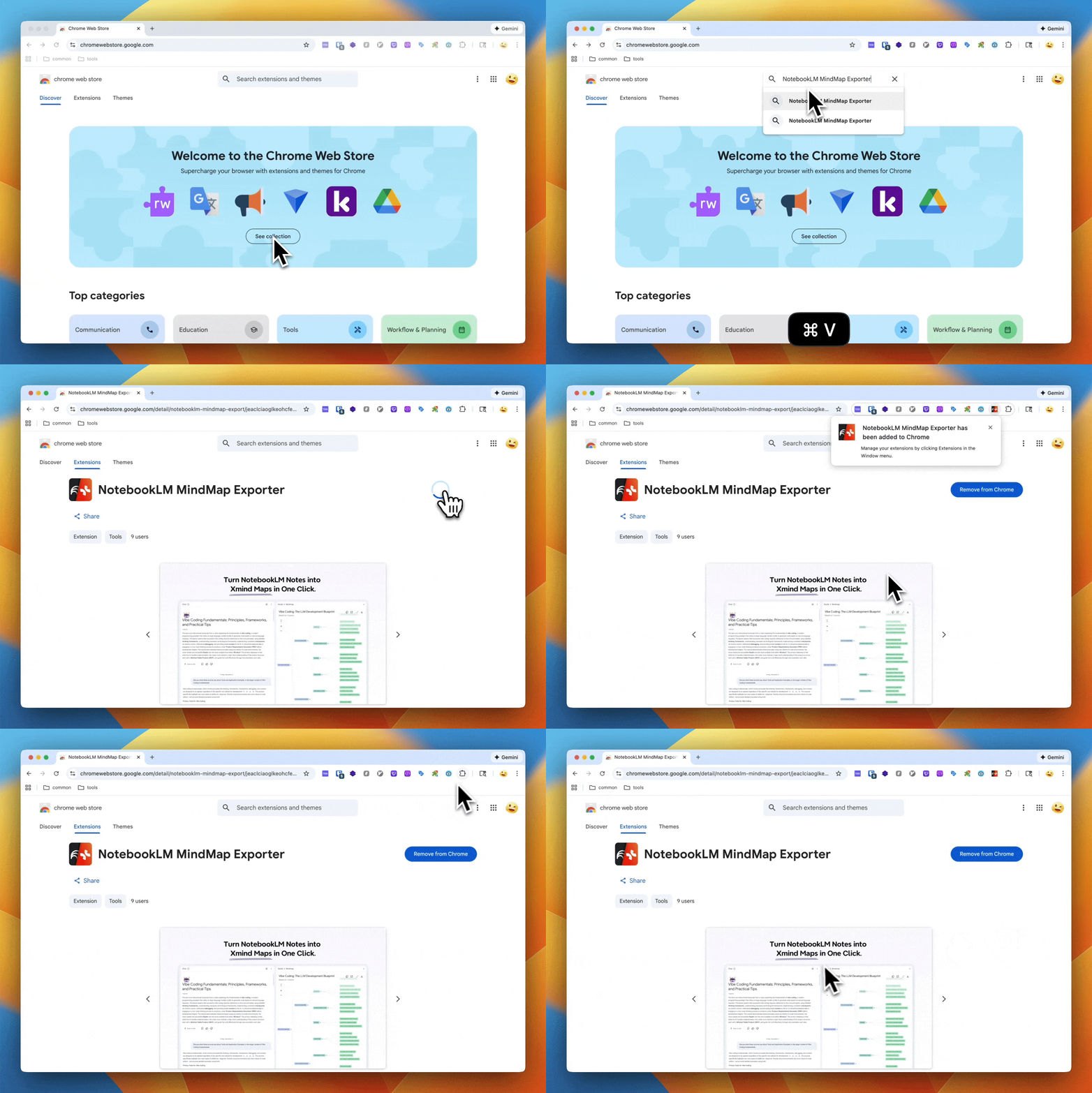
Step 1: Install the extension
Install the NotebookLM mind map exporter / editable mind map extension from the Chrome Web Store.
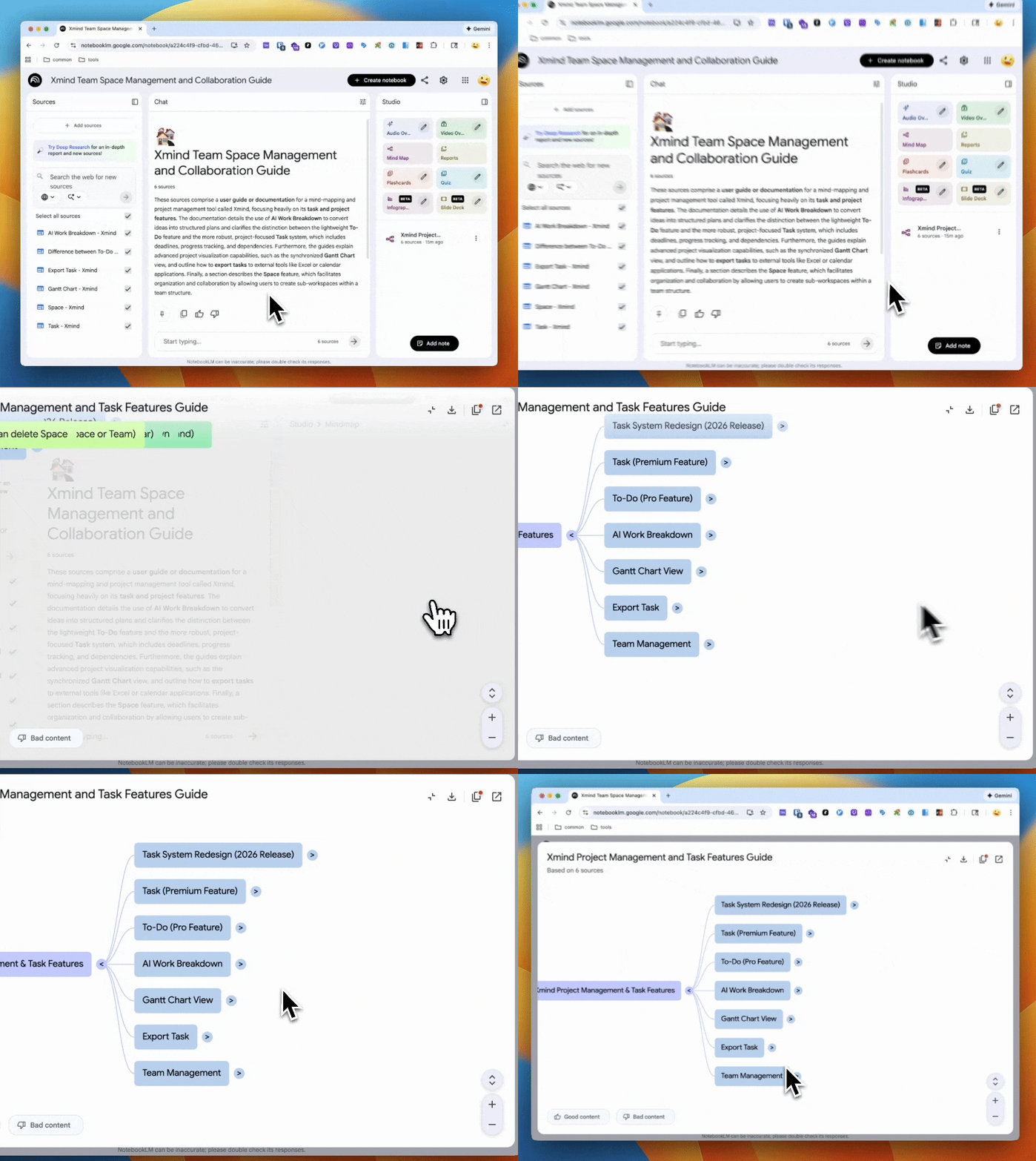
Step 2: Open NotebookLM and go to the Mind Map view
Open the notebook where your document/notes live
Navigate to the mind map preview
Step 3: Click edit online
Click Edit in Xmind to export your NotebookLM mind map in one go—it automatically expands the full structure, captures the complete Markdown, and opens the online editor with the Markdown already pasted, so you can start editing immediately on notebooklm mind map extractor page.
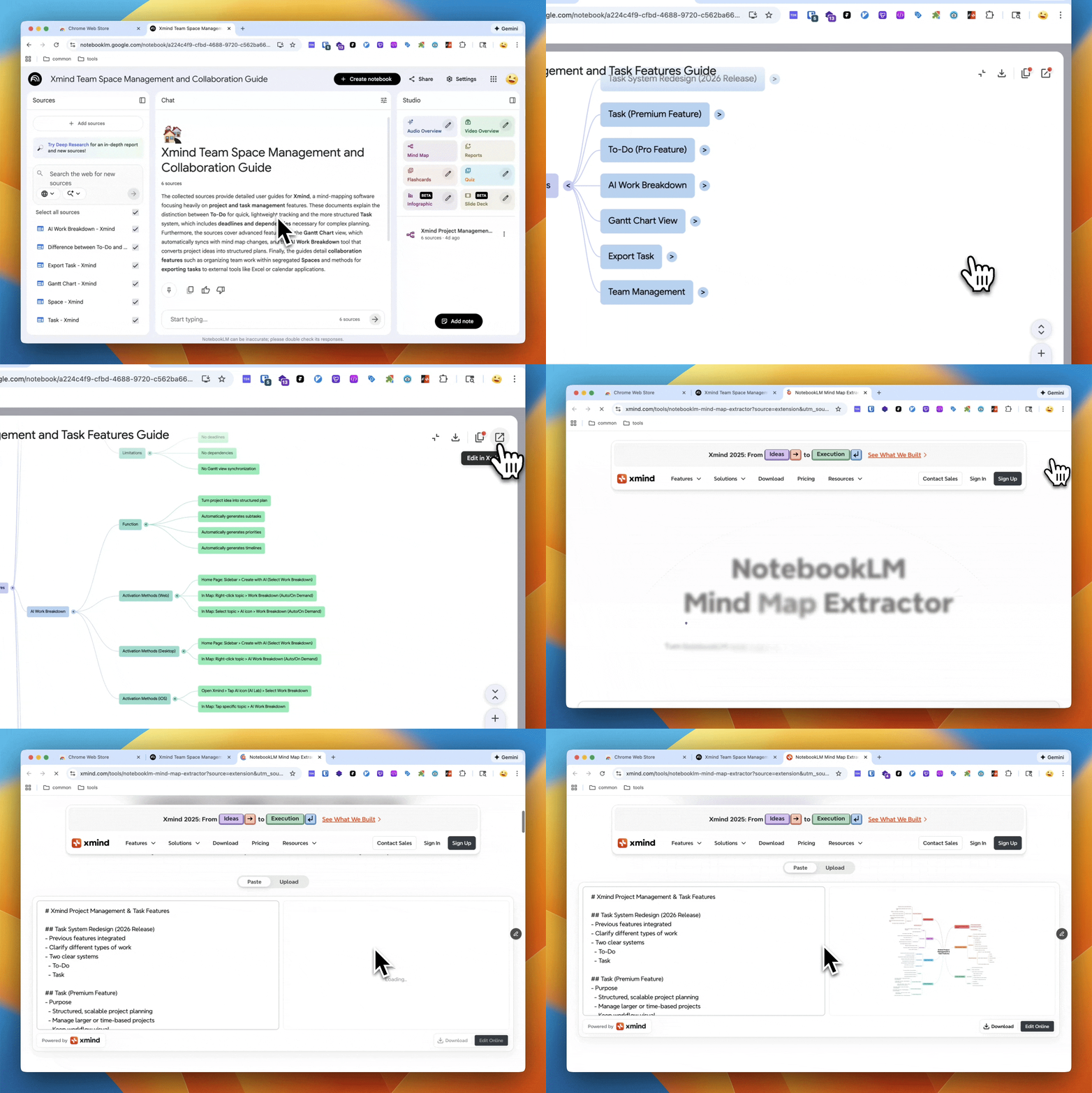
If you only need the Markdown, click Copy as Markdown button
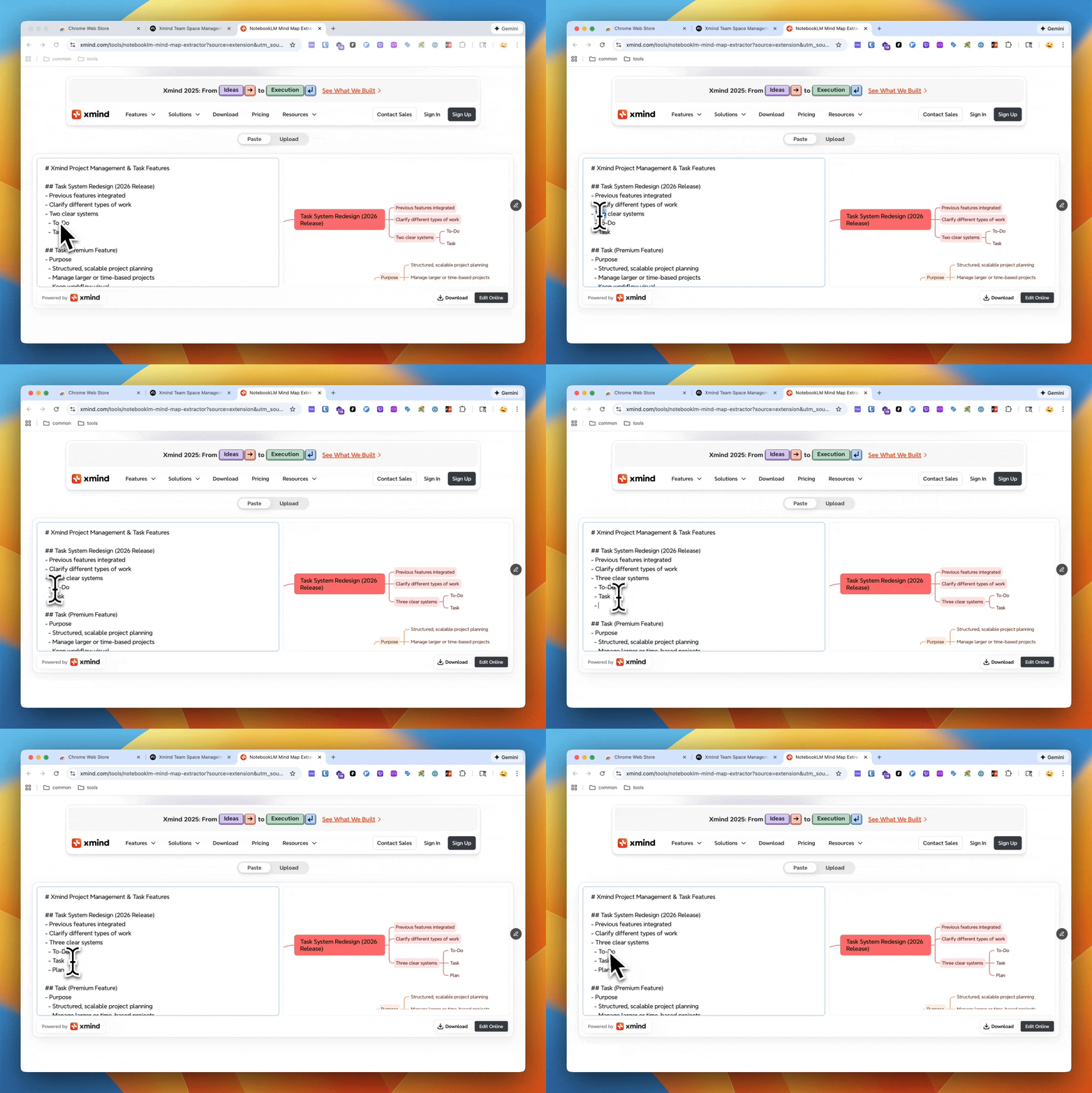
Step 4: Edit and refine your mind map in real time
Once your content loads, you can start editing right away:
Edit the Markdown on the left and see the mind map update instantly on the right
Freely restructure, rename, and add new nodes as you go
When you want more advanced mind-map editing controls, click Edit Online for a full editing experience
Alternative: manual export (copy as Markdown)
NotebookLM mind maps can only be downloaded as a PNG image. To reuse the structure in other tools, we built Copy as Markdown—so you can copy the currently visible (expanded) mind map view as clean, structured Markdown.
Manual steps
Open the Mind Map view in NotebookLM
Expand the branches you want to include (you decide how detailed the export should be)
Click Copy as Markdown (top-right)
Paste the Markdown into any app that supports Markdown (docs, notes, wikis), or into a Markdown to mind map tool for further editing
When this manual export is useful
You only need to export part of the mind map (a specific branch), not everything
You want a portable outline you can paste into any Markdown-friendly tool
You’re collaborating with someone who prefers text-based structure over a mind map image
You want a quick capture of the current view without jumping to a separate editor
How the online tool works: NotebookLM Markdown → editable mind map
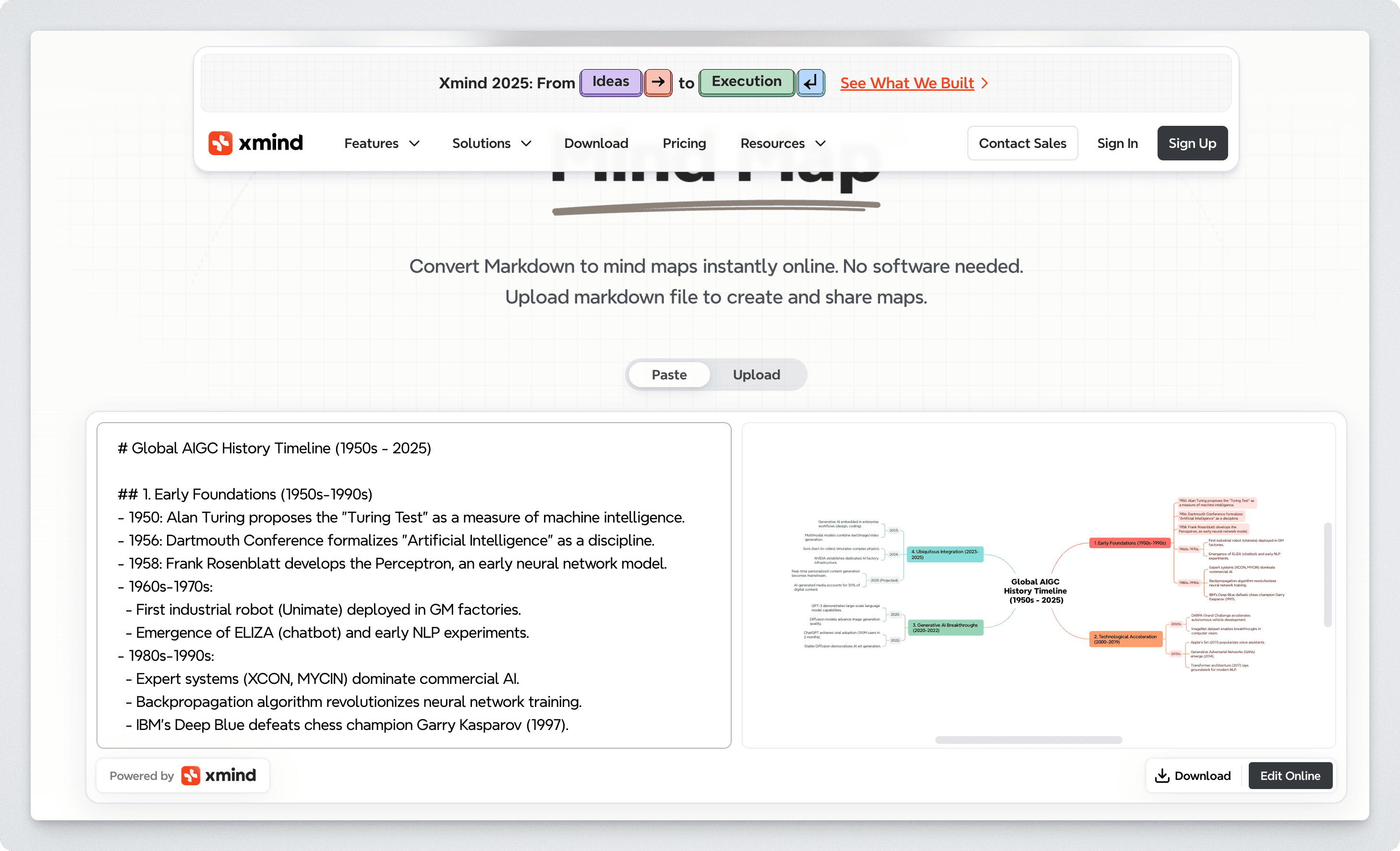
The online tool is designed as a clean “handoff” page that converts your Markdown into a mind map you can edit.
Typical flow
Paste the Markdown (or arrive via the extension with it already loaded)
The tool converts Markdown structure into a mind map hierarchy
You edit the result online
Why this tool page matters
Instead of dumping Markdown into a blank canvas and forcing users to figure out the next step, this page:
accepts the export format (Markdown),
converts automatically, and
lands users directly in an editable environment
This is the difference between “exported text” and “a mind map you can actually work with.”
Best practices: make the exported mind map cleaner
Once your map is editable, a few quick edits can dramatically improve clarity:
1) Convert vague headings into meaningful labels
Bad: “Overview”, “Details”, “Misc”
Better: “Key Findings”, “Constraints”, “Open Questions”
2) Keep each node short
Aim for one idea per node. Split long sentences into child nodes.
3) Turn lists into branches
If a node contains multiple items, create sub-branches for each item.
4) Fix hierarchy (the 80/20 cleanup)
Promote key categories to higher levels
Demote supporting details into children
Merge repeated concepts into one “source” node
5) Add “Action” branches if you’re using it for work
A simple pattern:
Decisions
Next Actions
Risks
Owner / Timeline
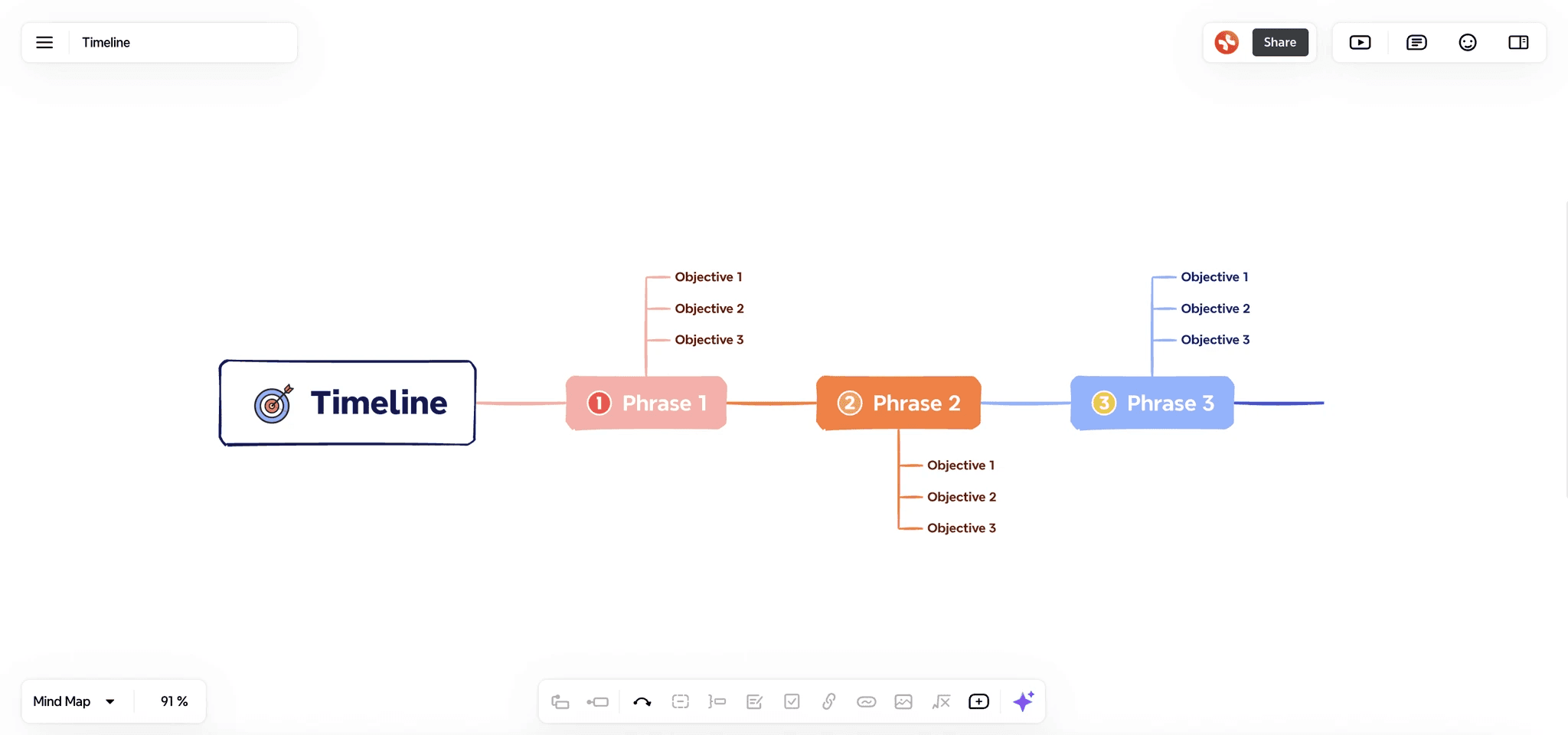
Start exporting your NotebookLM mind maps now
If you want the fastest path:
1️⃣ Open the NotebookLM mind map previewor
2️⃣ Click Edit Online
3️⃣ Edit your mind map immediately on notebooklm mind map extractor
FAQ
Can you edit mind maps inside NotebookLM?
No. NotebookLM can generate a mind map preview, but it isn’t designed for full mind map editing.
What file formats can NotebookLM export for mind maps?
NotebookLM currently supports downloading mind maps as a PNG image. For an editable structure, you’ll need to export the content as Markdown and convert it.
How do I export a NotebookLM mind map as Markdown?
Use the extension’s Copy as Markdown to copy the currently visible (expanded) mind map structure as structured Markdown.
How do I export the entire mind map at once?
Click Edit in Xmind in the extension. It automatically expands the full structure, extracts the Markdown, and opens the online editor with the content already filled in.
Can I export only part of a NotebookLM mind map?
Yes. Manually expand only the branches you want, then click Copy as Markdown to copy just the current view.
Is Markdown a good format for mind map export?
Yes. Markdown is portable, easy to edit, and works well for converting into mind map hierarchies in compatible tools.