Plan like a pro: Master "Skip Non-working Days" in your Gantt chart with Xmind

Hannah
Managing a complex project is a balancing act of time, resources, and reality. But too often, our project schedules live in an ideal world where weekends and holidays don't exist—leading to "deadline drift" and manual recalculation headaches.
At Xmind, we believe your tools should adapt to your life, not the other way around. That’s why we’ve introduced the "Skip Non-working Days" feature in our Gantt chart. It’s designed to bring professional-grade scheduling logic to your mind maps, ensuring your project timelines are as realistic as they are visual.
Try Xmind to experience smarter project management.
Common pitfalls in traditional project management methods
The frustration of the "weekend deadline" trap
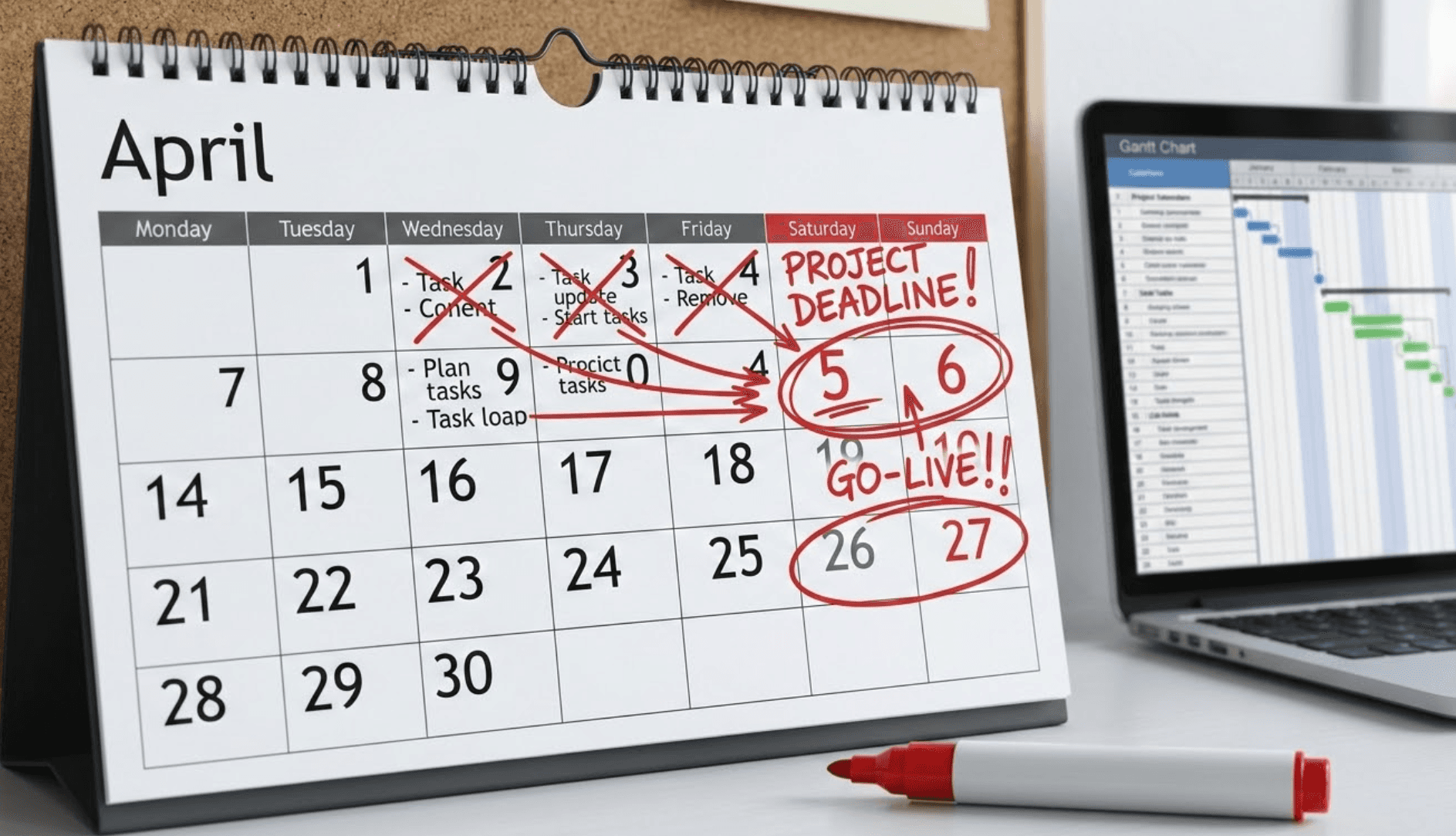
In many traditional project management methods, planning is often hindered by rigid calendars. We have all been there: you meticulously map out a project in a Gantt chart, only to realize that critical milestones are landing on a Sunday. When a tool treats every day as a working day, it creates a "false reality" that forces project managers to manually adjust dates every time a task shifts.
The hidden cost of manual scheduling errors
When your project management tool lacks smart holiday logic, the risk of human error skyrockets. Manually counting working days for a 100-task project is not only tedious but prone to mistakes. A single miscalculation on a Friday can cascade through the entire timeline, leading to missed deadlines, over-allocated resources, and team burnout.
How Xmind transforms your workflow with smart scheduling
Real-time accuracy with professional Gantt chart logic
Xmind’s new feature ensures your project duration reflects actual work time, rather than a misleading string of calendar days. In a professional project management tool, accuracy is non-negotiable. If a complex task requires five working days and begins on a Friday, Xmind intelligently skips the weekend, automatically setting the realistic completion date for the following Thursday.
This level of precision eliminates the "planning debt" that occurs when schedules look good on paper but fail in practice. By accounting for the gaps in the workweek, your Gantt chart becomes a reliable source of truth, allowing stakeholders to see exactly when deliverables will arrive without needing to cross-reference a physical calendar.
Seamless adaptation to any project management methodology
Flexibility is the cornerstone of modern work, whether your team follows a fast-paced Agile methodology or a structured Waterfall approach. Xmind allows you to define a unique "productivity DNA" for every map. You can customize the standard workweek—perfect for teams moving toward a four-day workweek or those handling cross-border projects with different weekend structures.
Beyond weekly settings, you can add "Exceptions" for specific dates, such as company-wide retreats, local public holidays, or planned maintenance windows. This adaptability ensures that your project management method remains intact even when the calendar gets complicated, preventing the accidental assignment of high-priority tasks to days when your team is out of the office.
Scalable efficiency through reusable calendar templates
Efficiency in a project management tool isn't just about the current map; it’s about how you scale your success across the entire organization. Xmind now allows you to save your meticulously crafted schedules as templates. This means you can define the entire 2026 holiday calendar once—including specific regional holidays and corporate "no-meeting" days—and apply it to every new project with a single click.
By standardizing your working days across multiple mind maps, you ensure consistency for the whole department. This feature is a game-changer for project leads who manage dozens of simultaneous workstreams, as it removes the repetitive administrative burden of setting up holiday logic from scratch for every new brainstorm or project launch.
Step-by-step tutorial: Managing a product launch with Xmind
To demonstrate the power of Xmind as an effective project management tool, let’s imagine you are preparing for a major summer product launch. Your team needs to coordinate creative assets, social media ads, and a live launch event, all while navigating a mid-project public holiday.
1. Build your task structure and enable smart logic
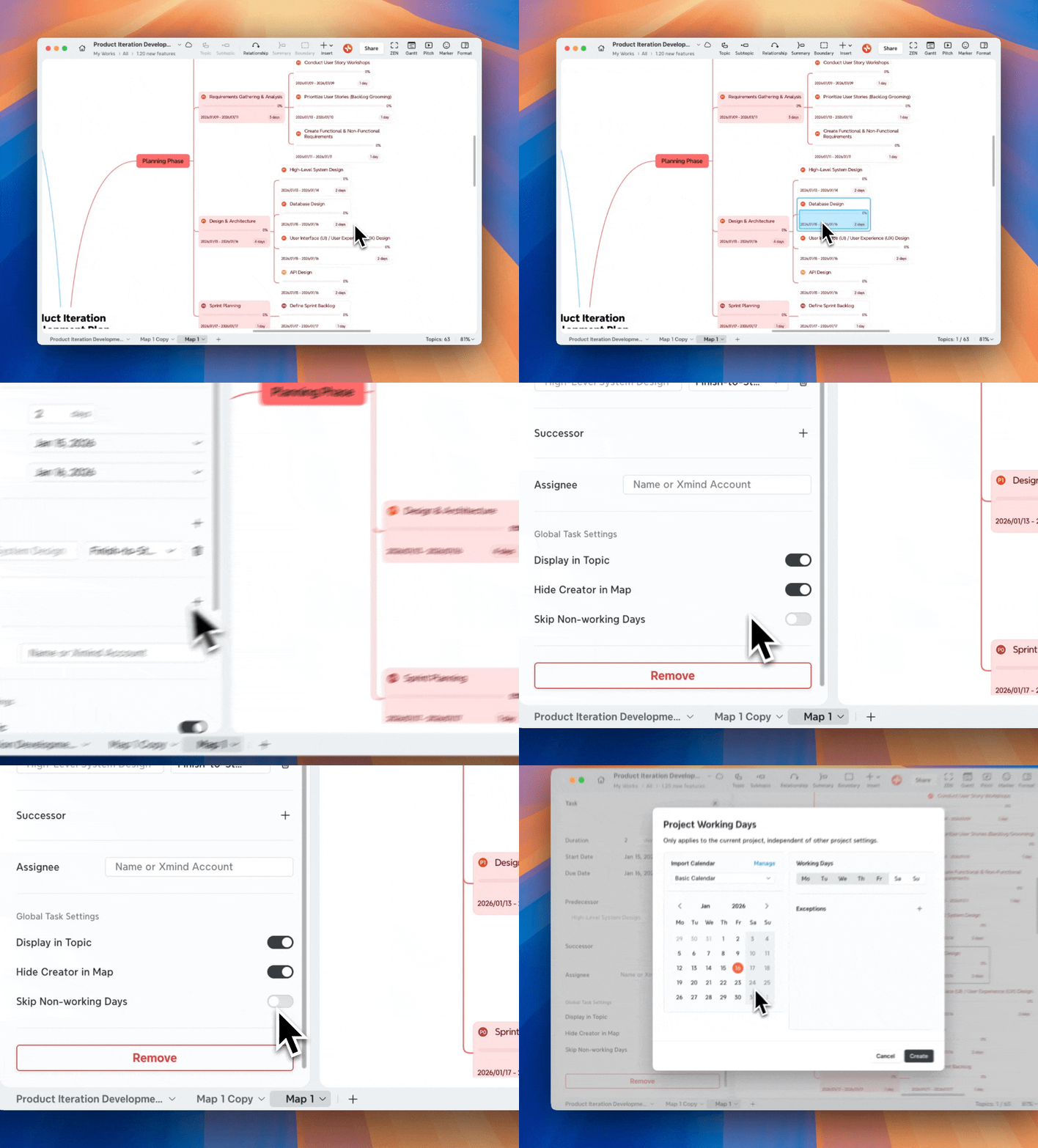
Start by mapping out your campaign phases—Strategy, Content Creation, and Execution—in a mind map. Once your structure is ready, navigate to the Task panel on the right sidebar. Before you set any dates, find the "Skip non-working days" toggle and switch it on. This acts as the "brain" for your schedule, telling Xmind that your project exists in the real world of workweeks and rest days.
2. Configure your team’s custom workweek
Every project management method relies on knowing when the team is actually available. Click on "Edit calendar" to define your workweek. For this campaign, if your creative team works a standard Monday-Friday but your social media managers are on a Tuesday-Saturday shift to cover weekend engagement, you can adjust the active days here. Simply check or uncheck the days of the week to match your primary production schedule.
3. Add specific exceptions for holidays and events
In our launch scenario, suppose there is a three-day regional holiday right before the "Go-Live" date. In the "Exceptions" section of the calendar editor, click the "+" icon to add these dates as "Non-working." Conversely, if your team is doing a special "Saturday Push" for the final launch rehearsal, you can add that specific Saturday as a "Working" exception. Xmind will intelligently calculate these one-off changes without messing up your recurring weekly settings.
4. Optimize the timeline in Gantt view
Now, switch to the Gantt view to see your visual timeline. You will notice that the non-working days are clearly greyed out. Drag your "Final Asset Review" task across a weekend; you’ll see the task bar automatically split or extend to ensure the actual "Working Time" remains at exactly 48 hours, even if it spans four calendar days. This visual feedback is crucial for ensuring your Gantt chart remains realistic under pressure.
5. Standardize your setup with calendar templates
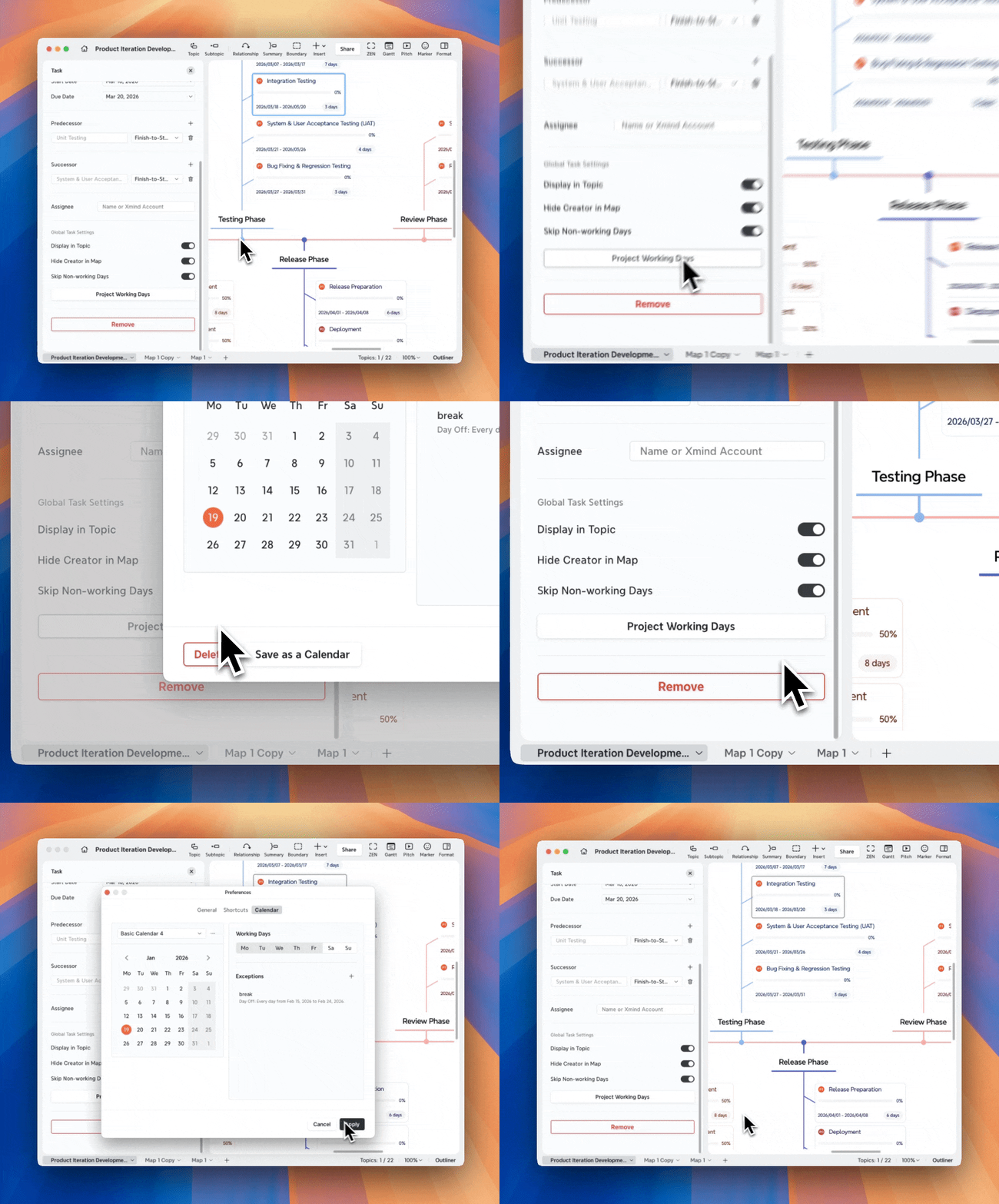
Once you have perfectly mapped out the holidays and workweeks for this launch, don’t let that effort go to waste. Use the "Save as template" option within the calendar window. For your next campaign launch, you won't need to re-enter the holiday dates or shift rules; you can simply "Import from template" to get your new project management map up and running in seconds.
For more detailed instructions, please refer to our official User Guide.
Conclusion
Great project management is about making every working hour count. By aligning your Gantt chart with the real-world calendar, Xmind allows you to focus on strategy rather than scheduling flaws. When your plan respects the boundaries of rest and work, it creates a sustainable rhythm for your team and a roadmap that actually works.
Try Xmind to start scheduling smarter today.
Frequently asked questions
Q1. Does this feature apply to all my mind maps automatically?
No. This setting is map-specific to allow for different schedules across various projects. However, you can save your customized settings as a Calendar Template and import them into new maps to maintain consistency.
Q2. What happens to my existing tasks if I enable this feature mid-project?
Xmind will automatically recalculate your timeline. While the "working duration" (e.g., a 3-day task) remains unchanged, the calendar dates will shift forward to skip any newly defined non-working days.
Q3. Is it possible to have a "Working Weekend" for a specific deadline?
Yes. You can use the "Exceptions" feature to mark a specific Saturday or Sunday as a "Working Day" without changing your default Monday–Friday workweek.