Sync Files Across Different Devices
For Xmind Premium and Pro Users — Sync via My Works
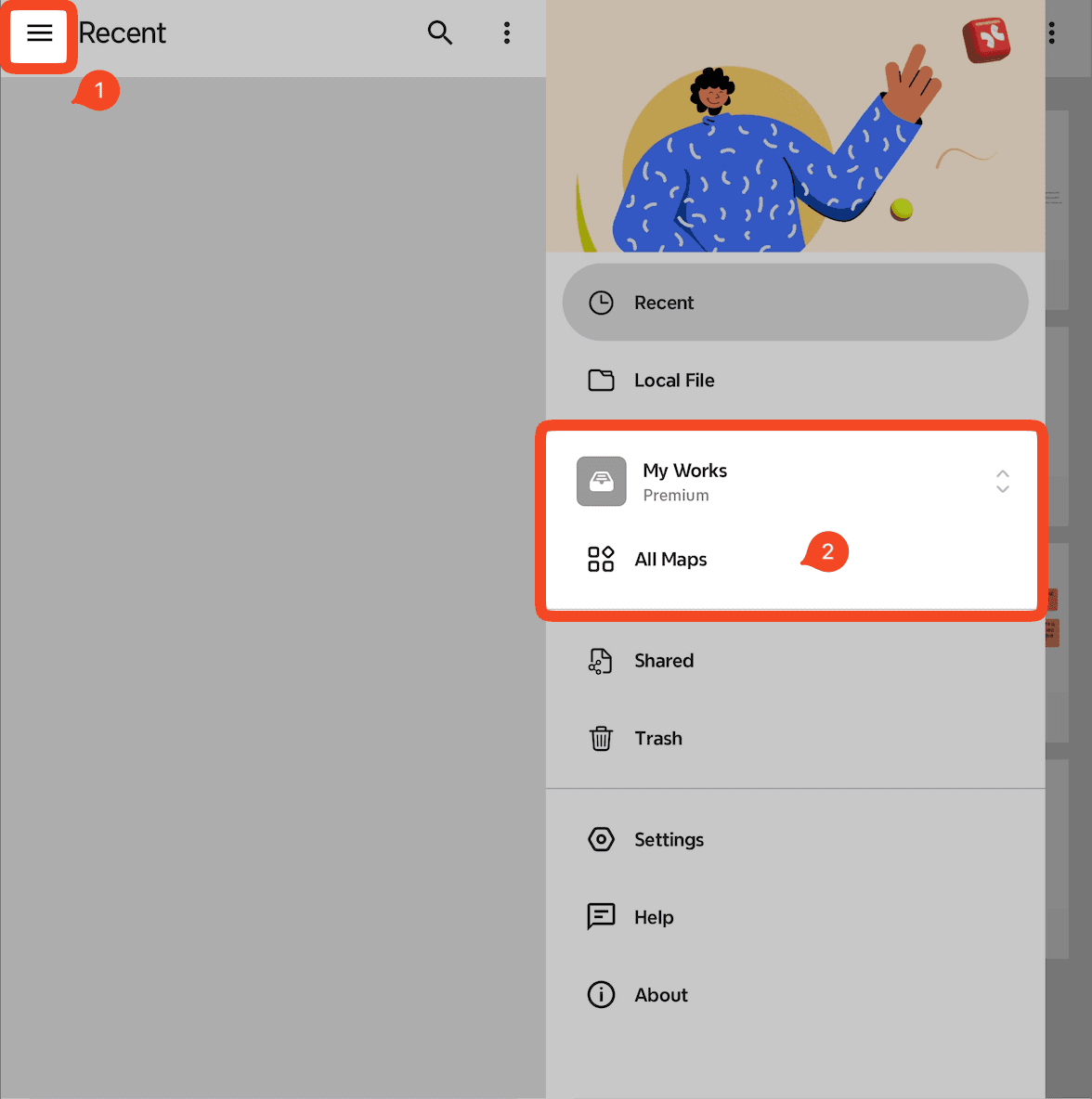
You can upload your mind maps to My Works to sync them across all devices logged into your account.
Launch Xmind for Android.
Go to「≡」→ My Works → All Maps.
Create, upload, or open a mind map to enable syncing.
Upload limits:
Free: Up to 10 maps
Pro: Up to 50 maps
For Xmind Business Users — Sync via Team Space
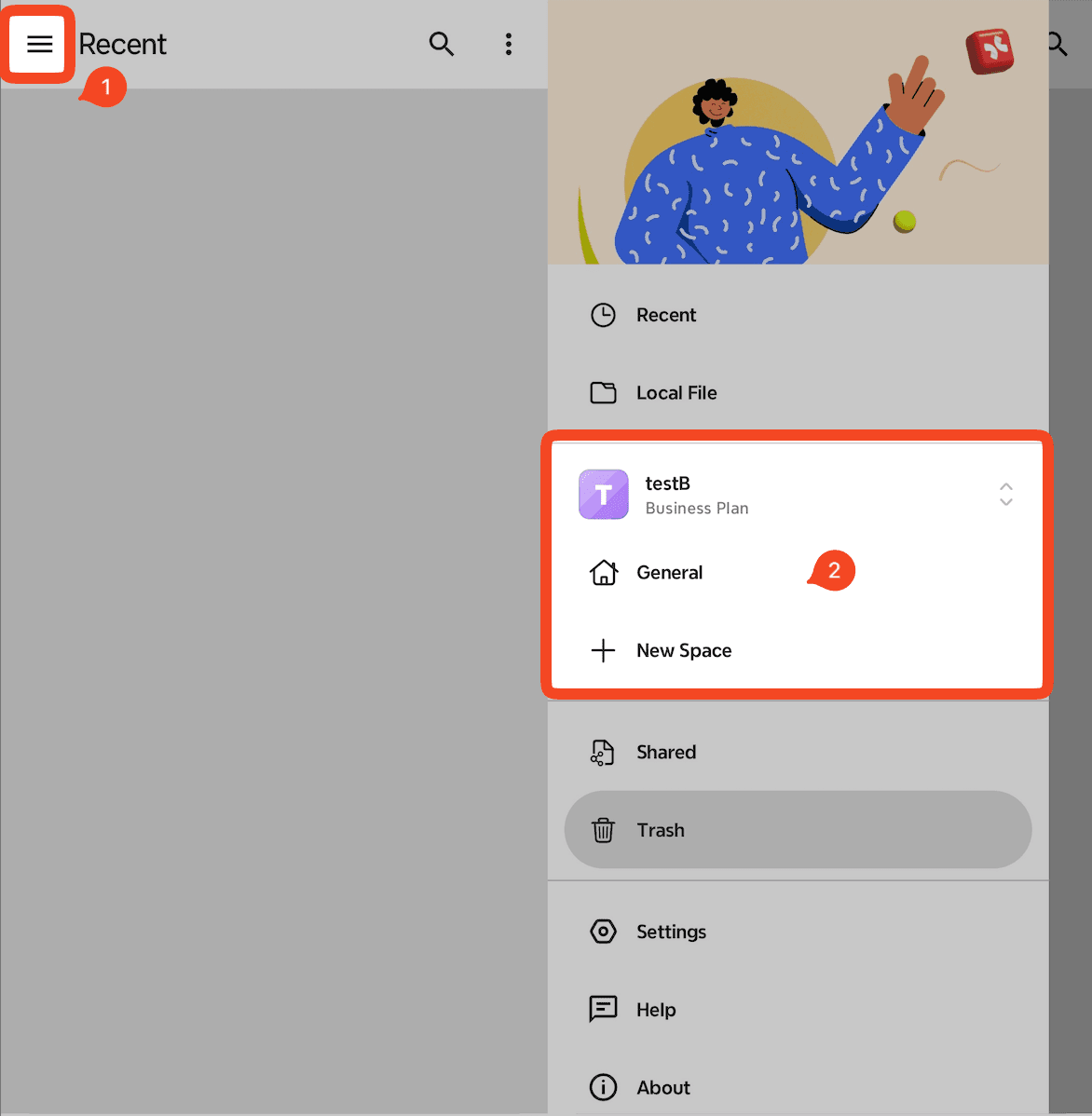
Business users can sync files by uploading them to their Team Space.
Launch Xmind for Android.
Go to 「≡」→ Your Team → General / Subspace.
Create, upload, or open a mind map within the Team Space.
Save a Mind Map to Your Local Drive
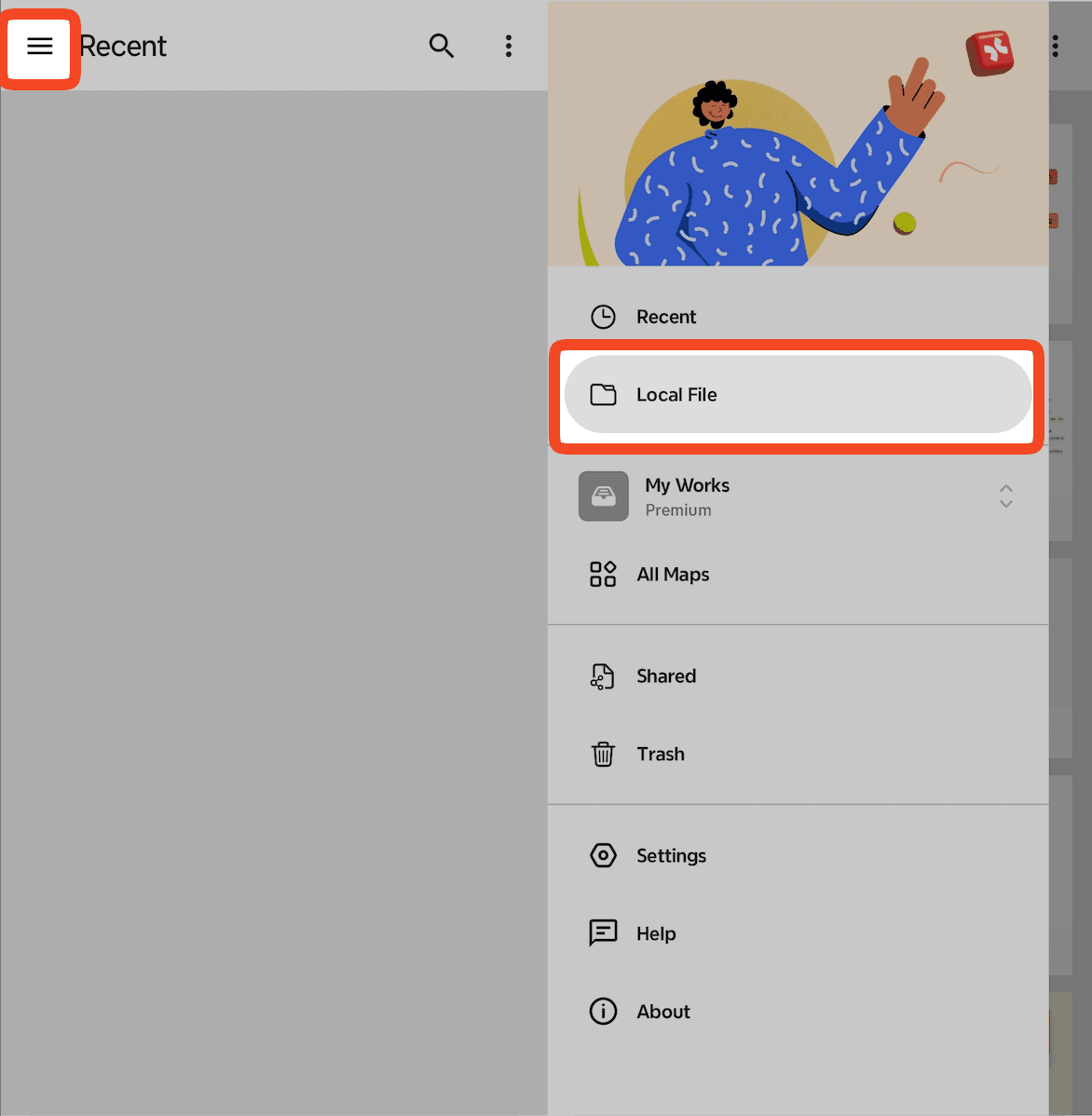
If you prefer not to use cloud storage, you can save your mind map locally:
Launch Xmind for Android.
Go to Recents.
Click + New Map to create a mind map.
Select 「≡」 → Local File to create or open the file on your local drive.
Note:
Recent only showcases the records of recently used/viewed/opened maps. If you need to manage your maps, please go to where they are saved.

