How to Sync Files Across Different Devices
For Xmind Premium and Pro Users — Sync via My Works
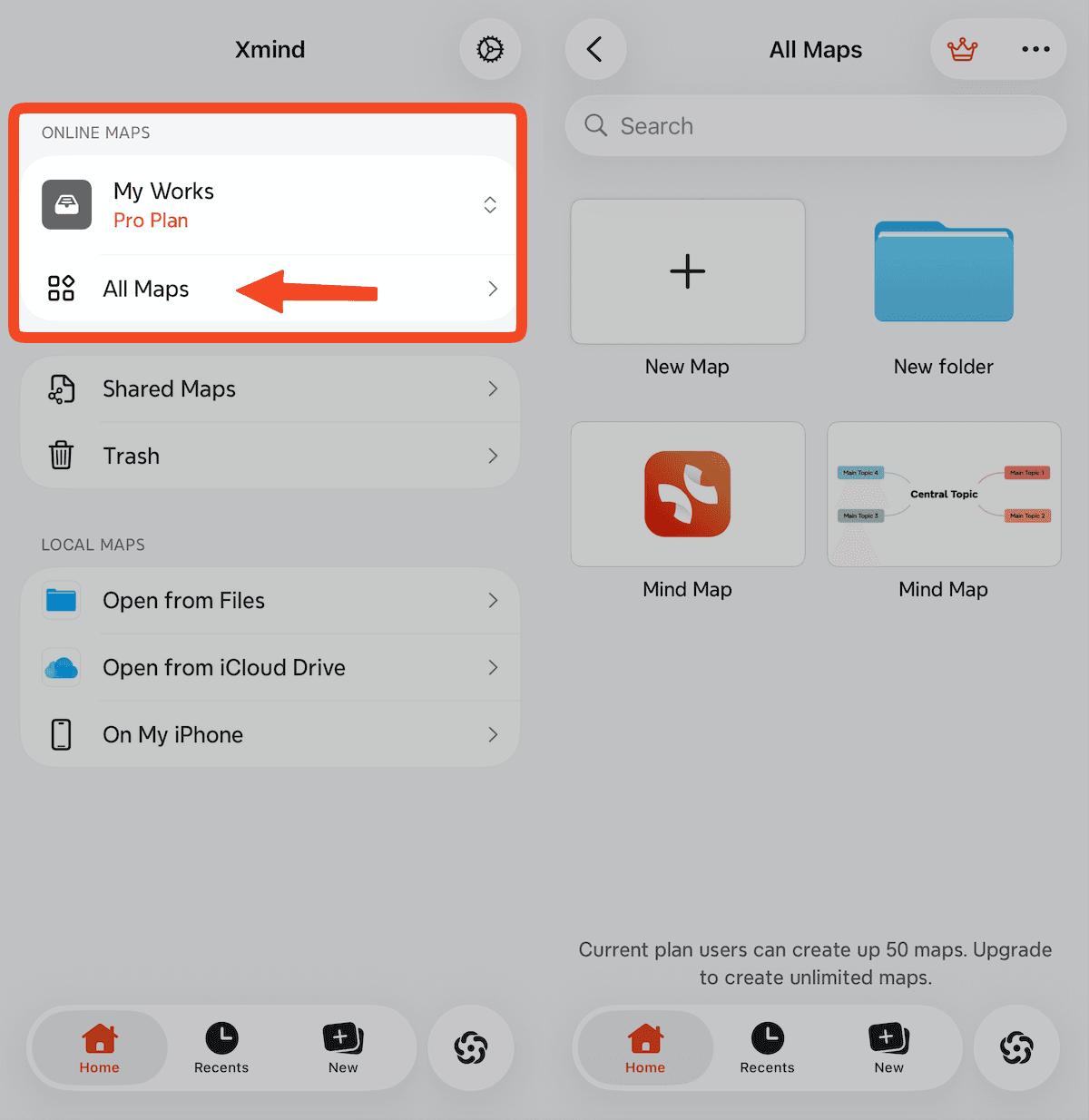
You can upload your mind maps to My Works to sync them across all devices logged into your account.
Launch Xmind for iOS.
Go to My Works → All Maps in Online Maps section.
Create, upload, or open a mind map to enable syncing.
Upload limits:
Free: Up to 10 maps
Pro: Up to 50 maps
For Xmind Business Users — Sync via Team Space
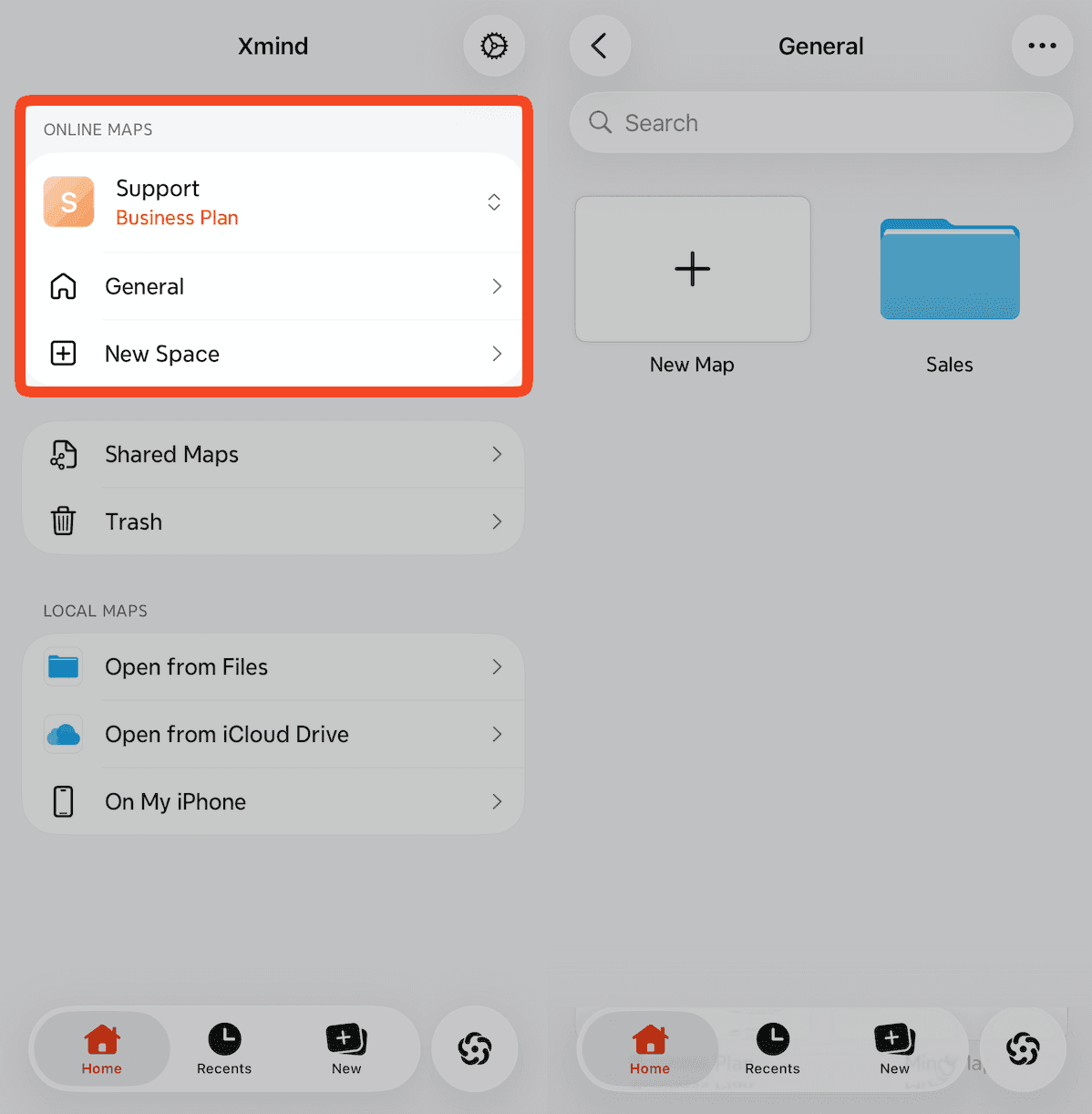
Business users can sync files by uploading them to their Team Space.
Launch Xmind for iOS.
Go to Your Team → General / Subspace in Online Maps section. .
Create, upload, or open a mind map within the Team Space.
How to Save a Mind Map to Your Local Drive
If you prefer not to use cloud storage, you can save your mind map locally:
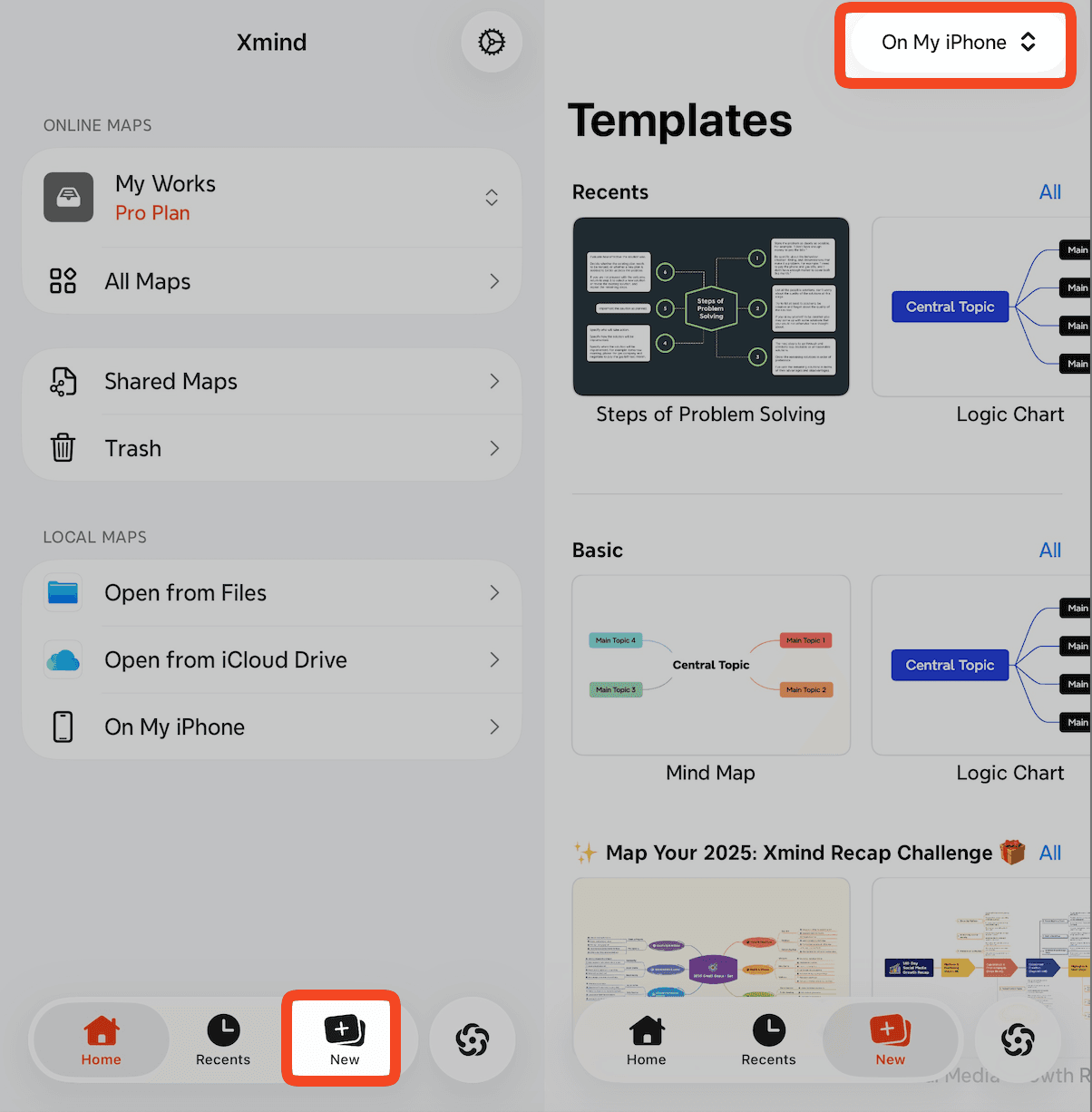
Launch Xmind for iOS.
Click the New icon
Section the location to On My iPhone/iPad on the upper right corner.
Select a template to create a mind map.