If you see the message “Not a valid Xmind file” when opening a file, this indicates that the file may be corrupted.
Please follow the steps below to recover the file using File Cache.
Recovering from File Cache (iOS)
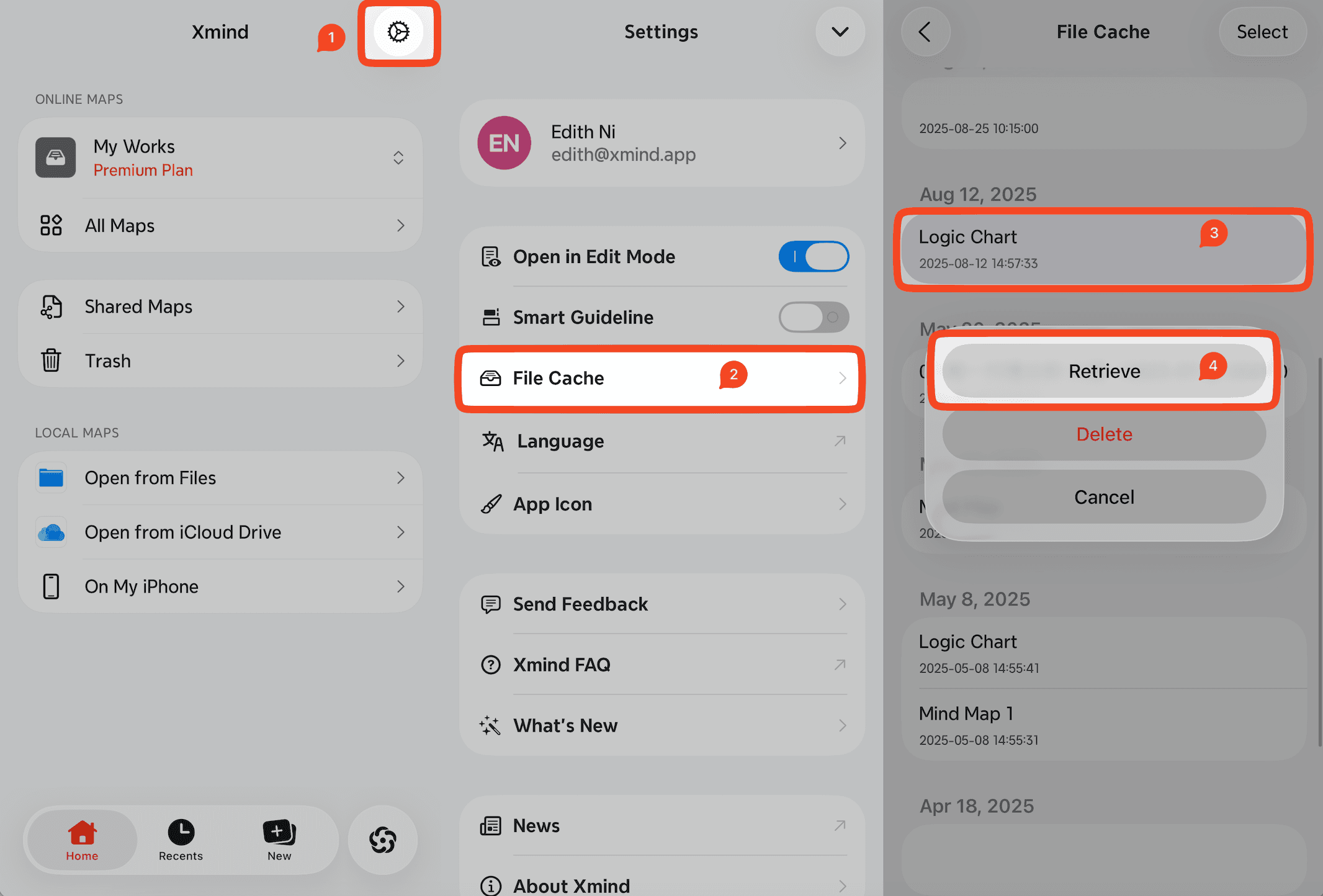
Launch Xmind for iOS.
Go to Settings → File Cache.
Select the backup version of your mind map and tap Retrieve.
Choose a location to save the restored file.
If you cannot recover your file using File Cache, please contact us through the app.
If File Cache Recovery Fails
Please send us feedback via Settings → Feedback so we can assist further.
Include the following information in your message:
Where was the file originally created?
What actions did you perform before the file became corrupted?
Attach the corrupted file so that our team can attempt to recover it.
Note: If the corrupted file shows a file size of 0 KB, recovery is no longer possible.

