If your mind maps were created with Xmind for Desktop and saved locally, you may be able to recover them using the File Cache feature.
* Note: File Cache is supported in Xmind 9.1.0 and later.
Recovering Files from Xmind
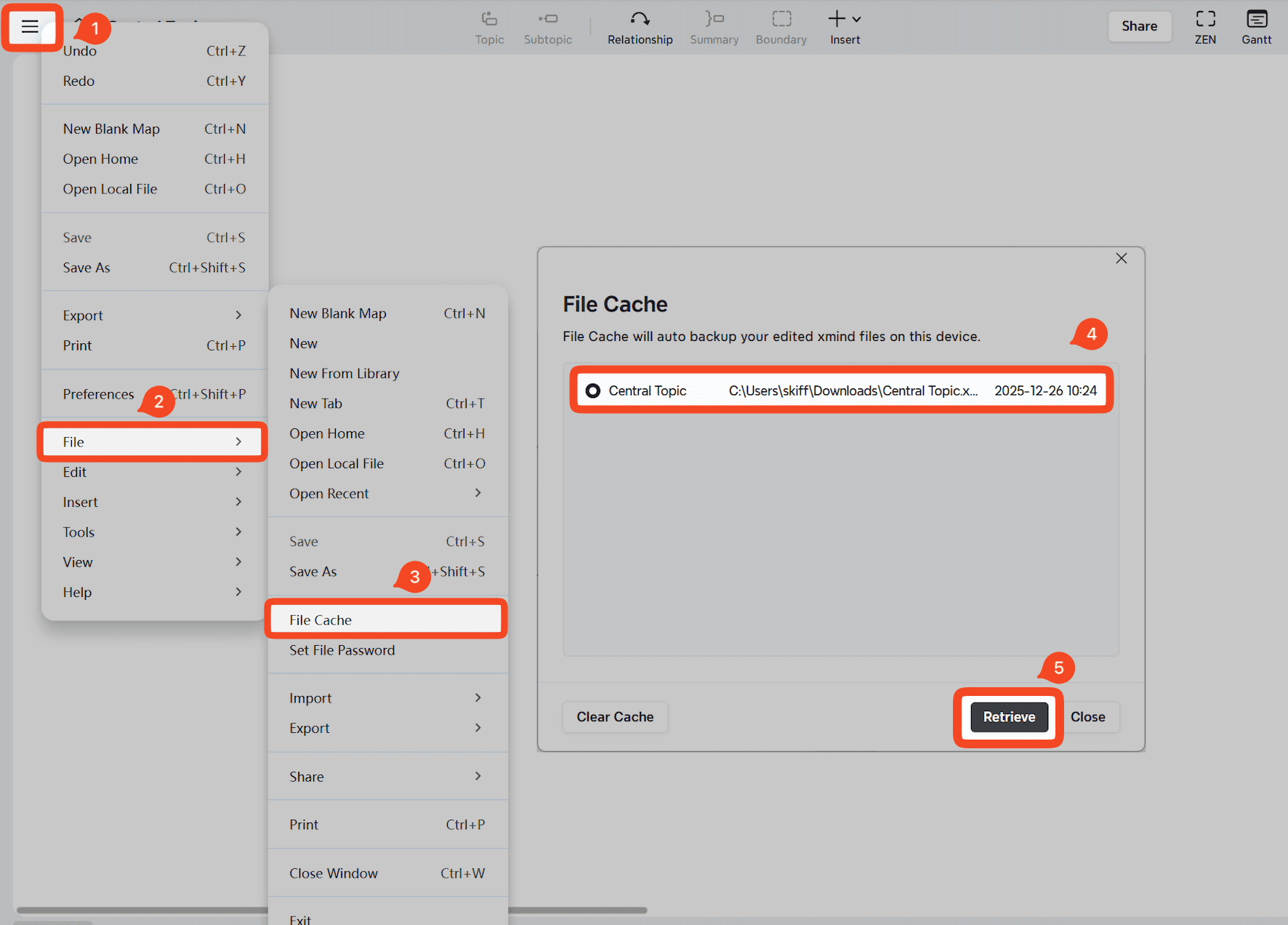
Open Xmind.
Go to File → File Cache.
Locate the file you want to restore, then click Retrieve.
If the file does not appear in File Cache, please try the manual method below.
Recovering Files from the File System
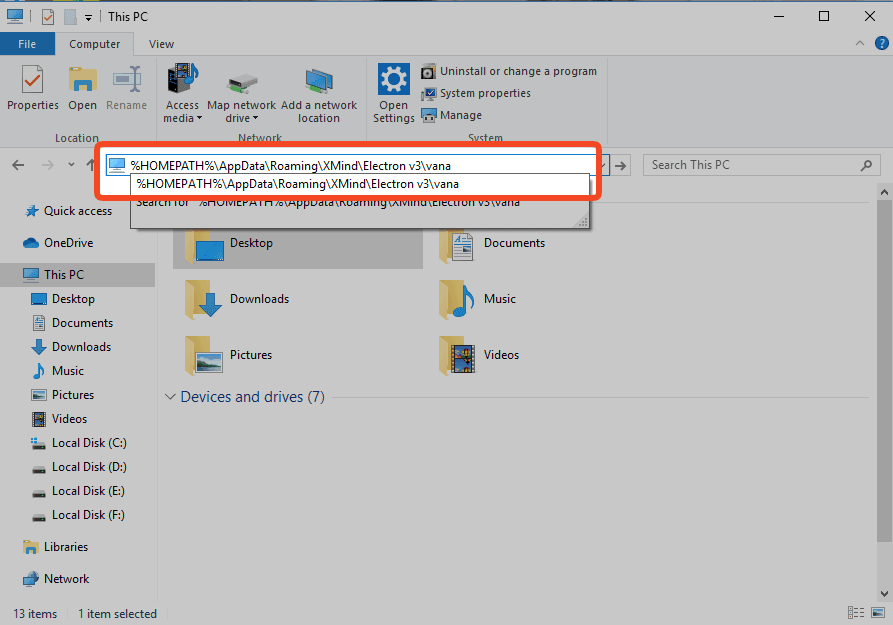
Open your File Explorer.
Copy and paste the following path into the address bar, then press Enter: %HOMEPATH%\AppData\Roaming\XMind\Electron v3\vana
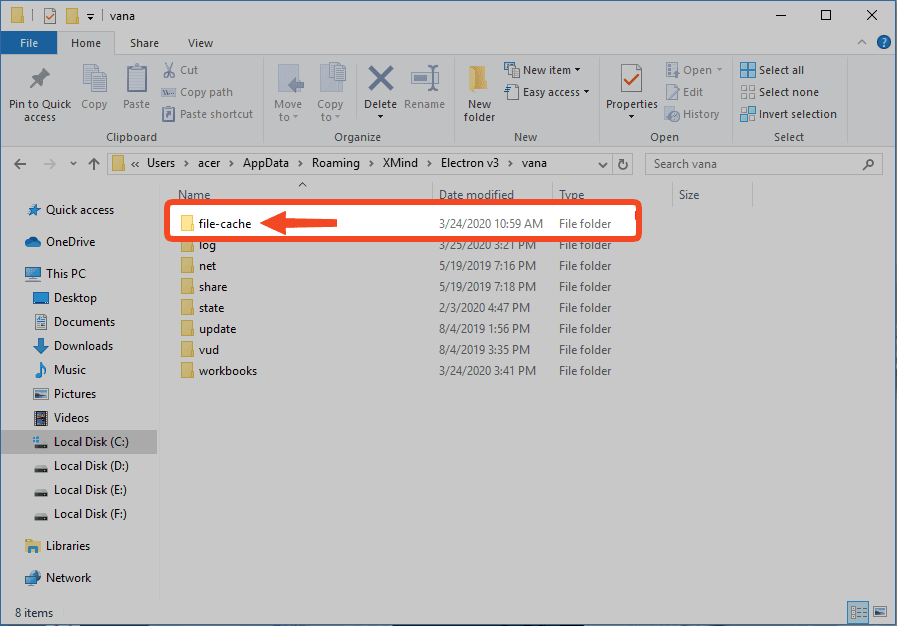
Look for the file-cache in this folder and restore the file you need.
Need Additional Assistance?
If you are unable to recover the file using the steps above, you may send the corrupted file to from 「≡」→ Help → Feedback on Xmind.
Our team will analyze the file and make every effort to recover it for you.

