Stop losing context between AI tools: a connected workflow with Xmind

Hannah

Xmind lets your AI tools work together. With Xmind MCP Server, the Xmind ChatGPT App, and Xmind CLI, Claude, ChatGPT, and AI agents can each create, read, and edit Xmind mind maps directly from their conversations. One AI writes its output into a structured map; the next AI reads that same map and continues the work.
This article explains why AI workflows break at the handoff between tools, and how Xmind mind maps become the shared interface that connects them. Explore Xmind and give the AI tools you already use a shared place to think together.
Why your AI workflow needs a visual layer
Two problems: Isolation and flat text
Today's AI tools have two limitations that break multi-tool workflows.
First, it is locked inside one tool. Claude cannot read what ChatGPT produced. ChatGPT cannot see what an agent found in your local files. Each tool operates in its own silo.
Second, even if you copy the output manually, it is linear text that flattens the structure. A conversation full of evidence, rejected alternatives, dependencies, and decisions becomes a wall of paragraphs. The relationships between ideas disappear.
A scenario you likely recognize: you ask Claude to analyze a market report and identify three positioning options. It delivers a thorough breakdown with evidence and trade-offs. Now you want ChatGPT to help develop messaging for the strongest option. But ChatGPT has no access to what Claude produced. You paste the conclusion, but not the evidence, not the alternatives, not the trade-offs. And even what you do paste loses the structure that made it useful.
A mind map as a shared interface between AI tools
Xmind mind maps solve both: they are a structured format that any AI assistant can create, read, and edit. Through MCP, the ChatGPT App, or the CLI, one AI writes its output into a map, and another AI reads that same map to continue the work. That solves isolation: the map is the shared format between tools that otherwise cannot see each other's work.
At the same time, a mind map organizes information by relationships, not by the order it was mentioned. Evidence sits under the claim it supports. Risks connect to the decisions they affect. Dependencies are visible. That solves the structure problem: the next AI does not receive a flat paragraph, but a structured model it can navigate, build on, or challenge branch by branch.
And because it is a mind map, the structure is visual and editable. You can open it in Xmind, reorganize it, correct a branch, and then ask a different AI to read the updated version for the next round of work. The map sits at the center of the workflow: AI tools write to it, people review and edit it, and AI tools read from it again.
How Xmind connects your AI tools into one workflow
Xmind offers four connection points. They are not four ways to do the same thing. They are different entry points into the same visual system, matched to where your context already lives.
Xmind MCP Server: For deep analysis and reasoning tasks
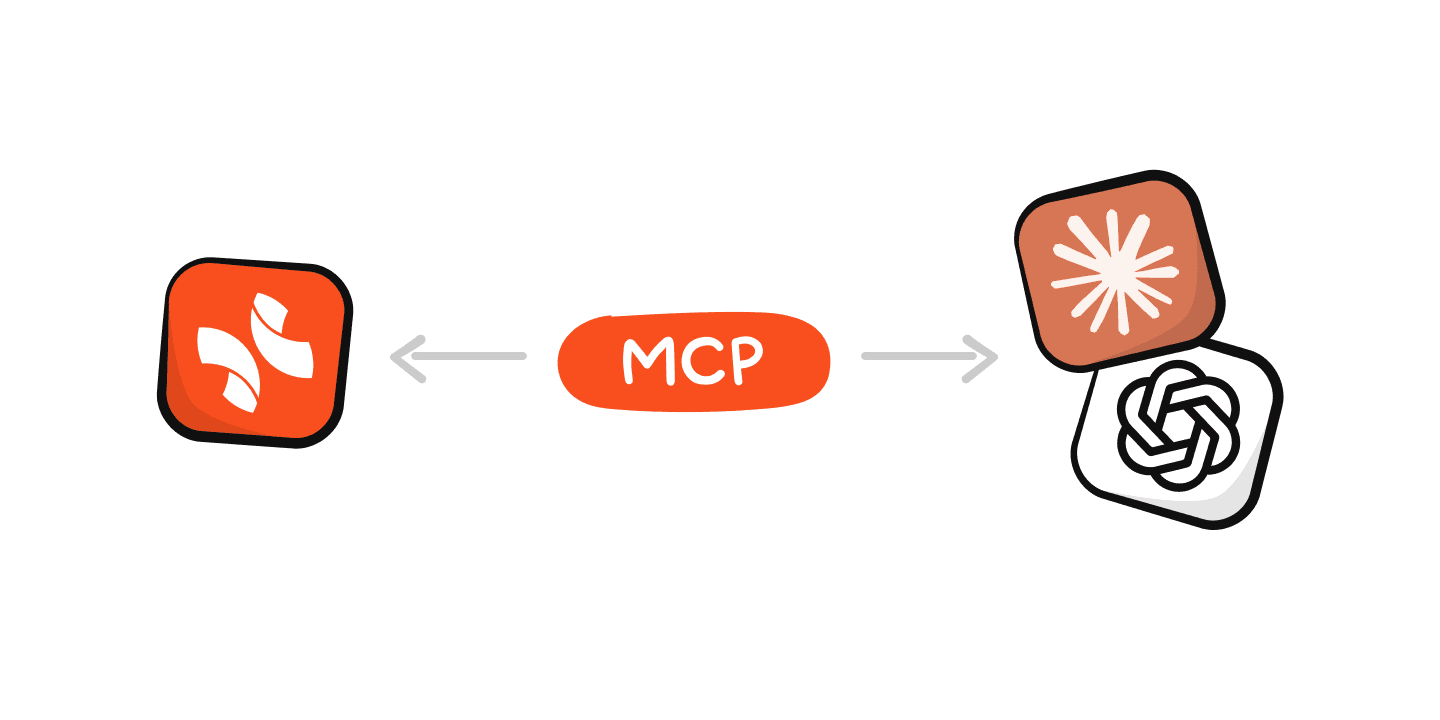
Xmind MCP Server connects Xmind with MCP-compatible clients such as Claude, Claude Code, Codex, and ChatGPT. From the AI app where a discussion is already happening, you can ask the assistant to create, find, read, or edit an Xmind cloud map using natural language.
When to use it: Your task involves deep analysis, synthesis, or structured reasoning. The kind of work where you want the AI to help you think through complexity, not just generate text.
Example: You are using Claude to analyze customer interviews before a product launch. Ask it to create an Xmind map that separates customer needs from evidence, open questions from confirmed insights, and risks from decisions. After reviewing the map visually, return to Claude and ask it to read the map, challenge a weak assumption in the "risks" branch, and suggest what evidence would resolve it. The conversation and visual structure keep informing each other. Neither starts from zero.
Xmind ChatGPT App: For exploration and idea development

The Xmind ChatGPT App brings visual continuity directly into ChatGPT. It can create, find, read, and edit Xmind maps from a conversation, then save the result to your Xmind workspace for further editing and sharing.
When to use it: Your task is more exploratory: brainstorming directions, developing messaging, comparing options. You want to capture the strongest branches without rebuilding structure after leaving the chat.
Example: You explore campaign messaging in ChatGPT, generating angles for different audiences. The strongest three directions go into an Xmind map. Next week, you reopen the map, refine the audience segments, add channel assignments, and ask ChatGPT to draft copy for the branch you chose, starting from the map instead of a blank prompt.
Xmind CLI: For multi-source agent workflows
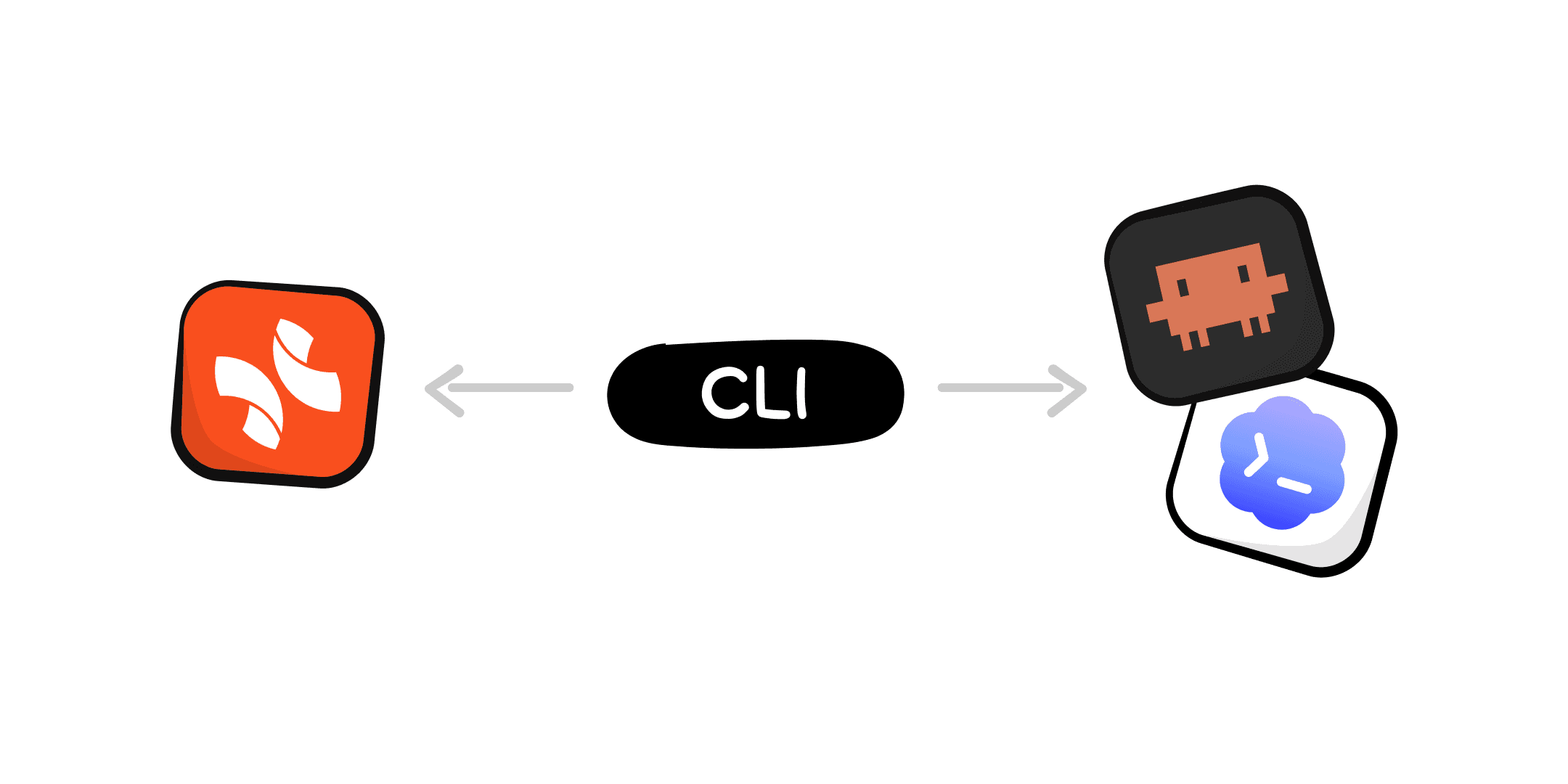
Some projects do not begin in a chat. Their context is spread across local documents, PDFs, webpages, images, code, and connected apps. Xmind CLIents with Skills and terminal access work with those sources and produce native local .xmind files.
When to use it: The context lives in your file system or requires pulling from multiple local sources, and the deliverable needs to live beside other project files.
Example: An agent scans a product requirements doc, three competitor landing pages, and a development issue tracker. It organizes findings into a .xmind file with branches for feature gaps, competitive advantages, and open technical risks. The file is ready for the team to review alongside the source materials.
Xmind AI: Refining the map after external AI hands off
Once external AI work reaches the map, Xmind AI can continue developing it inside Xmind. This is not a replacement for the external step. It is a complement that works directly on the visual structure.
What it adds: After Claude builds your competitive analysis map, Xmind AI can generate a one-line summary for each branch, suggest reorganization when branches grow too deep, auto-tag priorities, or expand a sparse branch with structured sub-topics. It sees the map as a map, not as a transcript, so its refinements respect the hierarchy you have built.
The roles are clear: external AI handles the heavy reasoning and broad toolset; Xmind AI continues from the structure already on the canvas.
Learn how to set up each connection: Xmind MCP, Xmind ChatGPT App, Xmind CLI
Build a closed-loop AI workflow: Step by step
Consider a product team preparing a launch. Their inputs: customer interviews, a market report, a PRD, competitor pages, and development issues. This is how the loop works.
Step 1: Start where the thinking happens
Begin in the AI environment that fits the task:
Deep synthesis or critique → Claude (via MCP)
Divergent exploration → ChatGPT (via Xmind App)
Multi-source local context → Agent with Xmind CLI
Focus on reasoning, not formatting. Ask the AI to surface evidence, assumptions, disagreements, unresolved questions, and decisions, not just a summary. These become the bones of the visual model.
Step 2: Convert output into a structured map
Use Xmind MCP, the Xmind ChatGPT App, or Xmind CLI to turn the conversation into an editable map.
Key principle: Organize around decisions, not the order the AI mentioned things. A launch map might branch into: audience evidence, positioning options, product readiness, channel plan, risks, and next actions.
The map is now a standalone artifact. You can view it, share it, and edit it without reopening the original chat.
Step 3: Review visually, correct the thinking
This is the human checkpoint. Once information is spatial rather than linear, the team can see what a transcript hides:
A claim with no supporting evidence
Two tasks depending on the same unfinished feature
A risk that was raised early but disappeared from the final plan
A branch that needs more investigation before a decision can be made
Correct the hierarchy, add links, mark open items, and use Xmind AI to clean up structure or generate summaries for dense branches.
Step 4: Feed the map into the next AI conversation
The revised map becomes context for the next prompt. With Xmind MCP or the ChatGPT App, ask the AI to:
Pressure-test the launch plan against the risks branch
Draft a stakeholder brief from the "decisions + evidence" branches
Identify gaps: what evidence is missing before committing to the timeline?
Expand the execution branch into weekly milestones
The next AI conversation no longer starts from memory or a pasted summary. It starts from a structured, team-reviewed representation of the current state.
Step 5: Update the map and continue the loop
The AI's new output flows back into the map: new branches, refined sub-topics, resolved questions. The agent can use Xmind CLI to update a local .xmind file and validate it. The team reviews again.
And when a new question arises from the updated map, the cycle begins again, back in Claude or ChatGPT, but now with richer, more reviewed context than any previous round.
The loop: AI explores → Xmind structures → people review → AI follows up → Xmind preserves the new state. Each pass builds on the last. Nothing gets lost between rounds.
Choose the right connection for your workflow
Where your context lives | Best connection | What it does | Result |
|---|---|---|---|
An MCP-compatible client (Claude, Claude Code, Codex, ChatGPT) | Xmind MCP Server | Create, read, and edit Xmind cloud maps conversationally | Editable cloud map in your Xmind workspace |
A ChatGPT conversation | Xmind ChatGPT App | Chat-native map creation, finding, reading, and refinement | Editable cloud map saved to Xmind |
Local files, webpages, code, images, or connected sources | Xmind Skill & CLI | Multi-source organization, local file creation, validation | Native local |
An existing map open in Xmind | Xmind AI | Map-aware refinement, summarization, reorganization | Updated map inside Xmind |
Choose the entry point that matches where your context already lives. Use more than one in the same project. They all feed the same visual system.
Conclusion: Give your AI tools a place to think together
Xmind mind maps are the shared layer between your AI tools. Each AI creates, reads, and edits the same structured map, so context flows from one tool to the next without manual bridging. Move from conversation to structure, from structure to review, and from review back into the next AI task. Each loop makes the work sharper.
Try Xmind free and turn your next AI project into a connected workflow that keeps thinking and moving forward.
FAQs
Can Claude or ChatGPT create and edit Xmind mind maps?
Yes. Once Xmind MCP Server is connected in an MCP-compatible client (Claude, Claude Code, Codex, ChatGPT), the AI can create, read, and edit Xmind cloud maps through natural language. The Xmind ChatGPT App provides the same capability natively inside ChatGPT. Both allow an AI conversation and an Xmind map to become two views of the same evolving work.
How are Xmind MCP and Xmind Skill & CLI different?
Xmind MCP works with cloud maps through conversational AI clients. It is best for real-time back-and-forth between a chat and a map. Xmind Skill & CLI works with local .xmind files through agents with terminal access, and is best when the context is multi-source, file-based, or needs to live alongside project materials. Both support continued editing; they enter the workflow from different places and store the result in different forms.
Do I need to use all four connections?
No. Each connection matches a different starting point. If all your AI work happens in Claude, Xmind MCP Server alone gives you the full loop. If your team uses both ChatGPT and local agents, you might use the ChatGPT App for early exploration and CLI for the final structured deliverable. Start with the one that fits your current workflow, and add others as your projects require.
Can I use Xmind AI together with external AI in the same project?
Yes, and that is the intended workflow. External AI (Claude, ChatGPT, agents) handles research, reasoning, and generation. Xmind AI works on the map itself: summarizing branches, suggesting structure, expanding sparse sections. They complement each other. Use external AI when you need broad thinking; use Xmind AI when you need the map to be clearer or more complete.
Give your AI workflow a visual layer
Connect Claude, ChatGPT, and AI agents with Xmind to turn linear outputs into an editable structure you can review, refine, and continue.