
















Xmind ChatGPT App
Xmind ChatGPT App helps you generate editable mind maps from your ideas or conversation takeaways while you are chatting with ChatGPT.

What is Xmind ChatGPT App?
Xmind ChatGPT App is the Xmind app built into ChatGPT. It lets you create, find, read, and edit Xmind mind maps directly from a conversation.
After connecting your Xmind account, you can ask ChatGPT to turn ideas, notes, research, or planning discussions into editable mind maps. You can also bring existing maps back into the conversation to summarize, expand, or refine them.
It gives you a chat-native way to use Xmind: install the app from ChatGPT apps, activate it when needed, and save the results to your Xmind workspace for further editing and sharing.
Why use Xmind ChatGPT App?
-
Create mind maps without leaving ChatGPT - Turn conversations, notes, and rough ideas into structured Xmind mind maps while you are chatting.
-
Make AI responses easier to understand - Convert long explanations, brainstorming results, research summaries, or planning discussions into a visual structure.
-
Continue from existing mind maps - List and read your Xmind maps, then ask ChatGPT to summarize, expand, or refine them.
-
Edit through conversation - Add branches, update topics, reorganize ideas, or improve wording by describing what you want to change.
-
Keep your work editable in Xmind - Open the generated map in Xmind, polish the layout, and continue working from your Xmind workspace.
Install Xmind from ChatGPT Apps
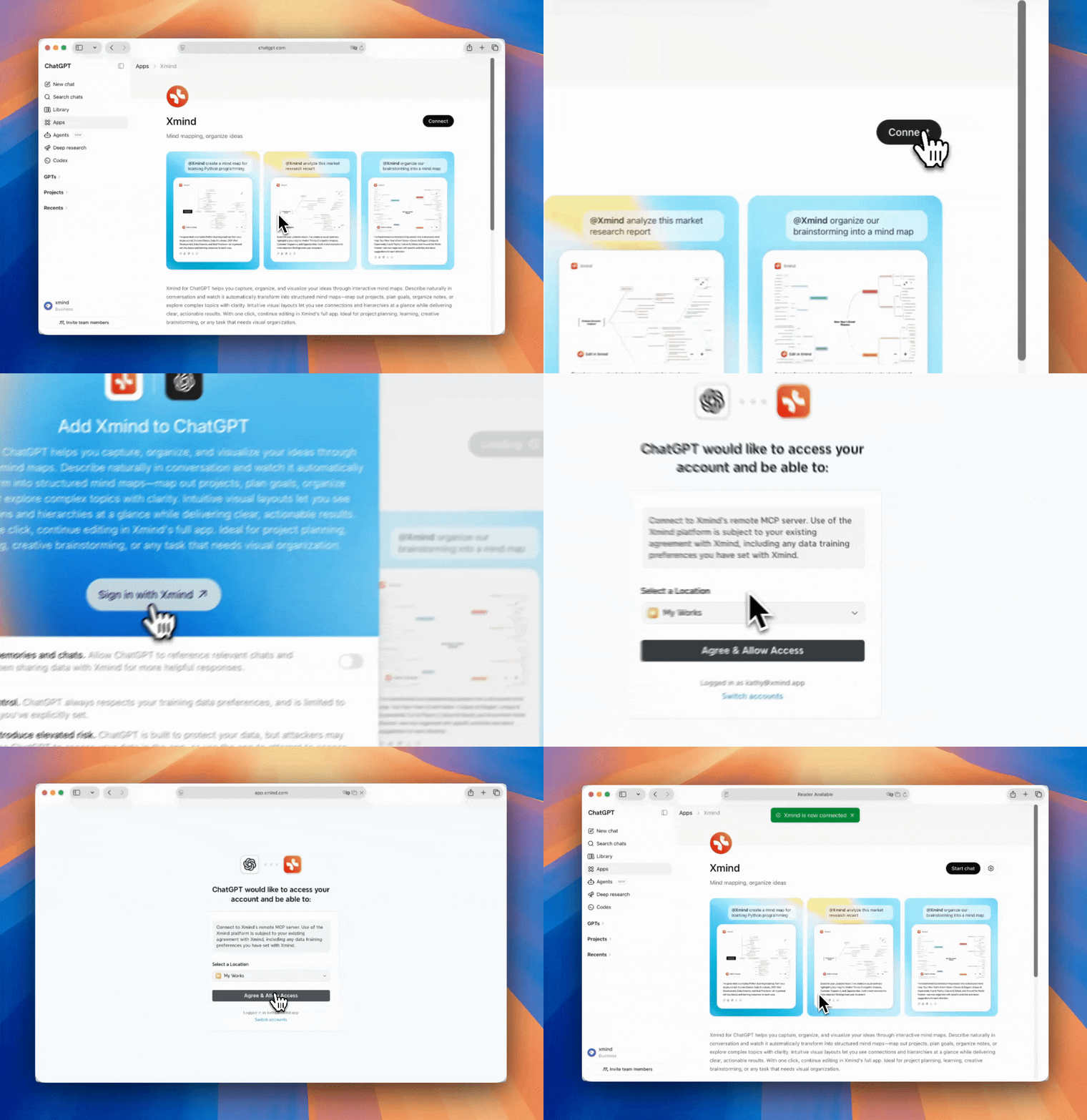
1️⃣ Open ChatGPT and go to Sidebar > Apps, Search Xmind.

2️⃣ Click Connect > Sign in with Xmind, complete the OAuth authorization flow in the browser window that opens.
Use Xmind with ChatGPT
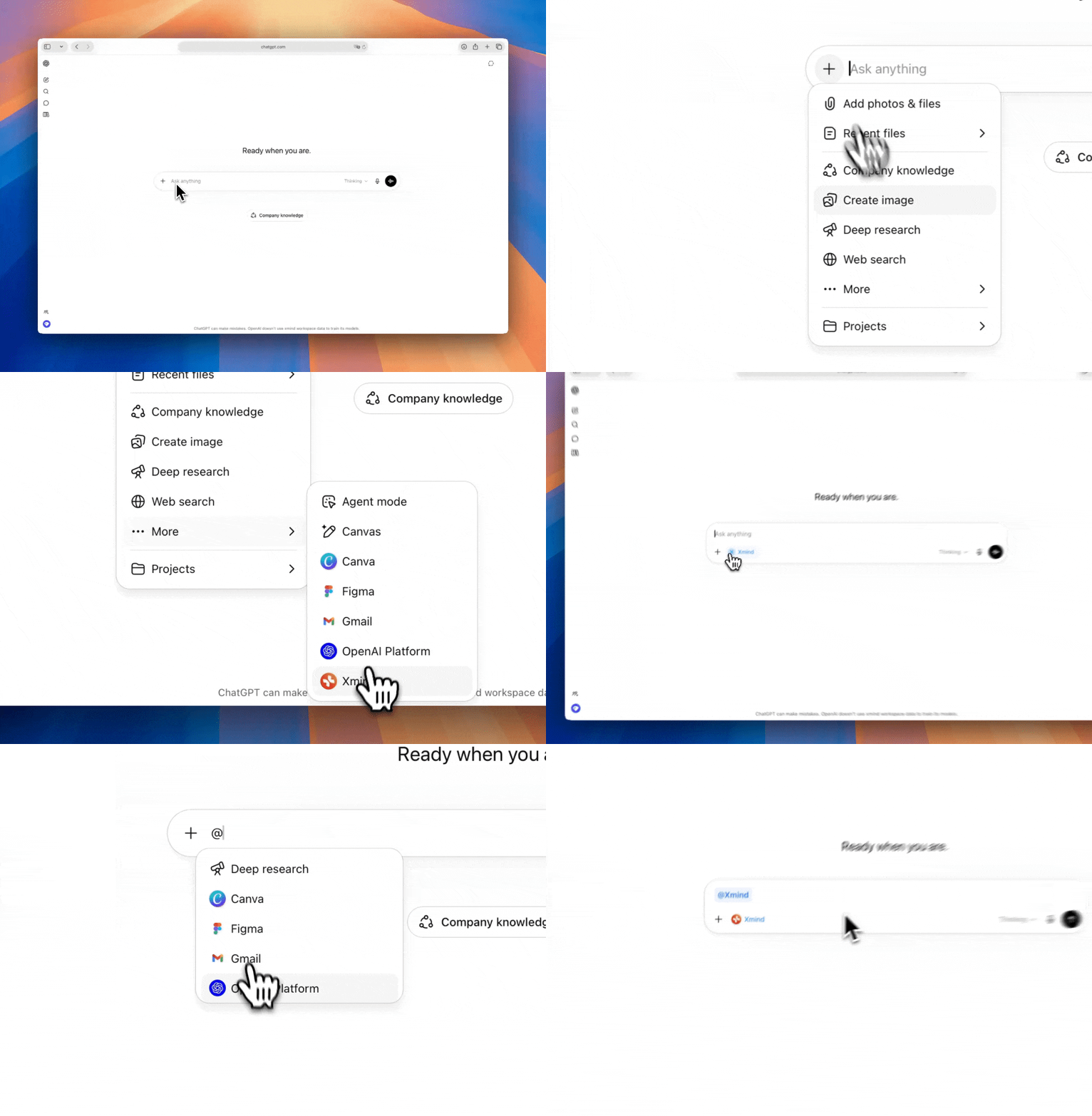
1️⃣ There are 2 ways to activate Xmind in your ChatGPT conversation:
-
Type @xmind to mention Xmind.
-
Click the “Plus“ button, go to “More”, and choose Xmind.
2️⃣ Describe what you want to do with your mind maps, such as create, list, read, or edit. Xmind will generate a mind map based on your prompt.
- Create mind maps.
Ask ChatGPT:
Create a mind map about our Q3 product launch plan.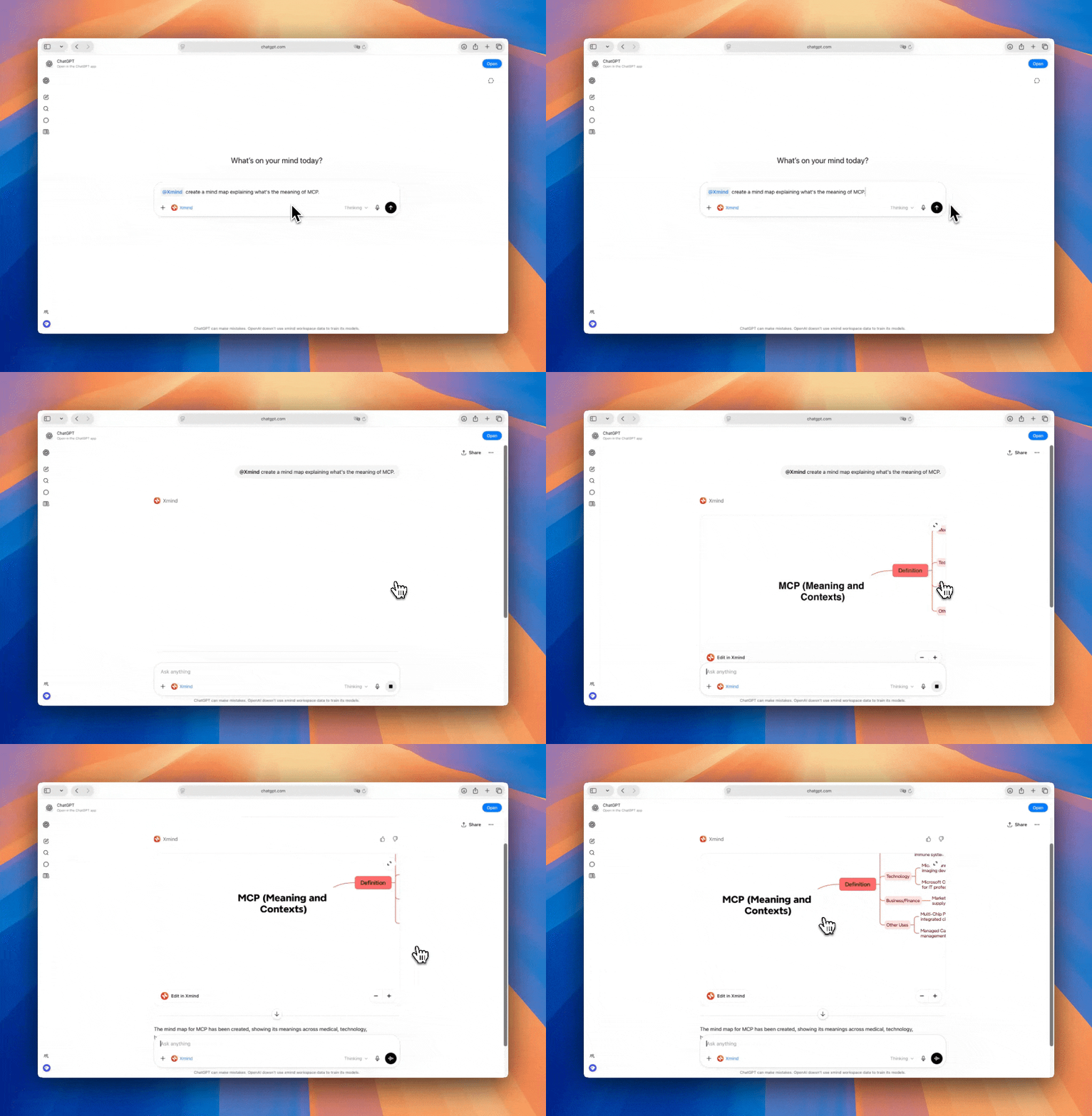
Once the generation is completed, you can click the link to open the mind map in xmind.com. The map will be automatically saved to your workspace, where you can edit and polish it at any time.
- List mind maps.
Ask ChatGPT:
List my recent Xmind mind maps.
- Read mind maps.
Ask ChatGPT:
Read this mind map and summarize its main structure.
- Edit and refine existing mind maps.
Ask ChatGPT:
Open this mind map and add a branch for risks and next steps.