















Add Topic Button
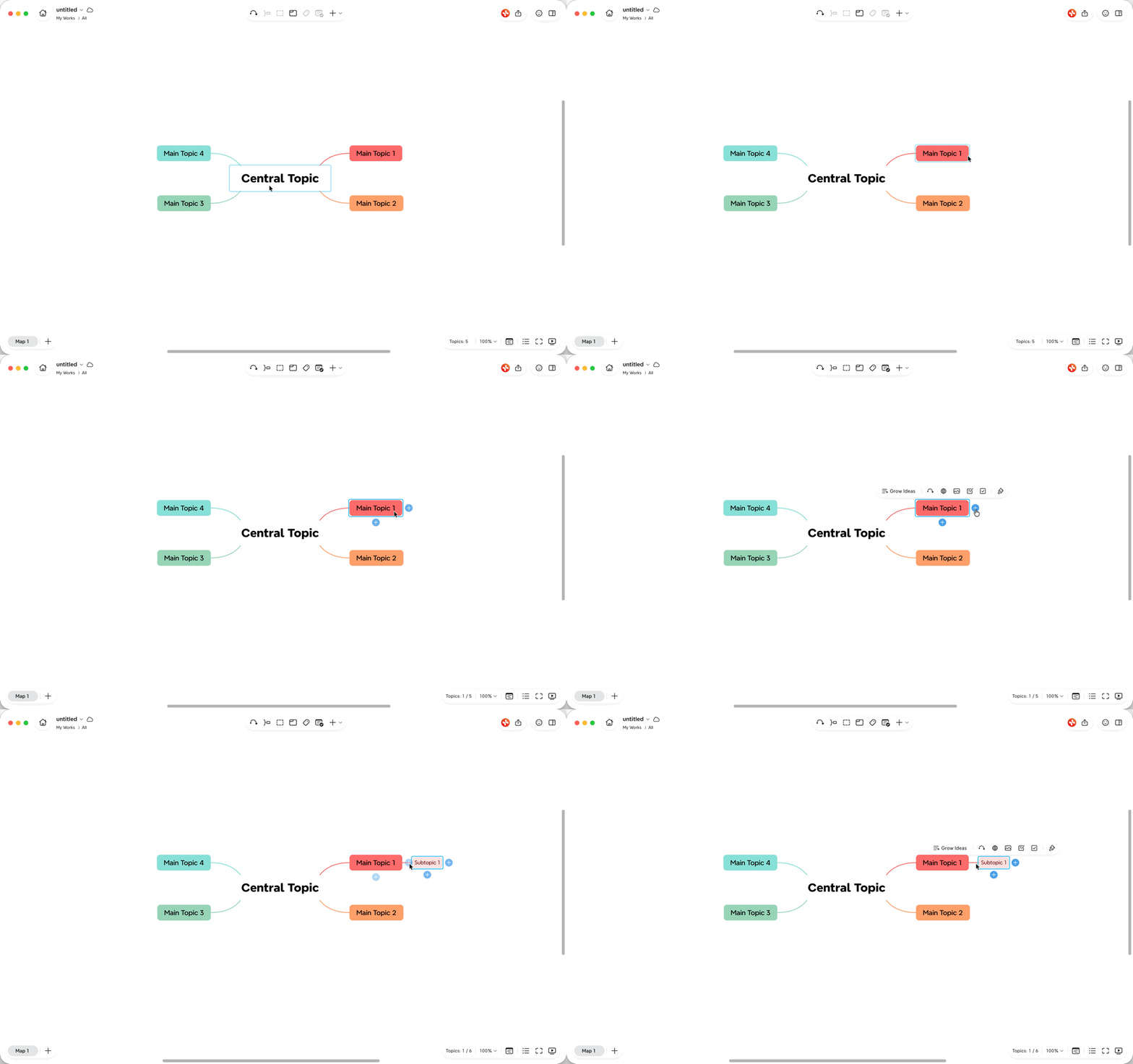
Add Topic Button is a quick way to create new topics from the canvas. When you select a single topic, one or two + buttons appear near it so you can add a subtopic or sibling topic with one click.

Add a Subtopic
Use the subtopic button to add a child topic under the selected topic.
1️⃣ Select a topic.
2️⃣ Click the + button beside the topic where the subtopic will be added.
3️⃣ Type the content for the new topic.
Tip: You can also press Tab to add a subtopic.
Add a Sibling Topic
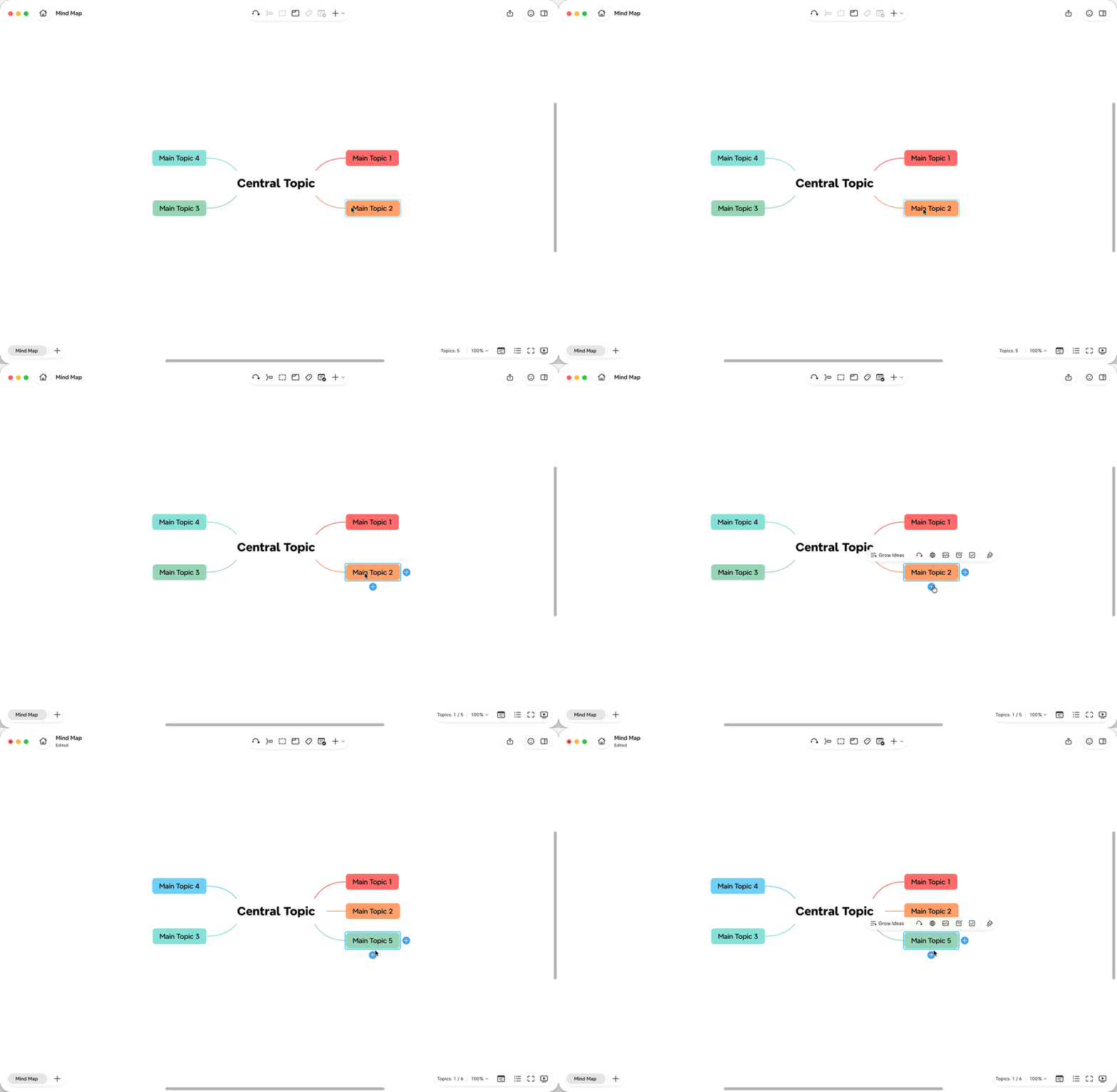
Use the sibling button to add a topic at the same level as the selected topic.
1️⃣ Select a topic.
2️⃣ Click the + button below the topic where the sibling topic will be added.
3️⃣ Type the content for the new topic.
Tip: You can also press
Enterto add a sibling topic.
Show, Hide, or Turn Off Add Topic Button
Add Topic Button appears when a single topic is selected and you are not editing text or selecting multiple topics.
It hides automatically when you:
-
Click an empty area of the canvas
-
Press
Esc -
Select multiple topics
-
Double-click a topic to edit text
-
Start selecting an area on the canvas
To turn Add Topic Button on or off, you can go to Settings > Editor, and turn Show Add Topic Button.
Note: On mobile, Add Topic Button is always shown.
