
















Pitch Video
Pitch Video lets you turn your mind map into a structured video—perfect for presentations, idea pitches, or social sharing.

Activate Pitch Video in a Mind Map
On Web
Create a Pitch Video from a Mind Map
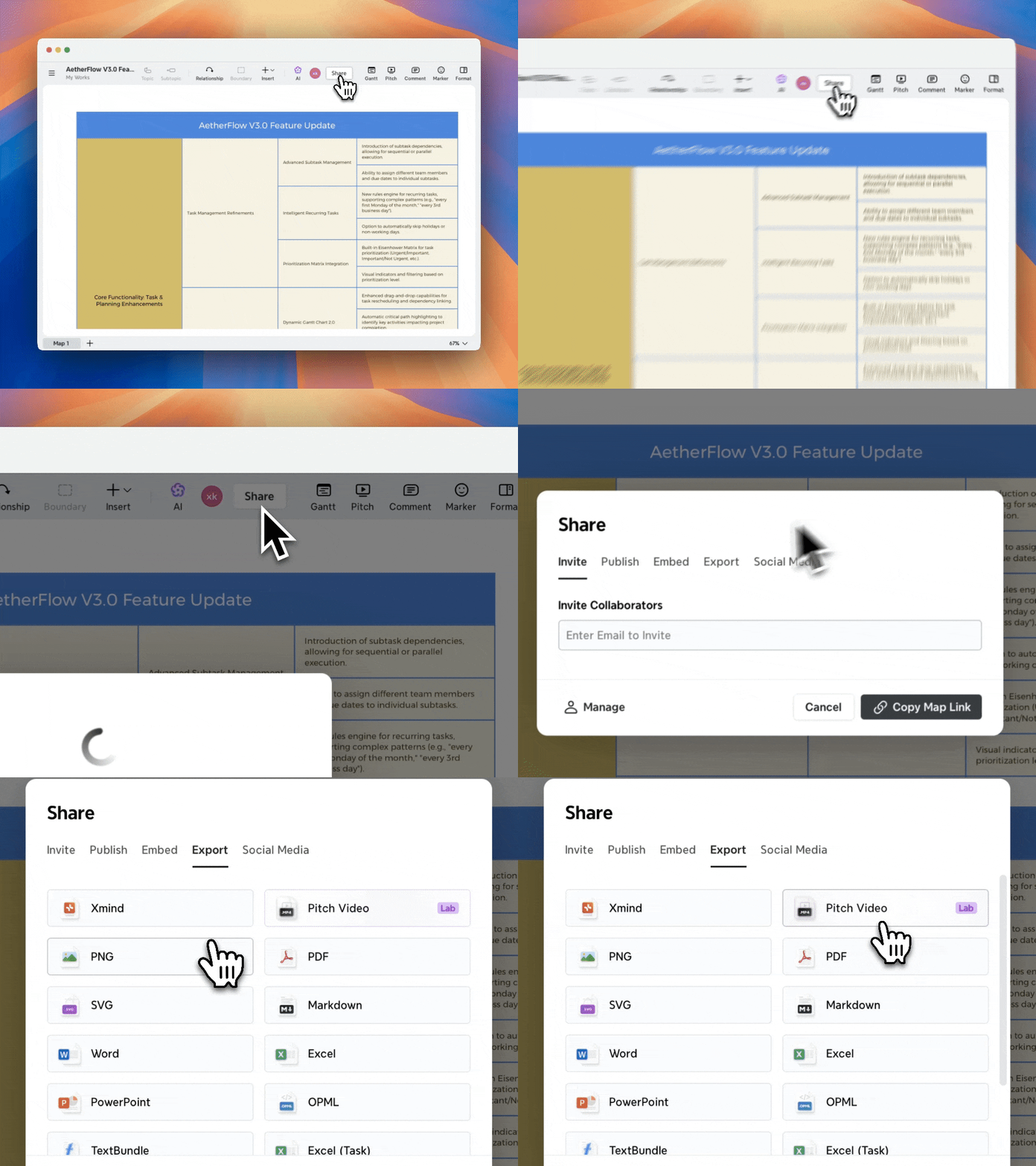
1️⃣ Open a mind map.
2️⃣ Go to Share > Export.
3️⃣ Select Pitch Video.
Create a Pitch Video in Xmind AI
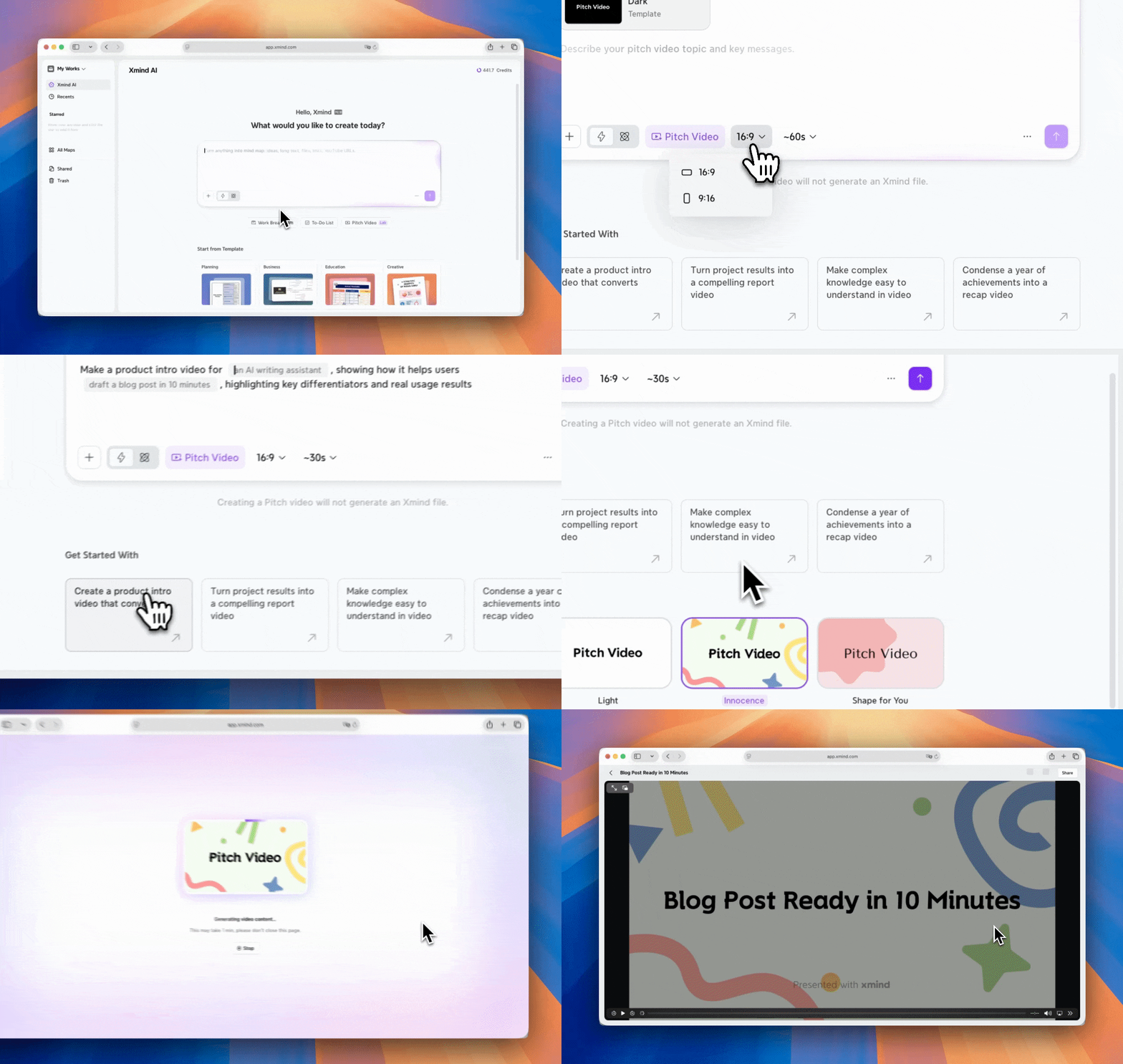
1️⃣ Choose Pitch Video
2️⃣ Enter your idea or choose a suggested prompt and .
3️⃣ Adjust the aspect ratio, duration, and theme to suit your needs.
4️⃣ Tap Generate to start creating the pitch video.
On iOS
Create a Pitch Video from a Mind Map:
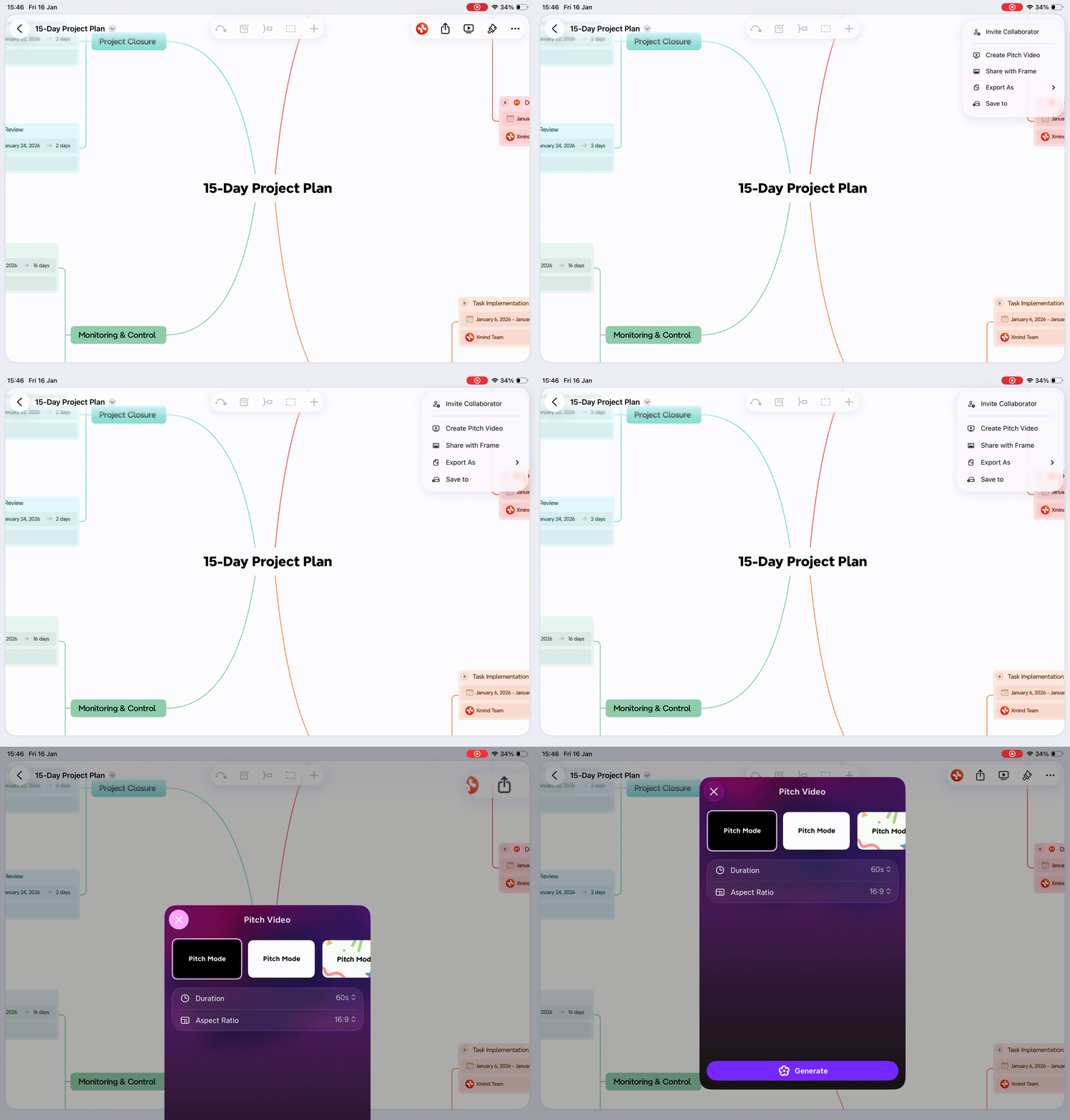
1️⃣ Open a mind map.
2️⃣ Tap Share.
3️⃣ Select Create Pitch Video.
Create a Pitch Video in AI Lab:
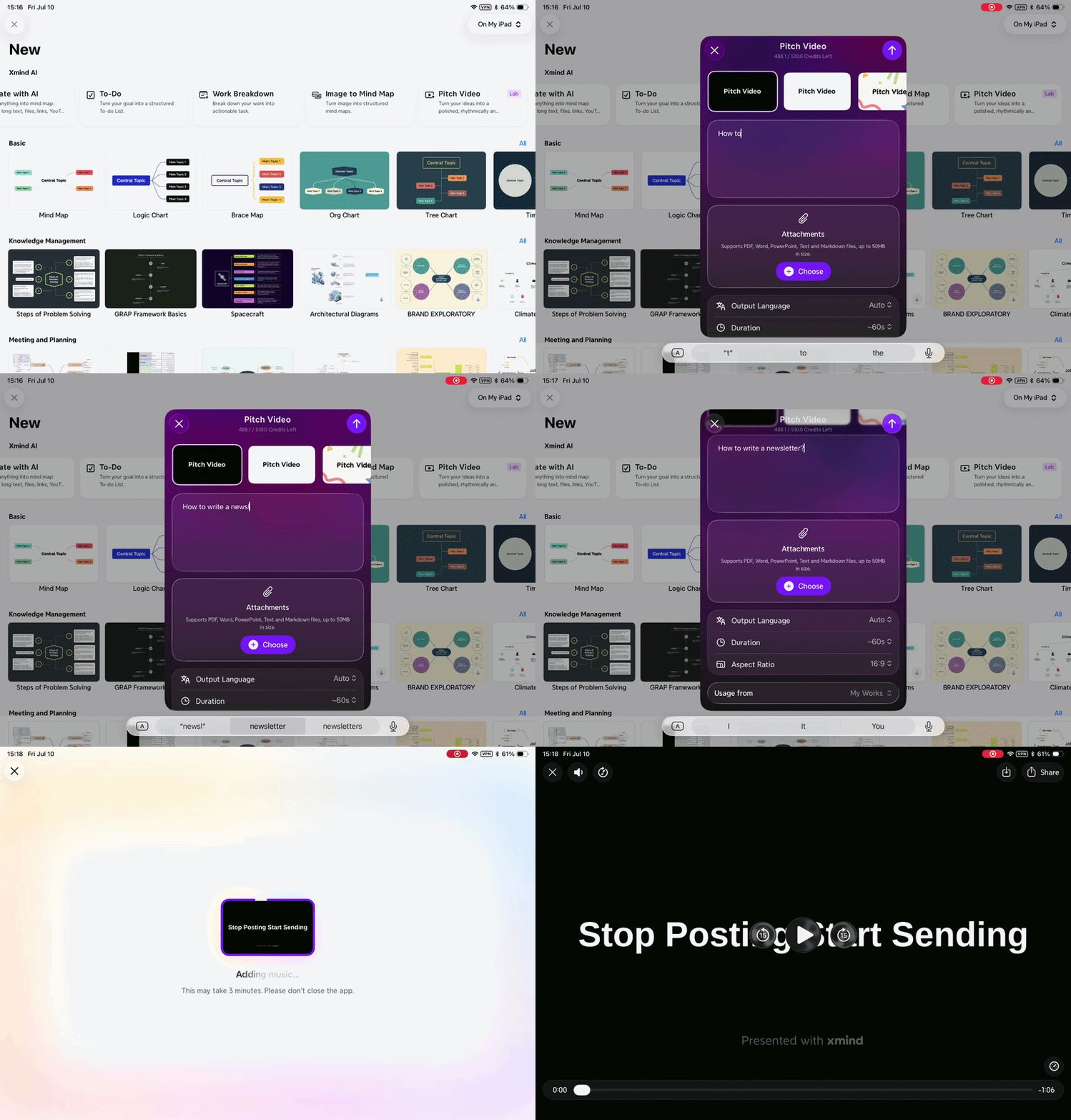
1️⃣ Go to New > Xmind AI > Pitch Video.
2️⃣ Enter your ideas and optionally upload attachments.
3️⃣ Configure the video settings, including theme, language, duration, and aspect ratio.
4️⃣ Tap Generate to start creating the pitch video.
5️⃣ Other Steps are the same as on the web.
Configure Video Settings
In the Pitch Video panel, choose how your video will look and feel.
You can select:
-
Theme – the overall visual style
-
Aspect Ratio – for different platforms or screens
-
Duration – the length of the video
Once finished, click Continue to start generating the video.

Customize and Share the Video
Once the video is ready, you can:
-
Change the background music
-
Download the video
-
Share the video on social media
