





Make Image
Make Image helps you create prompts and generate beautiful sticker images that match your topics, without leaving your mind map.

Activate Make Image
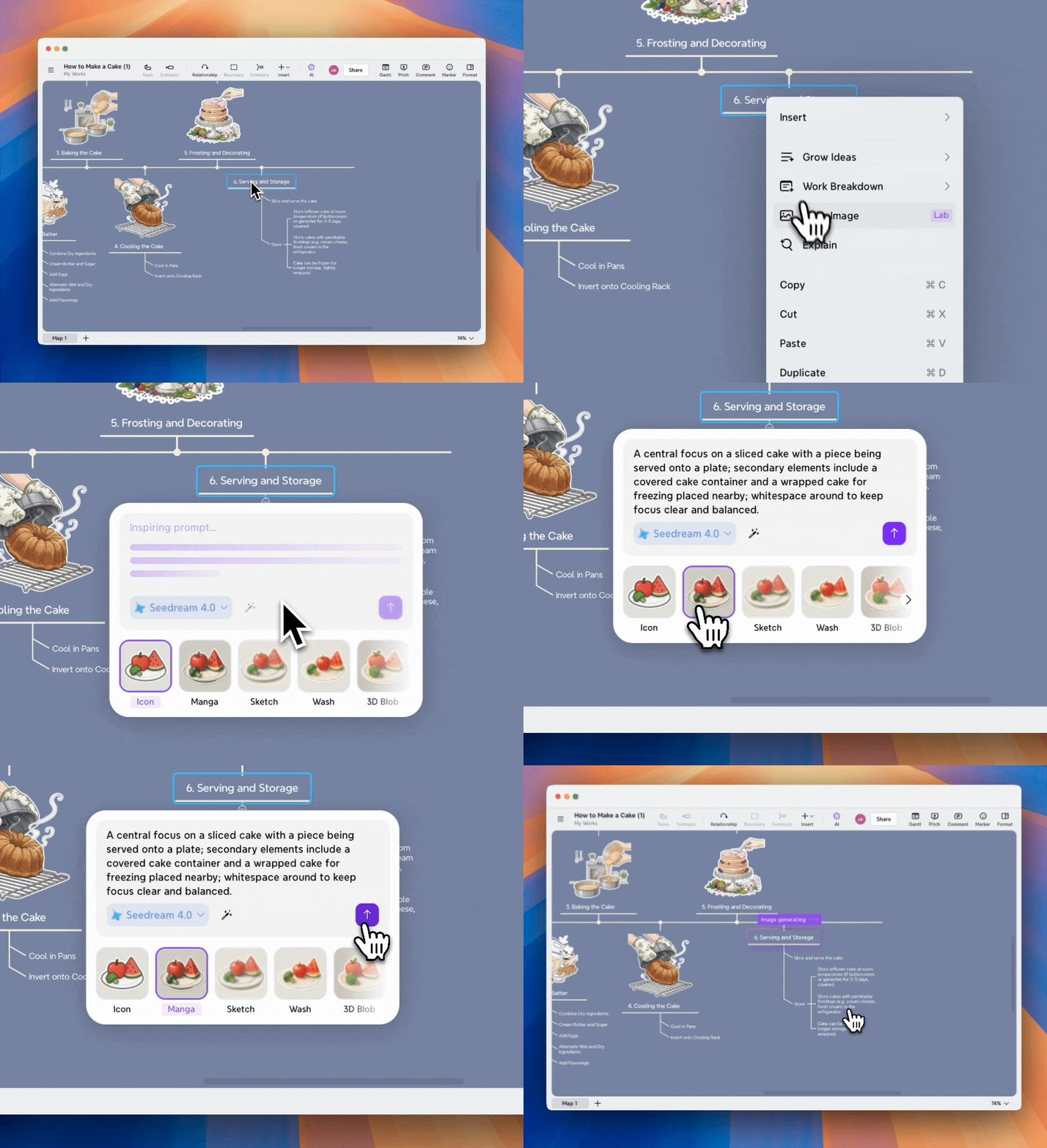
You can activate Make Image from the right-click menu:
1️⃣ Right-click a topic.
2️⃣ Select Make Image.

Once the Make Image is activated, Xmind AI automatically generates an image prompt based on the selected topic and its context. It also suggests a visual style that fits your mind map.
Customize Image Settings
Before generating the image, you can customize the result to better match your expectations.
You can:
-
Edit the prompt directly in the input field
-
Switch to a different image generation model
-
Click Inspire to regenerate the prompt
-
Choose a different image style
You can also choose Custom Style and describe the image style directly in the prompt for more precise results.

Generate an Image
Click ”⬆️“ to generate. Once the image is ready, it will be automatically inserted into the selected topic.
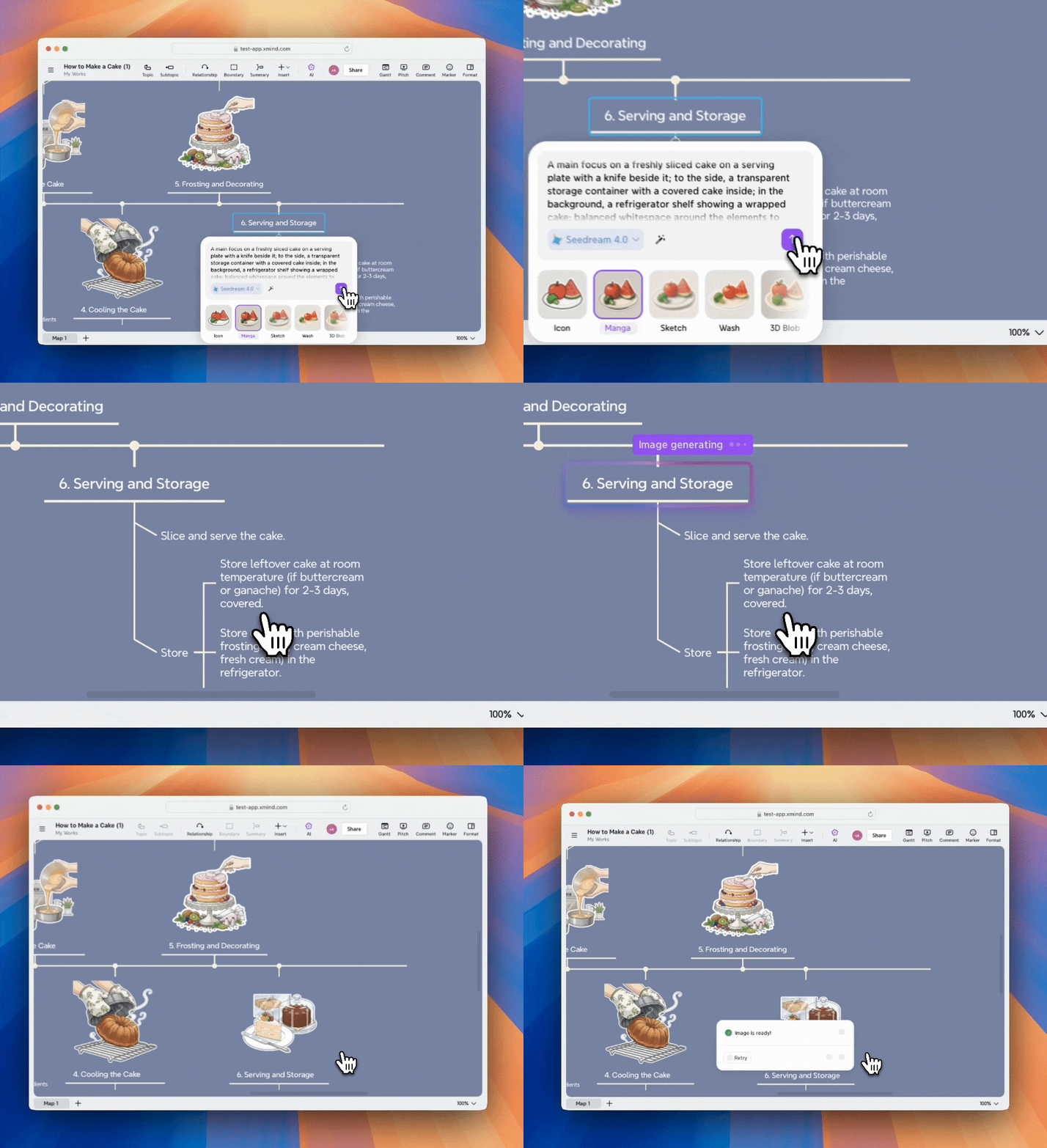
If you choose a preset style, Xmind will automatically apply background removal, so the final sticker blends seamlessly into your mind map.
Regenerate an Image
If you’re not satisfied with the generated result:
1️⃣ Click Retry.
2️⃣ Adjust the prompt, model, or style.
3️⃣ Generate the image again.
