















AI Work Breakdown
AI Work Breakdown helps you quickly turn a project idea into a structured plan with subtasks, priorities, and timelines automatically generated based on your input.

How to use AI Work Breakdown in Xmind
On web
From the home page:
1️⃣ Go to Sidebar > Xmind AI, or navigate to Create New > Create with AI.


2️⃣ Click Work Breakdown, you can use preset prompt or enter your own project description and upload related materials.
3️⃣ click Generate to start.
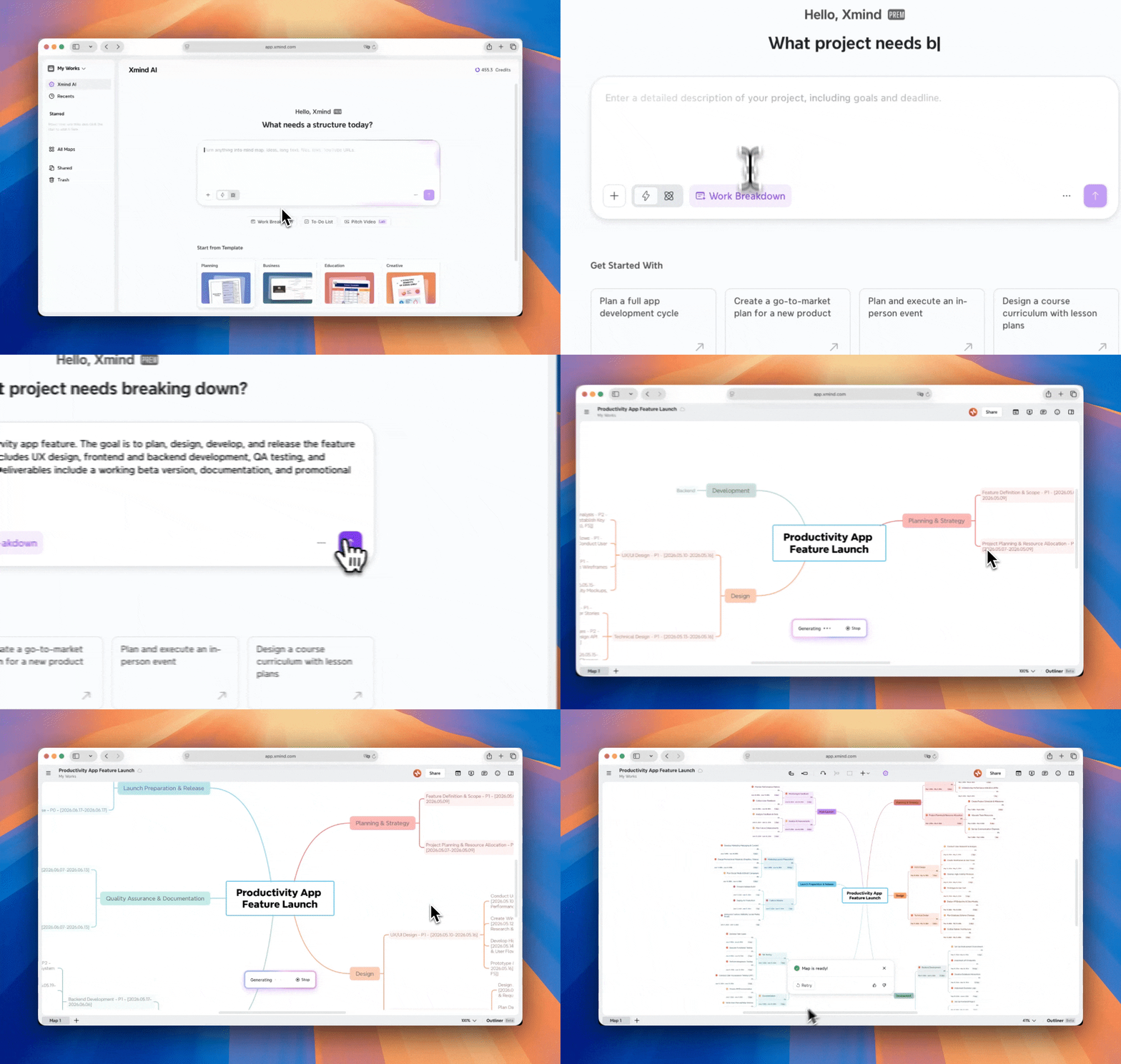
In the mind map, you can right-click any topic and select Work Breakdown, then choose Auto or On Demand.

On desktop app
From the home page:
1️⃣ Go to Sidebar > Create with AI.

2️⃣ Enter your project description and input any related materials, whether it’s a link, a file or a YouTube.
3️⃣ Choose Work Breakdown, then click Generate to start. Within seconds, your project will be turned into actionable tasks with clear structure and details.

In the mind map:
-
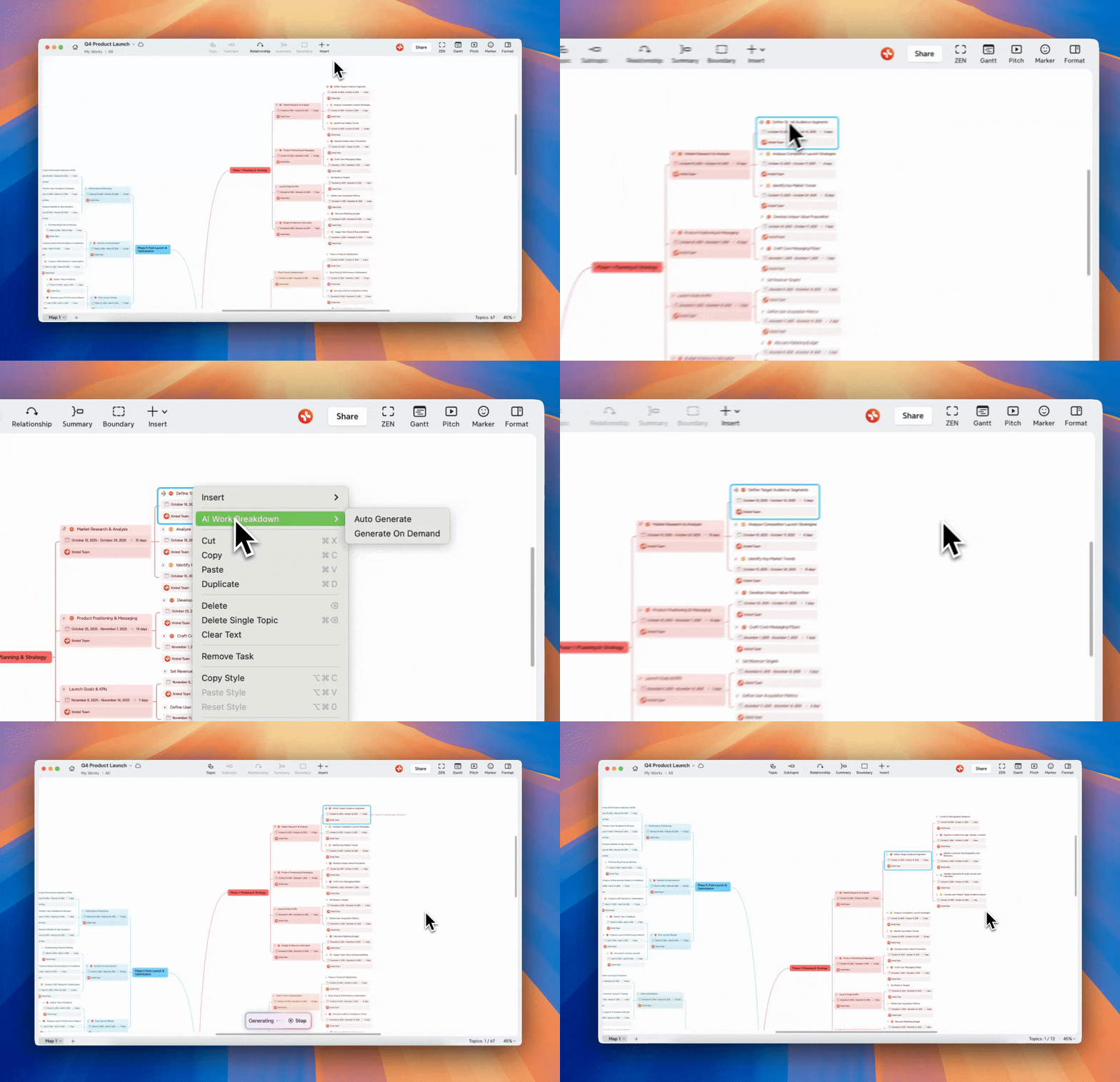
Right-click any topic and select AI Work Breakdown.
-
Choose Auto (instant breakdown) or On Demand (generate as needed).
On iOS
1️⃣ Open Xmind, Go to New, Select Work Breakdown
2️⃣ Enter your project description, and attach any related materials.
3️⃣ Tap “↑” to start.

In the mind map, you can also tap a specific topic and choose AI Work Breakdown for further breakdown.
