









Create and edit mind maps with Xmind Agent
Use Xmind Agent to create mind maps from ideas and source materials, ask questions about a map, edit and reorganize branches, plan projects, adjust layout and style, manage sheets, and work with Notion.

Xmind Agent helps you create and work with mind maps through conversation. You can start with an idea, an outline, or source materials, then ask Agent to organize the content into a map. When you already have a map, you can discuss its contents, develop a branch, rearrange topics, or adjust its appearance. Xmind Agent works alongside your mind map, so you can review the structure as it changes and continue editing topics and branches yourself.
You need to sign in and have an internet connection and available AI credits to use Xmind Agent. Editing a shared map also requires permission to edit the file. If you only have view access, you can discuss the map in Discussion mode.
💡 Tip: If you don’t see Xmind AI in the map editor, the team that owns the map may have turned it off. In My Works Settings or your team’s settings, Enable Copilot and Enable Lab Features must both be on.
Start a conversation
-
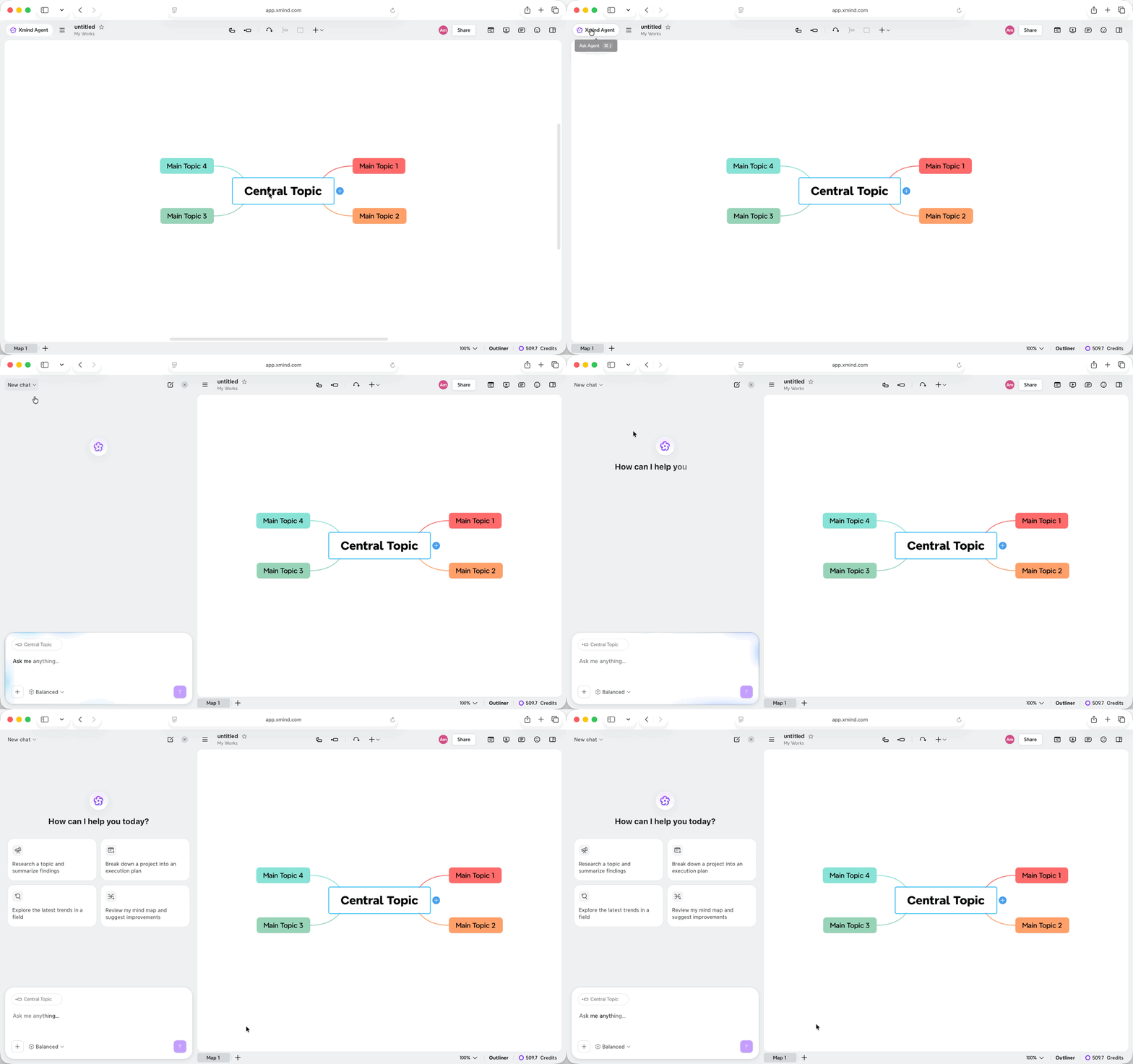
Open a mind map, then click Xmind Agent in the upper-left corner of the editor if the chat panel isn’t already open.
-
Open the sheet you want to work on. To focus on part of the map, select one or more topics on the canvas.
-
Enter what you want to ask or change, then click Send.
Selected topics appear as a reference above the input field. You can refer to them as “this topic” or “these topics” in your request. To remove the reference, click its × button.
For a useful prompt, identify the content, describe the action, and include any constraints that matter. For example:
Expand the selected “Customer research” branch with interview questions. Group them by research goal and keep the existing topics.
If Agent asks a follow-up question, choose an answer or explain your requirements in the chat.
Choose a response mode
Click the response mode below the input field and choose the level of detail your task needs:
-
Quick: Use for simple questions, short explanations, and small edits.
-
Balanced: Use for everyday map creation, expansion, and editing. This is the default for a new chat.
-
Deep: Use for complex analysis or tasks that need more reasoning. This mode uses more credits.
The response mode controls how Agent approaches your request. To discuss a map without changing it, use Discussion mode.

Create a mind map from an idea
Describe what you want to organize and how you intend to use it. You can request a travel itinerary, SWOT analysis, comparison of options, process, timeline, meeting summary, or another structured map.
-
Open a blank mind map or a file where you want to add a new map.
-
Describe the subject, purpose, and any details the map should include.
-
Click Send, then review the map on the canvas.
For example:
Create a mind map for a three-day trip to Kyoto. Organize it by day, group nearby places together, and include travel time between stops.
Agent organizes the content for the task and selects a layout and color theme. Where useful, the generated map can include boundaries, summaries, emphasized text, labels, to-dos, and relationships between branches. Supporting details, such as sources and explanations, can appear in topic notes.

You can also request a particular structure:
Compare these three venue options by cost, capacity, location, and accessibility. Use a matrix structure and keep the supporting details in topic notes.
When the current sheet is blank, Agent can create the map there. When it already contains your work, ask for a new sheet to keep the existing map:
Create a SWOT analysis in a new sheet. Keep the current map unchanged.
After generation, you can edit topic text, move branches, or send another request to refine the map.
Create or expand a map from source materials
You can give Agent documents, images, webpages, or YouTube links and ask it to organize the information. Use the materials to create a new map or add detail to an existing branch.
Use documents or images
Supported attachments include PDF, Word, PowerPoint, Markdown, and text files, as well as JPG, JPEG, PNG, and WebP images.
-
Open the map you want to work on.
-
Click + (More) beside the input field, then choose Add files or photos.
-
Select your files and wait for them to finish uploading.
-
Describe which information to extract and where to put it, then click Send.
You can also drag files into the chat panel or paste a screenshot.
Turn this report into a mind map.

To add information to an existing map, identify the destination:
Read this report and add its main findings under the “Market research” branch. Include the sources in topic notes.
Use webpages or YouTube videos
Paste the link into your message and explain what you want to extract. For a YouTube video, Agent uses the available transcript to organize its content.
Summarize this article in a new sheet. Group the main arguments with their supporting evidence: [link]
Read the transcript of this YouTube video and add its practical examples to the selected branch: [link]

Review the extracted content against the original material, particularly names, figures, and conclusions you plan to use.
Ask questions and research a topic
You can ask Agent to explain a branch, summarize the map, identify missing information, or compare ideas before deciding what to change.
To keep the conversation from modifying your map:
-
Open the relevant sheet and select a topic if your question concerns a particular branch.
-
Click + (More), then turn on Discussion mode.
-
Enter your question and click Send.
The Discussion mode indicator appears below the input field. Agent responds in the conversation without editing the map.
What assumptions in this plan still need evidence?
Compare the options in this map. What information is missing before I can choose between them?

Agent can also search online and organize findings from external sources. Specify the subject and scope of the research:
Research recent examples of community-led product launches. Summarize the approaches and include links to the sources.
When you are ready to use the findings, turn off Discussion mode and ask Agent to add them to the map:
Add the relevant examples under “Launch approaches,” with source links in the topic notes.
You can also ask how to use Xmind. Agent can consult the official user guide to explain a feature or operation.
Edit content and reorganize branches
Use Agent to add detail, shorten topic titles, remove repetition, or change how ideas are grouped.
-
Open the sheet you want to edit.
-
Select the topics you want Agent to work on, or name the branch in your message.
-
Make sure Discussion mode is off.
-
Describe the change and click Send.
For example:
Add a parent topic called “Customer insights” above these selected topics.
Remove the “Background” topic but keep its subtopics.
Move the “Budget” branch under “Planning” and keep its existing subtopics.
You can also ask Agent to duplicate a branch, combine related ideas, split a large section, or make topic titles more consistent.
For a broader reorganization, ask Agent to create a revised map in a new sheet so you can compare it with the original:
Reorganize this map into preparation, delivery, and follow-up. Put the revised version in a new sheet and keep the original.
To prepare a map in another language:
Translate this map into Spanish and save the translation in a new sheet. Keep the structure unchanged.
Agent can also insert LaTeX equations or mask sensitive information in map content. Describe the equation or the information you want changed, then review the affected topics.

Turn ideas into a plan
Agent can break a project into phases and actions, add to-dos, and organize dates, priorities, and dependencies.
-
Open your project map and select the branch you want to develop, if applicable.
-
Describe the timeframe and any known milestones or constraints.
-
Ask Agent to organize the work and add the task details you need.
Turn this project into an eight-week plan. Group the work by phase, identify dependencies, and add to-do checkboxes to the action items.
To-dos let you check off completed items, with parent topics showing progress. For scheduled work, provide the dates and dependencies Agent should use.

Check the proposed sequence and timing before using the plan. You can refine it with another request, such as moving a milestone or breaking a large action into smaller steps.
If you want to remove task information while keeping the map content, state that explicitly:
Remove the task settings from this map, but keep all topic text and branches.
Adjust the layout and appearance
You can ask Agent to change the layout of a map or branch, apply a color theme, or update styles across several topics.
Choose a structure that matches the information: a timeline for events, a matrix for comparisons, an organization chart for reporting relationships, or a fishbone structure for causes.
Change the “Company history” branch to a timeline and keep the events in chronological order.
For style changes, identify the topics or elements and describe the appearance you want:
Keep the existing content and apply a clean, consistent theme.
Make the relationship lines between these branches dashed.
Agent can also adjust boundary and summary styles, apply quick styles, and fold or unfold branches. To prepare a simpler view for a discussion, you can ask it to collapse detailed branches while keeping the main topics visible.

Organize content in Zones
Zones group content into separate areas on the canvas. You can ask Agent to create a Zone, fit it to the content inside, or clear its contents.
Create a Zone named “Reference materials” and organize all floating topics.
Clearing a Zone removes the content inside it. If you want to keep that content, describe a different change, such as moving it or resizing the Zone.

Manage sheets in your file
A file can contain multiple sheets, each with its own canvas. Agent can help you find, switch between, duplicate, or delete them.
To open another sheet, refer to its name:
Switch to the “Q3 planning” sheet.
Once that sheet is visible, send your editing request. You can ask questions about another sheet by name without switching to it first.
To explore an alternative while preserving your work:
Duplicate the “Task Management App v1” sheet and name the copy “Task Management App v2”
The copy retains the map’s content and formatting.
Deleting a sheet removes everything on its canvas. Identify the sheet clearly and review any confirmation before continuing. A file must retain at least one sheet.

Work with Notion content
Connect Notion to use its pages as source material or turn your mind map into a document.
-
In the Agent panel, click + (More), then choose Connector.
-
Click Connect beside Notion.
-
Complete the authorization in the browser window that opens, choosing the pages Xmind can access.
-
Return to Xmind Agent and describe what you want to read or create.

To create a map from a Notion page, provide its link:
Turn this Notion page into a mind map. Organize the requirements by feature and preserve the open questions: [link]
To create a document from your map:
Create a Notion project brief from this map, with sections for goals, scope, milestones, and open questions.
Review the resulting page before sharing it. You can also identify an existing Notion page and ask Agent to update it.

Review or undo changes
Agent applies map edits to the canvas as it works. Review the affected topics and branches after each request.
When Undo is available below a reply, click it to revert the map changes from that reply. You can also use Xmind’s editor undo controls. The reply’s Undo button may become unavailable after further edits or when you reopen an older conversation.
To stop an ongoing response, click the stop button in the input area. Stopping a response does not automatically remove changes already applied to the map.
If a response is interrupted and Retry appears, you can use it to try the request again.

Manage your conversations
You can keep separate conversations for different tasks within the same file, for example one for research and another for revising a plan.
-
To start another conversation, click the New chat button at the top of the Agent panel.
-
To reopen a conversation, click the current chat title and choose one from the history list.
-
To delete a conversation, open the history list, move the pointer over the conversation, click its delete icon, and confirm.
Deleting a conversation cannot be undone. Starting a new chat does not create a new sheet or clear your map.
Your conversations are private to your account. Changes you make to a shared map remain part of that shared file.
