











Create Your First Mind Map
There are 3 ways to create a new Xmind map: "New Blank Map", "New From Template", and "New From Library". Navigate to the Menu Bar > File to select.


Create New Blank Map
Upon launching Xmind, you can start your mind map using default styles or your preferred Skeleton and Color Theme from the Map panel.
Shortcuts are also available for mind map creation.
Windows: Ctrl + N
Mac:⌘ + N
Create New From Template
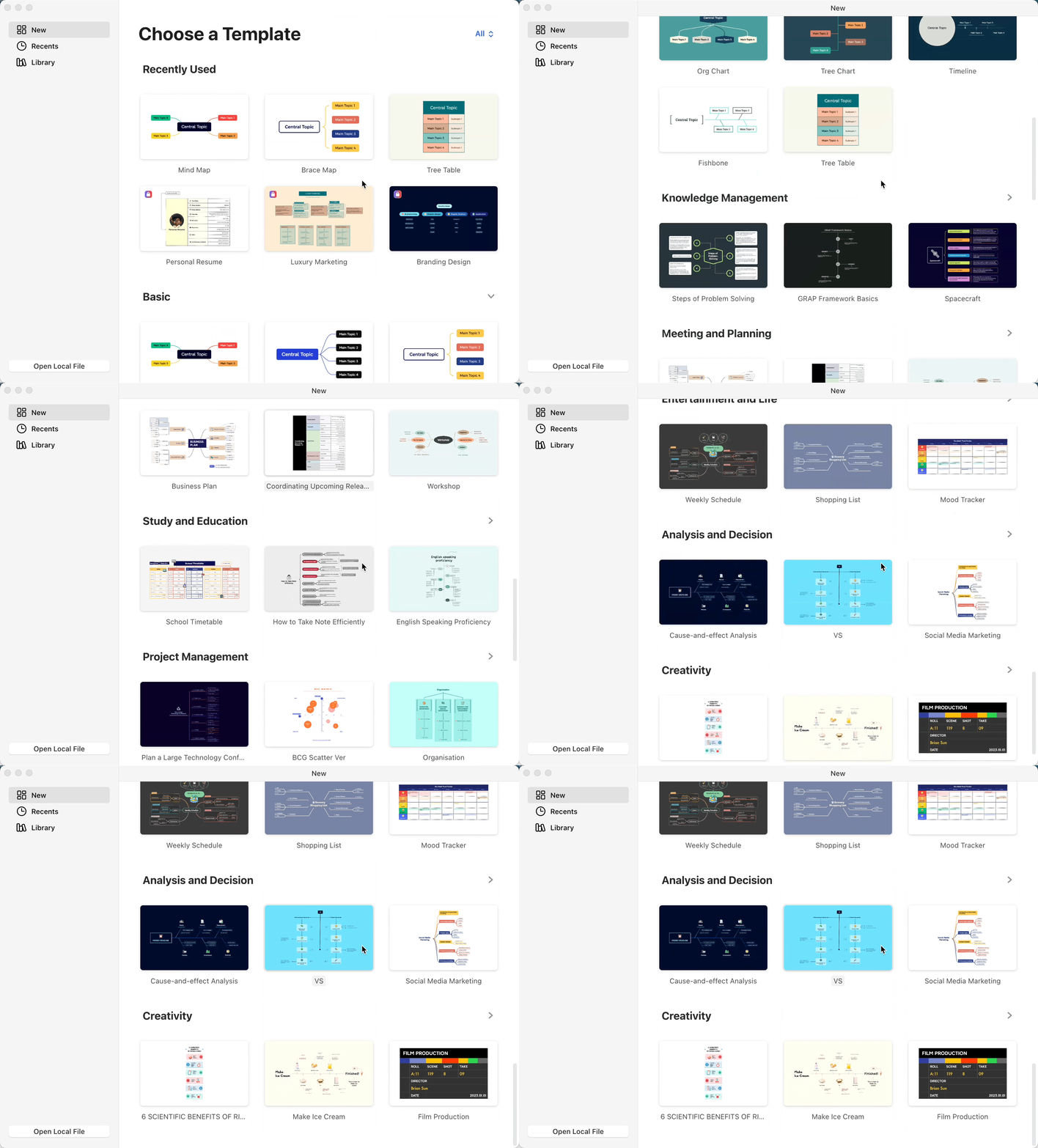
Select a template scenario from the “Templates page” for a quick and easy mind map creation.
Create New From Library
Explore the Library for exceptional mind maps uploaded by Xmind users that can provide inspiration for your own creations.

Tips:
- Creating from “Menu Bar > File”
If you want to create an additional file while in the creation process, you can do so by clicking on File > New, or File > New From Template/Library to start a new file.
- For Mac users, you can create new with Quick Entry
If you have enabled quick entry, you can find the Xmind icon in the top menu bar and click on it to bring up the input window. Once you’re done, click Create Map to quickly convert it into a mind map.

