
















Numbering
The Numbering in Xmind feature allows you to add serial numbers to various nodes in the mind map, showcasing the hierarchy, order, or importance of information. With systematic numbering, you can effectively organize and manage complex information, enhancing the readability and practicality of the mind map.

Numbering Style
Numbering is placed in front of the Marker and Topic text, aligned center with the text; the color of numbering matches the text color.
Applications in Mind Maps
Besides using the Numbering feature to order topics at the same level, it can also be used for:
Flowcharts: Describing the sequence of steps in a process, clearly showing the order of each step to help understand the logic and structure of the process.
Task Management: In project management or personal to-do lists, use numbering to indicate task priority or execution order.
Learning Notes: Use numbering to differentiate and memorize different chapters.
Meeting Records: Use numbering to record different topics, decisions, or action points, improving the organization and traceability of meeting content.
Writing Outlines: Before writing an article or paper, use numbering to plan chapters, paragraphs, and key content points, constructing a clear content framework.
Speeches and Presentations: Numbering can make the content and key points clearer, ensuring the coherence and emphasis of the content.
Knowledge Classification: Use numbering for classification and indexing, making it easier to find and reference.
Setting OKRs: Use numbering to mark different goals, sub-goals, and action steps, aiding in the clarity and achievement of goals.
Creative Ideation: During brainstorming or creative meetings, use numbering to record and organize different ideas and concepts, facilitating subsequent discussion and selection.
Add Numbering
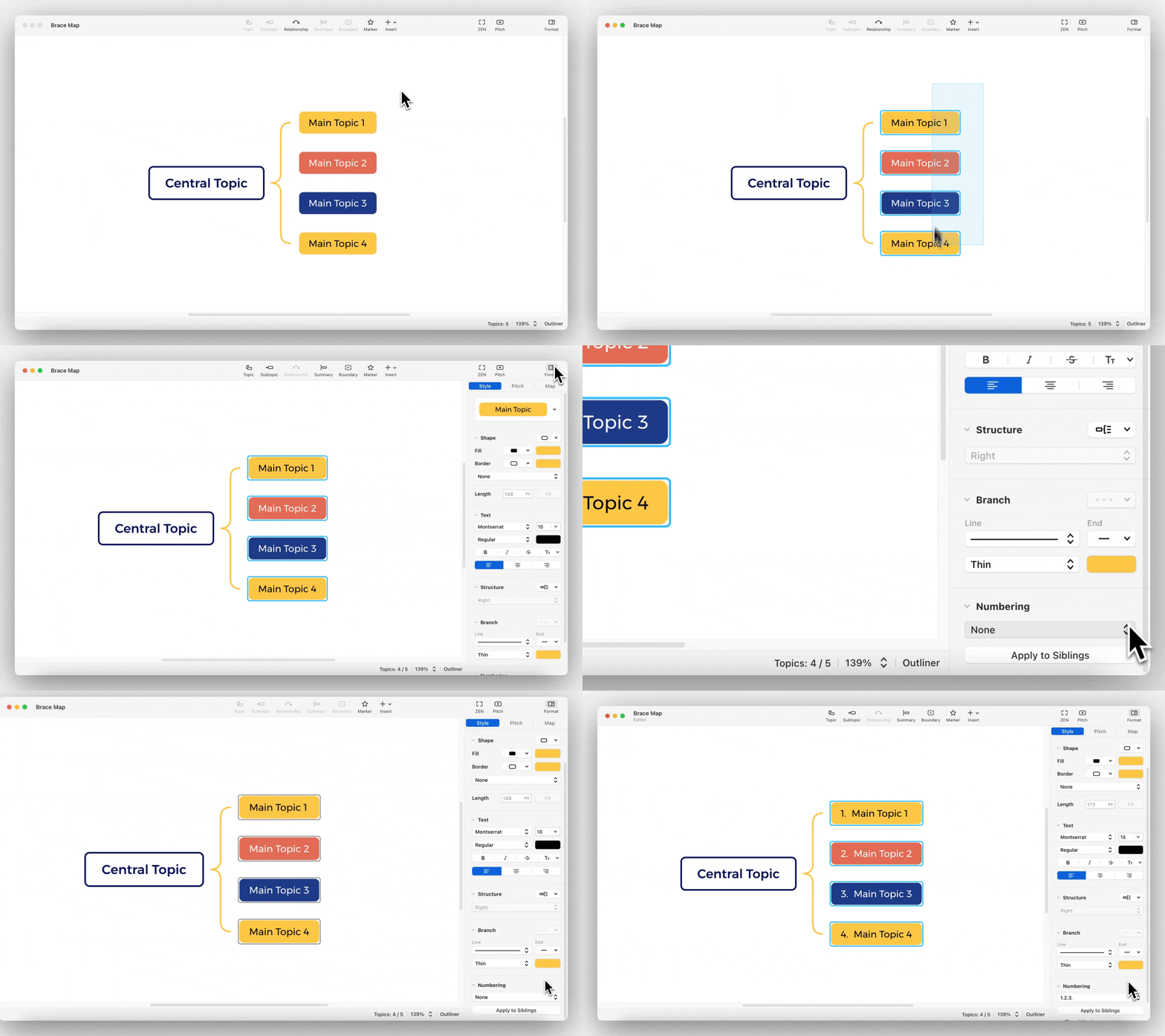
Click to select the topic(s) you want to number (supports multiple selections), then click Format > Style > Numbering and choose your preferred numbering style.
Edit Numbering
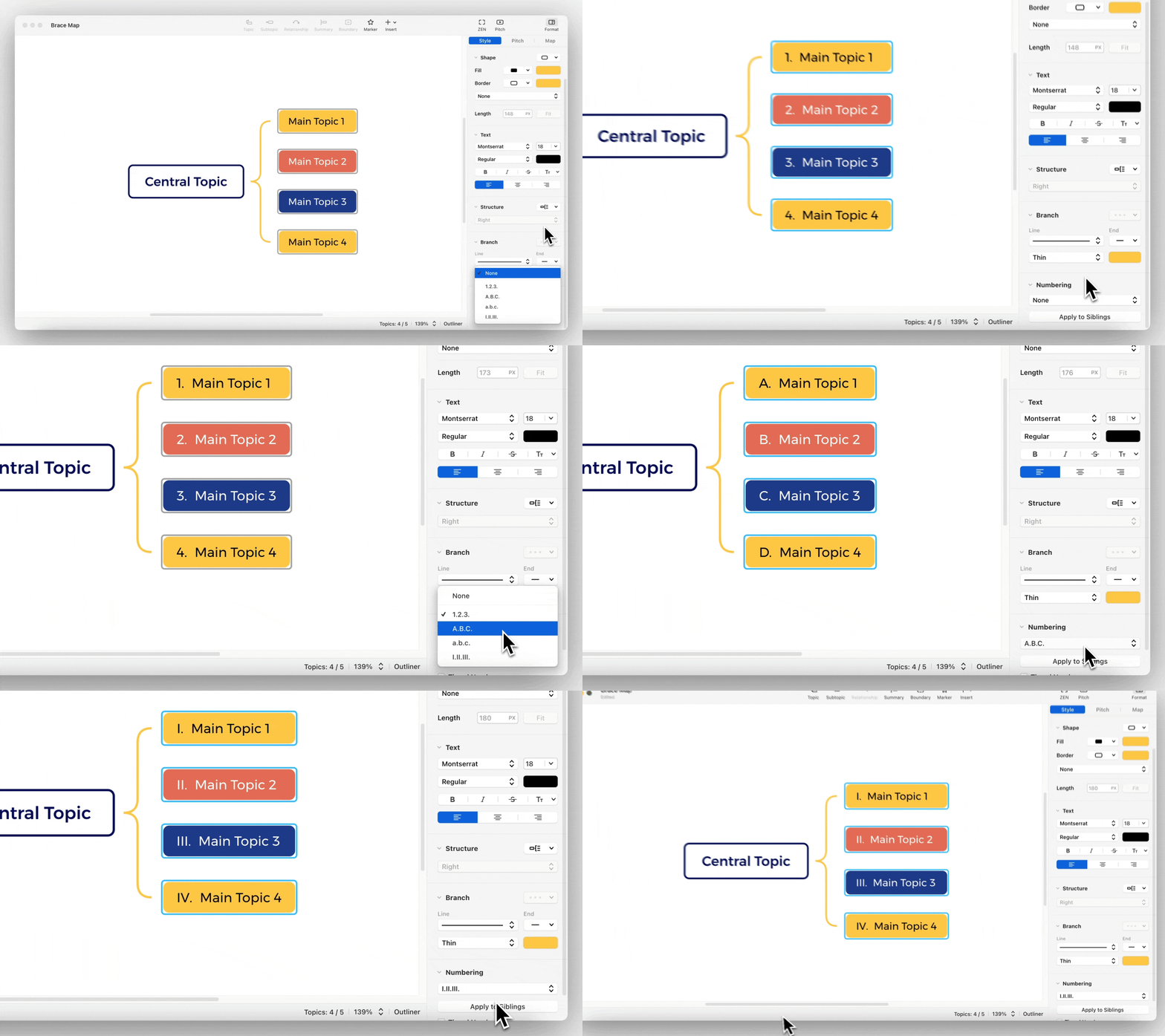
Click to select the topic(s) you want to number (supports multiple selections), in Format > Style > Numbering, select the numbering style you wish to modify, and click to switch numbering styles.
Apply to Siblings
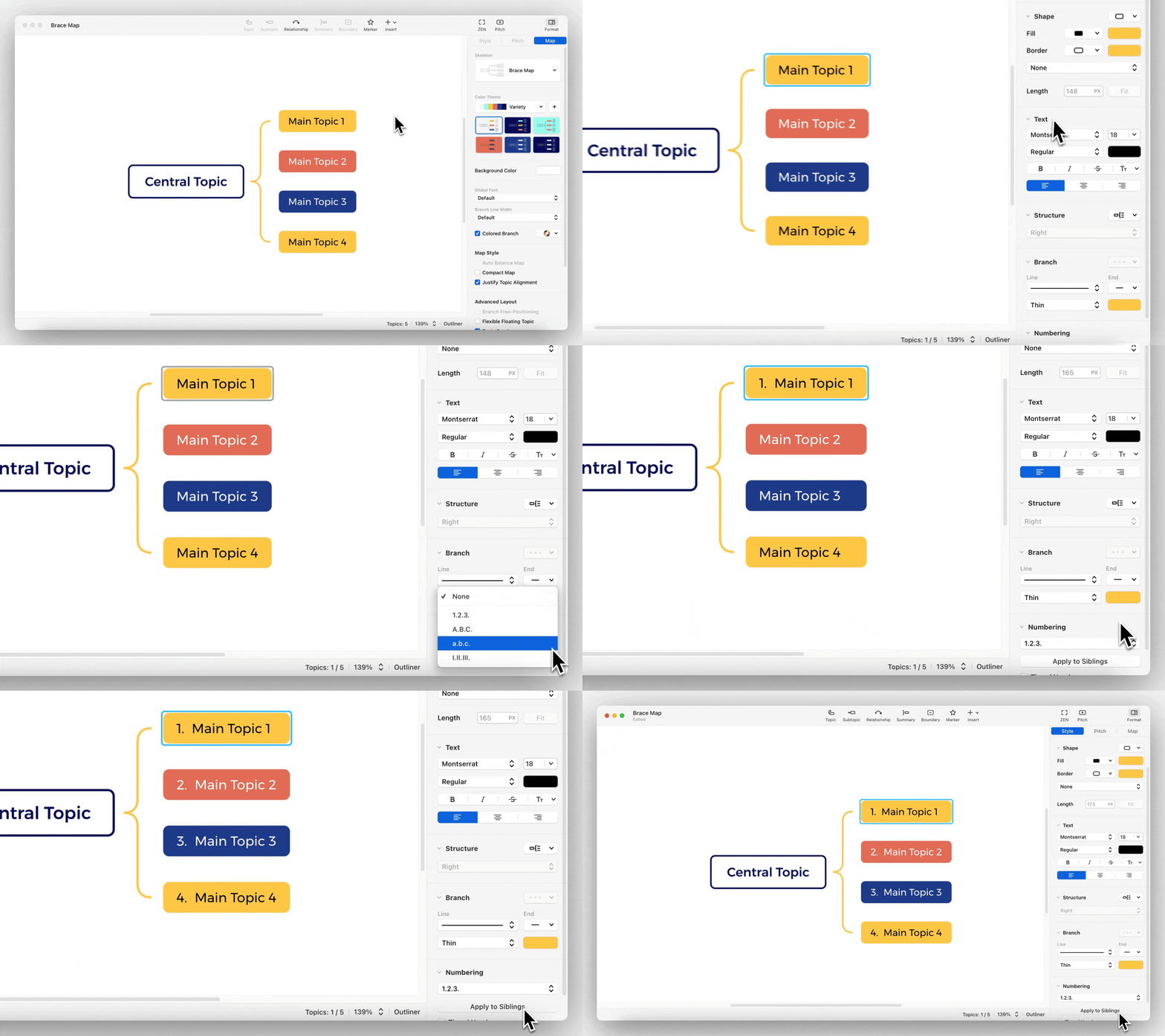
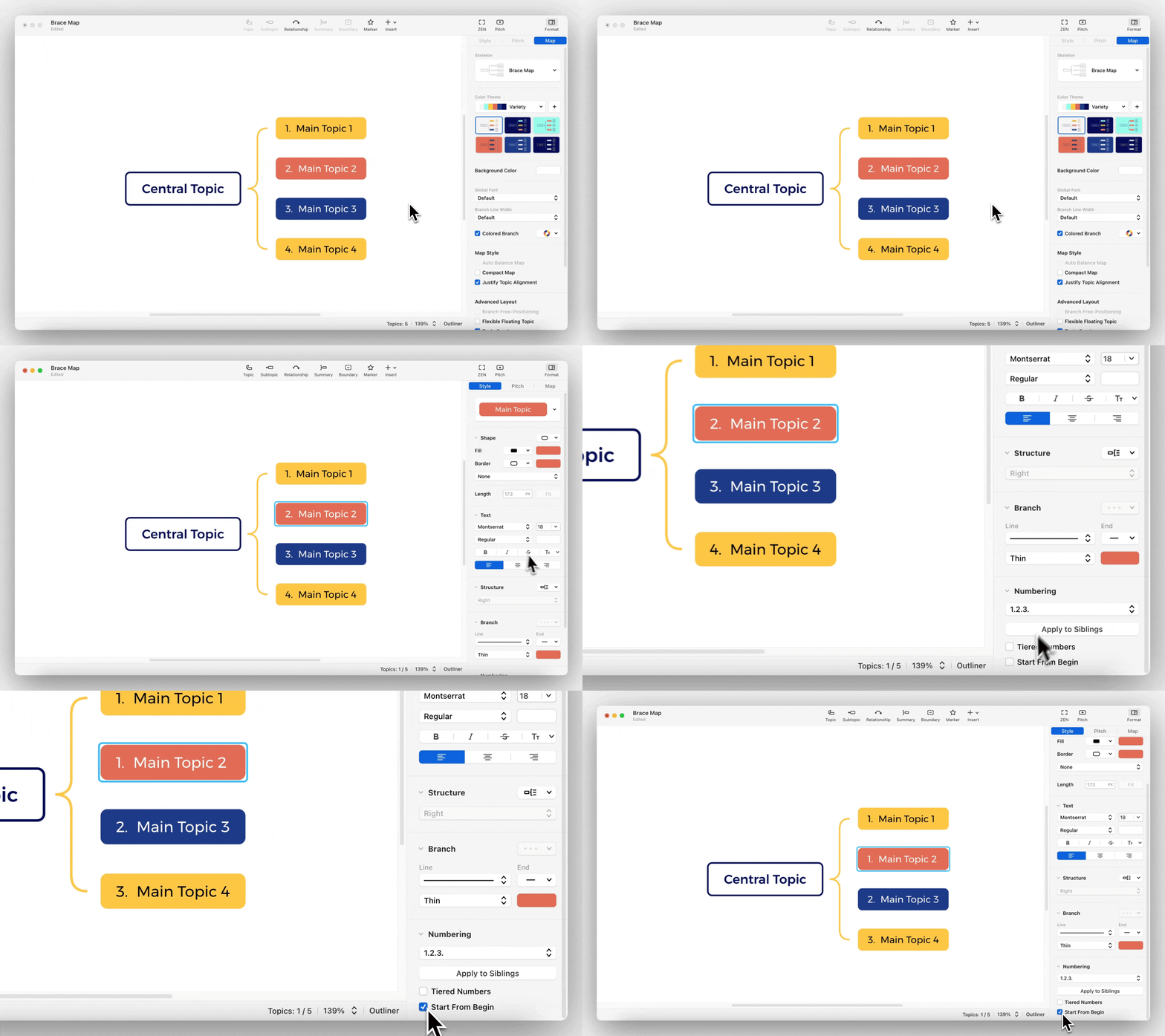
After setting the numbering style, you can click Apply to Siblings to synchronize the numbering style to topics at the same level.
Tiered Numbers
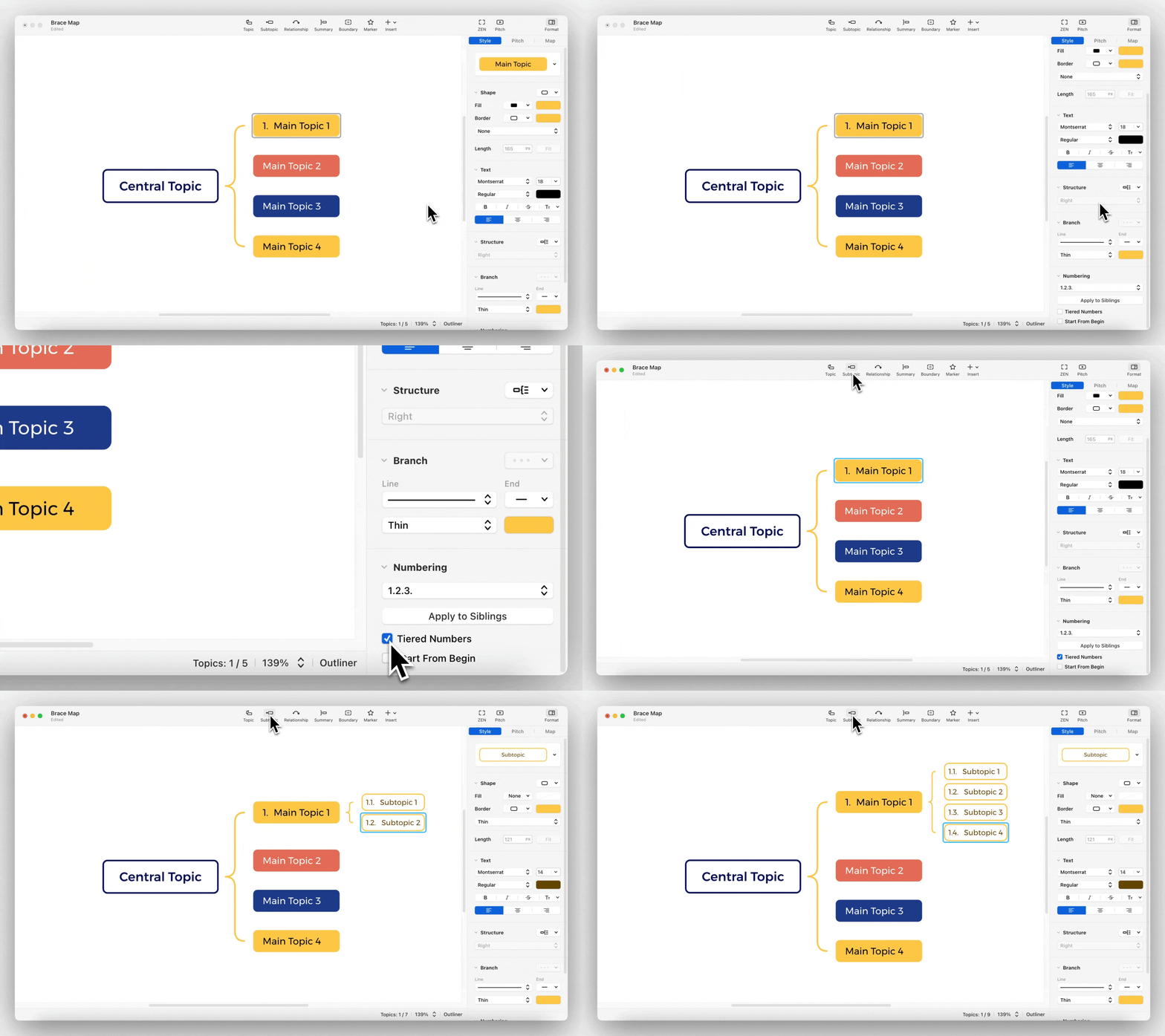
When selected, the current Topic’s Numbering will inherit the parent node’s Numbering, forming tiered numbering.
After selecting Tiered Numbers for a Topic, the Sibling topic will also automatically select Tiered Numbers.
- Default not to be selected.
Start From Begin
Select the Topic that needs to start numbering from the beginning, select this feature to reorder from the smallest number.
- Default not to be selected.
Adjust Numbering
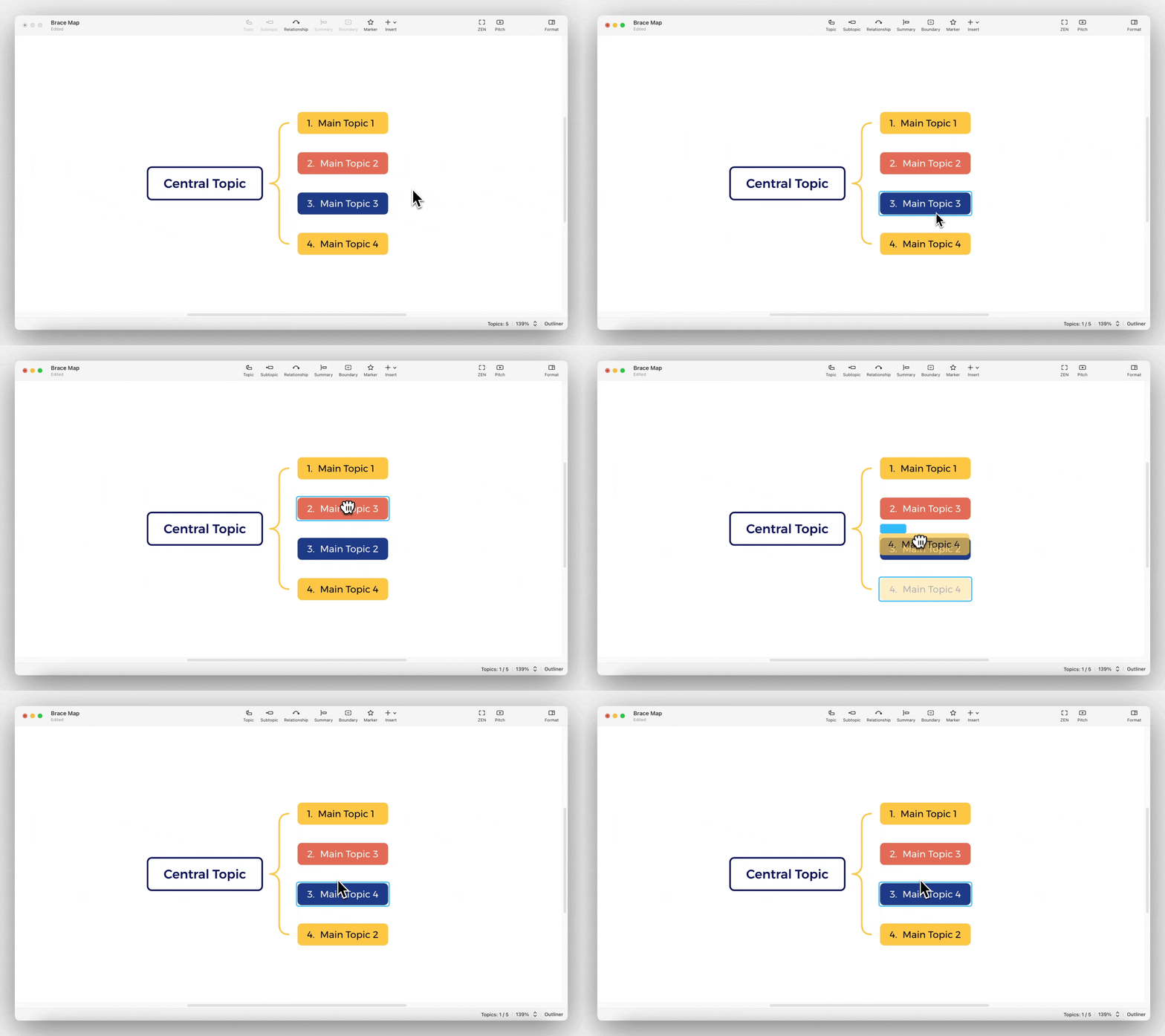
Numbering will be automatically numbered according to the adjustment of the Topic’s position, no manual adjustment is required.
Delete Numbering
Click to select the Topic(s) from which you want to delete numbering, in Format > Style > Numbering choose the numbering style None to revert the numbering status to default, completing the deletion of numbering (supports multiple selections).
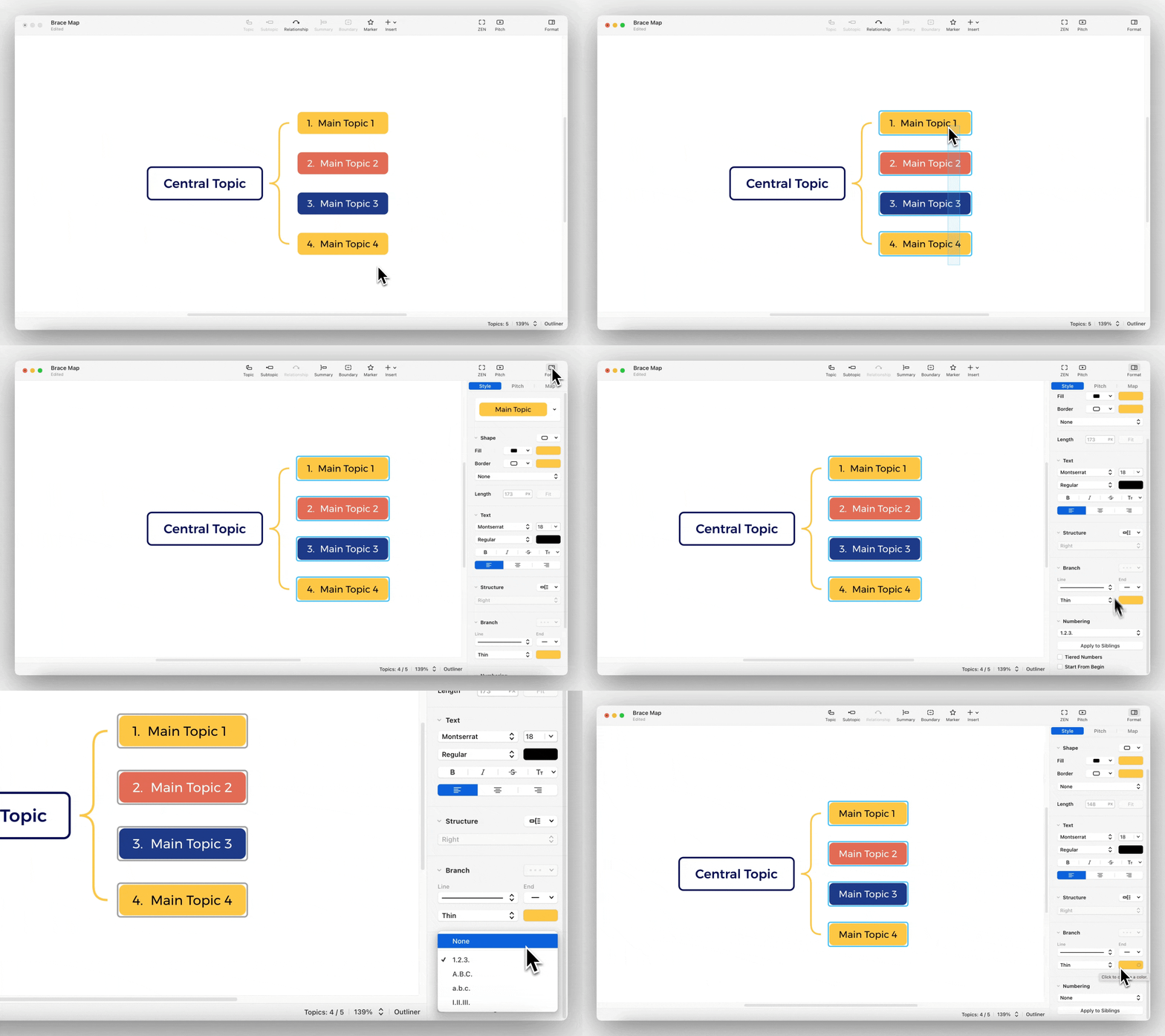
- Numbering exists independently of the Topic text and cannot be selected or deleted in MindMap mode text editing state.
Note:
-
By selecting all topics, you can add numbering and tiered numbering simultaneously.
-
In Outliner Mode, if you manually enter the first number of any style in Numbering at the beginning of the text, Numbering will be automatically generated for you, otherwise, it is considered regular text.
Note:
-
Numbering is not supported in Pitch Mode.
-
The logic of Numbering’s order is related to the Topic’s order in the structure.
-
In Outliner Mode, it is not possible to edit or modify the style of Numbering or select features.