














Floating Topic
A Floating Topic is an independent topic that you can place anywhere on a sheet without attaching it to the central topic or an existing branch.

Create a Floating Topic
There are three ways to create a floating topic:
-
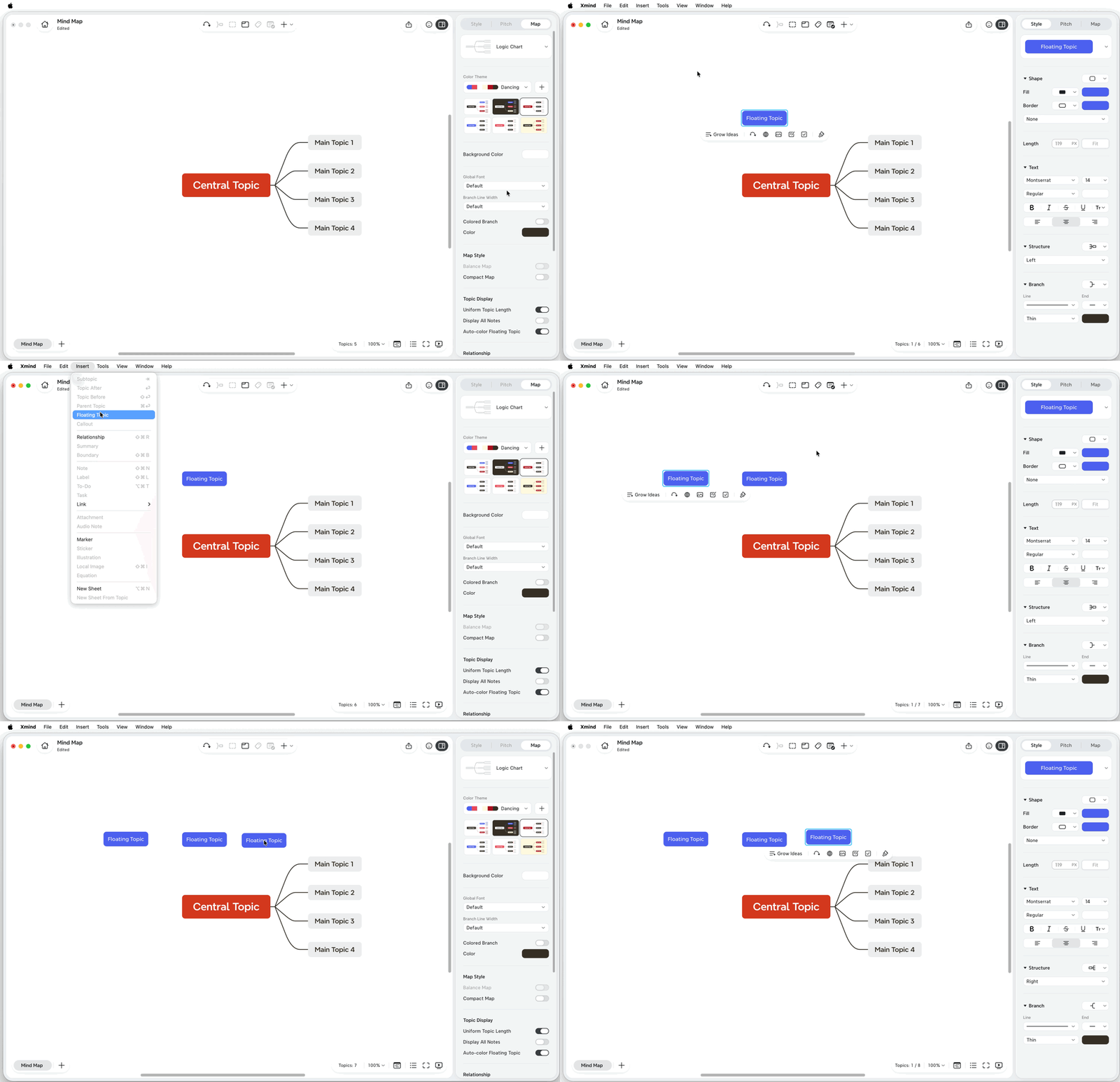
Create from a blank space: Double-click a blank area to insert a floating topic
-
Create from the Insert menu: From the top menu, choose Insert > Floating Topic, then click where you want to place it.
-
Create from the context menu: Right-click a blank area of the sheet, choose Insert Floating Topic, then choose the place you want to insert the floating topic
Edit the text
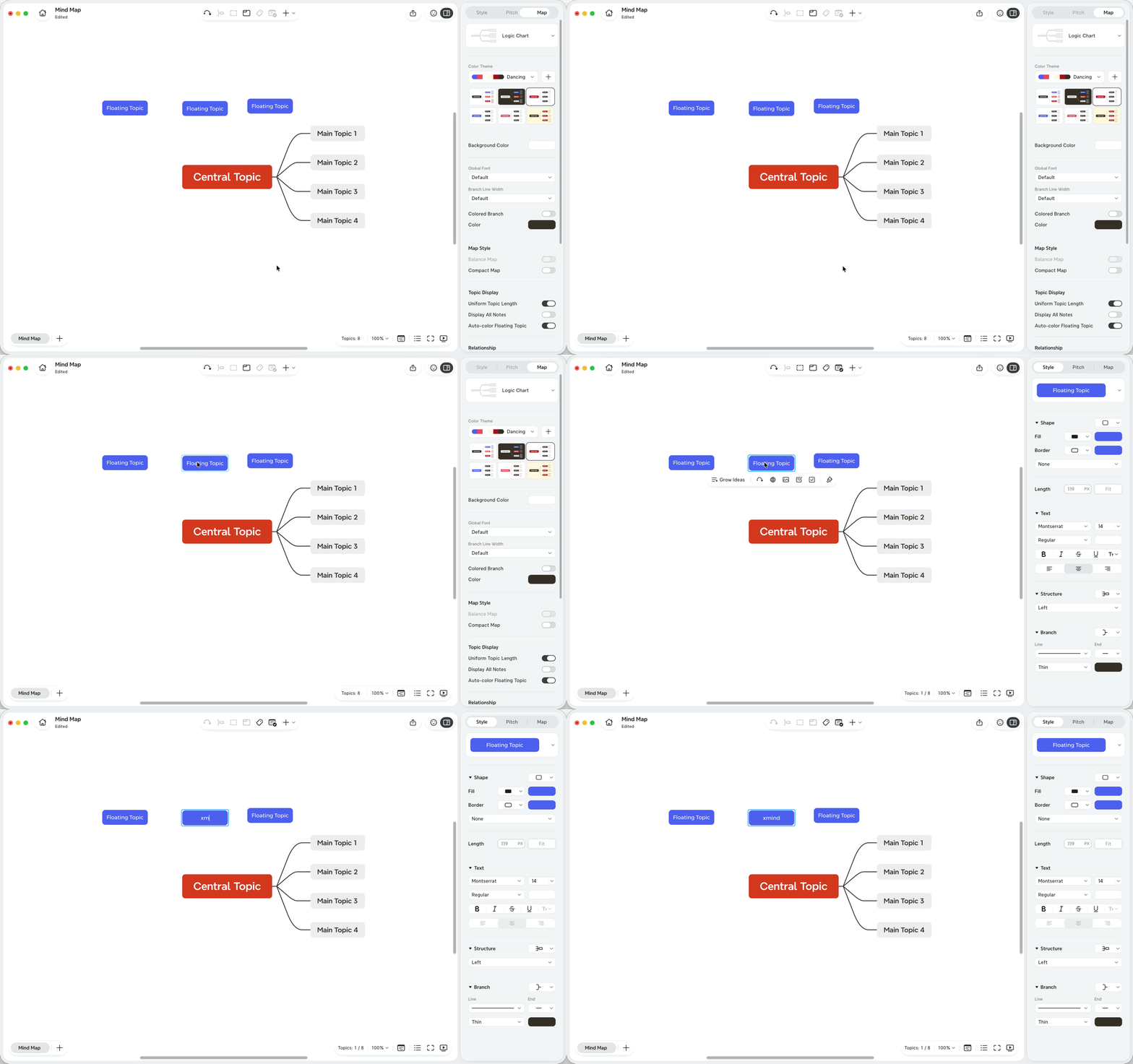
1️⃣ Select the Floating Topic.
2️⃣ Press Space or double-click the topic.
3️⃣ Type your changes.
Add subtopics
Select the Floating Topic, then press Tab to create a subtopic

Change the style
-
Select the Floating Topic.
-
Open the Format Panel.
-
Adjust the topic shape, fill color, border, text, or branch style.

Move a Floating Topic
Select the Floating Topic, drag it to the desired position on the sheet, then release it.
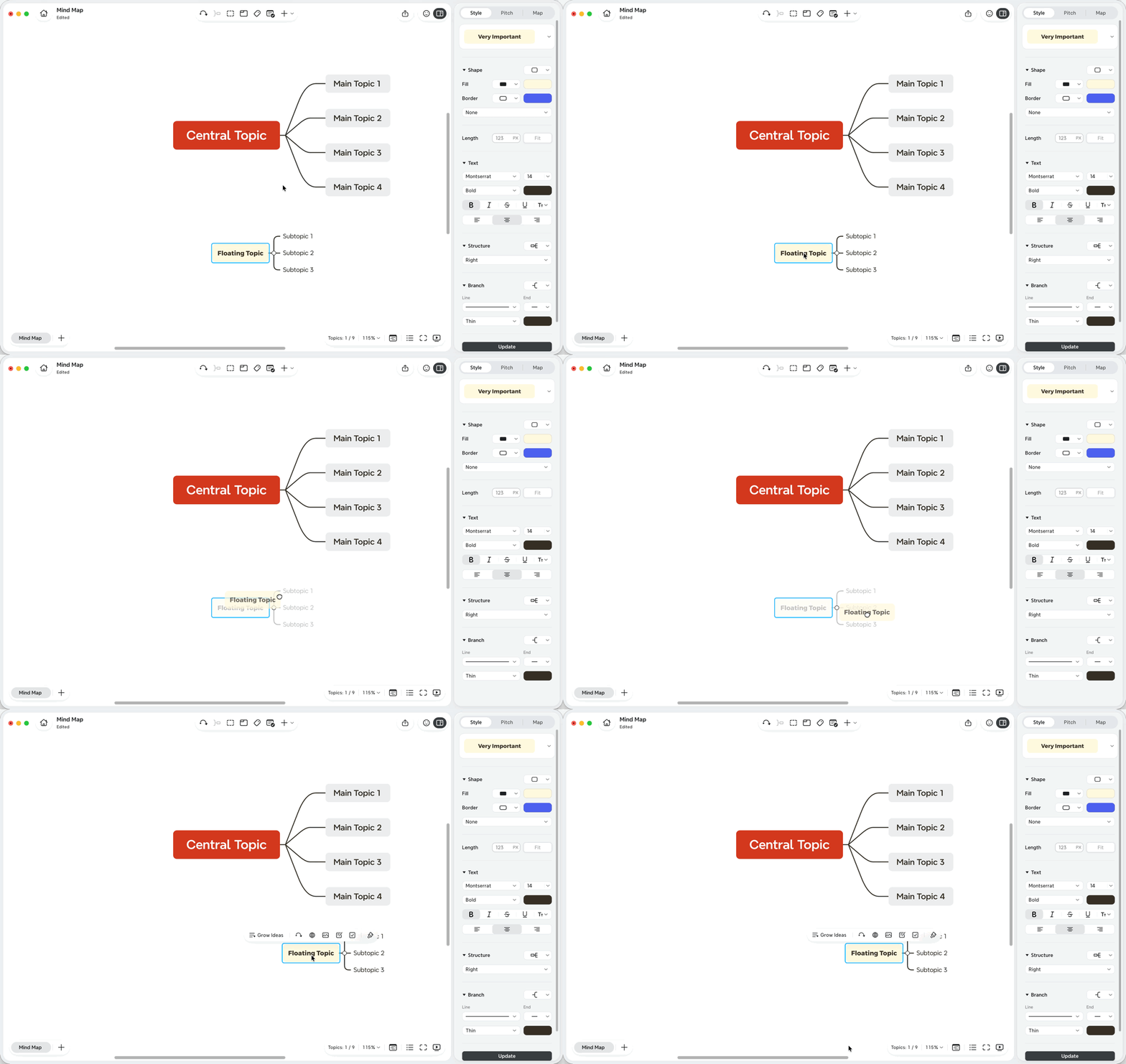
Place Floating Topics Freely
By default, Xmind automatically adjusts the layout to keep your map organized when you move topics. If you want more control over where floating topics are placed, you can go to the Format panel > Advanced, and turn on Flexible Floating Topics.

Convert Between Regular Topics and Floating Topics
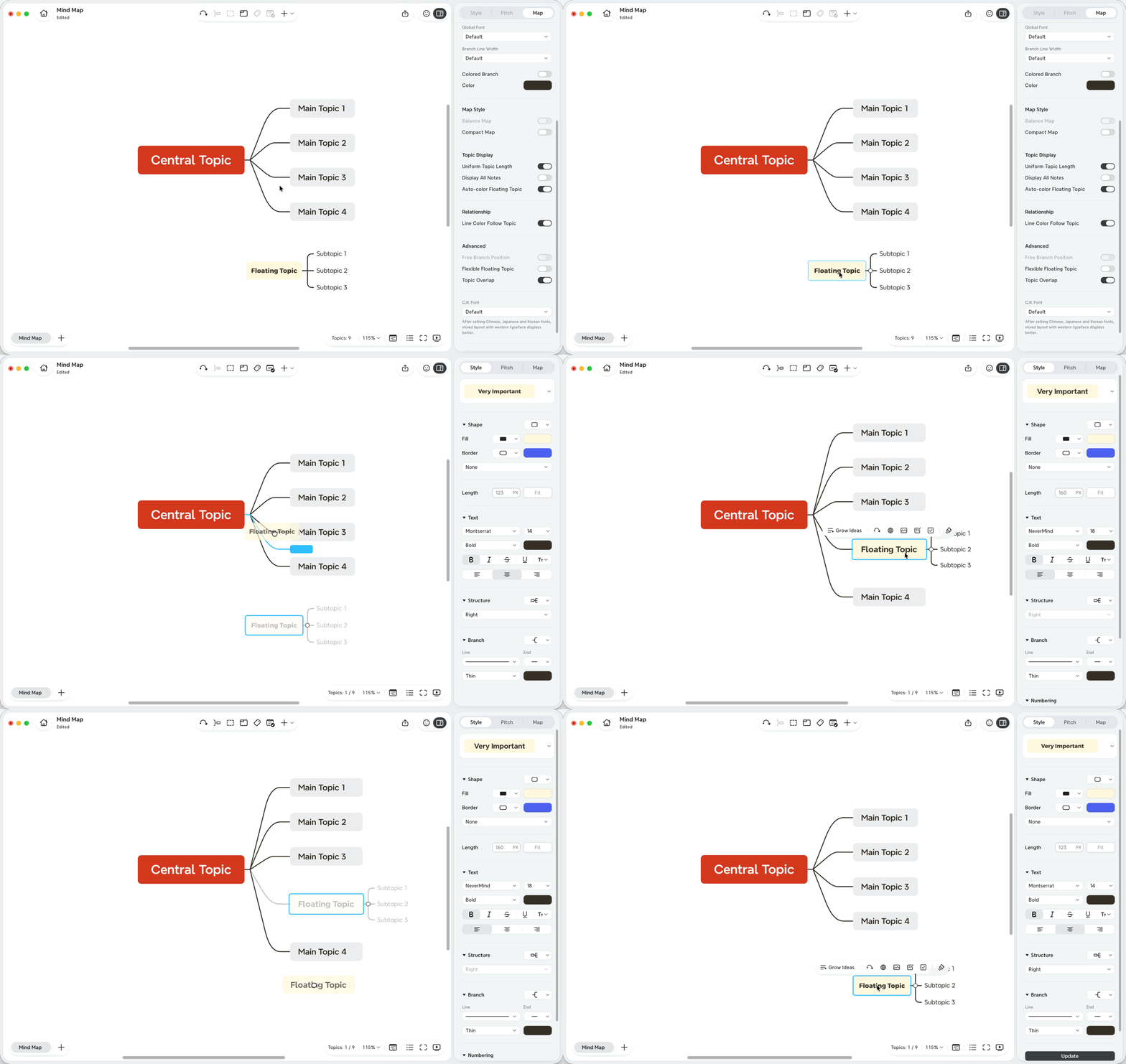
You can turn a main topic or subtopic into a Floating Topic by dragging it away from its current branch. You can also drag a Floating Topic back into the map structure.
💡Tips: To convert topics this way, turn off Flexible Floating Topics first.
Convert a topic into a Floating Topic
1️⃣ Select a main topic or subtopic.
2️⃣ Drag it away from its branch to a blank area of the sheet.
3️⃣ Release it once it detaches from the original branch.
Convert a Floating Topic into a regular topic
1️⃣ Select the Floating Topic.
2️⃣ Drag it near the branch where you want to place it.
3️⃣ Release it when the branch position is highlighted.
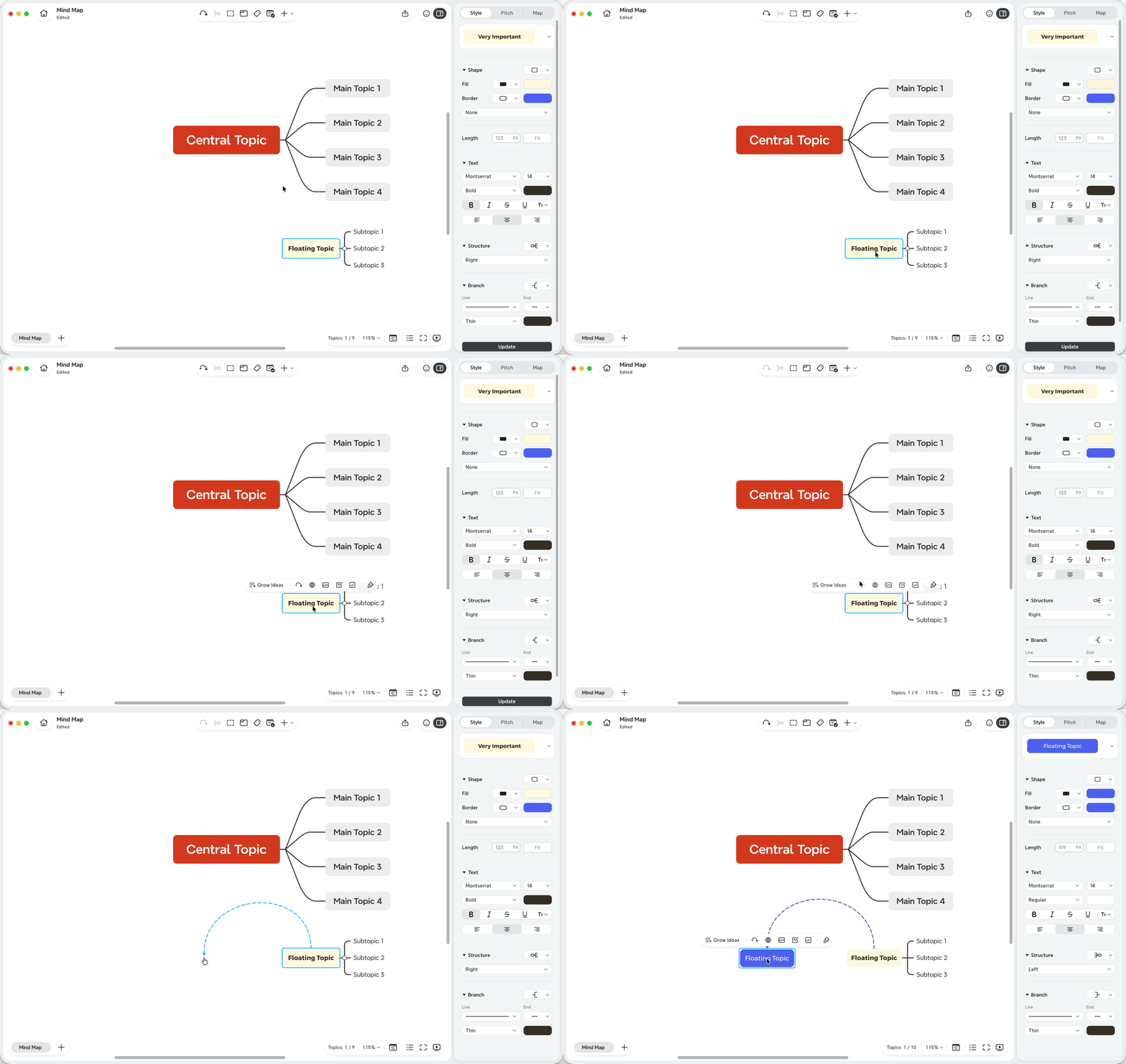
Connect Floating Topics with Relationships
Floating topics can stay independent, or you can connect them to other topics with a relationship line.
1️⃣ Select the Floating Topic and another topic.
2️⃣ Click Relationship in the toolbar, or choose Insert > Relationship.
3️⃣ Adjust the relationship line if needed.
You can also create a Floating Topic while adding a relationship:
1️⃣ Select a topic.
2️⃣ Click Relationship in the toolbar.
3️⃣ Click a blank area of the sheet.
Xmind creates a new Floating Topic and connects it to the selected topic with a relationship line.
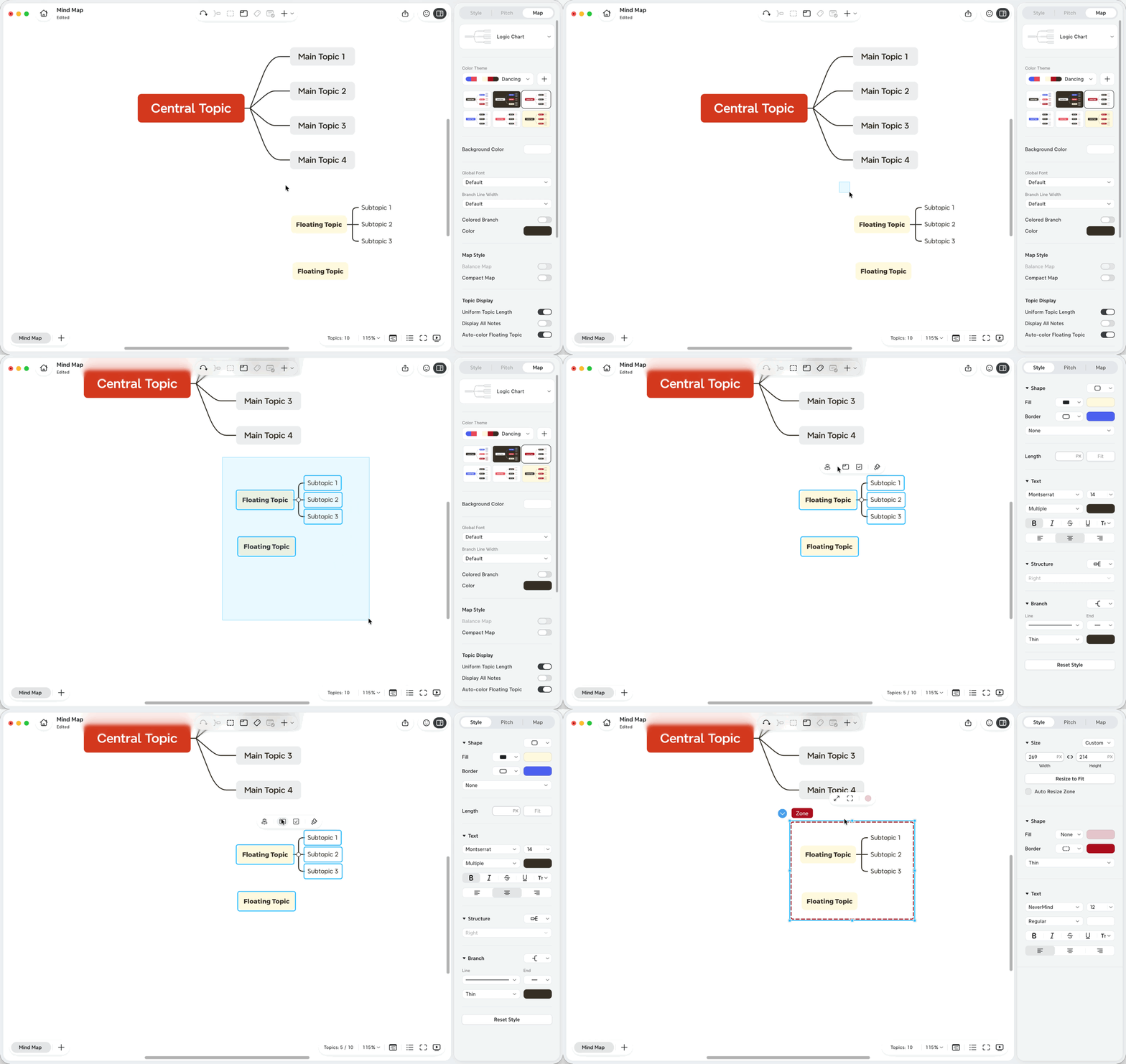
Organize Floating Topics with a Zone
You can use a Zone to group one or more floating topics visually.
1️⃣ Select one or more floating topics.
2️⃣ Click Zone in the floating toolbar or editor toolbar.
Note: The central topic and its subtopics cannot be grouped in a Zone.
When to Use Floating Topics
Use Floating Topics when you want to:
-
Capture ideas before deciding where they belong.
-
Add side notes or reminders alongside your map.
-
Compare alternative ideas outside the main structure.
-
Build small independent clusters on the same sheet.
-
Create a topic that connects to the map through a relationship instead of a branch.