














Xmind AI
O Xmind AI ajuda você a percorrer todo o fluxo de trabalho de mapas mentais, desde as primeiras ideias até a saída estruturada. Você pode criar um novo mapa, revisar e melhorar um existente, expandir tópicos selecionados, trazer pesquisas e fontes, transformar ideias em tarefas, fazer atualizações em todo o mapa e enviar seu trabalho finalizado para o Notion.

Neste artigo, você aprenderá a usar o Xmind AI para passar de pensamentos dispersos, esboços preliminares ou mapas mentais existentes para estruturas mais claras e próximos passos mais acionáveis — tudo dentro do seu fluxo de trabalho de mapas mentais.
1. O que é o Xmind AI dentro do seu mapa mental?
O Xmind AI é um assistente de IA integrado aos seus mapas mentais. Ele pode entender o mapa em que você está trabalhando, ajudar a criar e refinar estruturas, trabalhar com tópicos selecionados, trazer pesquisas, analisar arquivos e links, fazer atualizações em todo o mapa e transformar mapas finalizados em documentos para ferramentas como o Notion.
Em vez de alternar entre abas do navegador, arquivos e seu mapa mental, você pode trabalhar com o Xmind AI diretamente no seu fluxo de trabalho de mapas mentais.
2. Como iniciar sua conversa com o Xmind AI?
2.1 Abrir o painel de chat
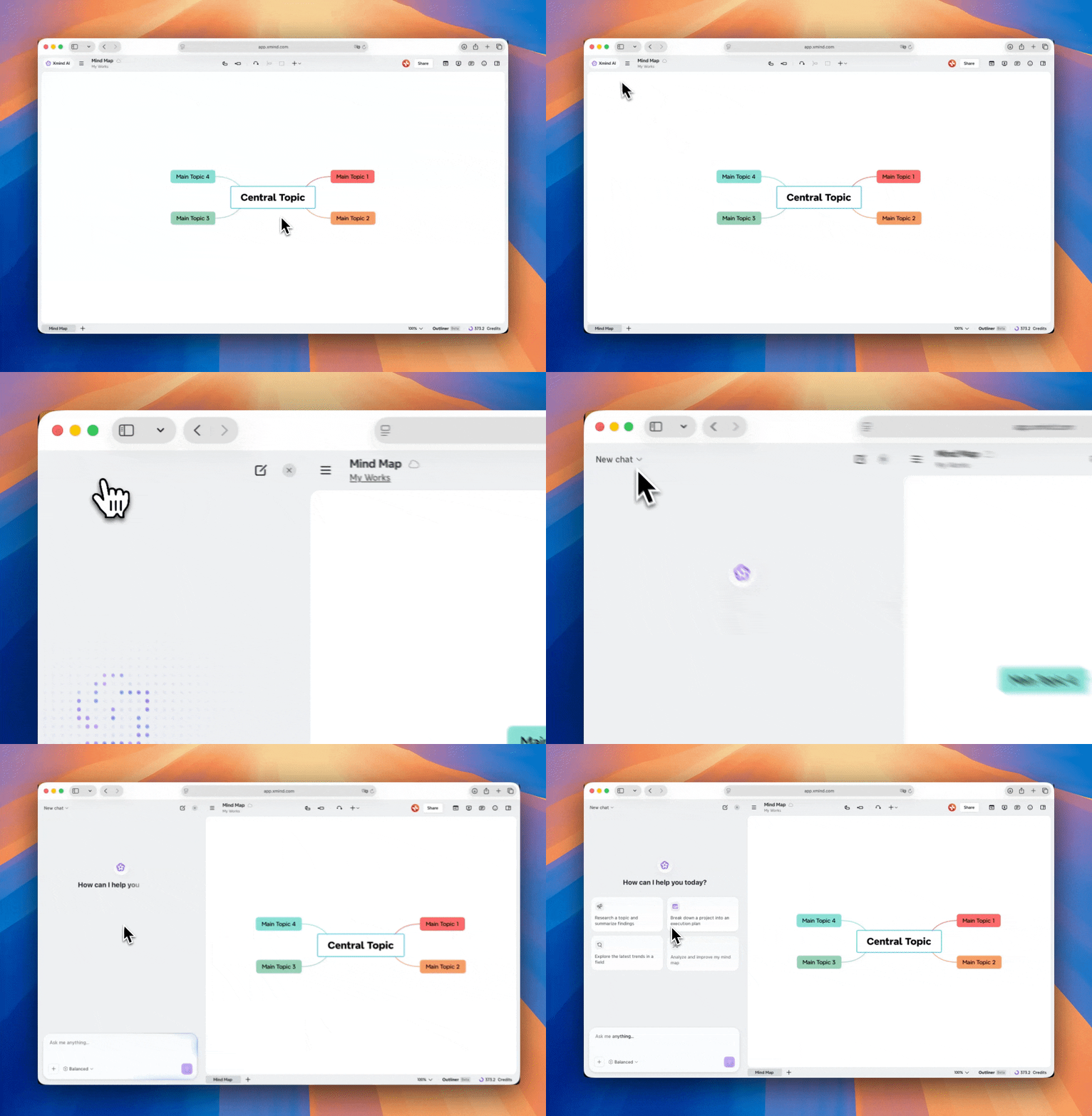
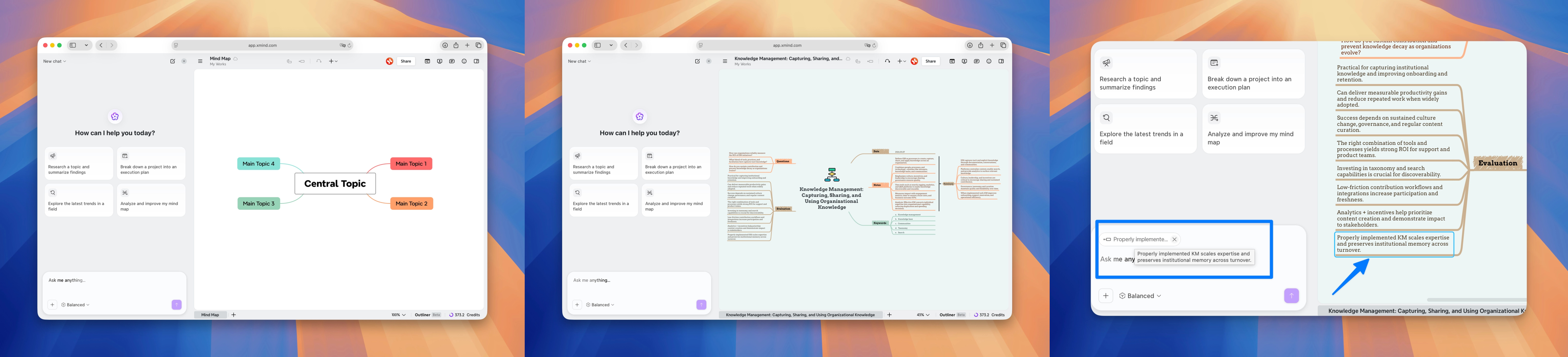
Abra um mapa mental no Xmind e clique no botão Xmind AI no canto superior esquerdo, ao lado do título do mapa. O chatbot aparece ao lado do seu mapa, para que você possa visualizar sua estrutura e dar instruções ao mesmo tempo.
O Xmind AI funciona com a folha ativa que você está visualizando. Se quiser que a IA trabalhe em um mapa específico, alterne para essa folha primeiro. Ela pode ler a estrutura do seu mapa, entender tópicos selecionados, adicionar novo conteúdo, editar ramos existentes, ajustar layouts e temas ou criar um novo mapa com base na sua solicitação.
2.2 Escolher um modo de resposta
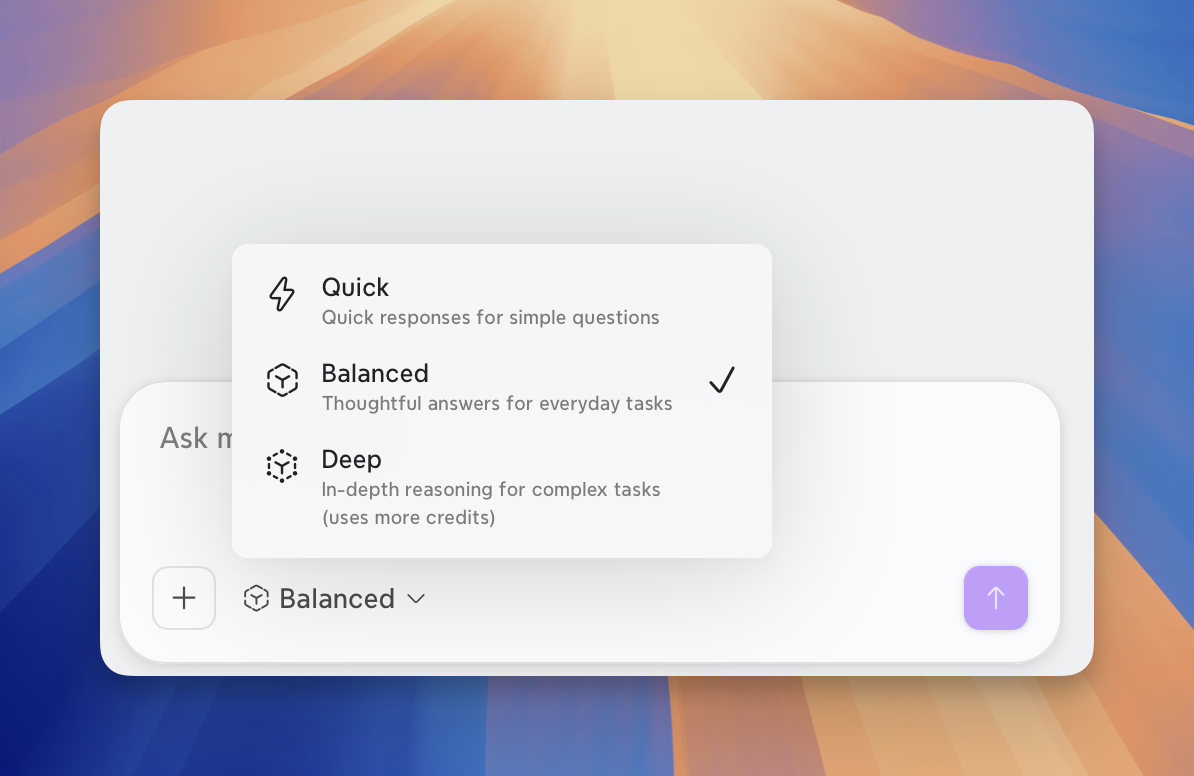
O Xmind AI oferece diferentes modos de resposta para diferentes níveis de complexidade.
-
Rápido: Perguntas simples, respostas curtas, adições rápidas, edições leves.
-
Equilibrado: Criação de mapas do dia a dia, edição, expansão e reestruturação.
-
Aprofundado: Análise complexa, pesquisa aprofundada, raciocínio em várias etapas e resultados mais completos.
Recomendamos:
-
Use Rápido quando precisar de uma resposta rápida.
-
Use Equilibrado para a maioria das tarefas diárias de mapeamento mental.
-
Use Aprofundado quando a tarefa exigir raciocínio mais profundo, pesquisa ou uma estrutura mais detalhada.
2.3 Três maneiras de começar seu trabalho com o Xmind AI
-
Trabalhe com um mapa mental em branco: Comece com um tópico, prompt, esboço ou ideia.
-
Trabalhe com seu mapa mental atual: Você pode pedir ao Xmind AI para entender, melhorar, expandir ou atualizar o mapa que está visualizando.
-
Trabalhe com mais precisão com tópicos selecionados: Selecione um ou mais tópicos e peça ao Xmind AI para trabalhar nessa parte específica do mapa.
3 O que você pode fazer com o Xmind AI no seu mapa mental?
Como seu parceiro de raciocínio dentro do Xmind, o Xmind AI pode ajudá-lo a entender seus mapas, criar e refinar conteúdo, ajustar estruturas e temas e muito mais. As seções a seguir apresentam algumas maneiras comuns de usá-lo. Você pode pedir ao Xmind AI para trabalhar com seu mapa em linguagem natural e explorar mais fluxos de trabalho conforme avança.
3.1 Faça perguntas sobre seu mapa
O Xmind AI pode revisar seu mapa atual e responder a perguntas com base em sua estrutura. Ele pode explicar um ramo, resumir a ideia principal, identificar informações ausentes ou sugerir o que melhorar em seguida. Isso é útil quando você deseja revisar um mapa antes de editá-lo, entender uma estrutura complexa ou decidir o que melhorar em seguida.
O que você pode fazer:
-
Faça perguntas de conhecimento relacionadas ao seu mapa.
-
Peça ao Xmind AI para explicar um tópico ou ramo.
-
Pergunte quais informações estão faltando.
-
Pergunte se a estrutura atual está clara.
-
Peça sugestões antes de fazer alterações.
-
Faça perguntas com base em materiais externos, como links ou arquivos.
Example prompts:

What is the main idea of this map?
What are the biggest gaps in this analysis?
Explain this structure.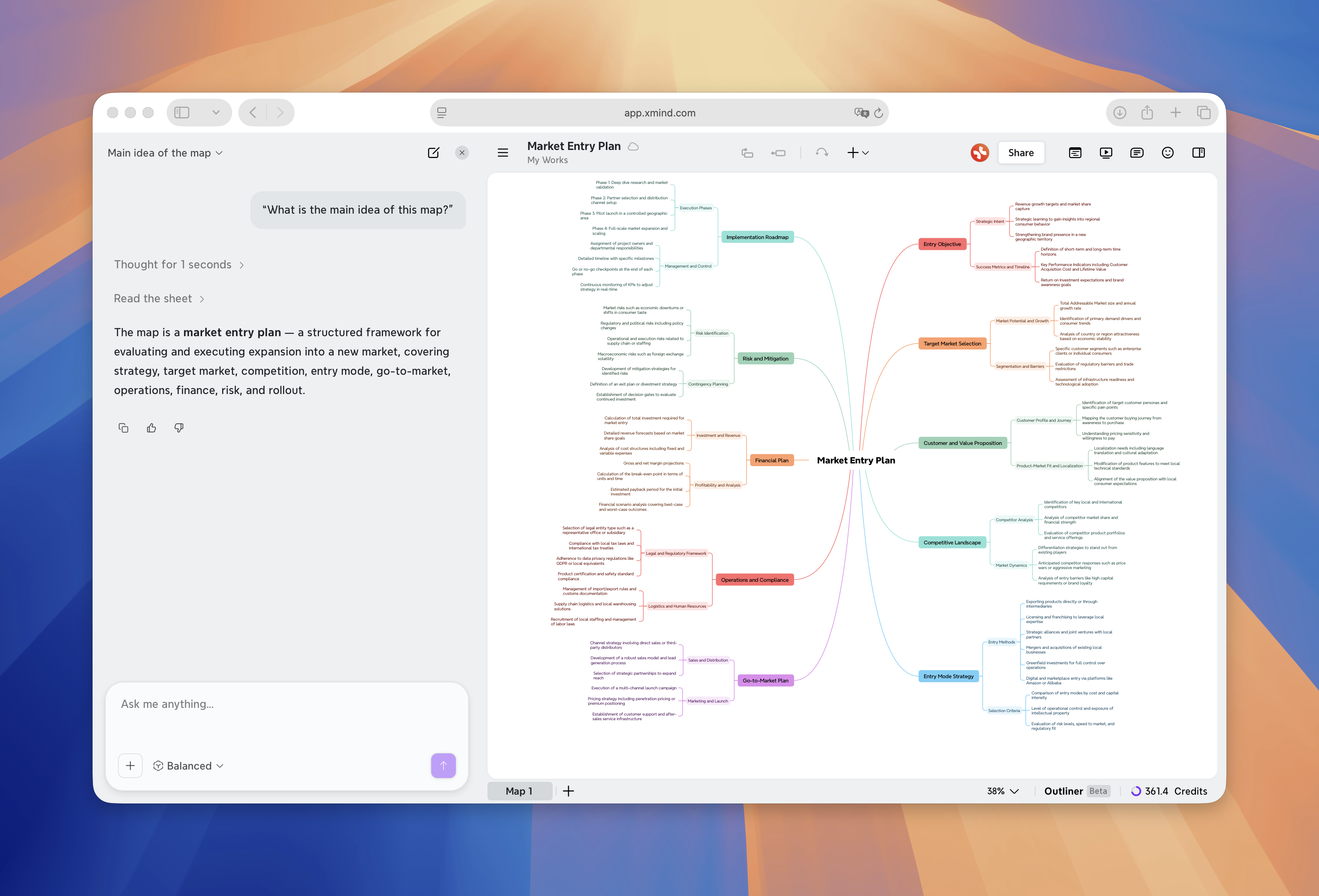
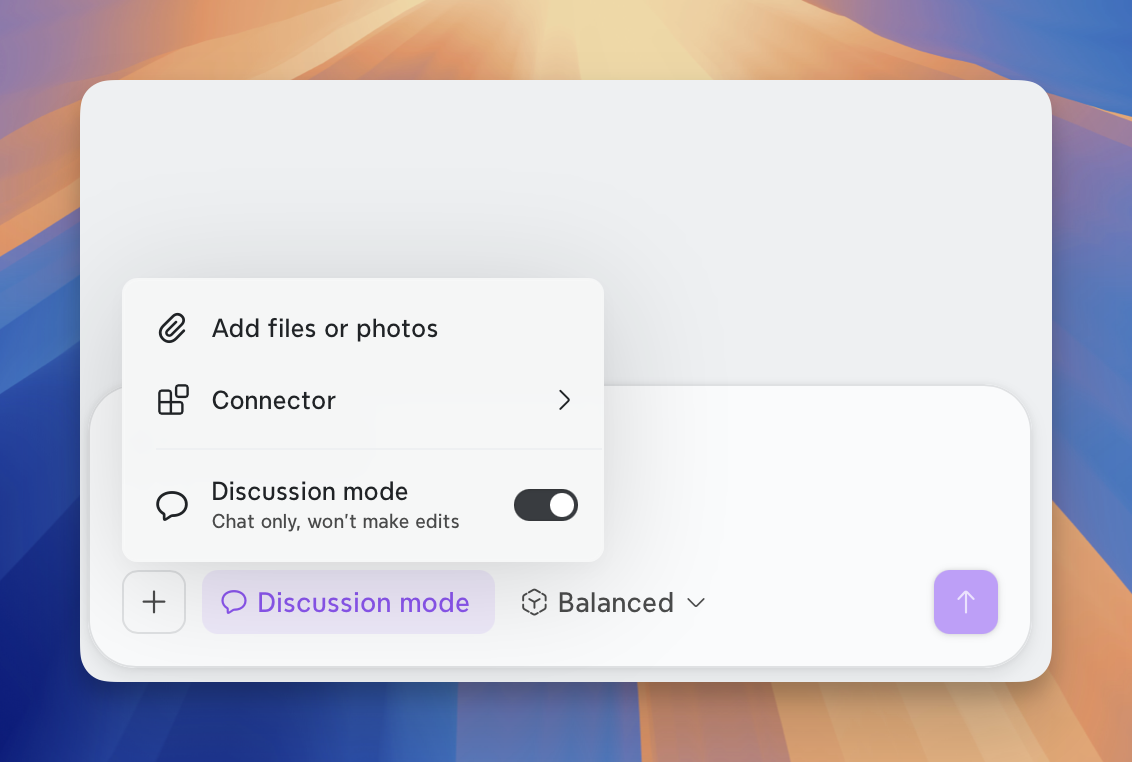
*💡Atenção: você pode ativar o ****Modo Discussão ***quando quiser fazer perguntas ou obter sugestões sem alterar o mapa.
3.2 Criar um novo mapa a partir de uma ideia
Você pode começar com um mapa em branco e pedir ao Xmind AI para transformá-lo em um mapa mental completo a partir de uma ideia aproximada ou de arquivos enviados.
Se a página atual for um modelo em branco, o Xmind AI pode substituí-lo por um mapa recém-gerado. Se o seu mapa atual já tiver conteúdo, o Xmind AI pode criar uma nova folha para o novo mapa.
Example prompts:

Create a mind map about personal time management.
Keep the current map and create a new sheet about competitor analysis.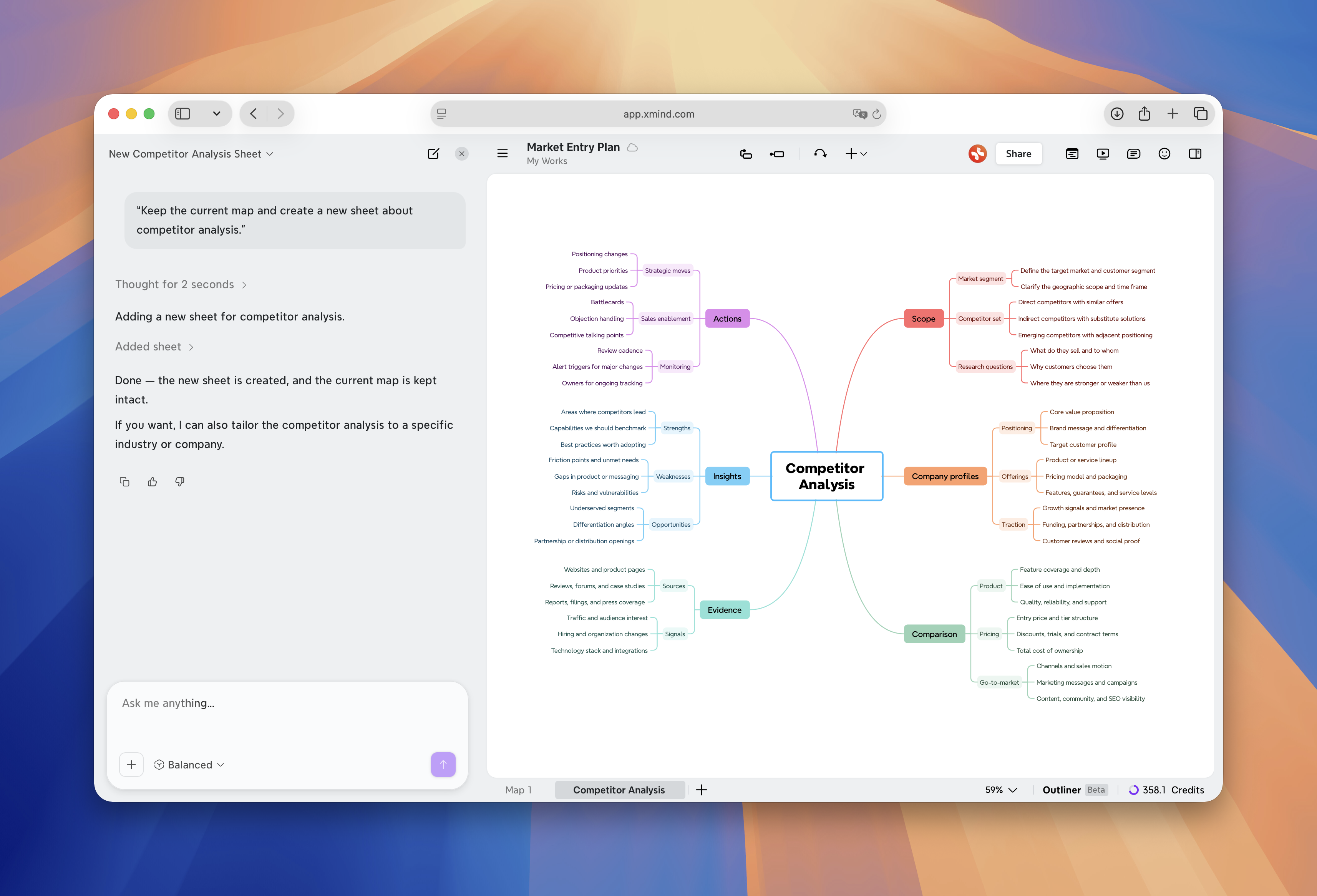
3.3 Melhore seu mapa por meio de conversa
Depois de ter um mapa, você pode continuar desenvolvendo-o por meio de conversa. O Xmind AI pode ajudá-lo a adicionar tópicos ausentes, expandir um ramo, reescrever títulos de tópicos, remover conteúdo repetido ou reorganizar partes do mapa.
Isso é útil quando o seu mapa tem uma estrutura aproximada, mas ainda precisa de mais detalhes, redação mais clara ou melhor organização.
Você pode pedir ao Xmind AI para fazer alterações diretamente no mapa atual. Se quiser que o Xmind AI se concentre em uma parte do mapa, selecione o tópico primeiro e depois refira-se a ele como “este tópico”, “este ramo” ou “esta seção”.
Você pode pedir ao Xmind AI para:
-
Adicionar tópicos, subtópicos ou tópicos finais.
-
Excluir tópicos ou ramos desnecessários.
-
Renomear tópicos.
-
Mova ramos para um local melhor.
-
Expanda tópicos existentes com mais detalhes.
-
Mescle ideias repetidas.
-
Reescreva títulos longos de tópicos.
-
Organize um ramo em etapas, categorias ou uma matriz.
Example prompts:

Expand this selected topic with more detail.
Organize this section into three stages.
Make all topic titles shorter and more consistent.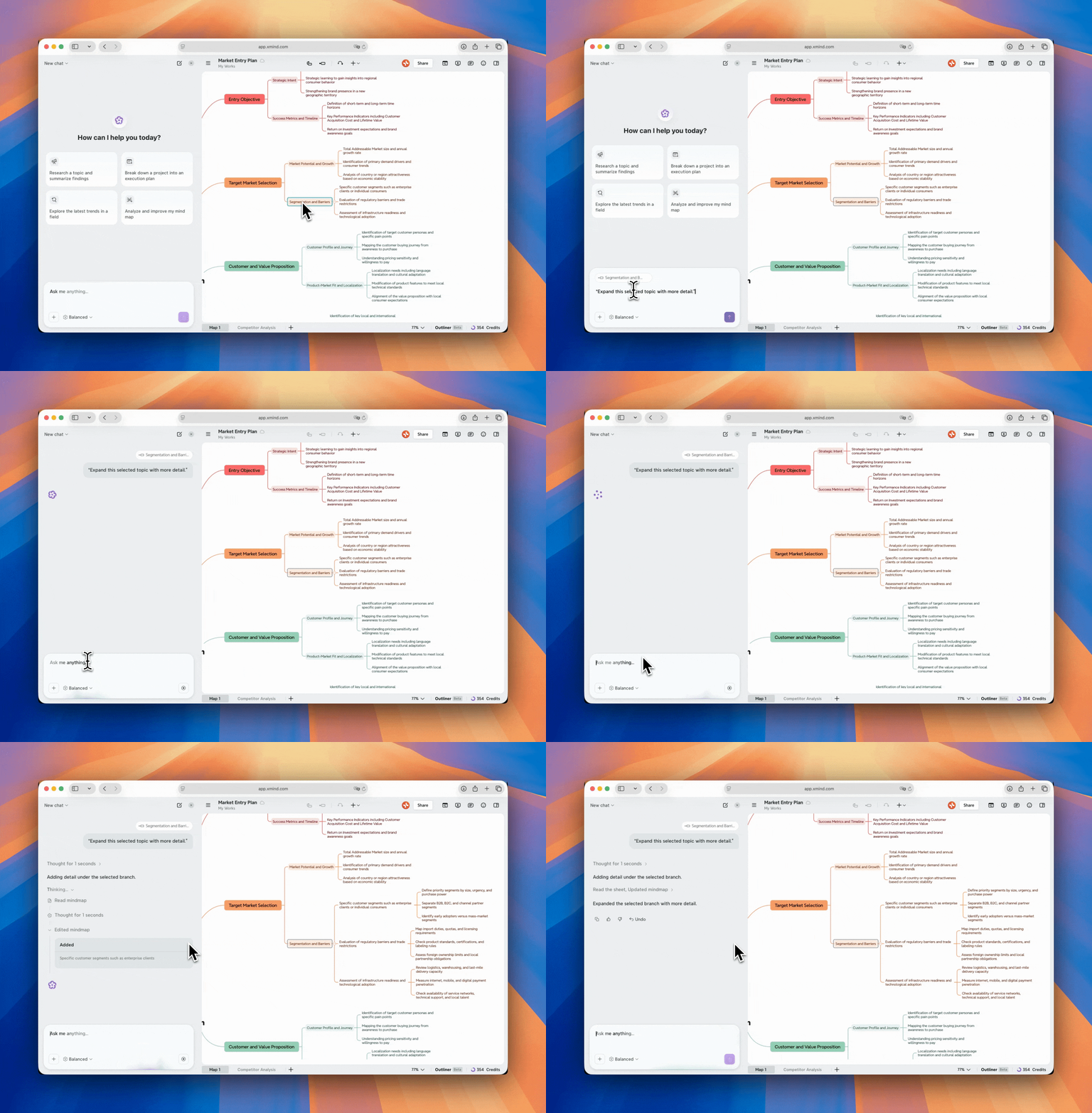
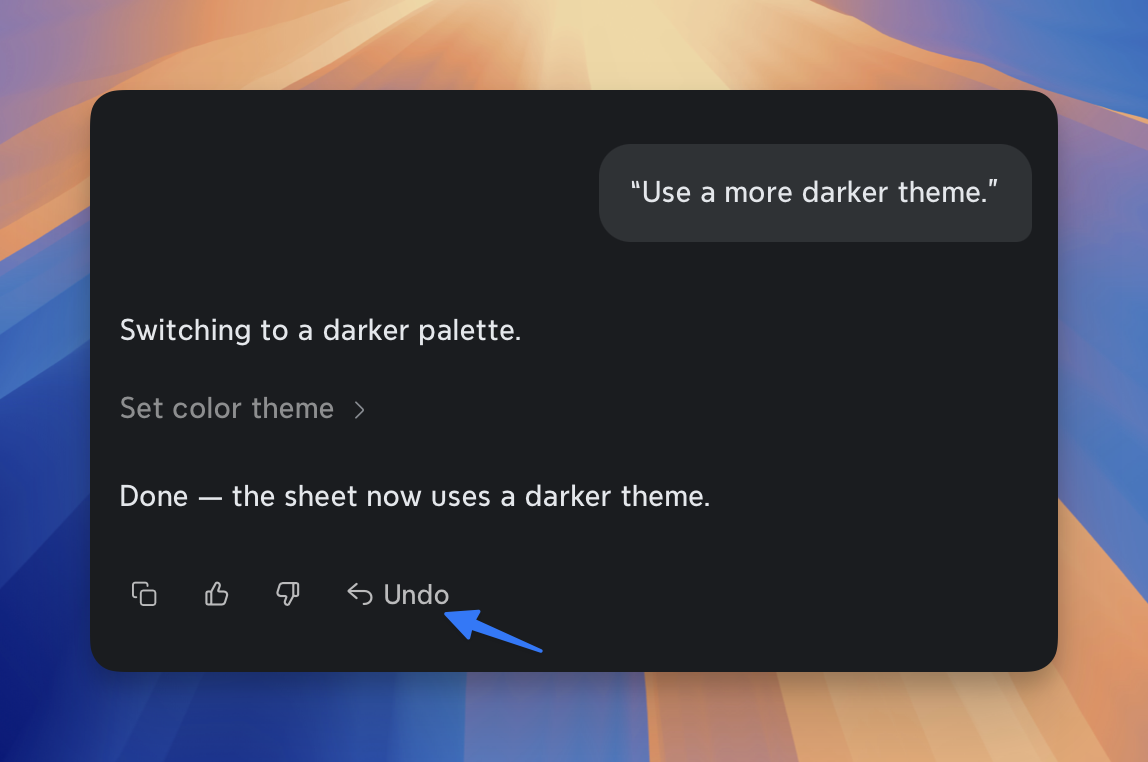
💡Atenção: Se você não estiver satisfeito com as alterações, clique*** Desfazer ***para restaurar o mapa ao estado anterior.
3.4 Traga pesquisas e fontes para o seu mapa
Quando o seu mapa precisar de mais informações, o Xmind AI pode ajudar você a coletar e organizar fontes externas. Ele pode pesquisar online, ler links, analisar arquivos, extrair informações de imagens e transformar as principais descobertas em uma estrutura pronta para o mapa.
Isso é útil para pesquisa de mercado, análise de concorrentes, notas de estudo, preparação de projetos, planejamento de conteúdo e qualquer fluxo de trabalho em que informações externas precisem se tornar parte do seu mapa.
Pesquise online e adicione descobertas
Você pode pedir ao Xmind AI para pesquisar um tópico online. Ele pode coletar informações relevantes, mostrar as fontes na conversa e organizar as descobertas em ramos.
Você pode optar por revisar as descobertas primeiro ou pedir ao Xmind AI para adicioná-las diretamente ao seu mapa.
Example prompts:

Research examples related to this topic and organize them into branches.
Research competitors and add key findings to this map.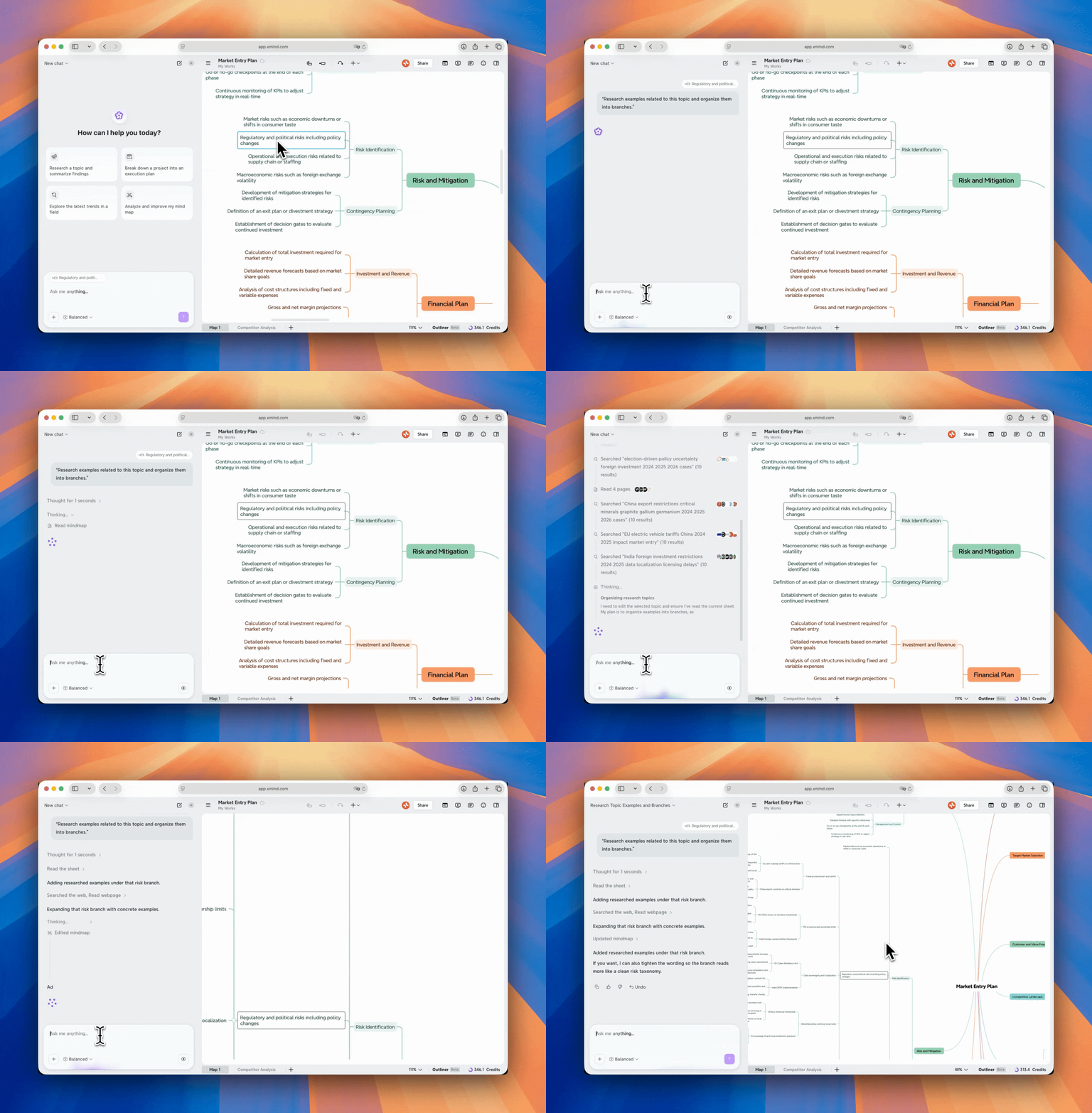
Leia links, vídeos, arquivos e imagens
Você também pode fornecer ao Xmind AI materiais externos, como páginas da web, links do YouTube, documentos, capturas de tela ou imagens. O Xmind AI pode extrair os pontos-chave e ajudar a transformá-los em um novo mapa ou adicioná-los ao seu mapa atual.
Example Prompts:

Read this link and summarize it then add it to the mind map in the suitable brunches.
Analyze this file and summarize the key points.
Turn this screenshot into a structured mind map.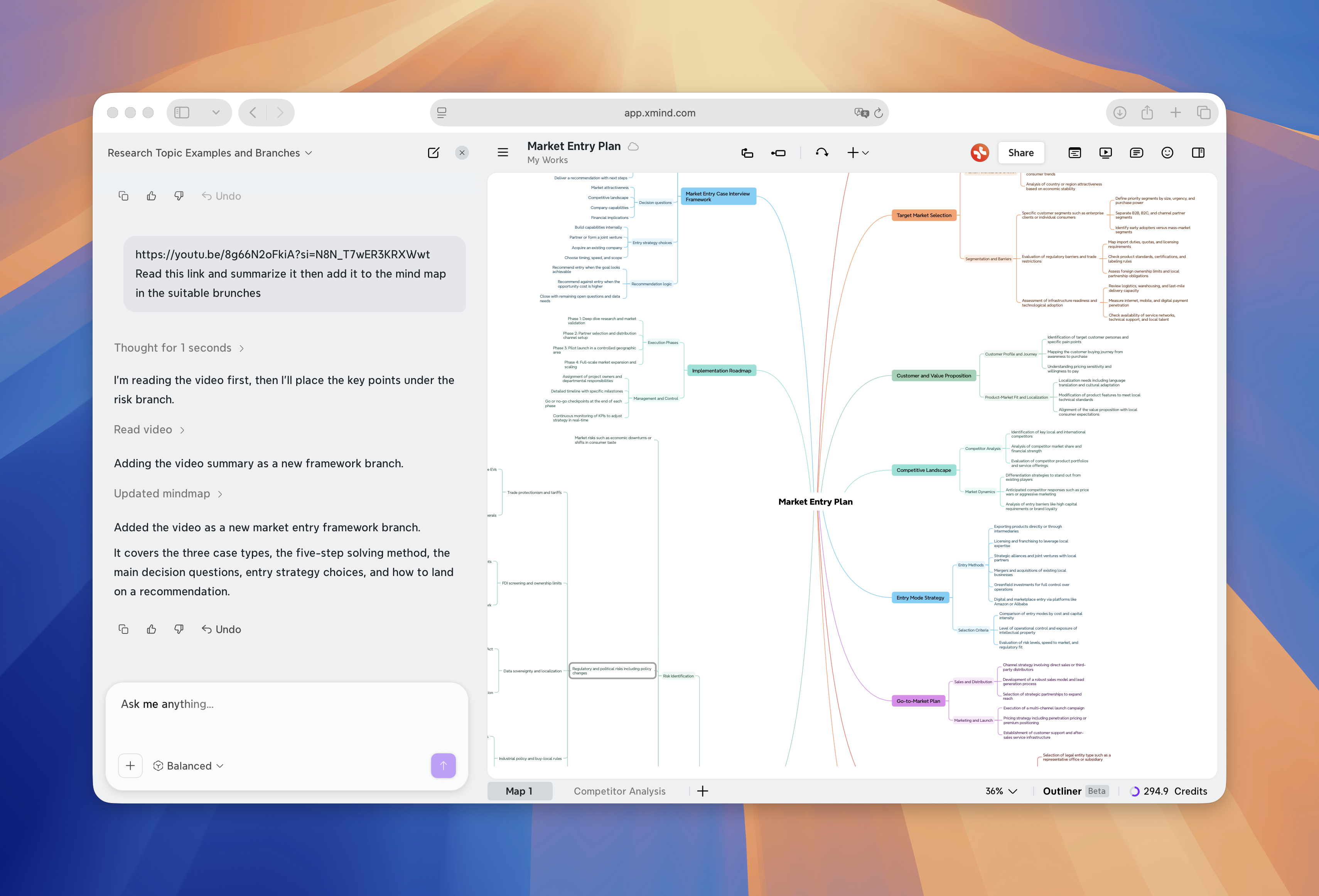
3.5 Transforme seu mapa em um plano de projeto
Se o seu mapa representa um projeto, o Xmind AI pode ajudar a transformar ideias em tarefas e tornar a estrutura mais acionável. Ele pode converter tópicos em tarefas, organizar o trabalho em fases, adicionar prioridades, identificar dependências e transformar uma estrutura de projeto em uma linha do tempo. Você também pode pedir que ele remova todas as tarefas em um único prompt.
Isso é útil para planejamento de projetos, lançamentos de produtos, planejamento de eventos, planos de estudo, produção de conteúdo e colaboração em equipe.
Example prompts:

Break this project down into actionable tasks in 2 months.
Remove all tasks from this map.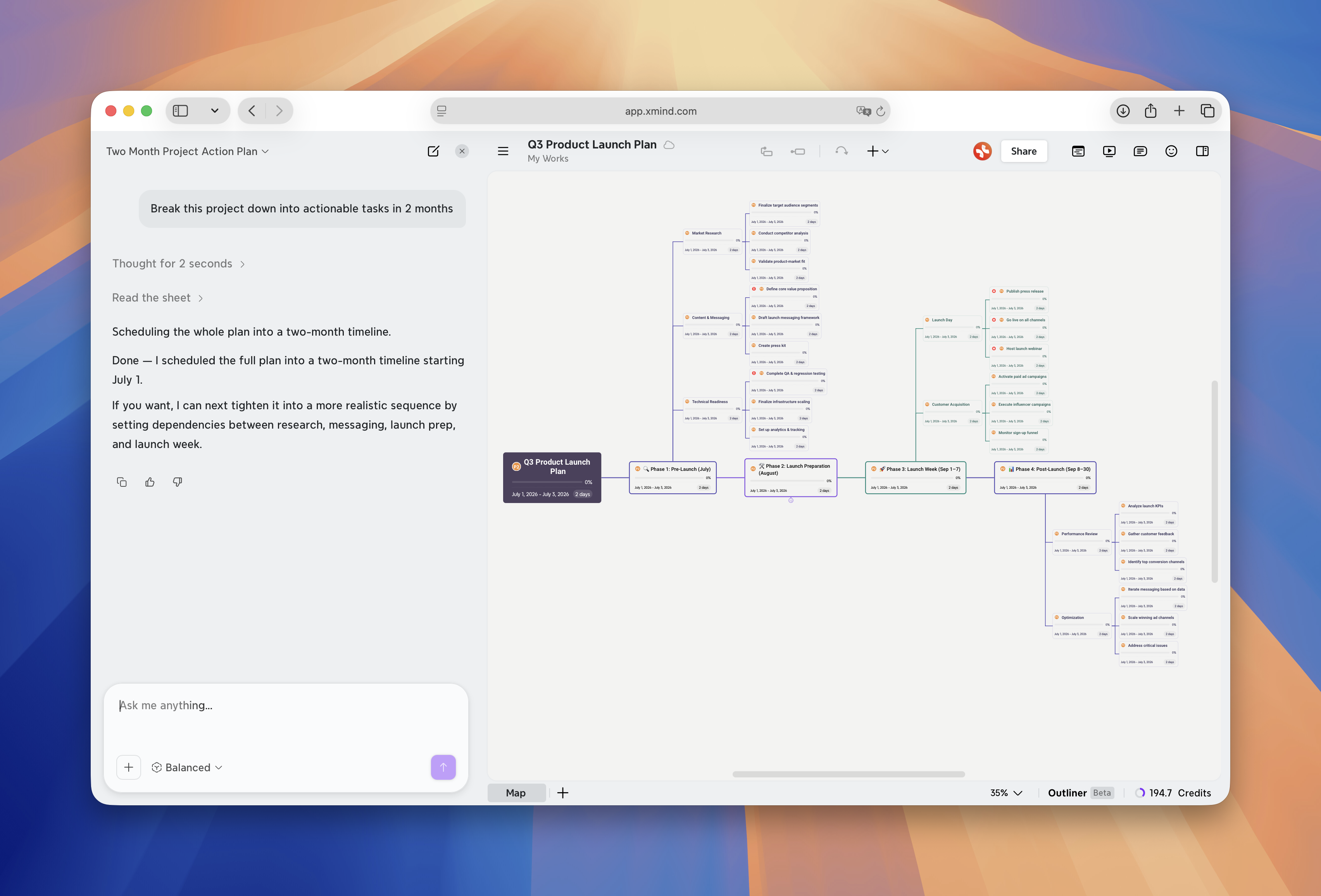
3.6 Faça atualizações em todo o mapa
Para mapas maiores, editar cada tópico manualmente pode levar muito tempo. O Xmind AI pode ajudá-lo a fazer alterações em todo o mapa, como reestruturar o mapa, alterar o estilo visual, traduzir o mapa ou tornar os títulos dos tópicos mais consistentes.
Ajuste a estrutura do mapa
Use o Xmind AI quando seu mapa parecer confuso, repetitivo, muito raso ou difícil de seguir. Ele pode reorganizar ramos, mesclar ideias repetidas, dividir seções grandes, preencher hierarquias ausentes ou transformar o mapa em uma estrutura mais adequada.
Example prompts:

Turn this flat list into a clearer hierarchy.
Select the most suitable structure for this mind map.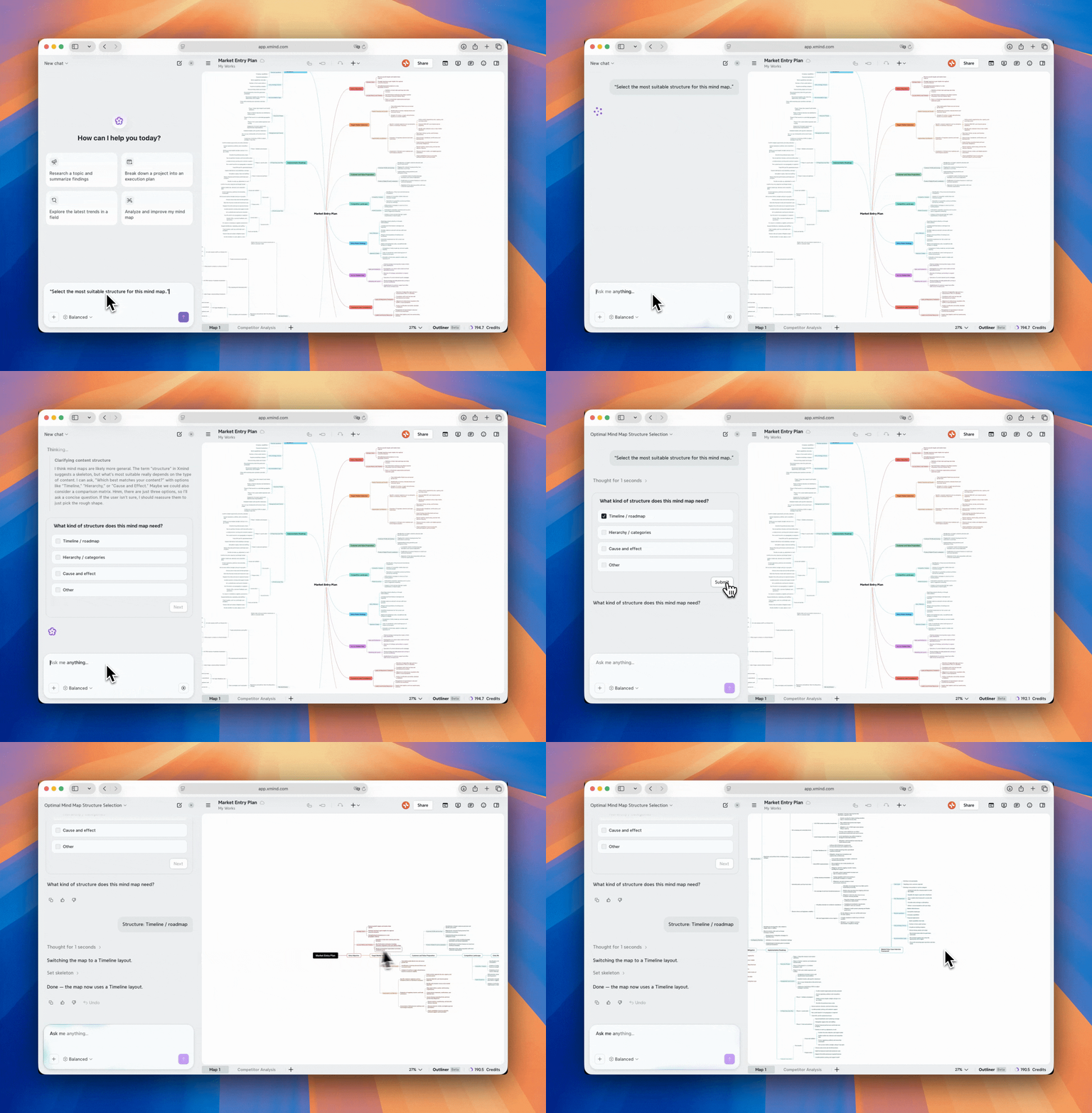
Ajuste o tema do mapa
Use o Xmind AI quando quiser que o mapa pareça mais limpo, mais profissional ou mais adequado para apresentações.
Example prompts:

Make this map look more professional.
Use a more darker theme.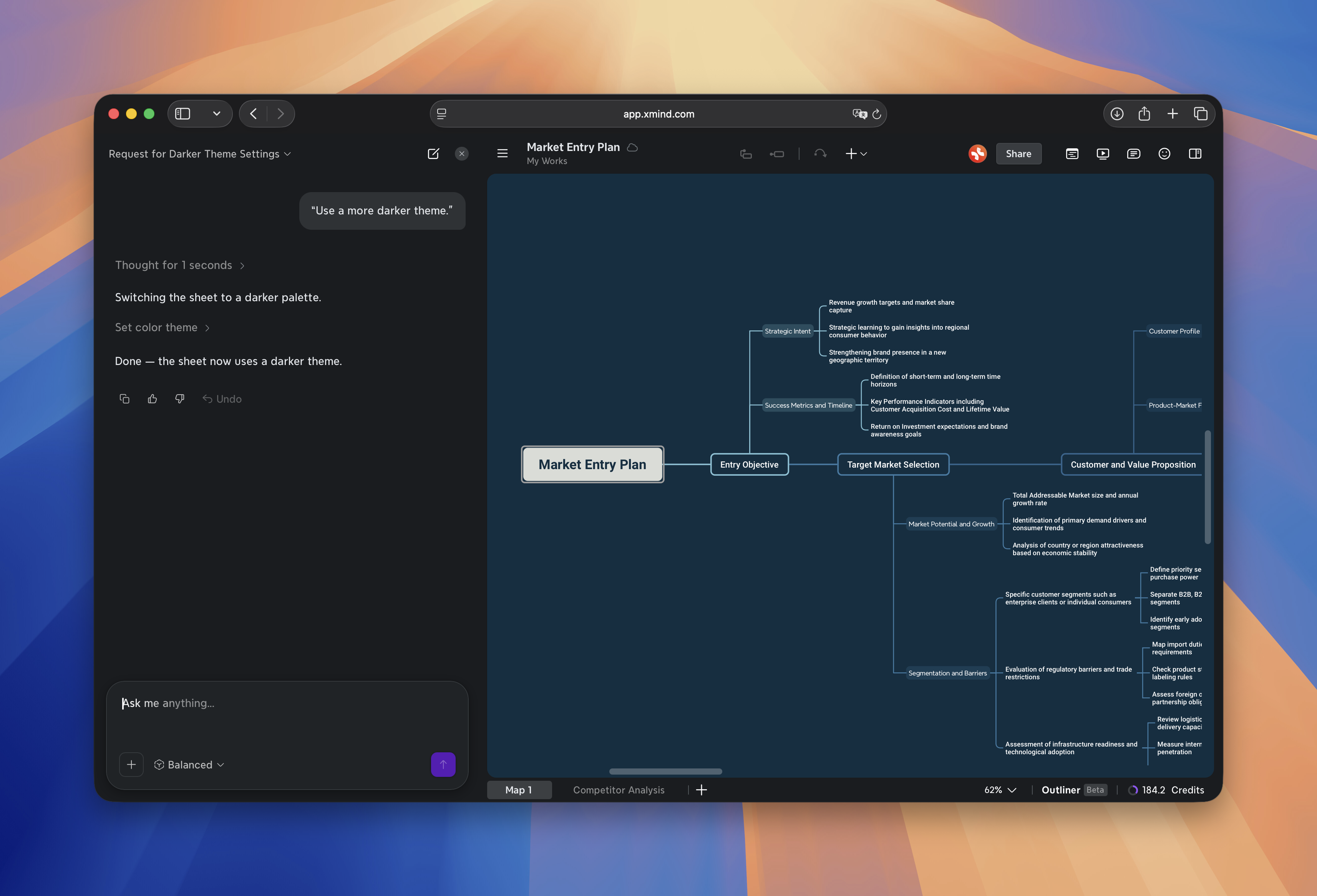
Altere o idioma do mapa
O Xmind AI pode traduzir todo o mapa ou partes selecionadas dele. Você pode manter a estrutura inalterada e salvar a versão traduzida como uma nova folha.
Example prompt:

Translate this map into Spanish and save it into a new sheet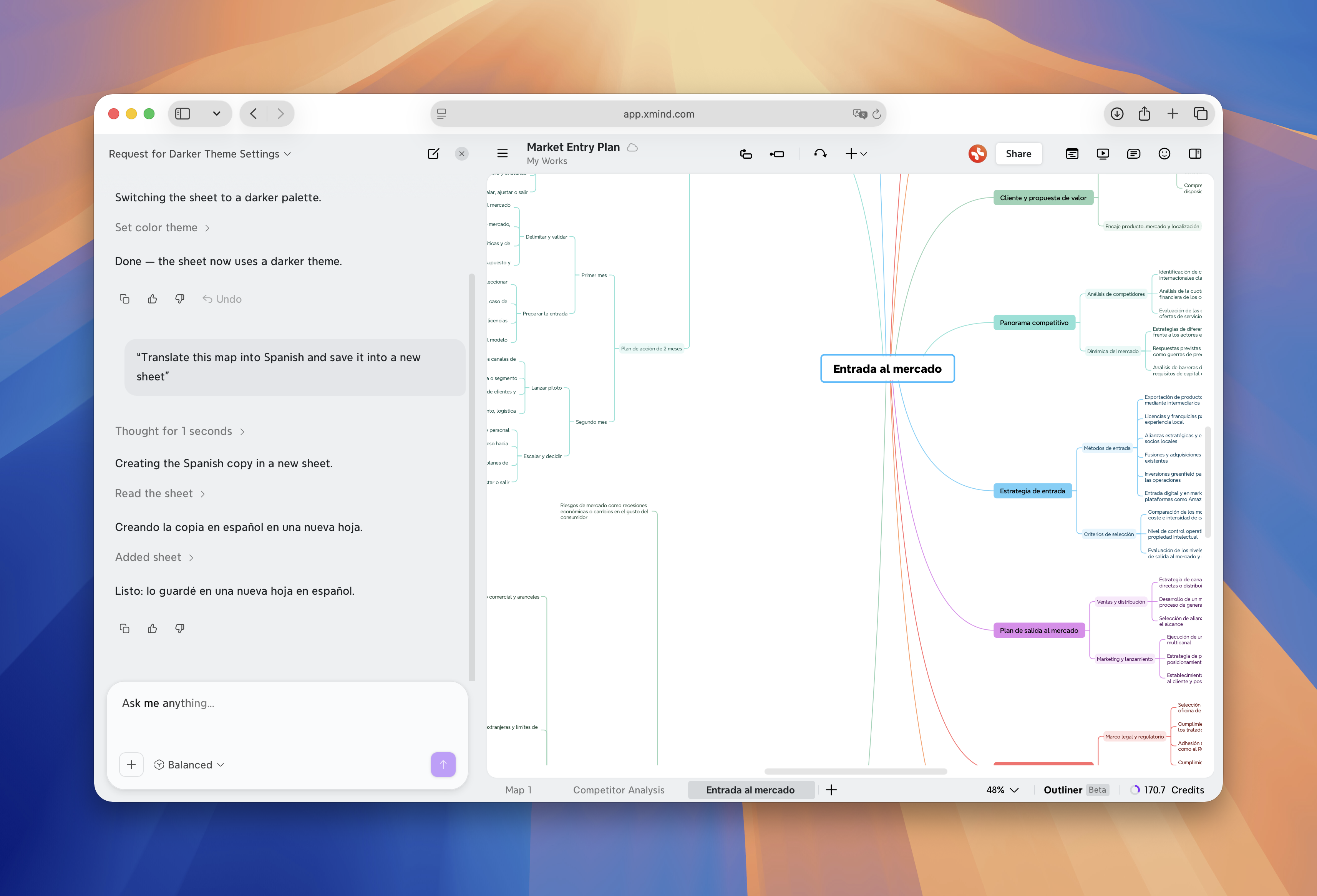
3.7 Envie Seu Mapa para o Notion
Quando seu mapa estiver pronto, o Xmind AI pode ajudar a transformá-lo em um documento para ferramentas como o Notion, para que seu trabalho possa continuar além do mapa mental.
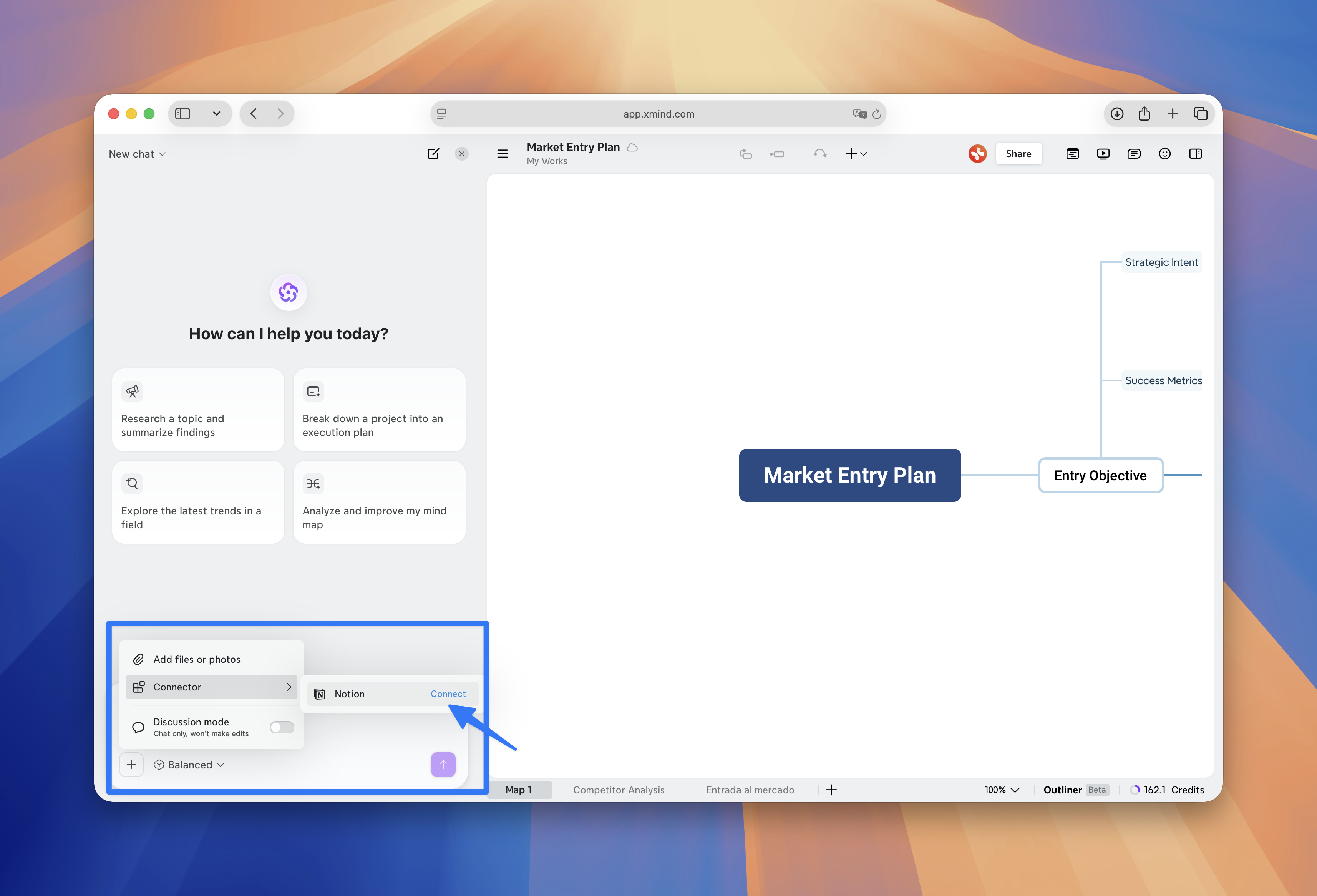
Antes de usar este recurso, conecte sua conta do Notion primeiro:
1️⃣ Abra Mais.
2️⃣ Vá para Conector.
3️⃣ Conecte sua conta do Notion.
4️⃣ Volte ao Xmind AI e peça para criar um documento pronto para o Notion a partir do seu mapa.
O Xmind AI pode gerar um documento com base na estrutura do seu mapa, ajudando o seu trabalho a passar do pensamento estruturado para a escrita, colaboração ou entrega.
Example prompt:

Turn this map into a Notion document.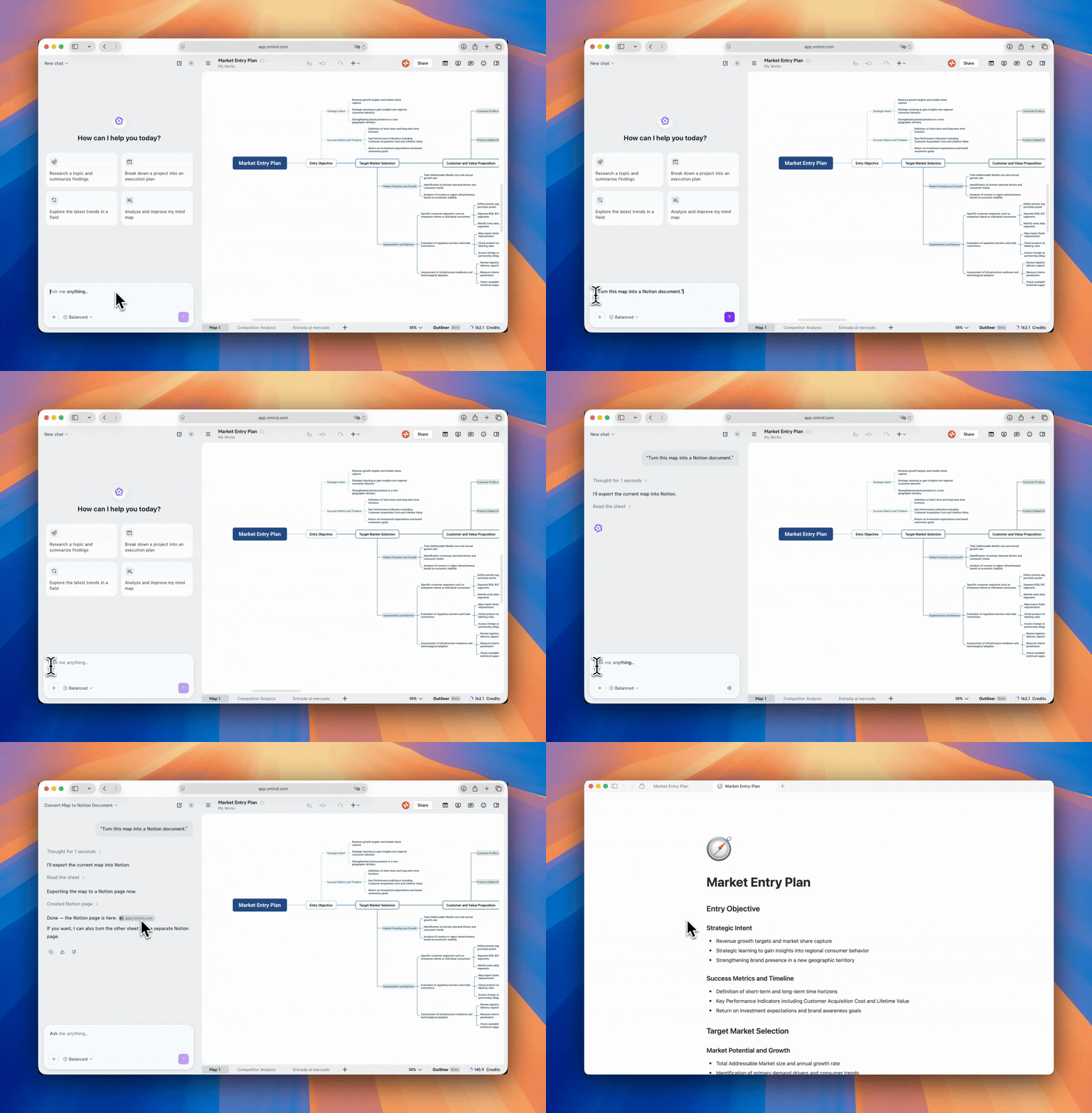
3.8 Faça perguntas sobre como usar o Xmind
Quando você tiver uma dúvida sobre o produto, também pode pedir ajuda ao Xmind AI. O Xmind AI pesquisará nosso guia oficial do usuário e fornecerá uma resposta com base na documentação.
Por exemplo, se você não tiver certeza de como adicionar uma tarefa, alterar um layout ou usar um recurso específico, pode perguntar diretamente ao Xmind AI no chatbot.
Example prompts:

How can I make a project plan in Xmind?
How do I use pitch mode?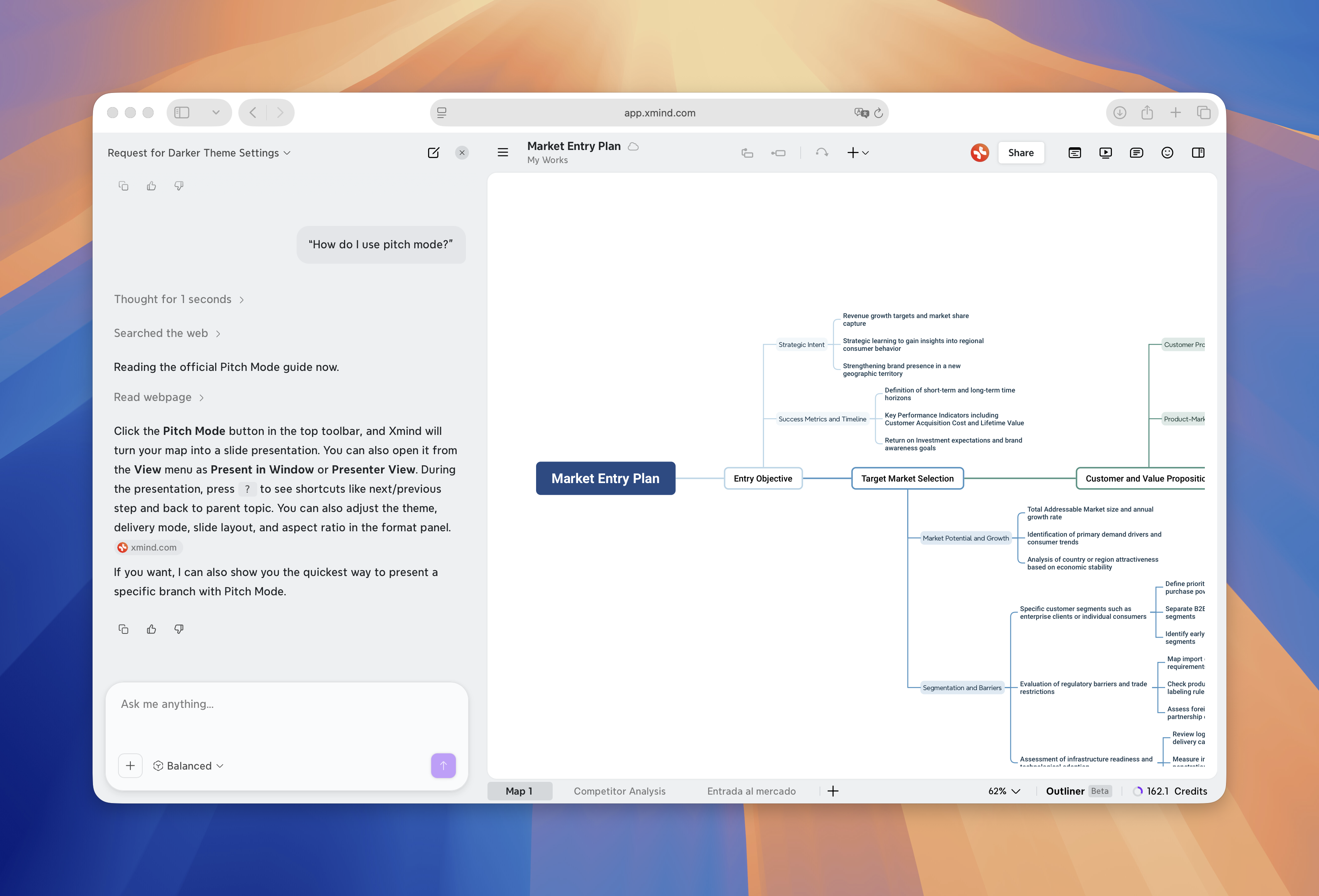
3.9 Gerencie seus chats
Você pode iniciar vários chats para o mesmo mapa mental. Isso é útil quando você deseja explorar diferentes tarefas ou direções sem misturar tudo em uma conversa longa.
-
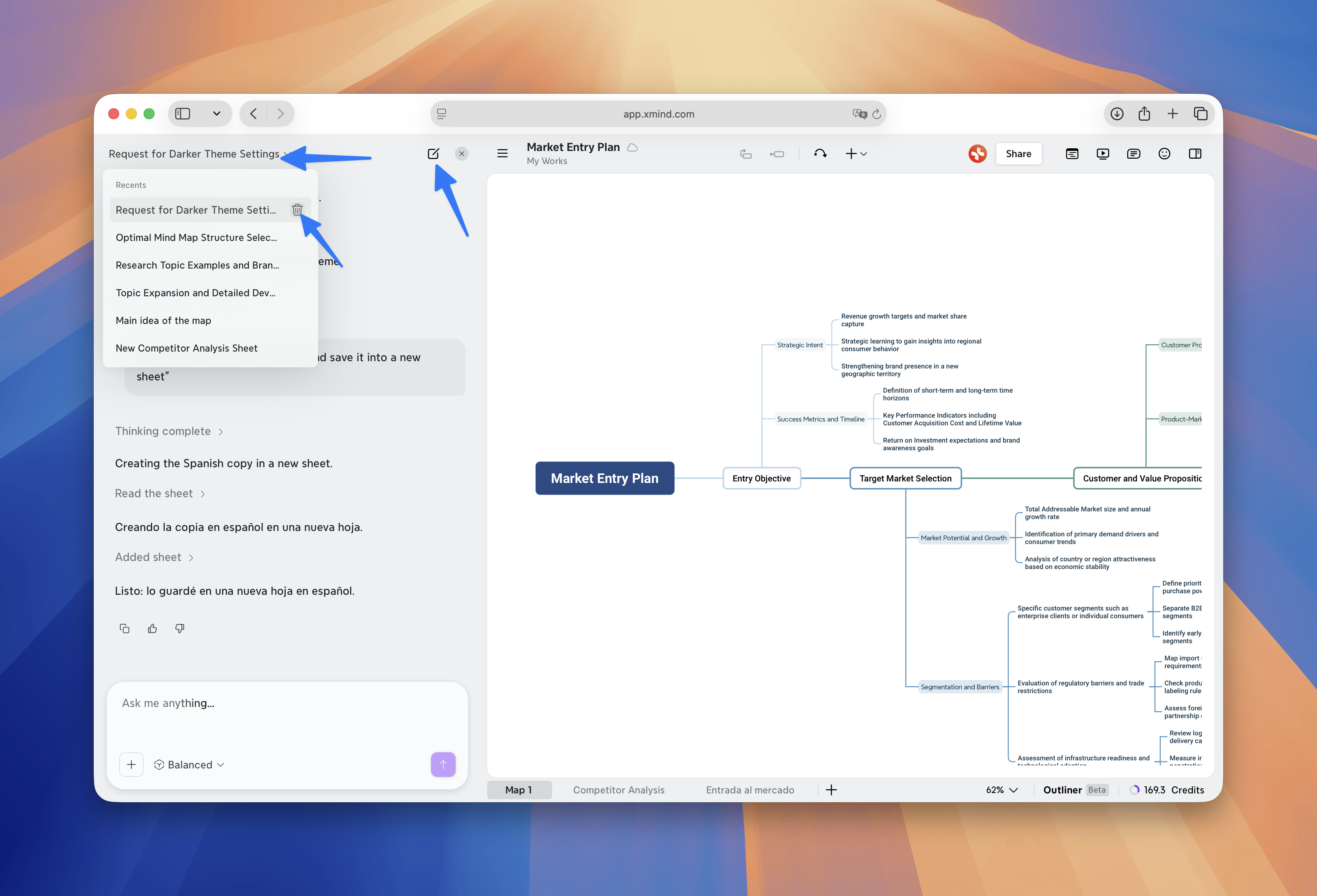
Para iniciar um novo chat, clique no botão novo chat no canto superior direito do painel do chatbot.
-
Para alternar entre chats, clique no título do chat no canto superior esquerdo e escolha uma conversa anterior na lista.
-
Você também pode excluir os chats com o Xmind AI.
💡Notas: o Xmind AI está disponível apenas para mapas nos quais você tem permissão de edição. Seus chats são privados e não ficarão visíveis para colaboradores.
4 Dicas para prompts melhores
Para obter resultados mais precisos, inclua três coisas no seu prompt:
1. O objeto sobre o qual você quer que o Xmind AI trabalhe
Por exemplo: “este mapa”, “este tópico”, “o ramo Análise de Mercado” ou “a folha atual”.
2. A ação que você quer que o Xmind AI execute
Por exemplo: “expandir”, “reorganizar”, “reescrever”, “excluir”, “traduzir” ou “criar tarefas”.
3. O resultado que você deseja
Por exemplo: “deixe pronto para apresentação,” “organize em três etapas,” “adicione ao mapa atual” ou “crie um documento no Notion.”