















用户

指南

一个简单的角色,圆圆的头,橙色的身体,手里拿着一本打开的书,专注于阅读。
用户指南

搜索指南、功能和工作流程

Gray downward arrow icon.

入门指南

Gray downward arrow icon.

Xmind 基础

Gray downward arrow icon.

丰富一个主题

Gray downward arrow icon.

样式思维导图

Gray downward arrow icon.

应用全球格式

Gray downward arrow icon.

浏览和查看

Gray downward arrow icon.

与文件共事

Gray downward arrow icon.

共享与协作

Gray downward arrow icon.

管理你的团队

Gray downward arrow icon.

探索高级功能

Gray downward arrow icon.

您可能会问的问题

AI工作分解

AI Work Breakdown 可帮助你根据输入内容,快速将项目想法转化为结构化计划,并自动生成子任务、优先级和时间线。

如何在 Xmind 中使用 AI 工作分解

在网页端

从主页开始:

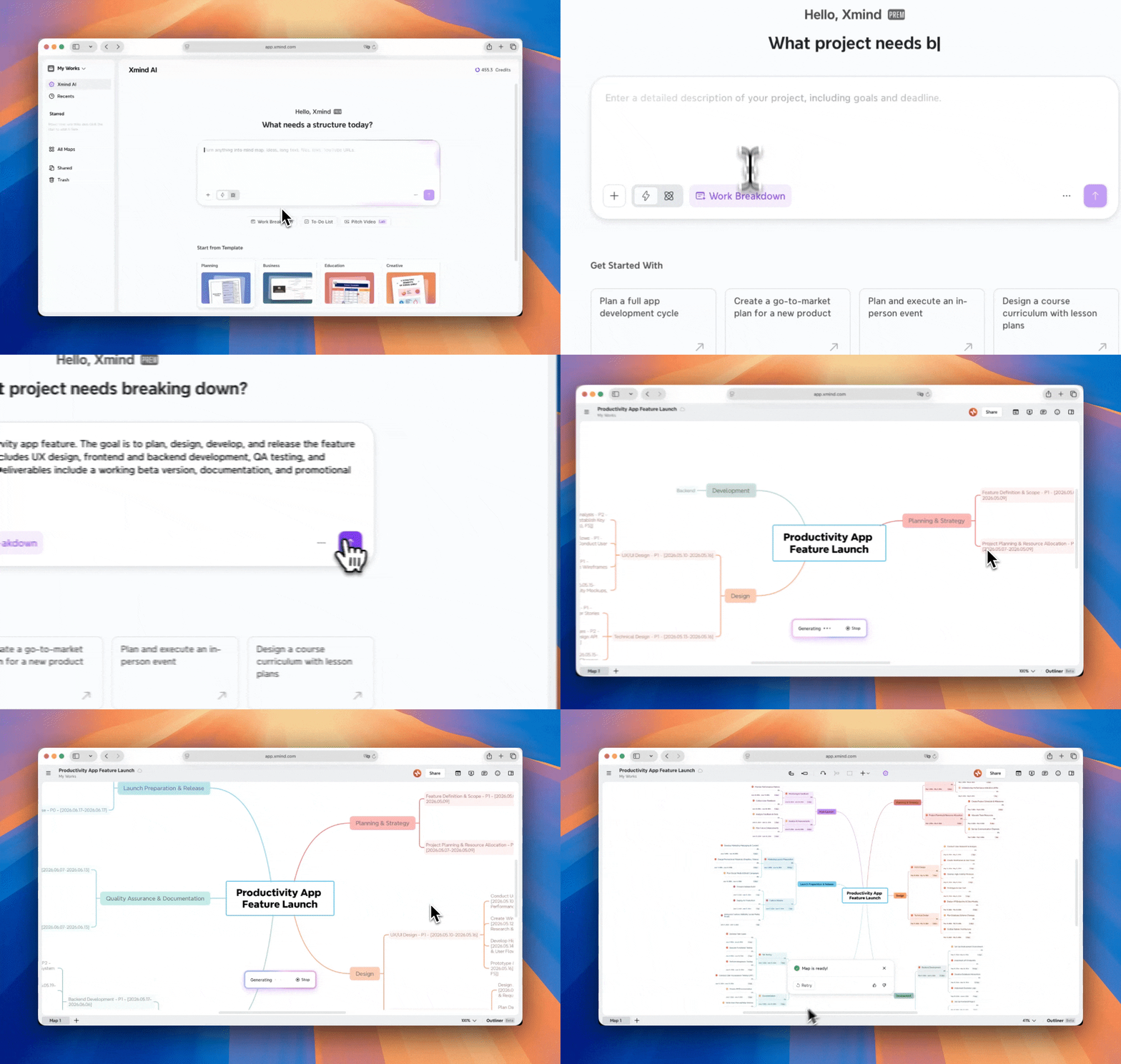
1️⃣ 前往 侧边栏 > Xmind AI,或进入 新建 > 使用 AI 创建

AI mind map generation interface on a websiteAI project planning tool interface and options

2️⃣ 点击 工作分解,您可以使用预设提示词,或输入自己的项目描述并上传相关材料。

3️⃣ 点击 生成 开始。

AI tool for creating mind maps: breakdown your work task with Xmind AI


在思维导图中:

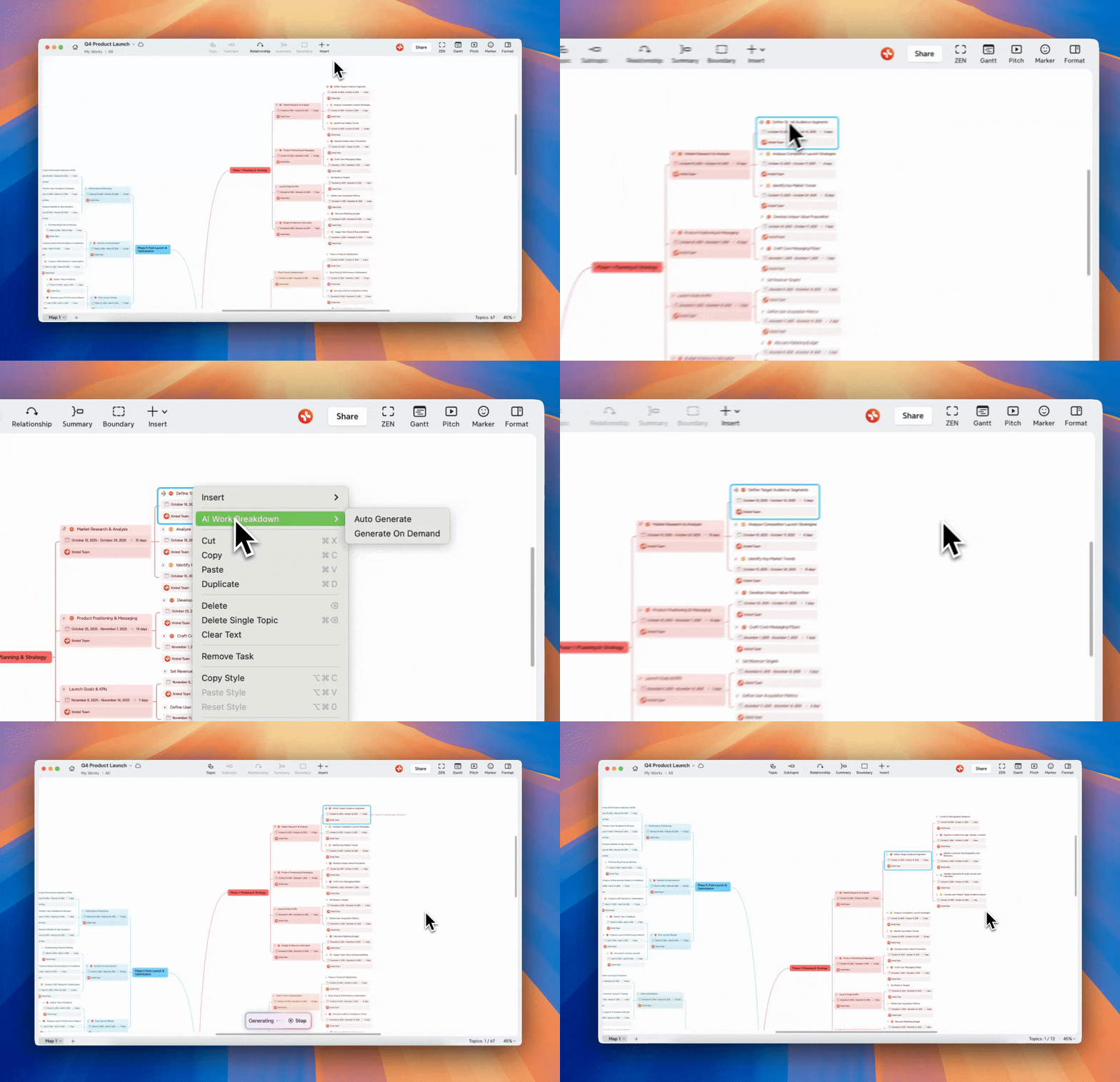
在 Xmind 网页版中激活 AI 工作分解有 2 种方式:

1️⃣ 右键单击任一主题并选择 工作分解,然后选择 自动按需

AI project planning tool interface screenshot

2️⃣ 选中一个主题,点击工具栏中的 AI 图标,然后选择 工作分解(自动 / 按需)。

AI project management workflow diagram

在桌面应用中

从主页开始:

1️⃣ 前往 侧边栏 > 使用 AI 创建

AI project planning interface with recent maps

2️⃣ 输入项目描述并添加任何相关材料,无论是链接、文件还是 YouTube。

3️⃣ 选择 工作分解,然后点击 生成 开始。几秒钟内,您的项目将被转化为具有清晰结构和细节的可执行任务。


在思维导图中:

  • 右键单击任一主题并选择 AI 工作分解

  • 选择 自动(即时分解)或 按需(按需生成)。

Project planning interface with tasks and timelines

在 iOS 上

1️⃣ 打开 Xmind,然后点击 AI 图标以在 iOS 上激活 AI Lab

2️⃣ 选择 工作分解,输入项目描述,并附加任何相关材料。

3️⃣ 点按“”开始。

AI work breakdown tool user interface images

在思维导图中,您也可以轻点某个特定主题,并选择 AI 工作分解进行进一步分解。

Menu of project management options displayed on screen

用户

指南

用户指南

搜索指南、功能和工作流程

Xmind 徽标 - 思维导图和头脑风暴工具

功能

解决方案

资源

Xmind 徽标 - 思维导图和头脑风暴工具