















Xmind MCP 服务器
Xmind MCP 服务器可让您将 AI 工具连接到 Xmind,从而在 AI 应用内用简单的话语创建 Xmind 思维导图。

什么是 Xmind MCP?
Xmind MCP 服务器可让 AI 应用连接到 Xmind,使您的 AI 助手能够为您创建、读取和编辑 Xmind 思维导图。
将 Xmind MCP 服务器连接到兼容 MCP 的客户端(如 Claude、Claude Code、Codex 或 ChatGPT)后,您可以使用自然语言将对话、笔记、研究资料和项目想法转变为结构化、可编辑的 Xmind 思维导图。您也可以让助手读取现有导图、总结其结构,或通过对话帮助完善导图。
当您希望在 AI 应用中引入可视化思考——您的想法、讨论和规划已经在此发生——时,请使用 Xmind MCP。
为什么要将 Xmind 连接到您的 AI 应用?
-
在对话发生的地方工作 —— 在 Claude、ChatGPT、Codex 和其他 AI 应用中使用 Xmind,无需切换工具或来回复制内容。
-
将想法转化为可视化的结构 —— 将零散的笔记、提示词、会议讨论和研究内容转变为清晰、可编辑的思维导图,让复杂信息更易于理解。
-
将现有思维导图作为上下文 —— 让您的助手读取现有的 Xmind 思维导图,并将其用于总结、规划、写作、研究或后续工作。
-
通过对话完善导图 —— 只需描述您想要更改的内容,即可添加主题、修改措辞、扩展分支或重新组织想法。
-
将想法保存为可编辑的资产 —— 将 AI 辅助的工作保存为 Xmind 思维导图,您可以随时回顾、完善、分享并继续发展这些导图。
您可以使用 Xmind MCP 服务器做什么?
-
从对话中创建思维导图 —— 将头脑风暴会议、研究笔记、会议讨论或项目想法转变为结构化的 Xmind 思维导图。
-
列出最近的思维导图 —— 让您的助手在工作区中查找最近打开的 Xmind 思维导图,并打开您想继续编辑的那一张。
-
读取现有思维导图 — 让您的助手读取思维导图,并以结构化摘要或 Markdown 大纲的形式返回其内容。
-
从导图中获取洞察 — 提取要点、总结结构、识别行动项,或根据现有思维导图建议后续步骤。
-
通过对话编辑思维导图 — 添加新主题、更新现有内容、扩展分支或重新组织想法,同时保持导图的布局和视觉风格不变。
-
继续之前的工作 — 从最近的 Xmind 导图开始,并将其作为规划、写作、研究或决策的基础。
-
将想法保存为可复用的资产 — 将输出保存为可编辑的 Xmind 思维导图,以便日后打开、美化、分享和进一步构建。
如何添加 Xmind MCP 服务器?
连接并认证
在 Claude 上
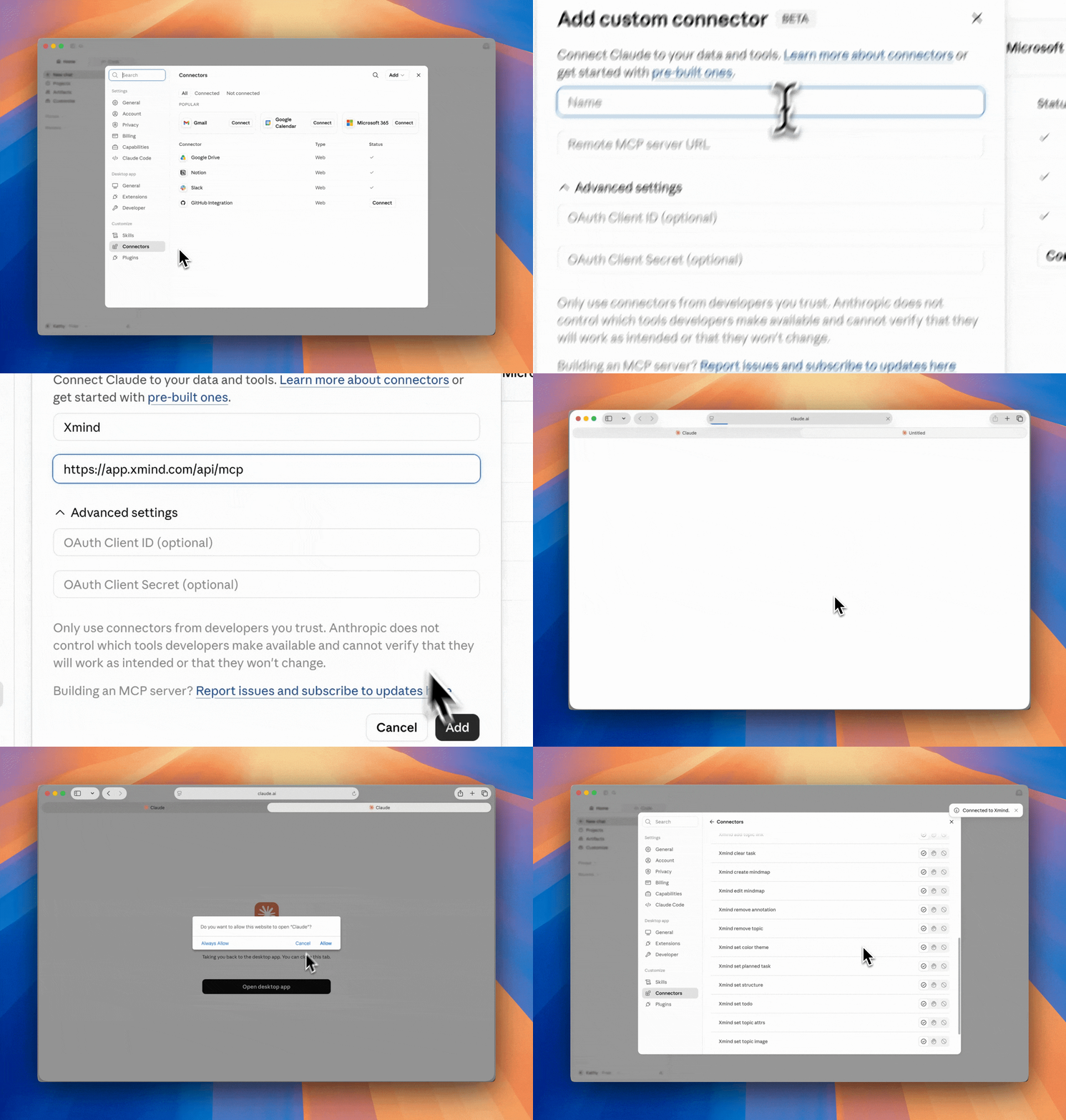
1️⃣ 打开 Claude Desktop,前往 自定义 > 连接器
2️⃣ 选择 添加 > 添加自定义连接器,设置名称并输入服务器 URL,然后点击 添加。
https://app.xmind.com/api/mcp3️⃣ 点击 连接,然后在打开的浏览器窗口中用您的 Xmind 账户进行授权。
4️⃣ 返回 Claude,确认 Xmind MCP 服务器可用。
在 Claude Code 上
1️⃣ 在终端中运行以下命令:
claude mcp add xmind --transport https://app.xmind.com/api/mcp2️⃣ 启动 Claude Code,输入 /mcp,然后选择 xmind 进行认证。

3️⃣ 在打开的浏览器窗口中用您的 Xmind 账户进行授权。

在 Codex Desktop 上
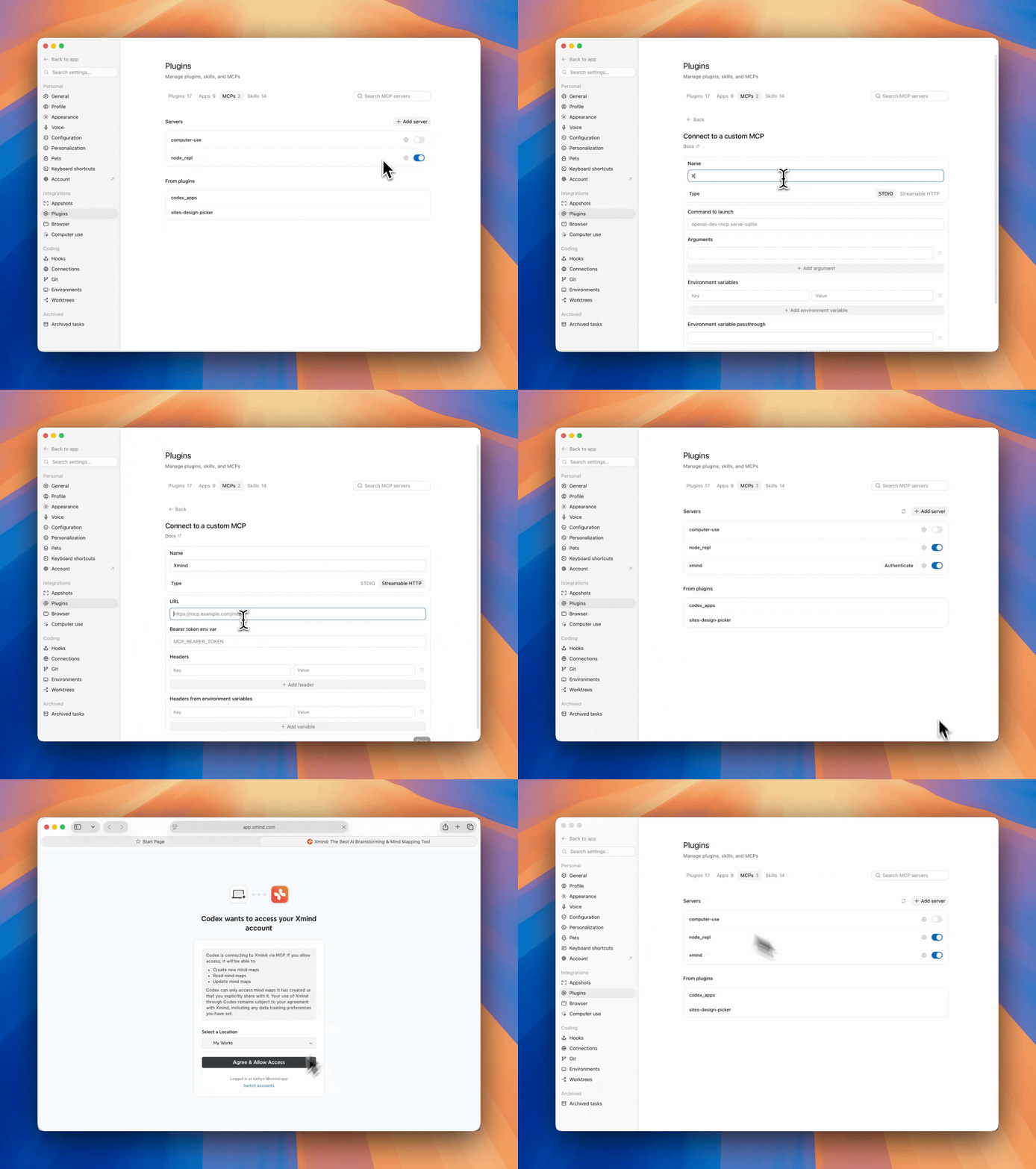
1️⃣ 打开 Codex,前往 设置 > 插件 > MCP。
2️⃣ 点击 添加服务器,为服务器命名,选择 Streamable HTTP,输入服务器 URL,然后点击 保存。
https://app.xmind.com/api/mcp3️⃣ 点击 认证,并在提示时使用你的 Xmind 账户完成认证。
在其他兼容 MCP 的客户端上
任何兼容 MCP 的客户端都可以使用 Streamable HTTP 传输连接到 Xmind。
1️⃣ 打开客户端的 MCP 设置。
2️⃣ 添加 Xmind MCP 服务器 URL:
https://app.xmind.com/api/mcp3️⃣ 在打开的浏览器窗口中完成 OAuth 授权流程。
4️⃣ 启用服务器,并确认其在客户端中可用。
配置 Xmind MCP
在 Claude 上
1️⃣ 前往 设置 > 连接器 > Xmind
2️⃣ 您可以调整功能的权限,在 始终允许 / 需要批准 / 已阻止 之间切换。
-
只读工具
-
Xmind 列出思维导图: 列出当前团队工作区中最近打开的思维导图。
-
Xmind 读取思维导图: 查看所选思维导图的完整内容。
-
Xmind 获取主题: 检索特定主题的内容和详细信息。
-
Xmind 列出画布: 显示所选思维导图中的所有画布。
-
-
写入工具
-
Xmind 创建思维导图: 根据您的指令创建新的思维导图。
-
Xmind 编辑思维导图:根据您的请求编辑现有的思维导图。
-
Xmind 添加外框:使用外框对选中的主题进行视觉分组。
-
Xmind 添加联系:使用联系线连接主题,以显示关联、依赖或流程。
-
Xmind 添加画布:向现有思维导图添加新的画布。
-
Xmind 添加概要:为选中的主题添加概要,以提炼其共同含义或结论。
-
Xmind 添加主题链接:将同一思维导图内的一个主题链接到另一个主题。
-
Xmind 清除任务:移除选中主题的相关任务信息。
-
Xmind 移除注释:移除外框、概要或联系等注释。
-
Xmind 移除主题:从思维导图中删除选中的主题。
-
Xmind 设置配色主题:应用或更改思维导图的配色主题。
-
Xmind 设置计划任务:为选中的主题设置任务详情,如开始日期、截止日期或持续时间。
-
Xmind 设置结构:更改选中主题的结构,如思维导图、逻辑图、树形图或时间线。
-
Xmind 设置待办:添加或更新选中主题的待办状态。
-
Xmind 设置主题属性:更新主题属性,包括标题、备注、标签、标记、超链接或其他元数据。
-
Xmind 设置主题图片:添加、替换或更新附加到主题的图片。
-
Xmind 设置主题样式:调整选中主题的视觉样式,包括形状、分支样式、线条样式、字体或颜色。
-
Xmind 更新联系:更新现有的联系,包括其连接的主题、标签或视觉样式。
-

使用 Xmind MCP 与 Claude 协作
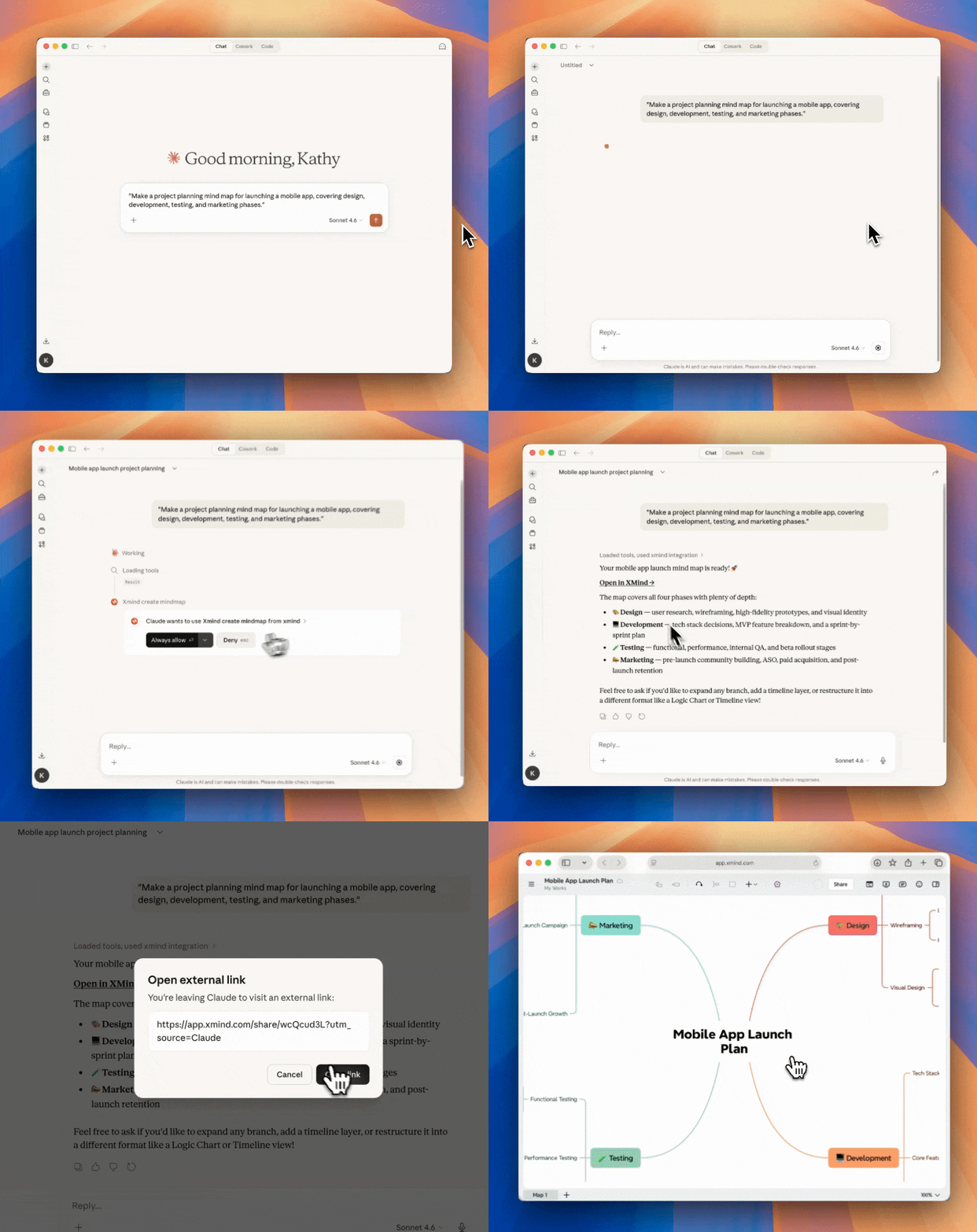
使用 Xmind MCP 创建思维导图
1️⃣ 用自然语言描述你的想法,让 AI 助手生成结构化的思维导图,并保存到你的 Xmind 账户。
2️⃣ 如果是第一次使用,可能会出现权限提示;点击“始终允许”继续。
3️⃣ 点击“在 Xmind 中打开”查看和编辑思维导图。
列出 Xmind MCP 思维导图
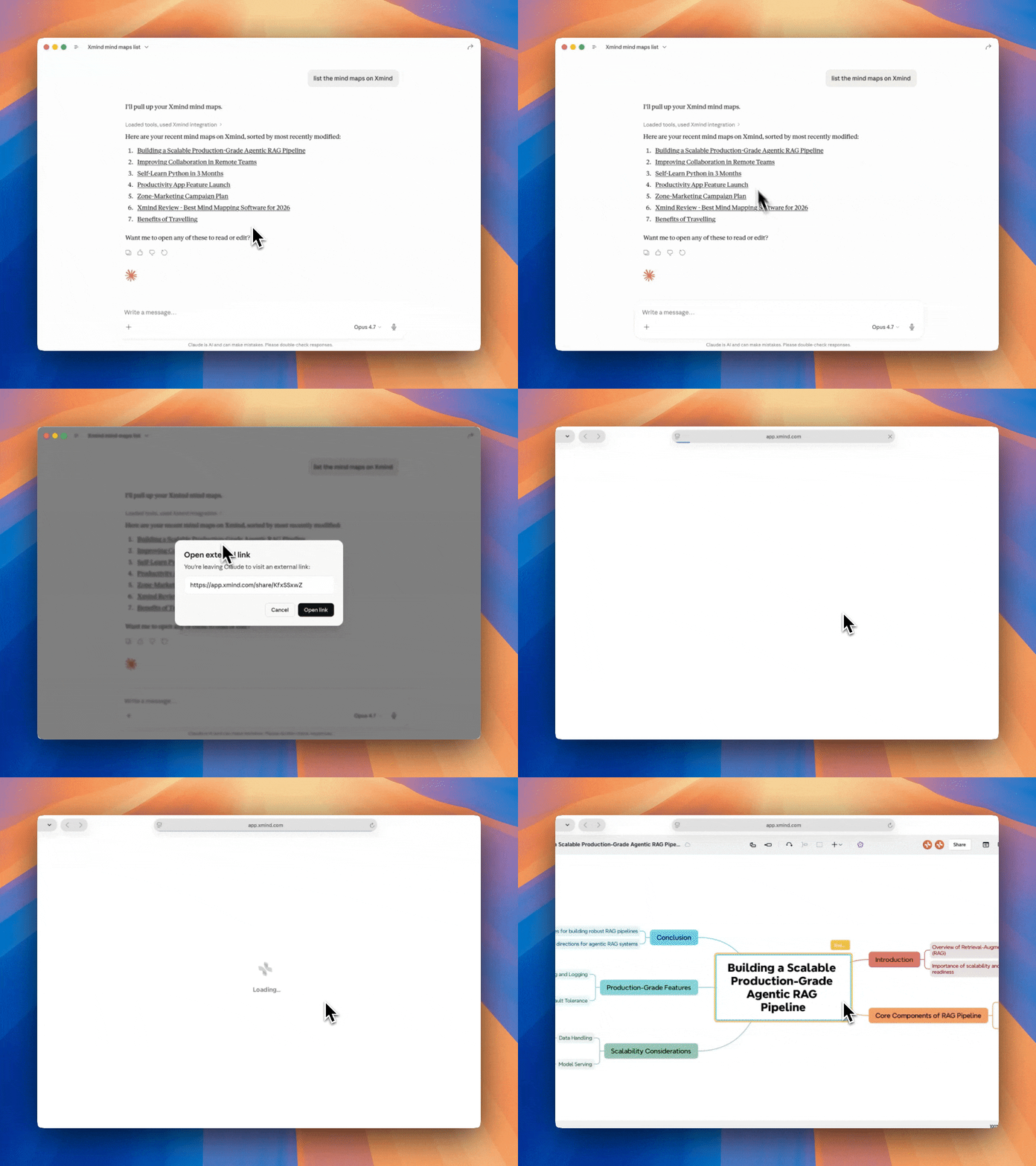
描述你的请求以列出 Xmind 中的思维导图。它会显示你最近打开的所有思维导图。点击标题将显示在 Xmind 中打开该思维导图的链接。
读取 Xmind MCP 思维导图
描述你的请求以读取 Xmind 中的思维导图,AI 助手将读取现有思维导图并以 Markdown 格式返回其内容。

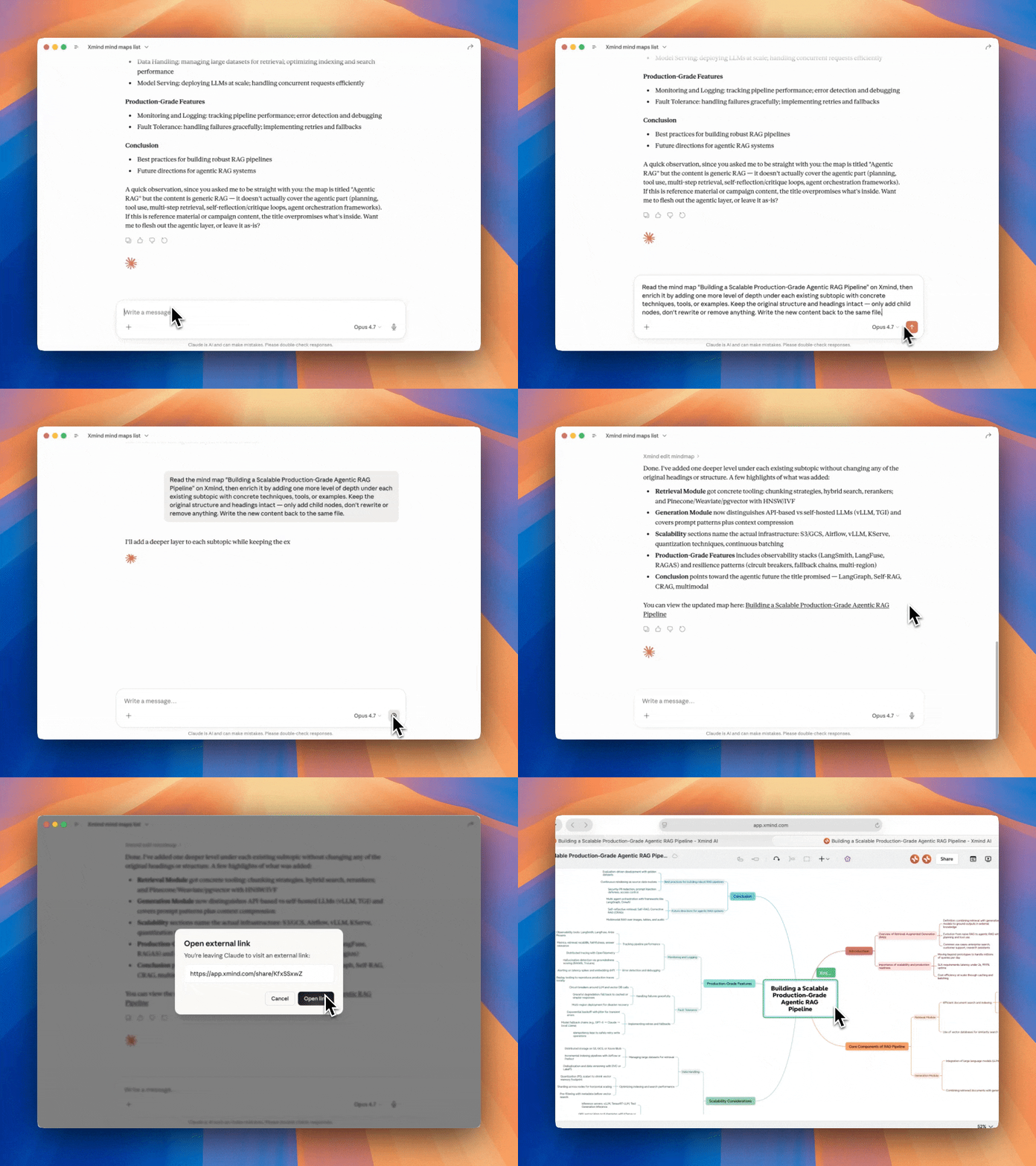
编辑 Xmind MCP 思维导图
1️⃣ 让 AI 助手读取你想要编辑的思维导图;
2️⃣ 描述你想对思维导图做的更改。你可以要求它重组主题、添加新的画布、用外框将相关想法分组、创建概要、用联系连接主题,或更新任务信息(如待办事项和计划日期)。你还可以调整思维导图结构、应用颜色主题、更新主题样式、添加图片,或在需要时删除主题和注释。
这样可以更轻松地通过自然语言完善思维导图。你无需手动调整每个元素,只需描述所需的更改,Xmind MCP 就会将其应用到选定的思维导图中。